How do I set up a Microsoft Teams Shared Channel?
Last updated: August 28, 2026
Required Permissions
Verify the following permissions before attempting to create a shared channel.
You must be assigned to a Teams Policy with the "Create shared channels" and "Invite external users to shared channels" permissions enabled. You can manage your Teams policies from the Teams Admin Center
You must be an Owner of the Team (in your tenant) from which you'll create the shared channel.
The users you'll invite from the external organization must (in their Teams configuration) be assigned to a Teams Policy with the "Join external shared channels" permission enabled.
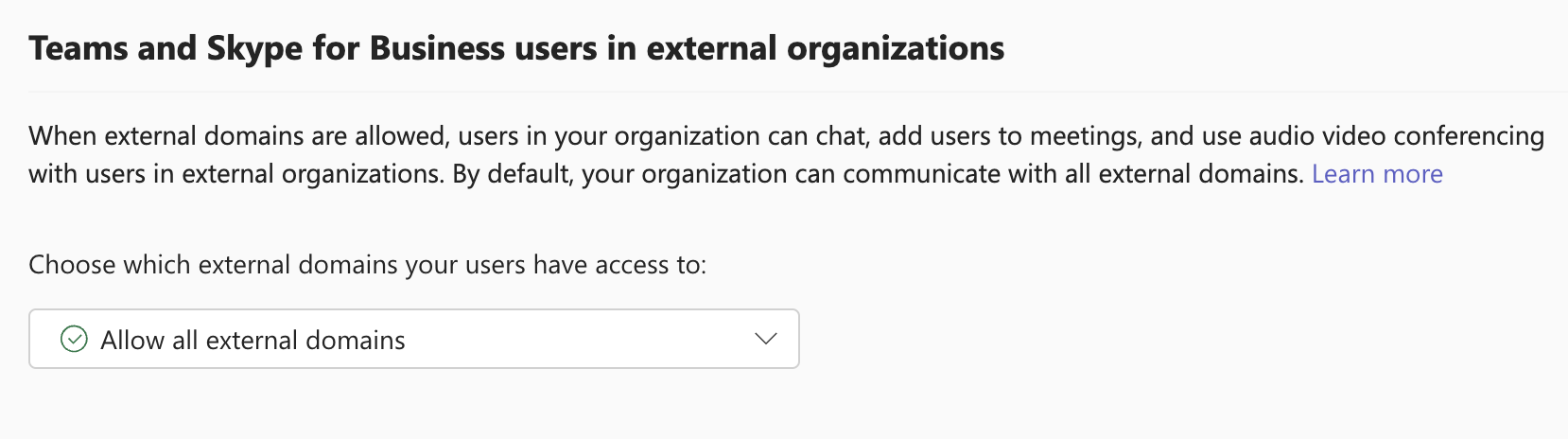
In the Teams Admin Center, verify the external organization is not blocked. If you use a whitelist, this means they should be on the whitelist. If you use a blacklist, they should not be on the blacklist:
You'll need to set up Microsoft Entra ID B2B direct connect. The process is detailed in this Microsoft documentation. It's rather involved and requires actions to be taken for both your tenant and the tenant of the external organization you'll be sharing a channel with. For both sides, this process is handled through the Microsoft Entra ID Admin Center.
You'll need to add your customer's org and configure inbound settings. Your customer will need to add your org and configure outbound settings. Adding orgs and configuring these settings are documented in the above linked Microsoft documentation, but it'll require someone with Security Administrator permissions for Teams from both your side and the customer's.
Required Permissions
Verify the following permissions before attempting to create a shared channel.
Important Limitation: You can only add the Pylon app to shared channels that originate from your own tenant. If you are invited to join a shared channel that was created by your customer's organization, you will not be able to add the Pylon app from your side. The shared channel must be created from your tenant, and you must be an owner of the team to integrate with Pylon.
Video Guide for B2B Direct Connect Setup
Debugging B2B Direct Connect issues
If you believe you and your customer have set up B2B direct connect properly, but you're still unable to invite them to your shared Teams channel, you can use the diagnostic tool offered by Microsoft. Note that you'll need to be an admin for your Teams tenant to use this tool. And you'll need to know the email & tenant domain for the user you're trying to invite.
We've also created this doc intended to be shared with your customers to help them set up the necessary permissions in their tenant:
📄 What steps should my customer take to enable Teams Shared Channels to work with Pylon?
Shared channel setup steps
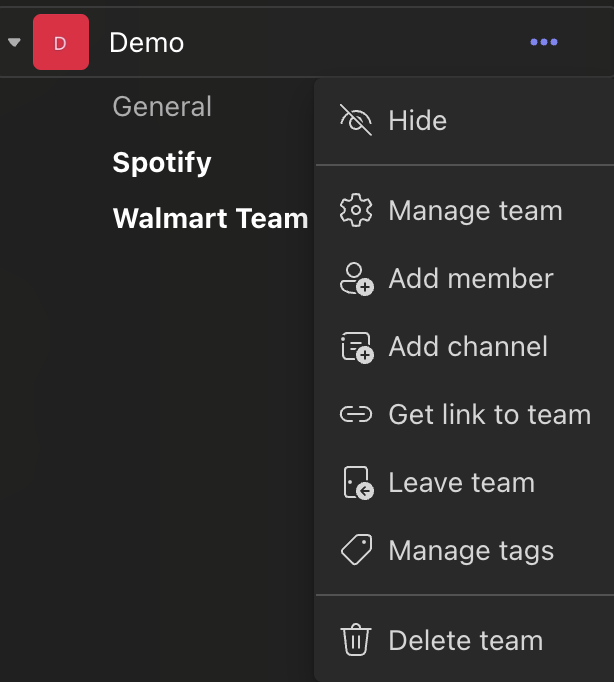
Go to the "More options" dropdown next to the Team name, and select "Add channel":
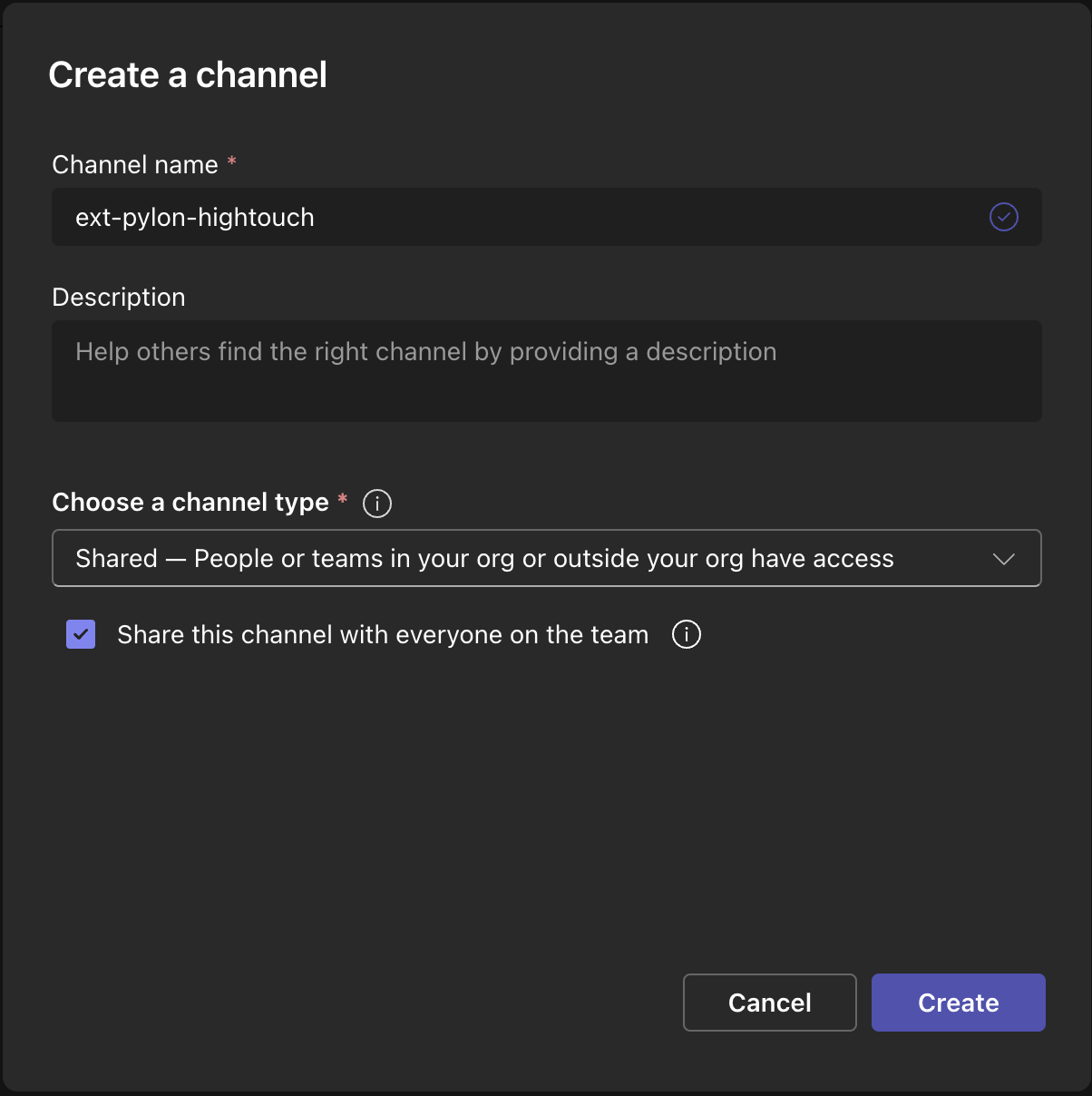
In the modal that appears, fill out the channel name, and be sure to choose "Shared" as the channel type. If "Shared" does not appear as an option, please verify you have the required permissions from steps 1 and 2 of Required Permissions above.
IMPORTANT: Be sure to select 'Share this channel with everyone on the team' during this step.
In the next modal, you'll be prompted to invite external users. Invite them using the email address or UPN they use to sign in to Teams. The cross-tenant B2B direct connect setup is done per external organization, so you will need to complete it for each customer org you want to share channels with. If you see the message "You can't share this channel with people from this org", verify that you've completed steps 3-5 from Required Permissions, confirm you're using the recipient's Teams sign-in identity, and note that recent Entra ID changes can take time to propagate before invites will work.
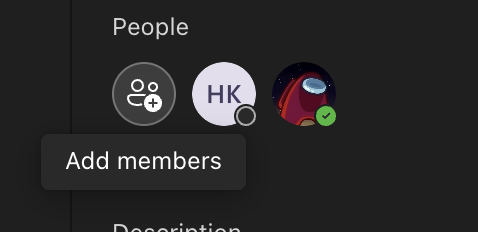
At any time, you can add more users from the external (customer) organization using the "Add members" button in the channel sidebar:
Important: After creating the shared channel, you must share it back to your own team. Open the shared channel menu, choose "Share channel" → "Share with a team you own" → select the same team that owns the channel → "Done". This step is required for Pylon to route messages through the integration user.
Install the Pylon app on the parent team
Microsoft Teams doesn't allow installing apps directly into shared channels. You must install the Pylon app on the parent team first:
In Microsoft Teams, open the Apps directory and find the Pylon app
Click "Open" or "Add"
When prompted to choose a channel, select any standard (non‑shared) channel in the team that owns the shared channel
Once installed on the team, the app will work for all channels including shared ones
Configure the integration user for shared channel messaging
Microsoft Teams shared channels do not support bot messaging, which means the Pylon bot cannot send messages directly into shared channels. To work around this, you need to configure an integration user — a dedicated Microsoft 365 account that Pylon will use to send messages on behalf of your team.
Important: Without an integration user configured, Pylon will not be able to send replies or automated messages into your shared channels. This step is required for shared channels to work fully with Pylon.
Step 1: Create an integration user
Create a dedicated user account in your Microsoft 365 Admin Center (e.g., pylon-integration@yourcompany.com). This account will be used solely by Pylon to send messages in shared channels and must have a paid Microsoft Teams Essentials license in order to send messages.
Step 2: Add the integration user to your shared channels
Add the integration user as a member to every shared channel where Pylon needs to send messages. The integration user must be a member of each channel individually — it will not work unless it has been explicitly added, either through a team or directly.
Step 3: Configure the integration user in Pylon
In Pylon, navigate to Apps Directory → Microsoft Teams. Under the Shared channel messaging section:
Grant admin consent — An Azure AD admin must sign in and check the "Consent on behalf of your organization" checkbox. This only needs to be done once.
Authenticate the integration user — Sign in as the integration user account you created in Step 1 to grant Pylon permission to send messages on its behalf.
When you create new shared channels in the future, remember to add the integration user as a member to those channels as well. Pylon will not be able to send messages in a shared channel unless the integration user is a member.