How can I set up Microsoft Teams <> Slack mirroring?
Last updated: January 13, 2026
Pylon supports mirroring from Microsoft Teams to Slack, meaning that all messages sent in a Microsoft Teams channel will be forwarded to the linked Slack channel, and vice-versa. This mirroring works regardless of whether or not a ticket is created in Pylon (for example, vendor messages in the mirror Slack channel will still be forwarded to Teams). Note that mirroring is only supported for Teams channels, not Teams group chats.
In order to set up Microsoft Teams <> Slack mirroring:
Either link an account from a Microsoft Teams channel or add a Microsoft Teams channel to an existing account.
Navigate to the Account Details page for the account.
Click on the Microsoft Teams channel in the "External Channels" section:

In the modal that opens, select the Slack channel you want to use as the mirror channel:
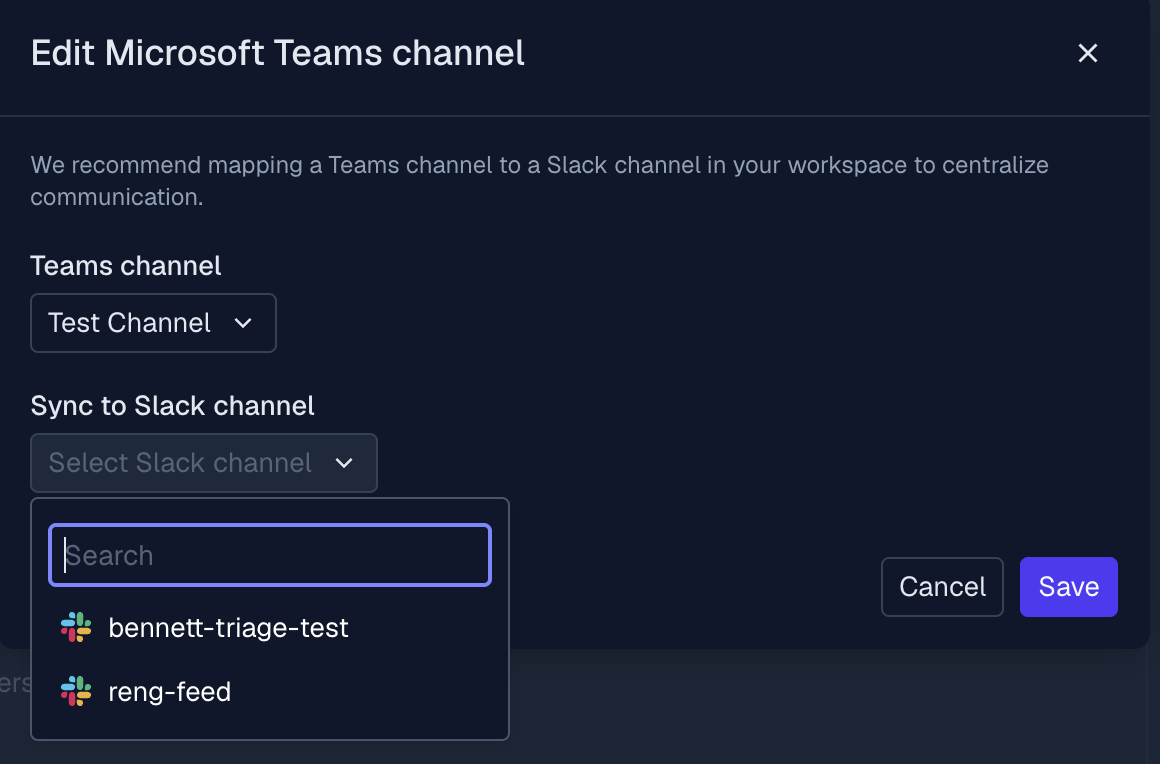
Save to complete the changes. Now, the external channels section should look like this:

Note: Mirroring is optional, and Teams channels can be used with Pylon without the need for a mirror Slack channel. To remove mirroring, simply go through the same process, but clear the "Sync to Slack channel" field and save.