How do I install the Microsoft Teams Integration?
Last updated: October 7, 2026
Make sure you have at least one seat of Microsoft Essentials ($4/mo) or higher before continuing.
The user that connects the integration will need the Teams Administrator role assigned to their user in the Microsoft 365 Admin center in order to authorize the connection.
Setup permissions in Teams
Go to the Microsoft Admin Portal and login
If you are unable to view this page, it means you are not an Admin. Ask your Admin to temporarily upgrade your permissions in order for you to complete this flow.
On the sidebar, click "Show All" and scroll to the bottom and click "Teams"
From inside the Teams Admin Portal, click "Teams Apps" in the left sidebar
Click on "Setup Policies"
Select "Global (Org-wide default)", which is typically the first policy in the table.
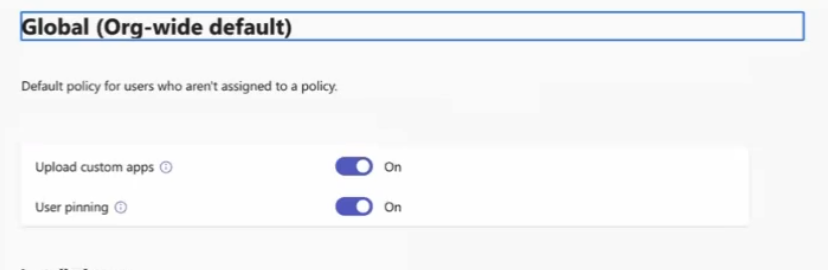
Toggle on the "Upload custom apps" toggle and hit Save at the bottom of the page
Authenticate from Pylon
Login to Pylon and under Settings > Integrations hit Connect on Microsoft Teams.
Log in to a Microsoft Teams account with administrator privileges for your desired Teams tenant.
Authorize the Pylon Teams application to use the necessary scopes.
Best Practice: Consider using a dedicated service account (rather than a personal account) to authenticate the integration. This prevents disruptions if the person who set up the integration leaves your organization. Your Teams admin can log into Pylon with the service account to complete the authentication.
Important Limitations
Note: The Pylon Teams app can only be added to teams and channels that originate from your own Microsoft Teams tenant. If you were invited to join a team from a customer's tenant, you will not be able to add the Pylon app from your side. You must be an owner of the team and the team must originate from your tenant to successfully install and configure the Pylon integration.
Troubleshooting
Messages from Pylon not appearing in Teams
If messages sent from Pylon are not appearing in your Teams channels or chats, you may encounter a "BotNotInConversationRoster" error. This typically happens when the Pylon bot loses proper permissions in the Teams conversation.
To resolve this issue:
Have the same user who originally set up the Teams integration log into Pylon
Go to `settings > Integrations and click on the Microsoft Teams tile
Click "Reauthorize" or "Connect" to refresh the integration permissions
Test sending a message from Pylon to confirm the issue is resolved
Note: The reauthorization must be done by the original user who set up the integration, as they have the necessary administrator privileges for your Teams tenant.
Now that the app is installed, you can move on to Setting up a Teams Channel (for channels) or How do I setup Pylon with Microsoft Teams chats (for group chats).
Once the app is installed and you've confirmed you have the necessary permissions for your teams/channels, you can move on to Setting up a Teams Channel (for channels) or How do I setup Pylon with Microsoft Teams chats (for group chats).