Testing flow E2E (Internal QA Mode → Full Support)
Last updated: October 30, 2026
Use three kinds of checks before launch: targeted Test sessions, repeatable Backtesting, and Internal QA on real issues. Then verify the complete customer-facing flow on a controlled Full support cohort.
1. Define expected results
Choose examples that cover a routine answer, an ambiguous request, a missing account value, a tool-dependent workflow, a required handoff, and a case that should not escalate.
For each, record the expected answer or next action, the source/context required, and whether the issue should remain with the agent or go to a teammate.
2. Use the Test page
Open your Support Agent and select Test.
Select Custom Chat or Existing Issues.
Choose the Test channel and relevant Test account; choose a contact when available and needed.
Enter or select the request and send it.
Review the response and displayed actions.
Use New Test to start a fresh case and recent-test history to return to an earlier session.
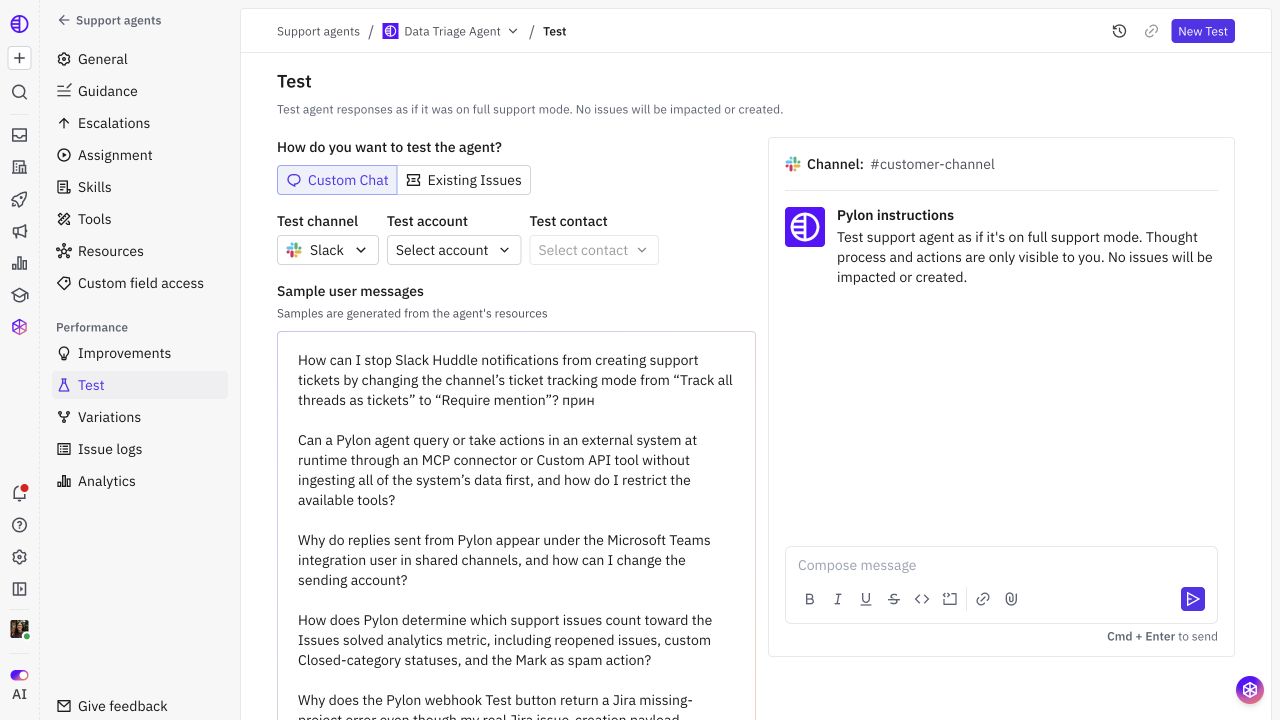
The Test page simulates the agent without creating or changing issues. Validate actual external-system effects separately on controlled records when required; do not treat a preview as proof of live delivery.
3. Compare configurations with Backtesting
Create a representative dataset and run the current configuration and candidate variation against the same cases. Keep the dataset and grading criteria fixed while comparing.
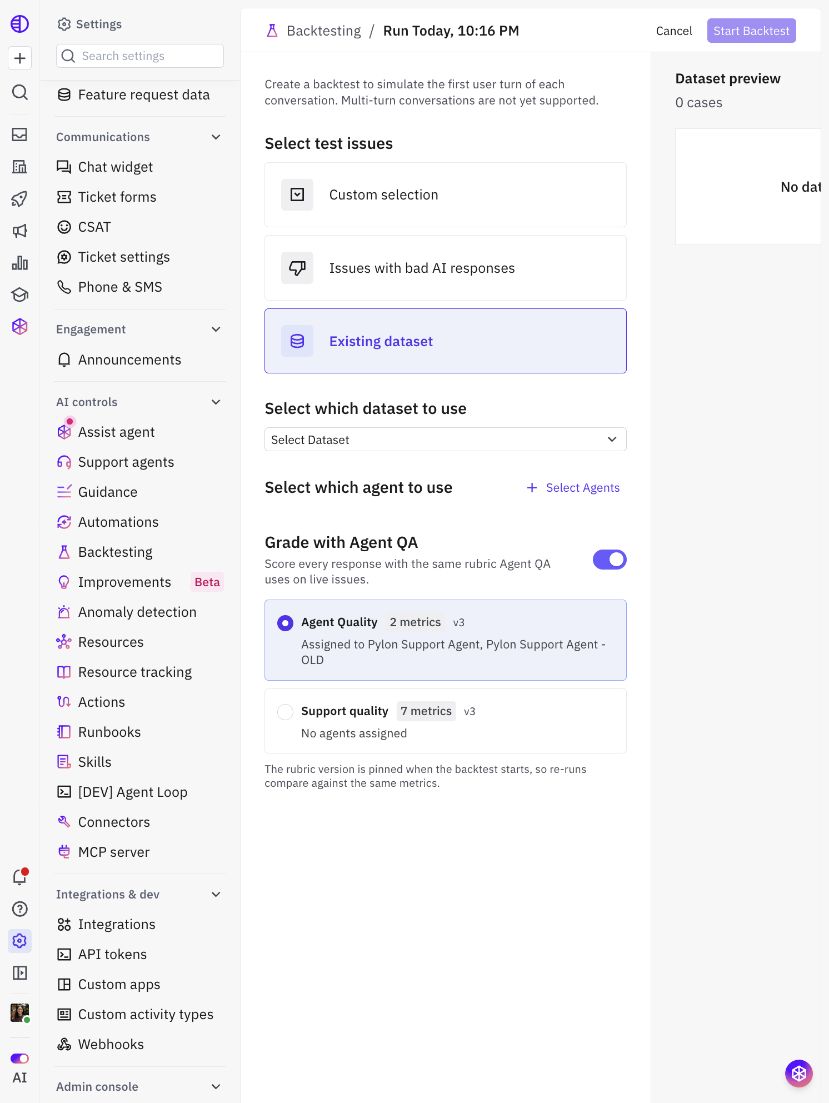
Backtesting evaluates the first user turn; multi-turn conversations are not yet supported in this batch workflow. Review generated responses and handoffs, not only aggregate scores.
4. Enable Internal QA on the intended scope
Open General > Agent mode > QA mode.
Choose the scope under Apply internal QA mode to.
Select Save.
Review internal sample responses on real matching issues and add actionable feedback.
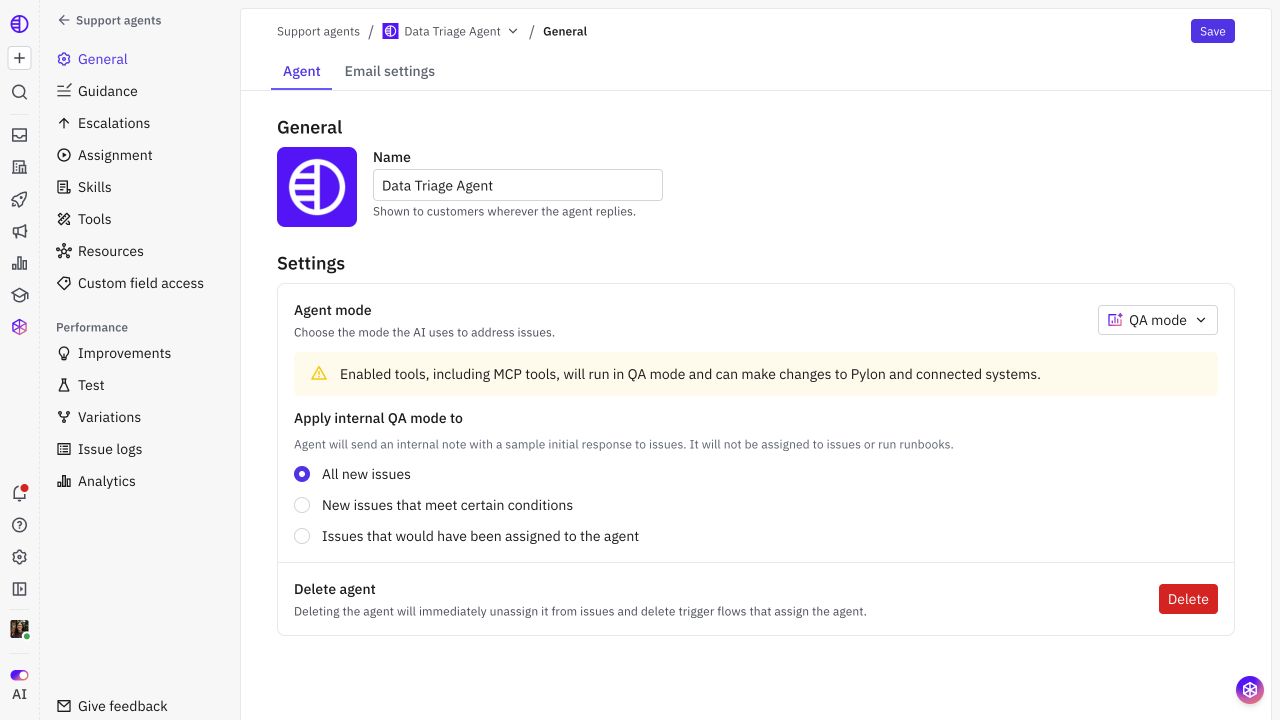
In QA, the agent is not assigned to the issue and the generated answer is an internal sample. A trigger that would assign the QA agent does not turn that sample into a customer reply.
Enabled tools can run against live systems in QA. Review write tools and use an appropriate scope; QA should not be treated as a blanket dry run for every connected action.
5. Test the complete Full support flow
For a small, intentional cohort, save Full support mode and enable the reviewed assignment trigger.
Create a controlled matching issue and verify:
The expected trigger assigns the issue to the agent.
The reply arrives in the intended customer thread.
The answer uses the expected current source and customer context.
Any permitted tool action has the intended actual result.
A required escalation sets the correct status, team/person, and customer message.
A nonmatching issue is not picked up by the assignment rule.
Test follow-up turns in this controlled flow, because first-turn batch evaluations cannot establish the entire conversation.
6. Record the result and decide
Capture the issue/test link, configuration, expected result, observed result, and decision. Fix one layer at a time: Resources, Guidance, Skills, Tools, field access, Escalations, or Assignment.