Issue Logs & Feedback
Last updated: October 30, 2026
Use Issue logs to review how your Support Agent handled real issues, understand why it responded or handed off, and choose the right configuration change. Pair the recorded outcome with the conversation and available activity; a label alone does not explain every decision.
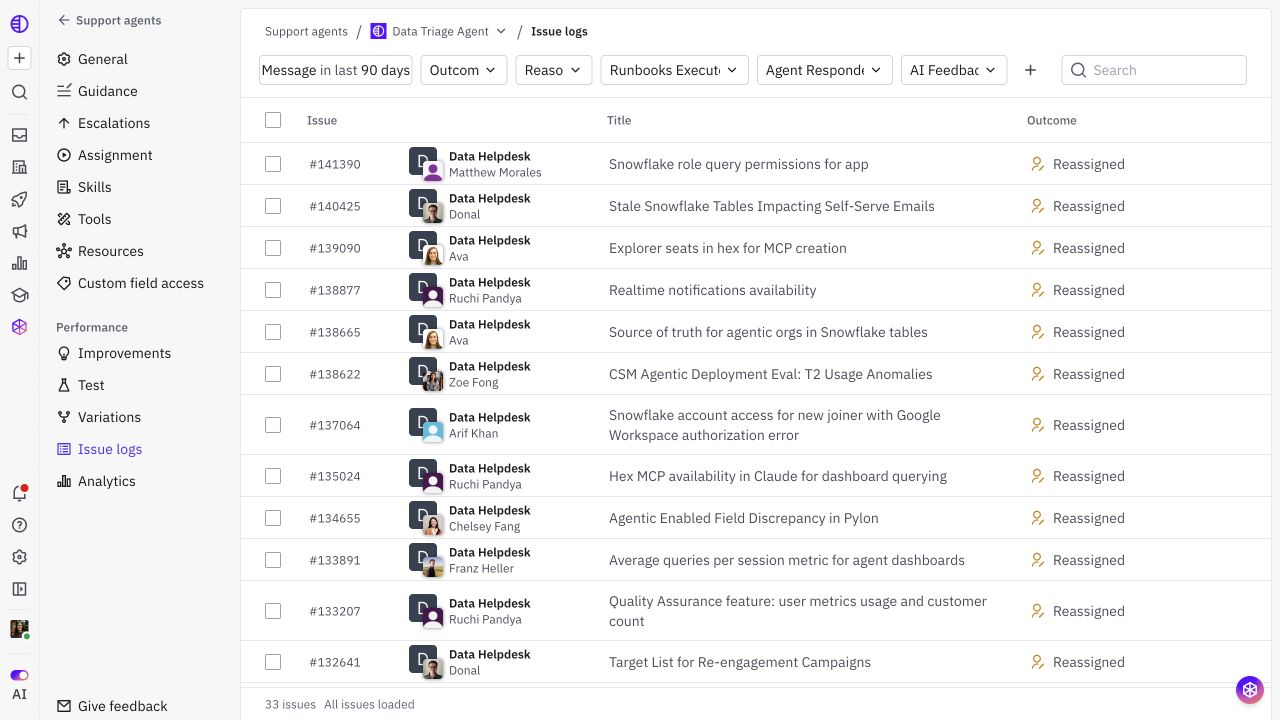
Open Issue logs
Go to Settings > AI controls > Agents and open your Support Agent.
Select Issue logs.
Set a date range and narrow the list using search and filters. Useful filters include Outcome, Reason, Agent responded, AI feedback, account, and issue source. Available filters depend on your workspace.
Open an issue to review its conversation and Agent recap.
The list includes the outcome, reason, whether the agent responded, feedback indicators, and last message time. Start with a focused group, such as issues with negative feedback or an unexpected handoff, then compare a few successful issues of the same type.
Read the outcome and reason together
The outcome describes the recorded result. The reason adds context about how that result occurred.
What you see | How to investigate |
|---|---|
Resolved | Review the reason and conversation. A resolved outcome can reflect a resolution or customer dropoff; it does not by itself prove the customer confirmed success. |
In progress | Check whether the conversation is still active before treating it as a completed result. |
Reassigned or Unassigned | Review the handoff reason and assignment/activity history. A teammate or trigger can interrupt the agent; not every handoff means the agent lacked knowledge. |
QA outcome | Review the internal sample response and expected handoff behavior. This is evidence about a test, not proof that the customer received the response. |
Hover over a reason when an explanation is available. In the issue sidebar, Agent recap shows the outcome and reason for outcome. Older records may use legacy terms such as runbook.
Review an issue in order
Read the customer's request and preceding conversation. Identify what the agent needed to know and what a correct response should have accomplished.
Inspect the actual response. Separate customer-facing replies, internal QA notes, and handoff messages. Check the message you are evaluating rather than relying only on Agent responded.
Review the outcome and activity. Look for a handoff, reassignment, teammate intervention, or error at the relevant point in time.
Check supporting evidence where available. Review source references, agent activity, and tool results shown with the issue. Check what information was actually available and whether a tool succeeded. If the UI does not expose enough detail, preserve the issue link and timestamp for further investigation.
Choose the layer to change. Use the table below before adding more instructions.
Current configuration can help reproduce a problem, but it does not prove which settings were active for an older response. Record the configuration or variation used when that information is available.
Add useful feedback
Use the thumbs-up or thumbs-down controls on the AI response you are reviewing. Add a reason or comment when prompted. In the issue sidebar, Your feedback shows saved response feedback; users with issue-writing permission can edit their feedback.
Write feedback that another reviewer can act on:
The answer says the feature is enabled, but the available account field is empty. It should describe availability as unknown and ask for the missing detail only if that changes the next step.
Include the specific claim or action that was wrong, what should have happened, and the evidence supporting that expectation. For a good response, explain which behavior should be preserved.
The AI feedback column can show both positive and negative indicators when different responses on the issue received different feedback.