How can I connect my own Teams account to Pylon?
Last updated: October 29, 2026
Send Microsoft Teams messages as yourself in Pylon
Connect your Microsoft Teams account to Pylon so that replies to Teams channel conversations appear from your own Microsoft identity instead of a shared bot account or integration user.
Before you begin
Your Pylon administrator must set up the Microsoft Teams integration.
Install and configure the Microsoft Teams integration in Pylon.
Grant Microsoft administrator consent for the integration.
For more details on how to set up the Teams integration, please reference the setup guide.
Connect your Microsoft Teams account
In Pylon, open Integrations → Microsoft Teams.
Find the Connected account section.
Click Connect Account.
Sign in with the Microsoft account you use for Teams.
Review and accept the requested Microsoft permissions.
After returning to Pylon, confirm that your account displays as Connected.
Use the Microsoft account associated with your Pylon profile. An account that is already connected to another Pylon user cannot be connected again.
What happens after connecting
When you reply to a supported Microsoft Teams channel conversation from Pylon:
Your message appears as sent by your Microsoft Teams identity.
Users who haven’t connected an account continue using the existing bot or integration-user behavior.
This applies to supported Teams channel conversations. You can also add and remove emoji reactions on Teams channel messages from Pylon, and they appear in Teams as you. Microsoft Teams chats continue using the existing bot behavior, and reactions on Teams chat messages are view-only in Pylon.
Troubleshooting
If you are unable to connect your account and encounter a 'Need admin approval' error message when going through the Microsoft authentication flow:
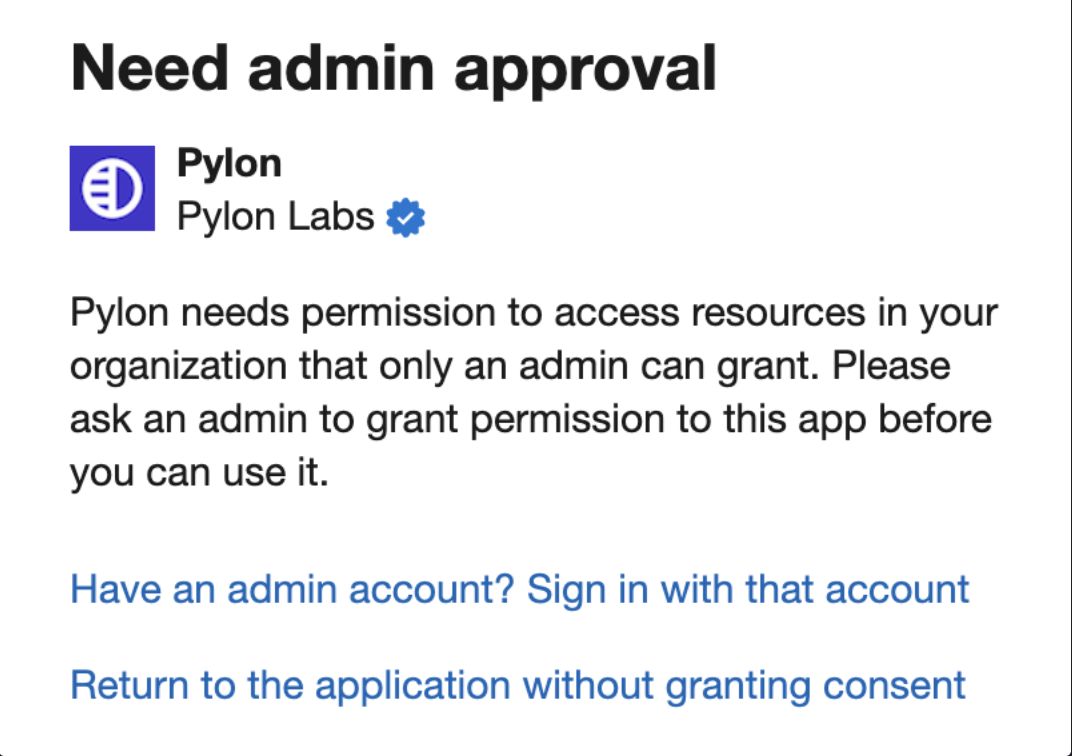
have your Teams Administrator go through the 'Update Admin Consent' flow on the Teams integration settings page and try again.
