Phone Support
Last updated: August 30, 2026
Phone Support in Pylon
Pylon's Phone feature enables your support team to handle inbound and outbound phone calls directly within your existing Pylon workflow. Rather than managing calls in a separate tool, phone conversations are treated as first-class issues — giving your agents full customer context, call transcripts, and AI-powered summaries alongside every other support channel.
Overview
With Phone, you can:
Receive and make calls directly from Pylon
Automatically create and associate issues with phone calls
Access call recordings and transcripts on each issue
Handle callbacks, voicemails, and call transfers
Set support hours to manage call routing outside business hours
View phone call data in your analytics dashboards
Set up Phone
If you do not see the following options in your organization, Phone & SMS most likely is not enabled for your organization. You must reach out to your AE or CSM to have the Phone functionality enabled for your organization.
Phone is an add-on feature ($35/user/month).
Note: During trial periods, you can add phone numbers to test Phone and SMS functionality without being charged.
Go to Settings > Phone & SMS
In the upper-right-hand corner, click Add Phone Number
You can port in an existing number or add a new number
Once you add a new number, you should be able to click into it and view this page
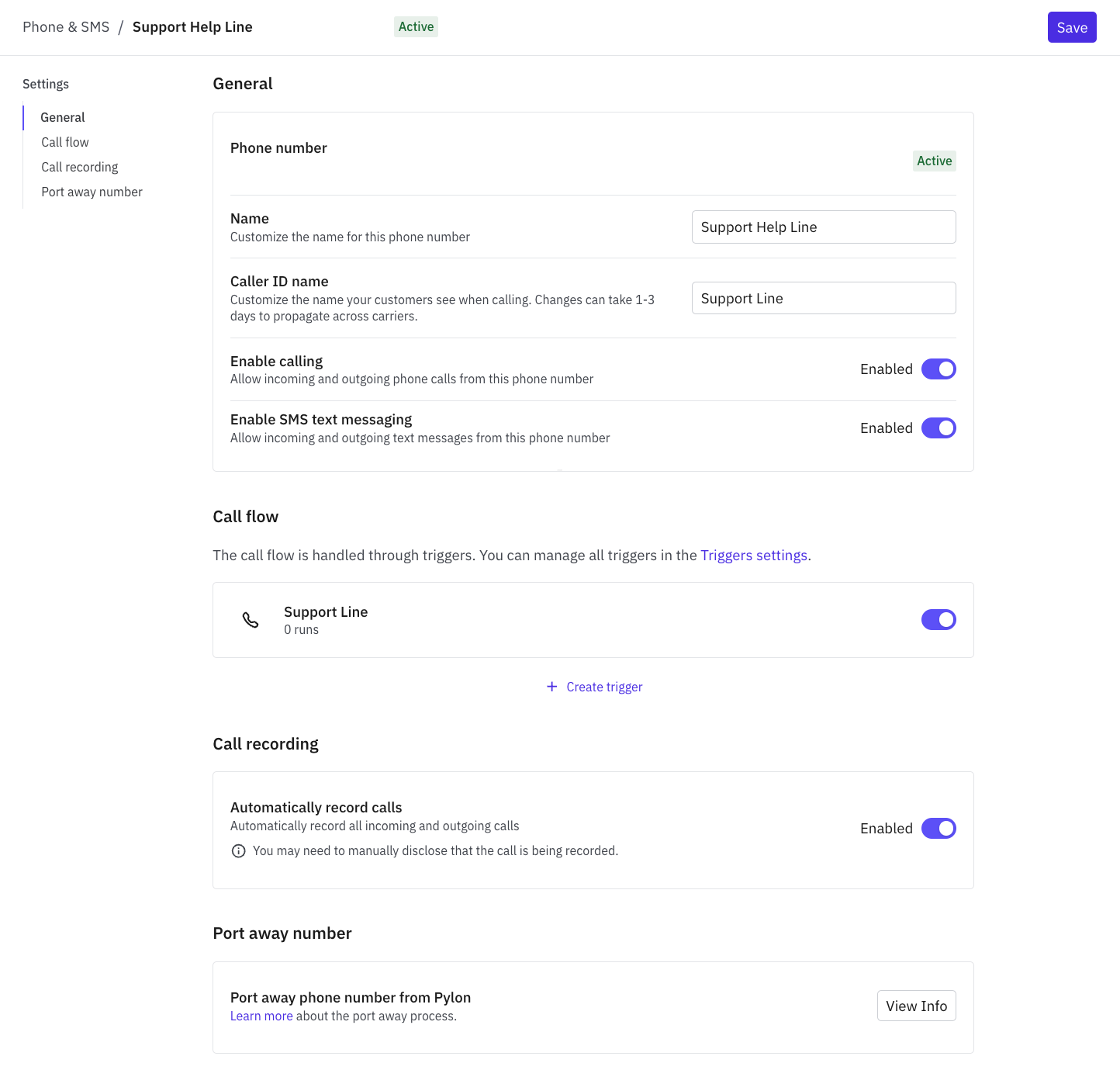
Name: What you have named the phone line (internal)
Caller ID Name: This is what will show up on customers phones when a Pylon user is calling them
Enable Calling: Whether you want this number to be able to make & receive calls
Enable SMS text messaging: Whether you want this number to be able to make & receive texts
Note: If you want to be able to send text messages, you need to go through the 10DLC process available in the Pylon platform on the Carrier Registration tab. 10DLC is not required for calling.
Call Flow: Where you set up the IVR
Call Recording: If you want your calls recorded, keep this option enabled. Disabling this option will not produce a voice recording, an automatic transcript, or an AI-generated summary.
Port away number: The ability to port away a number if necessary
Set up IVR
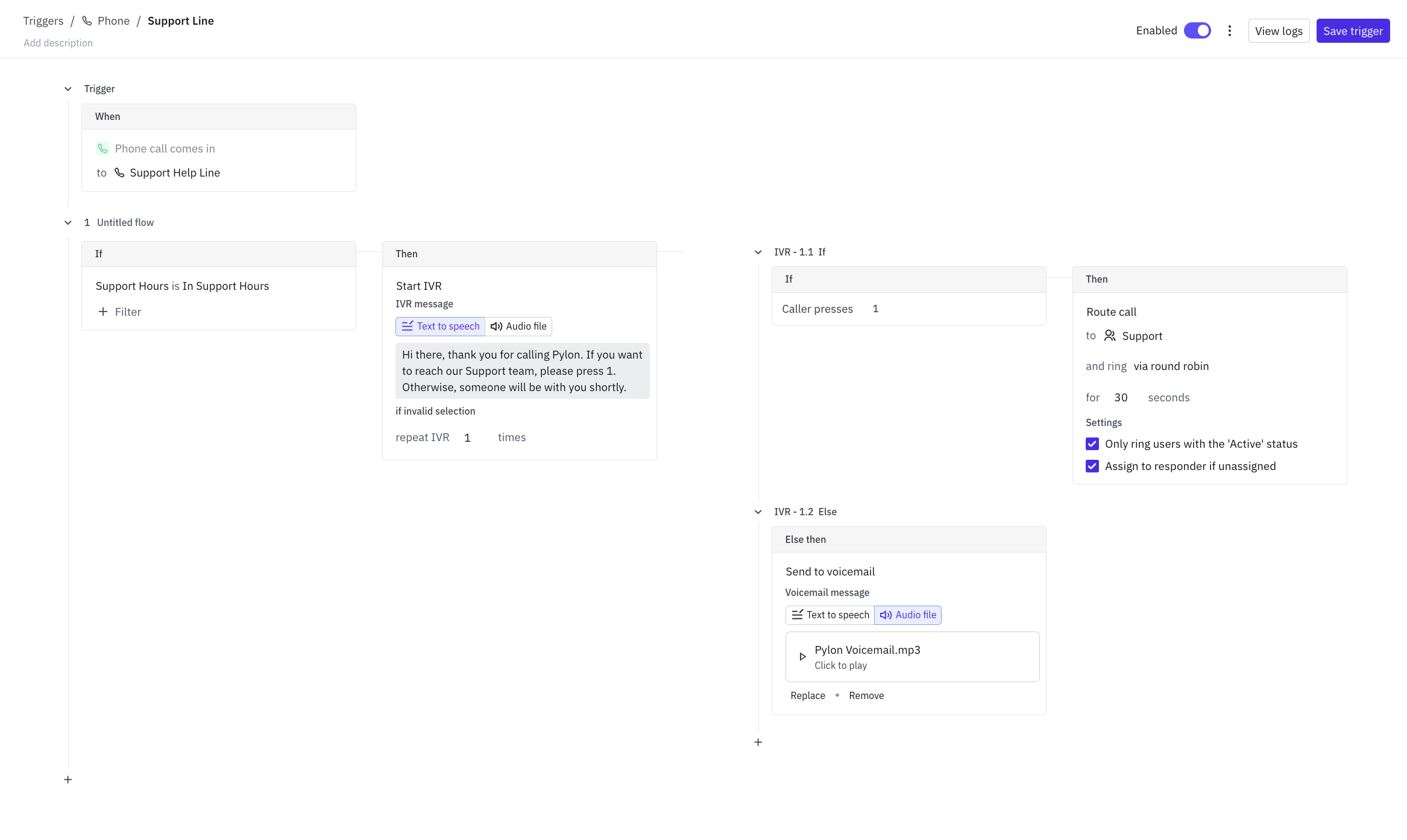
The call flow operates similarly to Pylon's triggers.
Support Hours: You can filter what happens to calls whether they occur within configured support hours or outside support hours.
Start IVR: Route calls using basic IVR functionality. Use text-to-speech or audio files.
Route calls to specific teams: Configure your teams in Settings > Teams and route calls to them via round robin
Send calls to voicemail: Use text-to-speech or upload audio files.
Inbound Calls
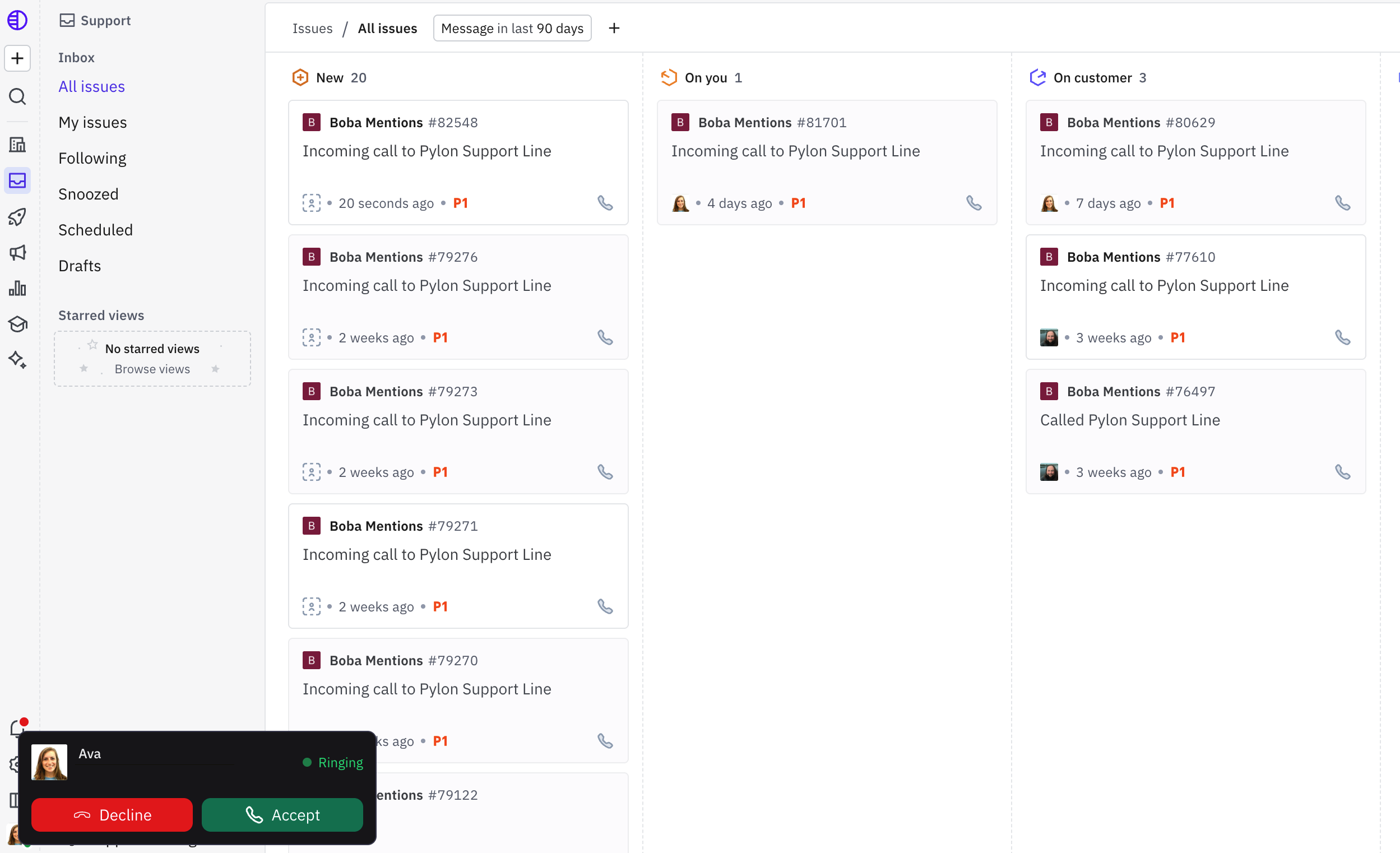
When a customer calls your support number, the call is routed to available agents in Pylon. An issue is automatically created for the call so your team can take notes, track actions, and follow up — all in one place.
By default, incoming calls ring in the browser. Individual users can instead route incoming calls to the phone number on their profile by going to Settings > Profile (https://app.usepylon.com/settings/profile) and enabling Enable forwarding incoming calls to your mobile phone.
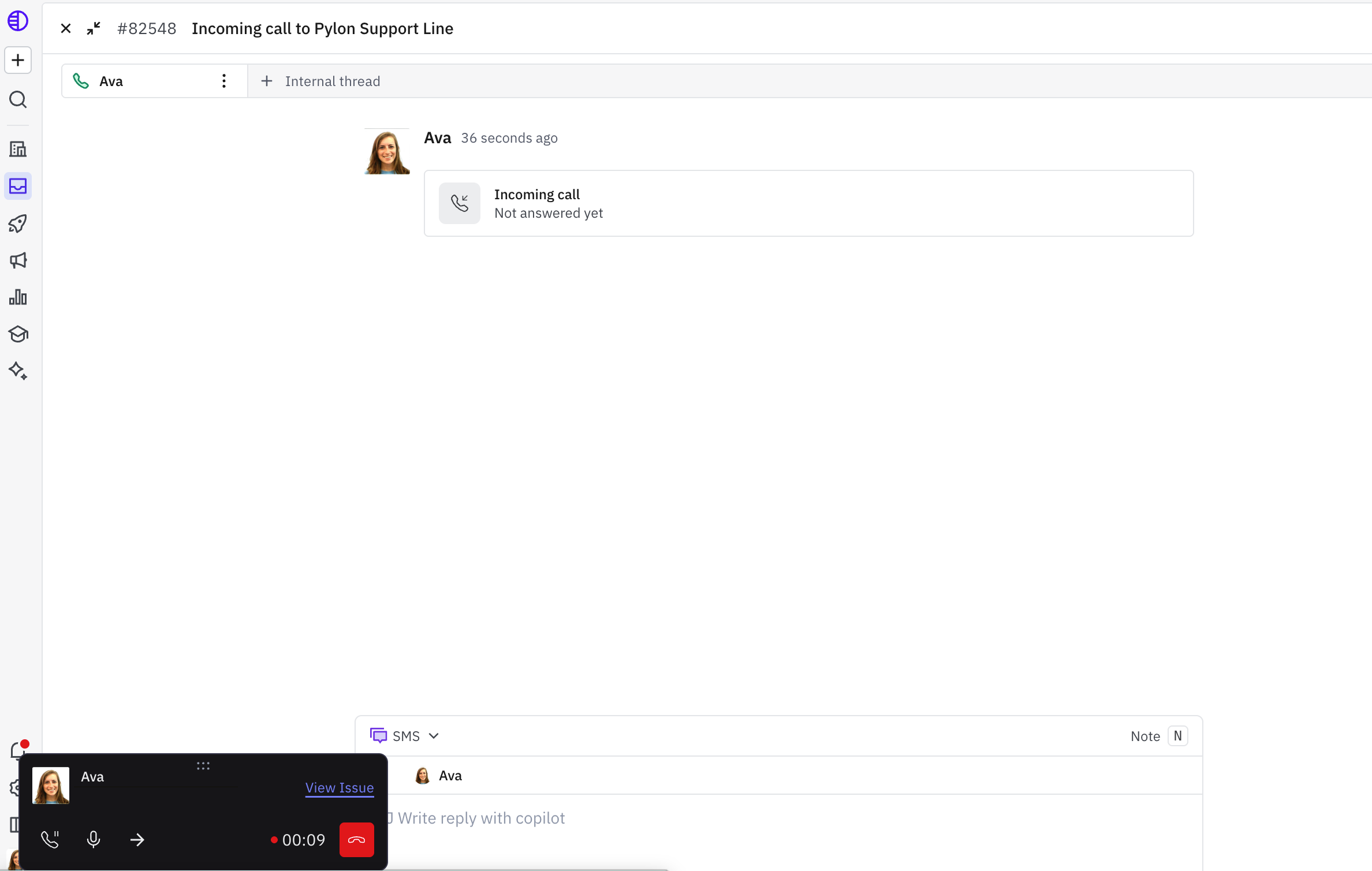
Phone icon: Allows you to put calls on hold
Microphone icon: Allows you to mute calls
Arrow icon: Allows you to transfer calls
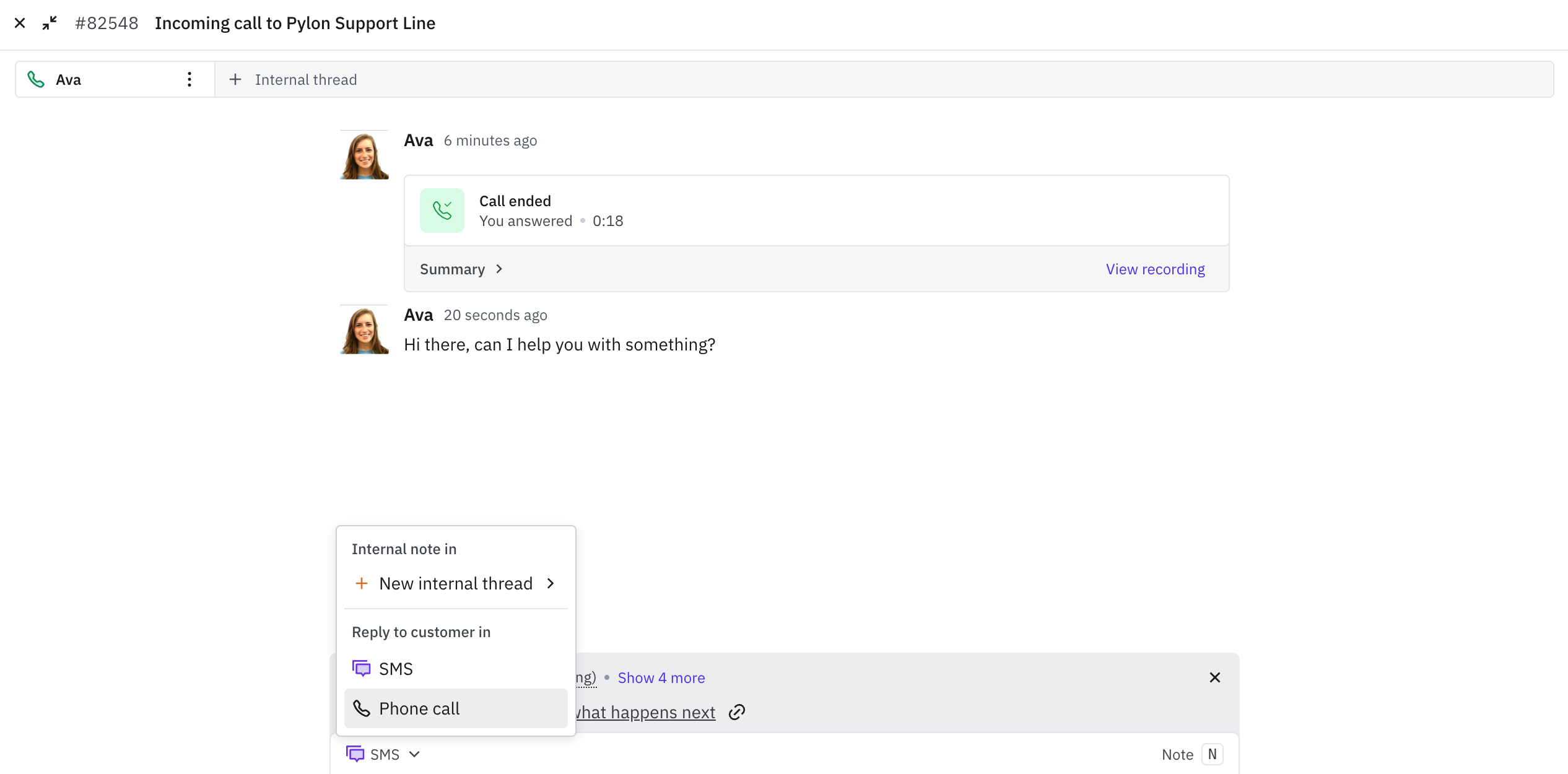
Callback Flow
Agents can initiate a callback directly from an issue, letting customers request a return call rather than waiting on hold.
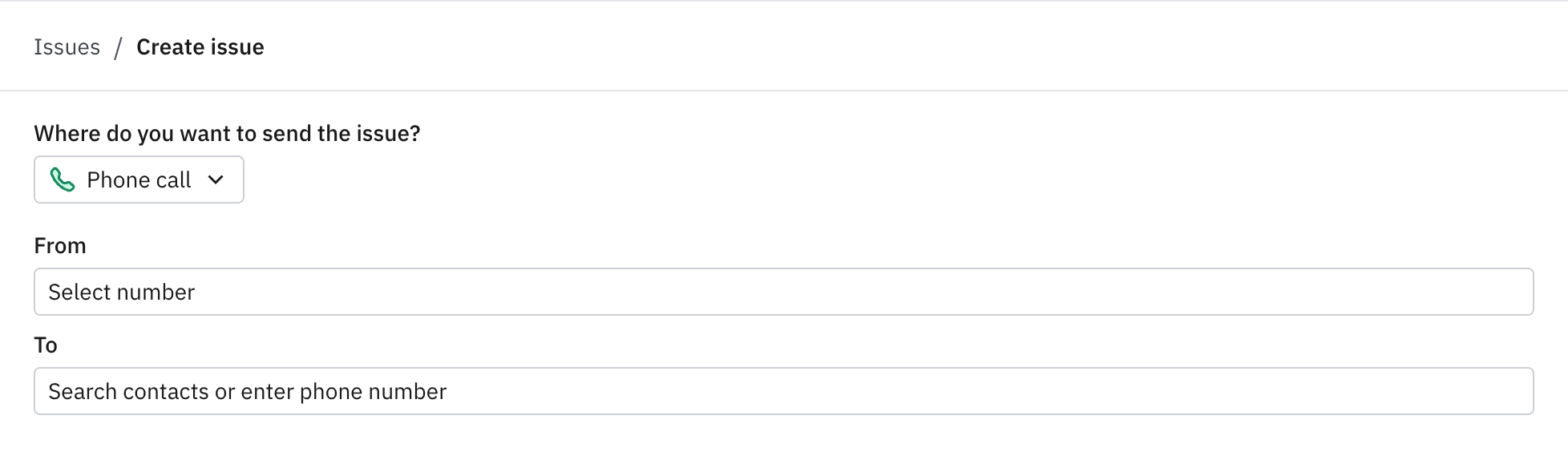
Outbound Calls
Agents can place outbound calls directly from an issue in Pylon. This is useful for proactive follow-ups or cases where email or chat has gone unanswered.
Call Recordings & Transcripts
Every call is automatically recorded and transcribed. The transcript and recording are attached to the issue created for that call, making it easy to review what was discussed and follow up on action items.
Account Intelligence
Phone calls are automatically linked to the relevant account in Pylon. Customer context — including account history, previous issues, and account data — is surfaced to the agent during the call, so there's no need to switch between tools to look up who you're speaking with.
Frequently Asked Questions
Can I use my existing phone number? Yes. You can port an existing number to Pylon or provision a new one.
What happens if no agents are available? Callers will be routed to voicemail if no agent is available or if the call comes in outside your configured support hours.
Are calls recorded by default? Yes, calls are recorded and transcribed if you have automatic call recording enabled. Check your local regulations regarding call recording consent requirements.
Can I have multiple phone lines? Yes. Pylon supports multiple phone numbers, which can be assigned to different teams.
Do phone issues show up in my regular issue queue? Yes. Phone calls automatically create issues in Pylon, which appear alongside issues from all your other channels.
Can Pylon support international calls? Native phone setup in Pylon is currently limited to US standard numbers. New number provisioning and number porting support US numbers only, and non-US local numbers are not supported. Toll-free numbers are also not supported for new numbers or porting at this time.
Troubleshooting incoming calls that do not ring in the browser
If a user reports that incoming calls are not ringing in their browser, check whether Enable forwarding incoming calls to your mobile phone is turned on in that user's profile.
When this setting is enabled, Pylon will try the phone number in that user's profile instead of ringing the browser. If the user wants incoming calls to ring in the browser, they should turn this setting off in their user profile.
This symptom is not, by itself, evidence of a regional limitation. If browser calling still does not work after forwarding is turned off, continue troubleshooting network conditions such as local ISP, firewall, WebRTC, or WebSocket interference.
Recording disclosure timing
Applies to: inbound calls with automatic call recording enabled
Pylon plays its built-in recording disclosure after an agent answers the call and before the caller is connected to that agent. In the support issues reviewed for this update, the same disclosure was not used for outbound calls.
If you need additional messaging earlier in the call flow, use Start IVR with text-to-speech or an audio file. That IVR message is separate from the built-in recording disclosure.
Troubleshooting missing Call Flow and Call Recording
If a phone number page does not show Call Flow or Call Recording, Phone may not be enabled for the organization yet. In that case, contact your AE or CSM to enable the Phone add-on.
Once Phone is enabled, the phone number settings page includes the IVR and recording controls described earlier in this article.
Can phone calls avoid creating issues?
No. Inbound phone calls automatically create issues in Pylon, and there is not a setting to receive support calls without creating an issue.
If a call does not need follow-up, the issue can be cleaned up after the call. When you want to preserve the call record, close the issue instead of deleting it.
Have questions? Reach out to Pylon support.