How do I set up a new Microsoft Teams Standard Channel?
Last updated: July 13, 2026
It’s best practice to create a new team per customer. This helps make sure they only have visibility into relevant messages.
The Microsoft Teams integration supports both standard and shared channels. For more info about the setup steps for a shared channel, check out this article.
Create Teams Standard Channel
Create a new "Team"

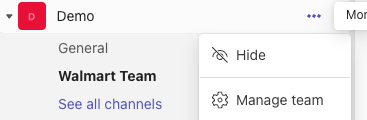
Hover over the team and select "Manage Team"
Note: The Pylon app is automatically installed when you authorize the Microsoft Teams integration from Pylon. The app appears in Microsoft Teams under Apps in the "Made for your org" section (it may be named after your organization, e.g., "Your Company Team").
If you need to manually add the Pylon app to your team, use the simpler method below instead of steps 3-6.
Click the three dots next to the team you want Pylon to be in
Select "Manage Teams"
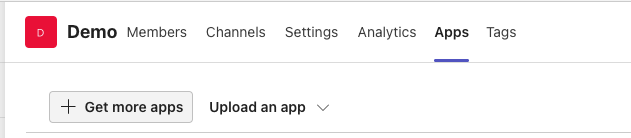
Navigate to the "Apps" tab
Add the Pylon app from the "Made for your org" section
Note: This method adds the Pylon app to all channels in the team at once (both standard and shared channels). Pylon will also automatically add the bot to a channel when that channel is associated with an account in Pylon.