Troubleshooting message sync between Slack and Microsoft Teams channels
Last updated: April 10, 2026
Troubleshooting message sync between Slack and Microsoft Teams channels
When messages aren't syncing from Slack to Microsoft Teams, even though the channels are connected in the Pylon web app, there are a few common causes and solutions.
Common Issues
The most frequent reason for messages not syncing is that the Pylon app doesn't have proper access to the Teams channel, even if the channel mapping is set up correctly in the Pylon web interface.
For Shared Channels in Microsoft Teams
Microsoft Teams shared channels do not support bot messaging, so Pylon uses an integration user to send messages in shared channels. If messages from Pylon aren't appearing in a shared channel, check the following:
Check 1: Integration user is configured
Make sure you have configured an integration user in Pylon. Go to Apps Directory → Microsoft Teams and look for the Shared channel messaging section. If no integration user is configured, follow the setup steps in 📄 How do I set up a Microsoft Teams Shared Channel?.
Check 2: Integration user is a member of the channel
The integration user must be added as a member to each shared channel where Pylon needs to send messages. If the integration user is not in the channel, Pylon will not be able to deliver messages. Add the integration user to the shared channel using the "Add members" option in Microsoft Teams.
Check 3: Pylon app has access to the shared channel
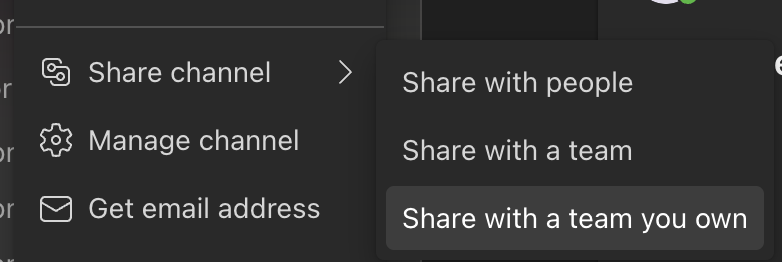
Ensure the Pylon app has proper access by following these steps:
Hover over the channel name in Microsoft Teams
Open the channel menu
Select 'Share channel'
Choose 'Share with a team you own'
Select the same team that the channel is currently in
Click 'Done'
For Standard Channels in Microsoft Teams
Reconnect Teams from the App Directory. Once the app has been reconnected, it should no longer be necessary to manually add the Pylon app to each Team.
Follow steps 2 through 6 in 📄 How do I setup a new Microsoft Teams channel?
Additional Troubleshooting
If messages still aren't syncing after following these steps:
Verify the Pylon app is installed in your Microsoft Teams workspace
Confirm the channel mapping is correct in the Pylon web interface
Ensure the Pylon app has been added to the specific Teams channel
Known Limitation: Emoji Reactions
Emoji reactions only flow one way - from Teams into Pylon. Reactions added in Pylon will not sync back to the Teams channel. This is a Teams platform limitation and expected behavior.