How does the Assist Agent on issues work?
Last updated: October 8, 2026
The Assist Agent is your interactive AI teammate inside every issue. It lives in the right-hand panel and helps you investigate, draft replies, and take action — all without leaving the conversation. Think of it as a copilot that already has the full context of the issue, account, your product, and your customers.
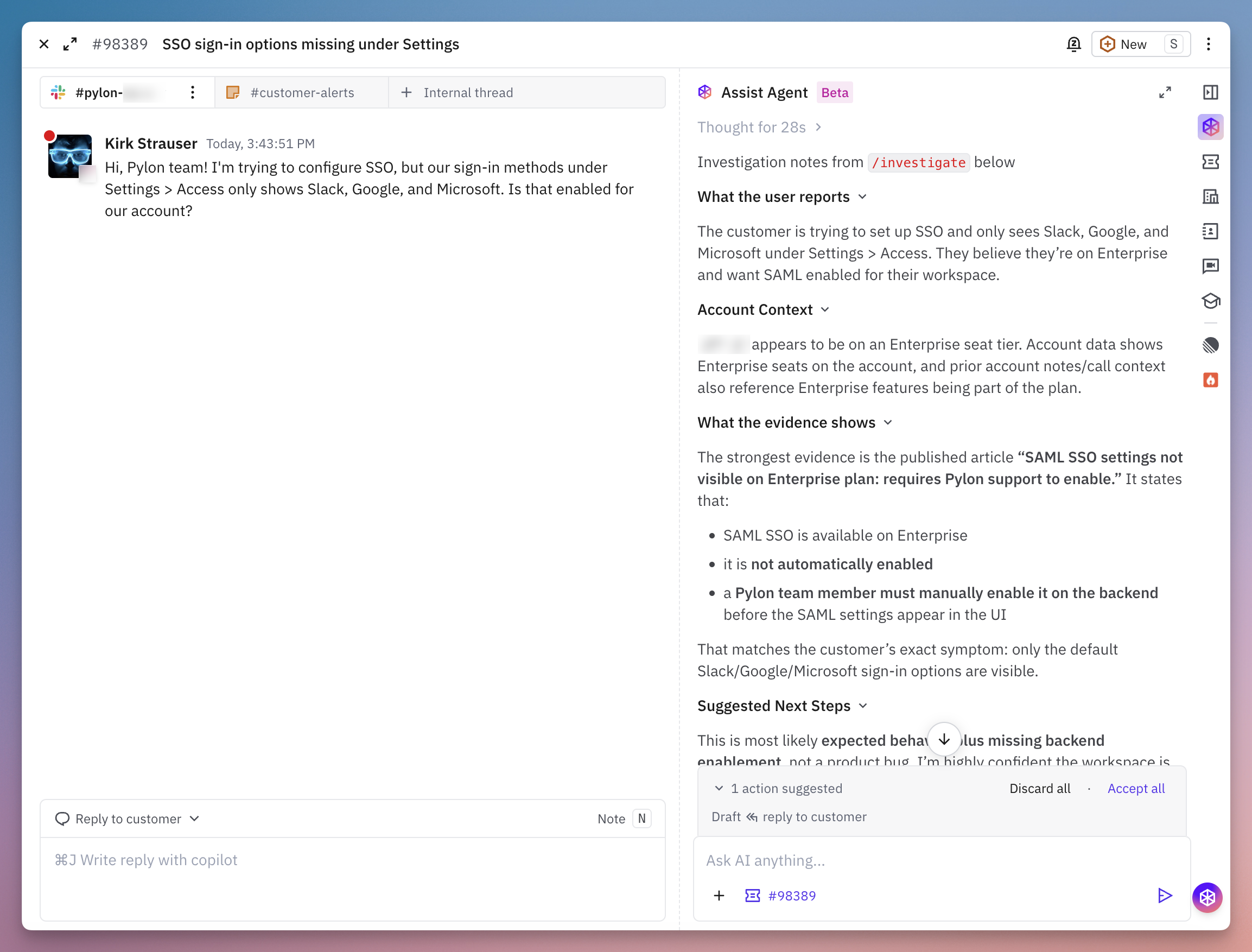
The Assist Agent is available from the Assist panel on any issue. If an 📄 Automations has already run, the Assist Agent picks up where it left off — you can ask follow-up questions, refine findings, or jump straight to drafting a reply.
What can you do with it?
Ask questions — "What's the rate limit for our POST /issues API?" or "Has this customer complained about this issue in the past?"
Draft replies — Ask it to draft a customer-facing response based on the context it's gathered. Automatically uses your tone of voice. Edit and send directly.
Run skills — Invoke skills for repeatable situations
Take actions — Create or update knowledge base articles, link linear issues, set issue fields. Depending on your connected tools and MCPs, the Assist Agent can also look up logs, query databases, search your codebase, and more.
Setting it up
The Assist Agent works out of the box — no additional configuration needed. Just open any issue and click the Assist panel on the right side.
Default Pane
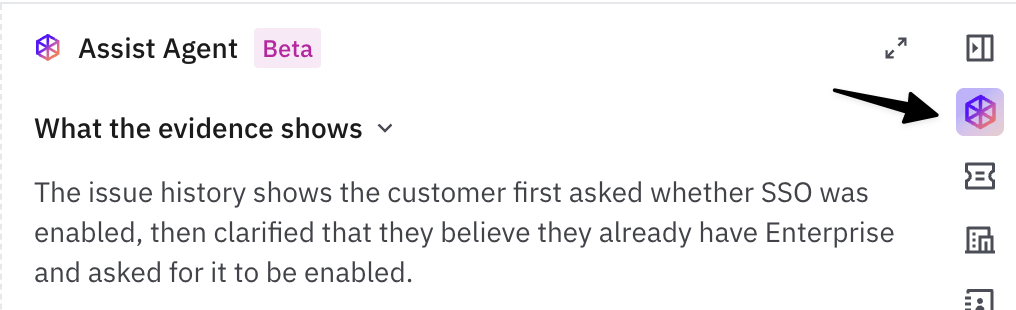
Once you set up 📄 Automations, we recommend having Assist Agent front and center as your default tab. You can drag the Assist tab to the first position in your sidebar panel or enable AI Mode (see 📄 What is AI Mode and how do I enable it?). This way it's the first thing you see when you open any issue.
Multiple Issue Workflow
With Assist Agent, it suddenly becomes possible to work on many customer issues simultaneously. See 📄 How do I work on multiple issues in parallel? for a recommended workflow on how to do that.
Tone of Voice
Set up your personal tone of voice so any draft messages the Assist Agent proposes are more accurate. You can set up your tone of voice from your Profile page.
Automations
See 📄 Automations to set up automations that pre-investigate your issues.
Configure Access
To customize what the Assist Agent can do, configure its skills and tool access from the Agents page. You can create custom skills that tailor the Assist Agent's behavior to your team's workflows.
For external connections that require fetching data or taking action in other tools, see 📄 How does secure delegated authentication for Agents work?
Usage Examples
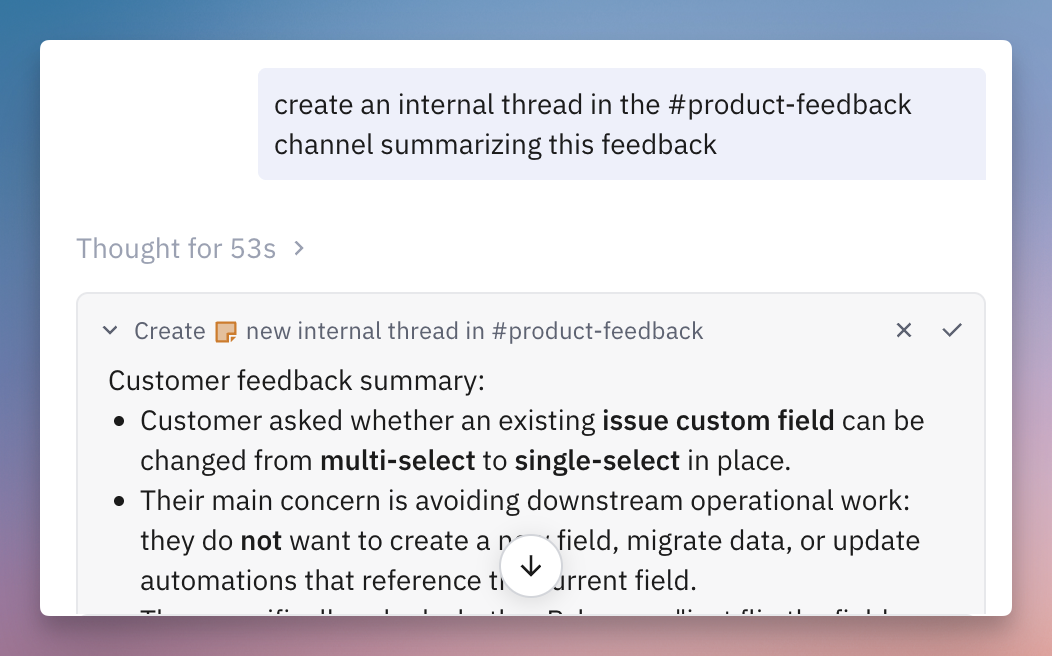
Creating an internal thread
Often you'll want to push context about a customer conversation to Slack, for example when a customer leaves product feedback or you want to escalate a request to another team.
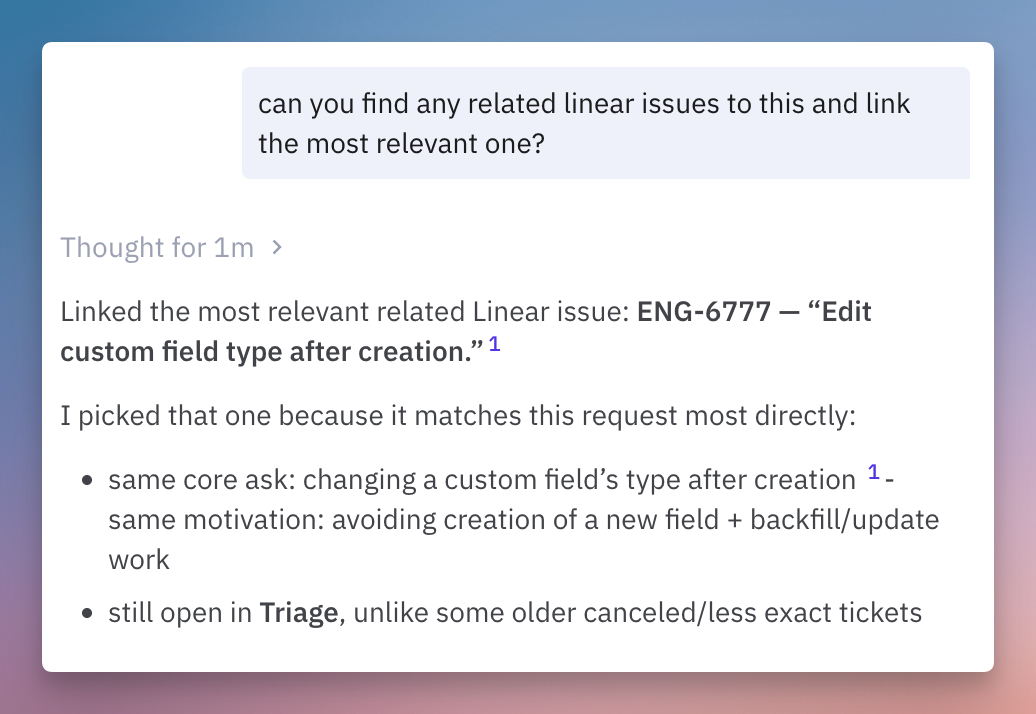
Searching for and linking a Linear/Jira issue
With the Linear MCP connected, you can search for
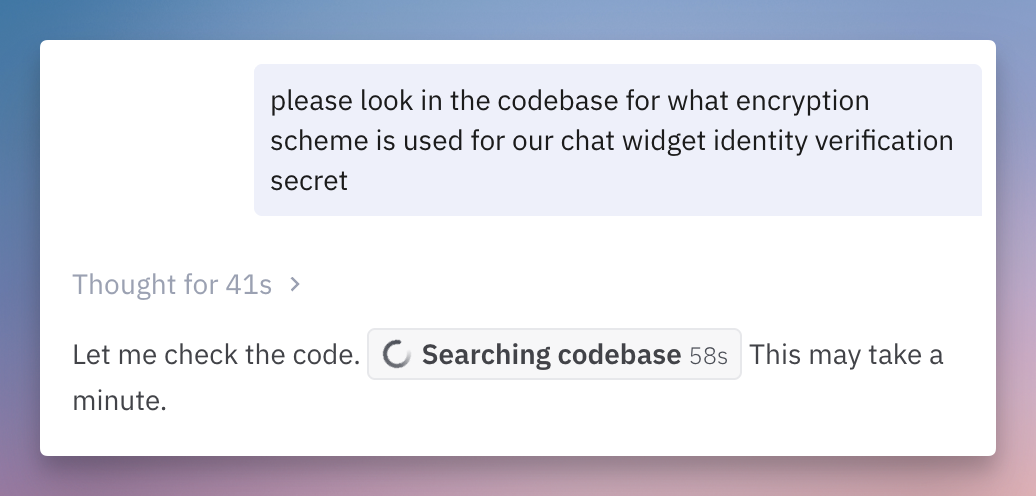
Asking for codebase investigation
If you want to push the Assist Agent to verify something in the codebase to verify the current state of some functionality, you can do so after connecting a codebase integration.
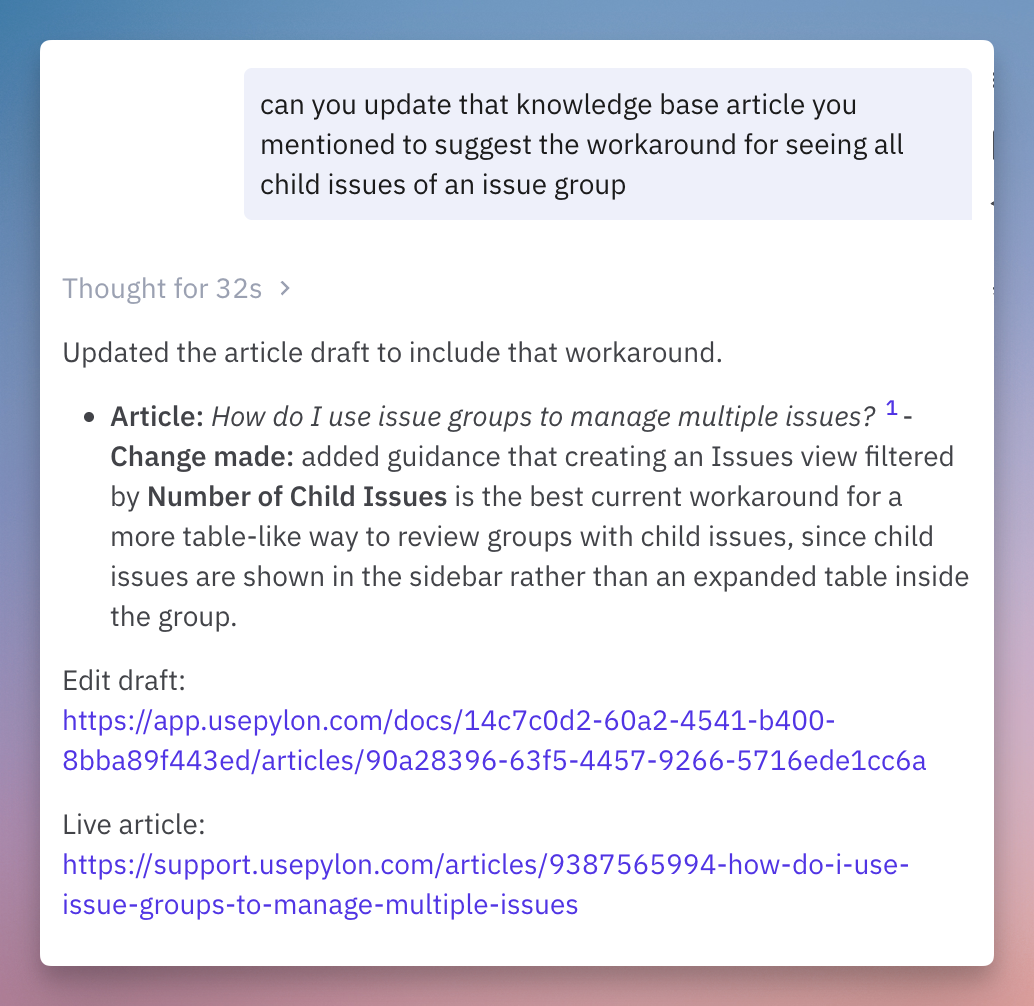
Drafting a Knowledge Base Update
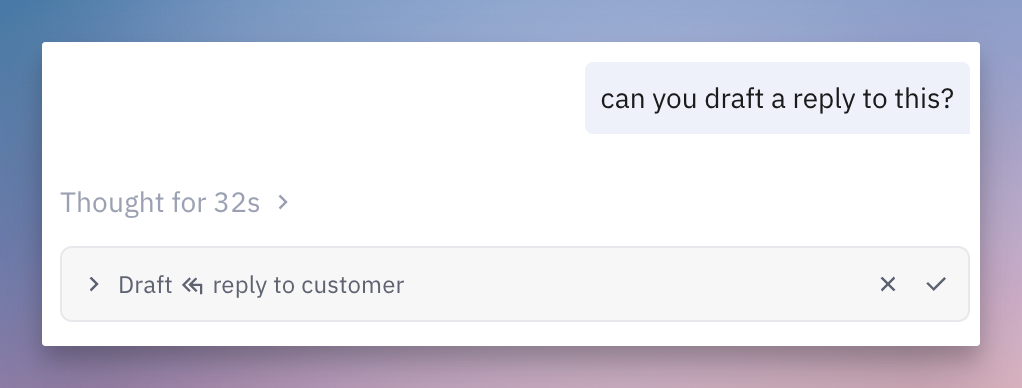
Drafting a Reply
The Assist Agent will use all context it has access to and your tone of voice to propose a reply to send to the customer. Hitting accept will load the draft into your editor. You can also expand the reply inline and edit it directly.
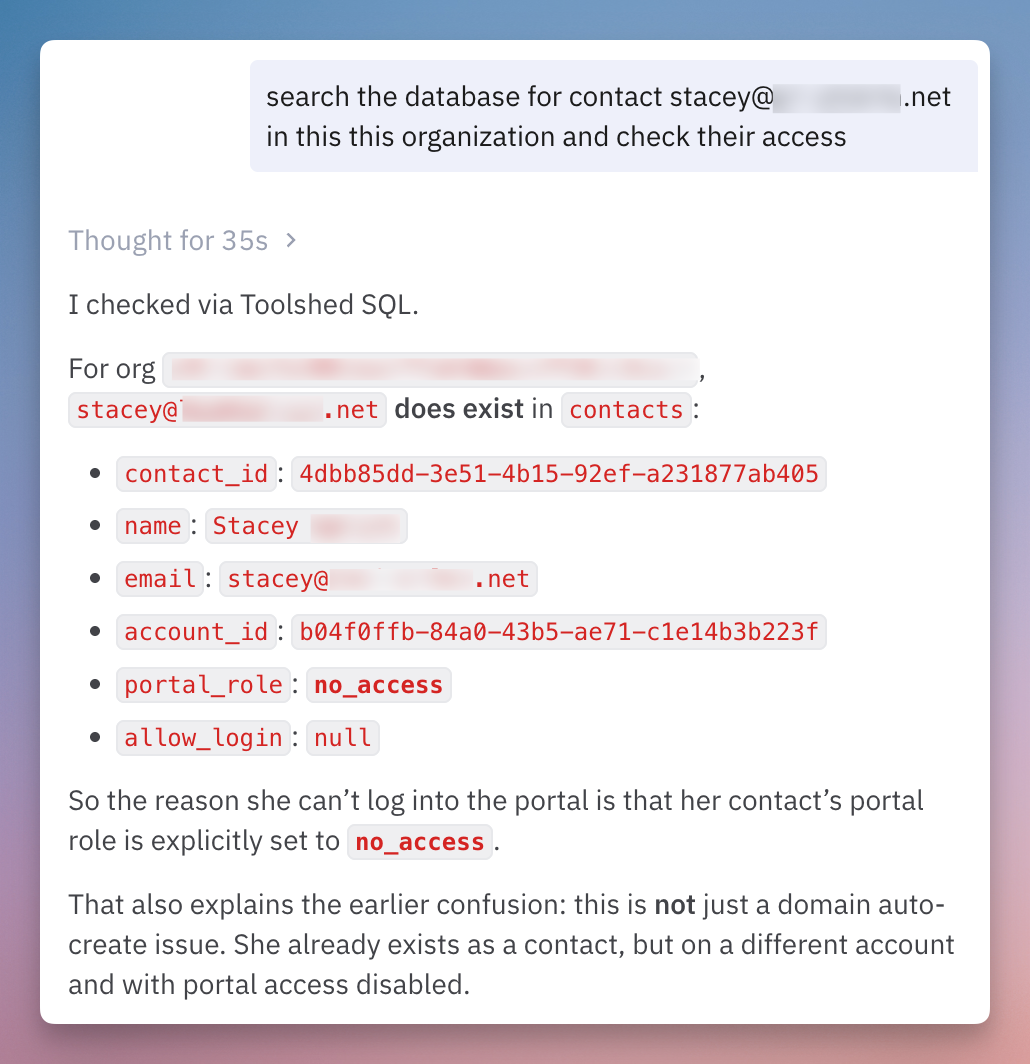
Deep search through SQL
At Pylon, we've given the Assist Agent read-only access to a replica of our production database. With this, we can use this tool to make database queries to do deeper investigations.
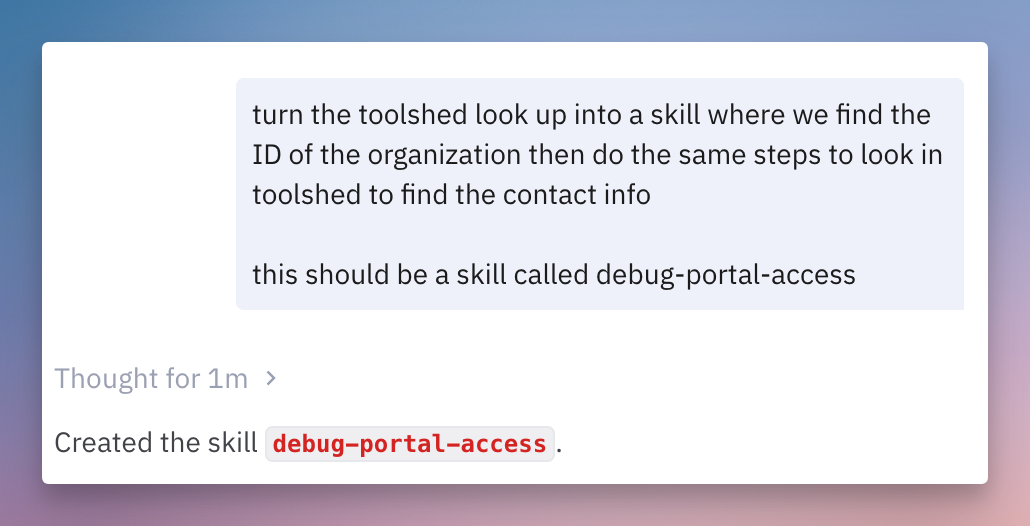
Turning something into a skill
As you are going back and forth with the Assist Agent on a given issue and come a conclusion, you can turn the sequence of steps you took into a Skill
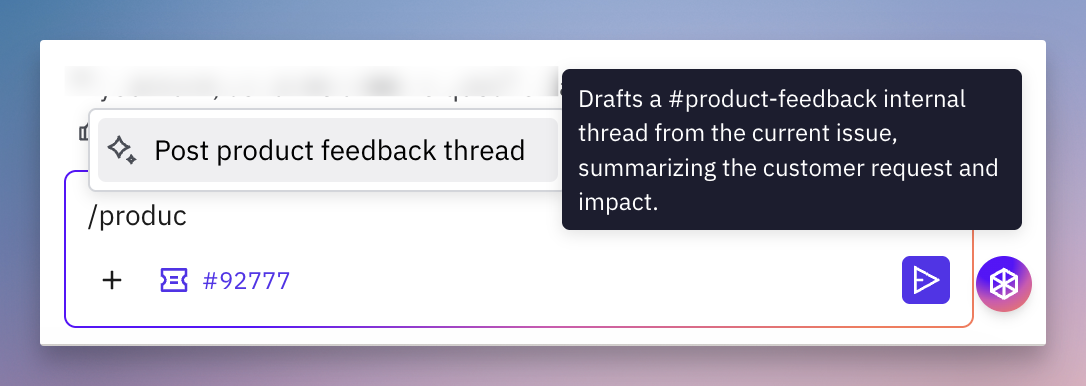
Running a skill
You can run any skills you've created on-demand to execute a workflow you've used before.
Terms
Like a tool like Claude, you can use the intuitive phrases Suggestions on how to to get the Assist Agent to perform the actions you want:
Keyword | Example Phrase | What it does? |
codebase | "Look in the codebase for ..." | Invokes one of your codebase integrations |
internal thread | "Create an internal thread in #product-feedback" | Stages an internal thread to create |
draft a reply | "Can you draft a reply to this?" | Stage a reply that you can accept to put into the editor |
draft an internal note | "Draft an internal note summarizing these findings" | Stage an internal note that you can approve to send |
skill | "Turn this into a skill" | Turns the sequence of steps you were performing into a skill (repeatable workflow) |
link linear/jira issue | "Link this linear issue" | Attaches the Linear/Jira etc issue to the Pylon issue |
feature requests | "Find any feature requests related to ..." | Look through Pylon feature requests |
linear, notion, etc | "Look in notion and find the product spec about ..." "Find any linear tickets about ..." | Invokes the relevant connector |