How do I set an account for a contact programmatically via API
Last updated: September 24, 2025
This guide should help you to programmatically update a contact's account. This article is meant to give you general guidance - however the Pylon team does not maintain this set up and it is your responsibility to test and verify it's functionality.
Overview
The idea is to create a trigger that sends a webhook to zapier that then patches your issue or the contact. The use case below focuses on the case where you want to update all contacts emailing into 1 workspace email to one specific account. However the same idea/ structure is applicable to a variety of use cases.
Create a zap
Create a pylon webhook
Create a wehook in the zap
You need the ability to create api tokens in Pylon.
Create a zap
We need to create a zap first since it will give us the endpoint that the initial Pylon webhook will hit.
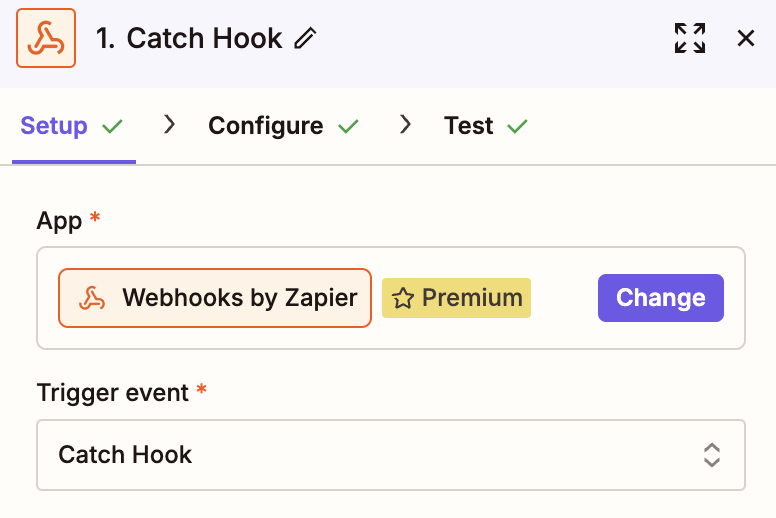
Go to Zapier and create a new zap. Choose Catch Hook as a trigger:
Use the URL given by Zapier to create a webhook in Pylon.
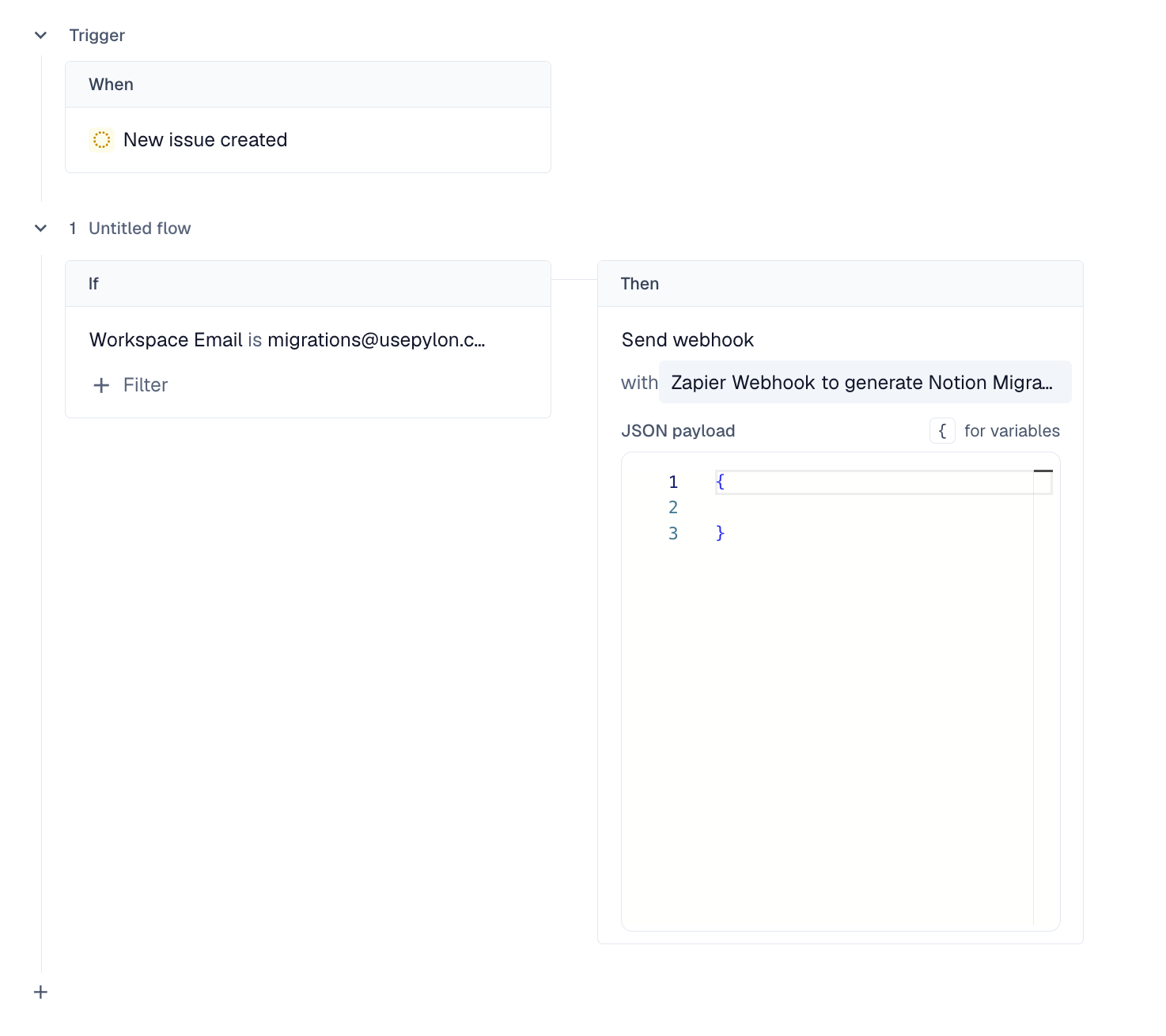
Create a webhook in Pylon using the catch endpoint that you just generated.
Define the payload (you should include the desired account id, as well as the contact id)
Create a trigger that fires the webhook (look at this general webhook guide)
Create a webhook in zapier
Add a webhook with action event: Custom Request . You can use this endpoint: https://api.usepylon.com/contacts/{id} - see API reference here.
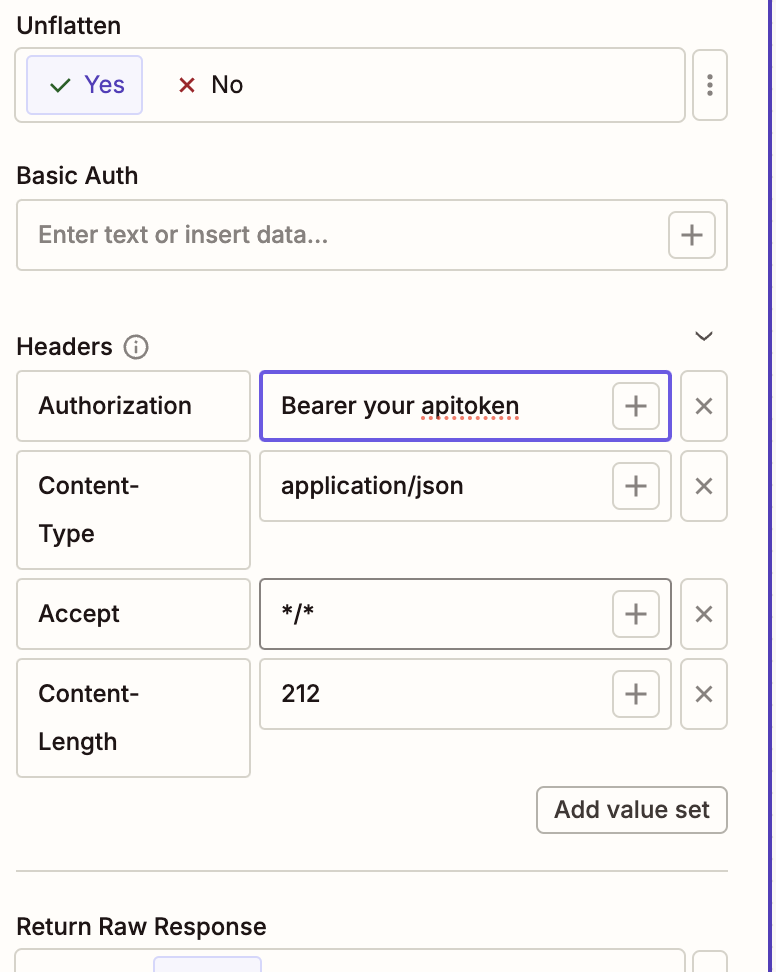
Add headers, probably similar to this:
Example payload for patching a contact (you can leave out all the values that you don't want to update in the first place):
PATCH /contacts/{id} HTTP/1.1
Host: api.usepylon.com
Authorization: Bearer YOUR_SECRET_TOKEN
Content-Type: application/json
Accept: */*
Content-Length: 192

{
  "account_external_id": "text",
  "account_id": "text",
  "avatar_url": "text",
  "custom_fields": [
    {
      "slug": "text",
      "value": "text",
      "values": [
        "text"
      ]
    }
  ],
  "email": "text",
  "name": "text",
  "portal_role": "no_access"
}
Make sure you send the right account_id through the first webhook to Zapier.