Map tool inputs to Pylon fields
Last updated: November 2, 2026
Autonomous security lets you map a connector tool’s inputs to Pylon fields. Instead of asking AI to choose a value such as a customer ID or contact email, Pylon fills that input directly from the issue, its associated account, or its requester.
Use mappings for inputs that must come from a known record, especially identifiers that determine which customer’s data a tool looks up.
How input mappings work
A tool has named inputs, such as customer_id, email, or query. For each input you map, you choose the Pylon field that should supply its value.
Input configuration | Where the value comes from |
|---|---|
Mapped to a Pylon field | Pylon reads the field from the current run’s issue, associated account, or requester. The model does not choose that input’s value. |
Unmapped | AI fills in the input as part of the tool call. |
Mapped, but the field cannot be resolved | The tool call stops with an error. Pylon does not fall back to an AI-generated value. |
Mappings are enforced when the tool runs. A model-supplied value for a mapped input does not override the configured field.
Mapping one input does not turn off AI-generated parameters for the whole tool. To avoid AI-generated values entirely, map every input the tool uses. If a tool requires inputs that cannot be supplied by the available fields, use a tool designed for that workflow rather than assuming unmapped inputs are locked down.
Configure a mapping
You need permission to manage the connector’s autonomous connection and settings.
Open Settings → AI controls → Connectors and select the connector.
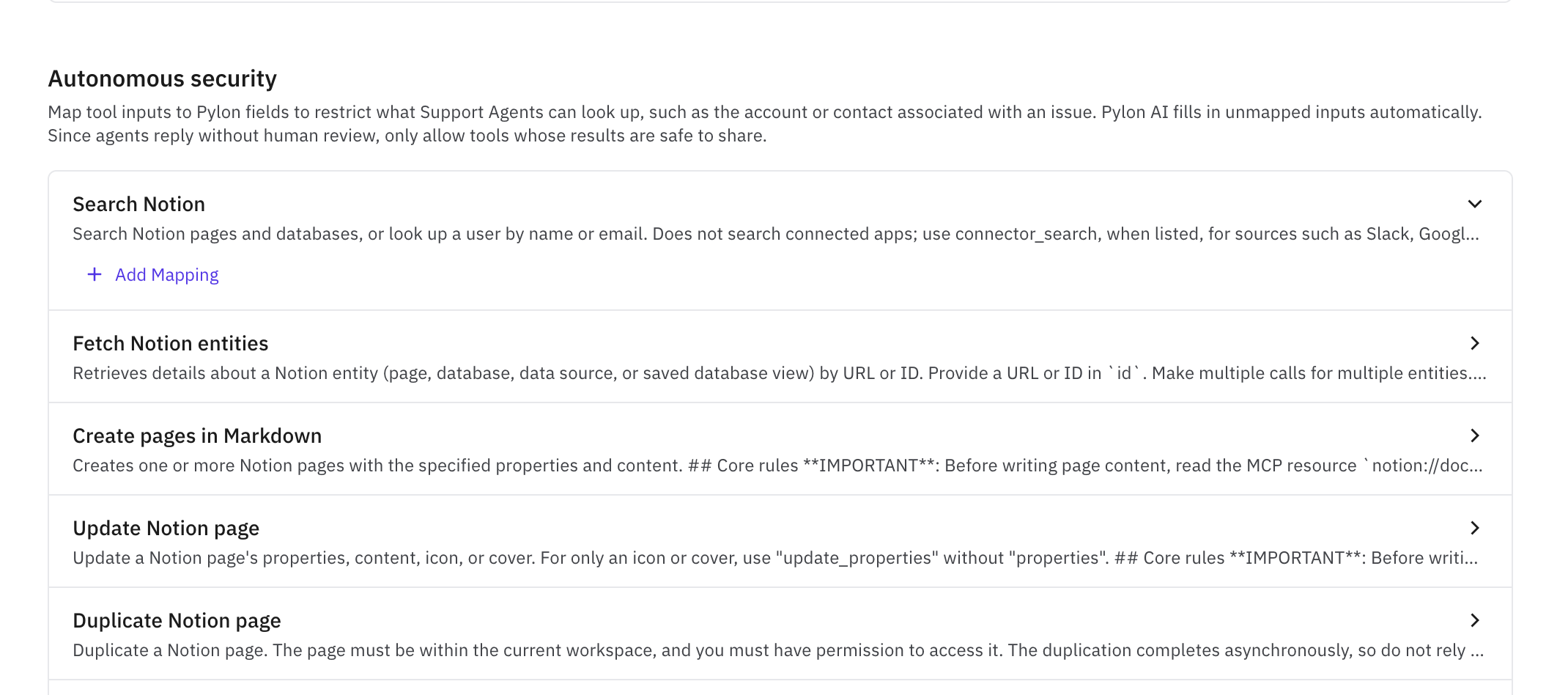
Find Autonomous security.
Expand the tool you want to configure.
Select Add Mapping.
Under Select input, choose the tool parameter you want to control.
Under Select field, choose the Pylon field that should provide its value.
Repeat for any other inputs that should come from Pylon.
Complete both sides of each mapping. Completed mapping changes save automatically; wait for the save to finish and confirm the selected input and field remain visible.
Mappings are configured per tool on the connector’s autonomous connection. They are not instructions you need to repeat in Guidance or a Skill. Review the mappings for each tool you allow your Support Agents to use.
Example: look up the current customer
Suppose a tool named Look up customer subscription accepts these inputs:
Tool input | Pylon field | Result |
|---|---|---|
| An account custom field containing the billing system’s customer ID | Looks up the customer ID stored on the issue’s associated account. |
| Contact email | Uses the issue requester’s contact email. |
These are illustrative input names; use the names exposed by your tool.
Choose the identifier expected by the connected system. Pylon Account ID is Pylon’s own account identifier. If the tool expects a billing-provider ID or another external customer ID, map an account custom field containing that external ID.
For example, if the current account’s billing customer ID is cus_example_123, Pylon supplies that value for customer_id. The model cannot substitute another customer ID for that mapped parameter based on text in the conversation.
If the tool also has an unmapped query input, AI still supplies the query. That can be useful when you want a field-controlled customer scope and a flexible question within that scope.
Which fields can I use?
The field picker includes supported issue, account, and contact fields, along with custom fields on those objects.
Examples include:
Issue: Issue ID, title, status, account ID, requester ID, assignee ID, and team ID.
Account: Account ID and account custom fields.
Contact: Contact ID, name, email, phone number, account ID, and contact custom fields.
In an issue workflow, account mappings use the account associated with the issue. Contact mappings use the issue’s requester; they do not select an arbitrary participant from the conversation.
Make sure the field’s value matches the tool input’s expected format and type. An email input needs an email value, and an external customer-ID input needs the ID used by that external system.
What happens if a field is missing?
Pylon stops the call if it cannot resolve a mapped field. This includes a missing account or requester, an empty custom field, an unavailable field, or a value that does not match the tool’s input schema.
This also applies when the mapped tool input is optional. Once you map an input, Pylon requires a usable mapped value rather than silently omitting it or letting AI fill it in.
If you see Configured MCP input fields could not be resolved, check:
The issue has the expected associated account and requester.
The mapped field exists and has a usable value on the correct record.
The value matches the input’s expected format and type.
The connector is still connected and the tool still exposes that input.
Correct the record or mapping, then test again. Removing a mapping returns that input to AI-generated behavior.