Assigning the Agent to Issues
Last updated: October 30, 2026
Set up automatic assignment by creating a trigger that selects the right issues and assigns them to your Support Agent. An agent only works on issues it is assigned to.
This walkthrough uses a simple example: when a new email issue is created, assign it to the selected Support Agent. Replace the example source and agent with the scope you want to launch.
1. Open Assignment
Go to Settings > AI controls > Support agents.
Open your agent and select Assignment.
Review the trigger flows listed on this page. Each card links to the trigger that assigns issues to the agent.
Select View All Triggers to open the trigger builder.
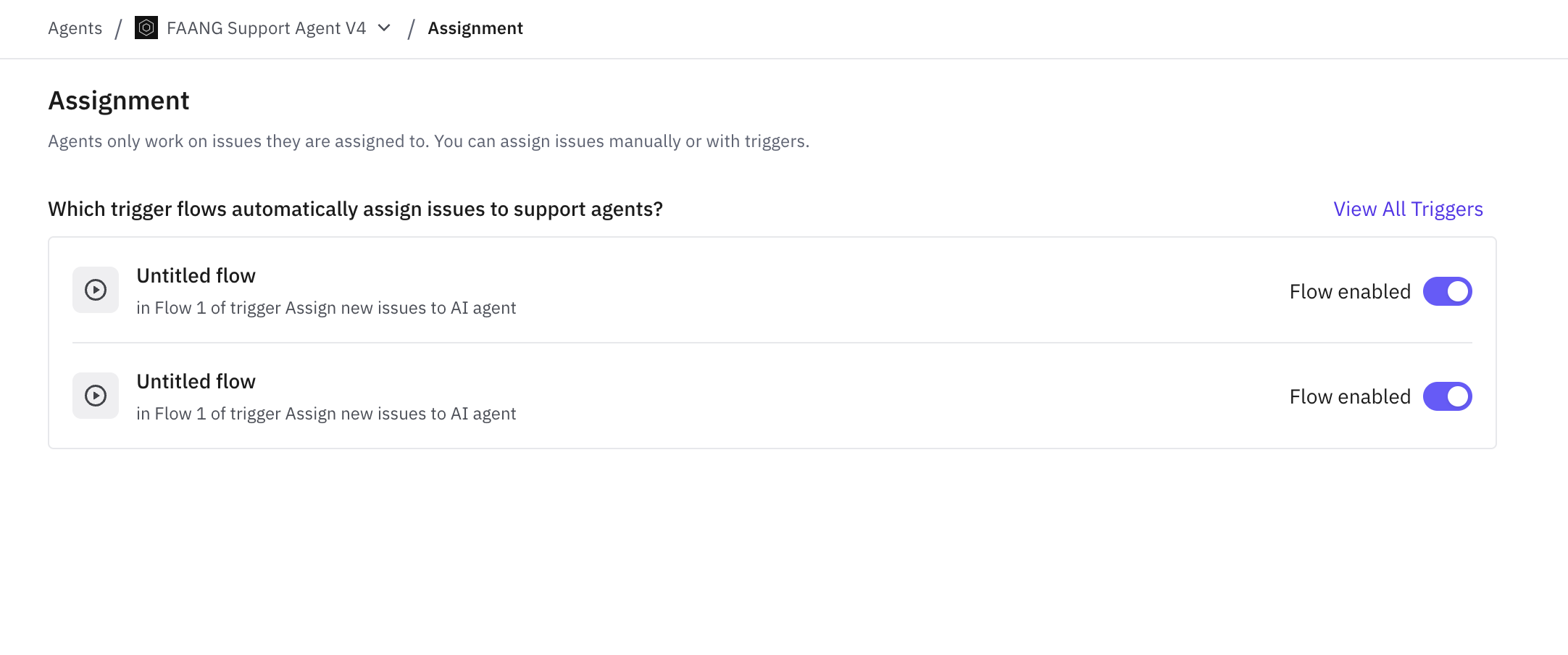
The flow switch controls whether that trigger is enabled. Review an existing flow before creating another one with overlapping conditions.
2. Create the trigger
On the Triggers page, select Create > Create Trigger.
Enter a descriptive name, such as Assign new email issues to Support Agent.
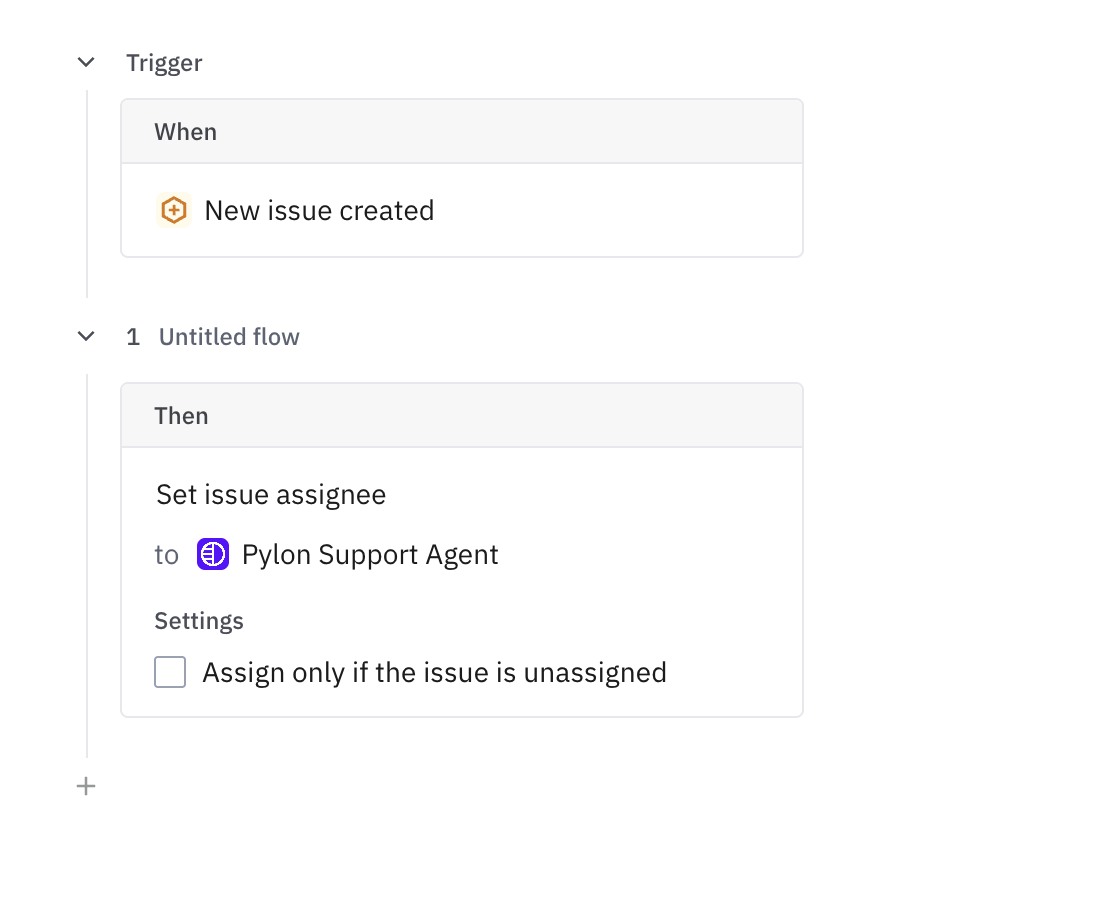
Leave When set to New issue created for this example.
Determine if you want any filters to control exactly which issues are assigned to teh Support Agent (eg. Issue Source, Account ARR, Segment, etc.)
The event determines when the rule is evaluated. New issue created is for new incoming issues; do not expect it to assign existing issues merely because you saved the trigger.
3. Review trigger order and save
Review the event, every condition, the selected agent, and the unassigned-only setting.
Check the surrounding routing triggers for conflicting assignments.
Select Save Trigger while the rule is disabled if you want to save it for review.
When ready for the intended rollout, enable the trigger and save the change.
Troubleshooting
Problem | What to check |
|---|---|
The issue was not assigned | Trigger and flow enabled state; event; matching conditions; whether the issue already had an assignee. |
The issue went to a person instead | The to selector may still be Account owner or a teammate rather than the Support Agent. |
The issue briefly reached the agent and moved again | Issue activity and later routing triggers. |
The agent was assigned but did not reply | Issue logs, agent mode, Resources/Tools access, and Escalations. Assignment and response generation are separate checks. |
Existing issues did not move after saving | This example uses New issue created. Manually assign a controlled existing issue when testing that path. |