Setting up Connectors & Tools
Last updated: October 30, 2026
Connectors make external systems available to Pylon. The Support Agent's Tools page then controls which individual tools that agent can call. Configure both layers before testing a workflow.
1. Open the agent's Tools
Go to Settings > AI controls > Support agents, open the agent, and select Tools. Use search or the connector list to find the capability you need. Expand a group to review its read-only and write/delete tools.
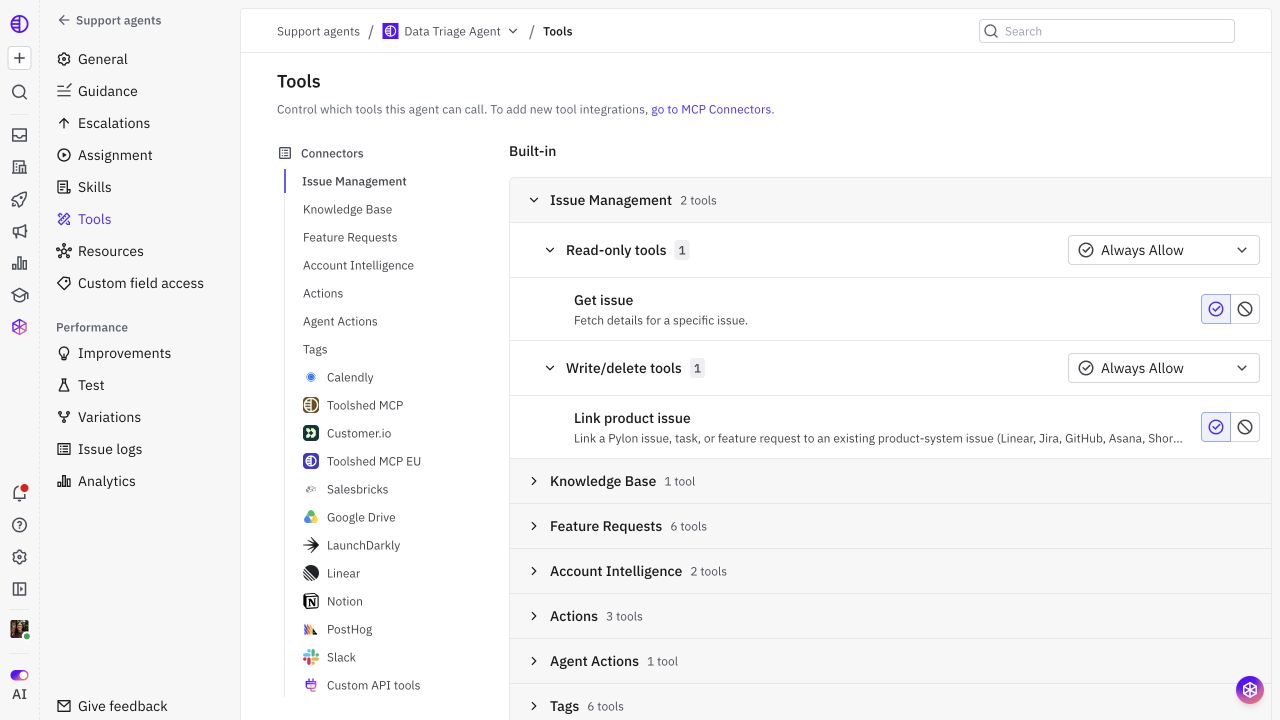
Review each enabled operation, not just the connector name. A connection existing in the workspace does not automatically give every Support Agent access to all its tools.
2. Connect a supported service
Select go to MCP Connectors or open Settings > AI controls > Connectors. Find the service in the catalog and use the connection flow offered for it.
Distinguish a personal connection from a connection intended for agents. Complete the service's authentication and organization setup, then verify that an agent connection is available before returning to the Support Agent's Tools page.
Do not copy personal credentials into Guidance or a Skill. Instructions do not grant connector access.
3. Add a custom MCP connector
If your service exposes a supported MCP endpoint:
Open Connectors > Add Connector > Custom MCP connector.
Enter a Name and useful Description.
Enter the MCP server URL supplied by the service.
Select the authentication method the server supports: OAuth, Bearer token, API-Key, X-API-Key, or Basic auth.
Complete the displayed authentication fields. OAuth client ID and secret are optional where the server supports discovery without them.
Add Custom headers only for required non-authentication metadata.
Select Save, then complete any connection/authorization steps shown for that server.
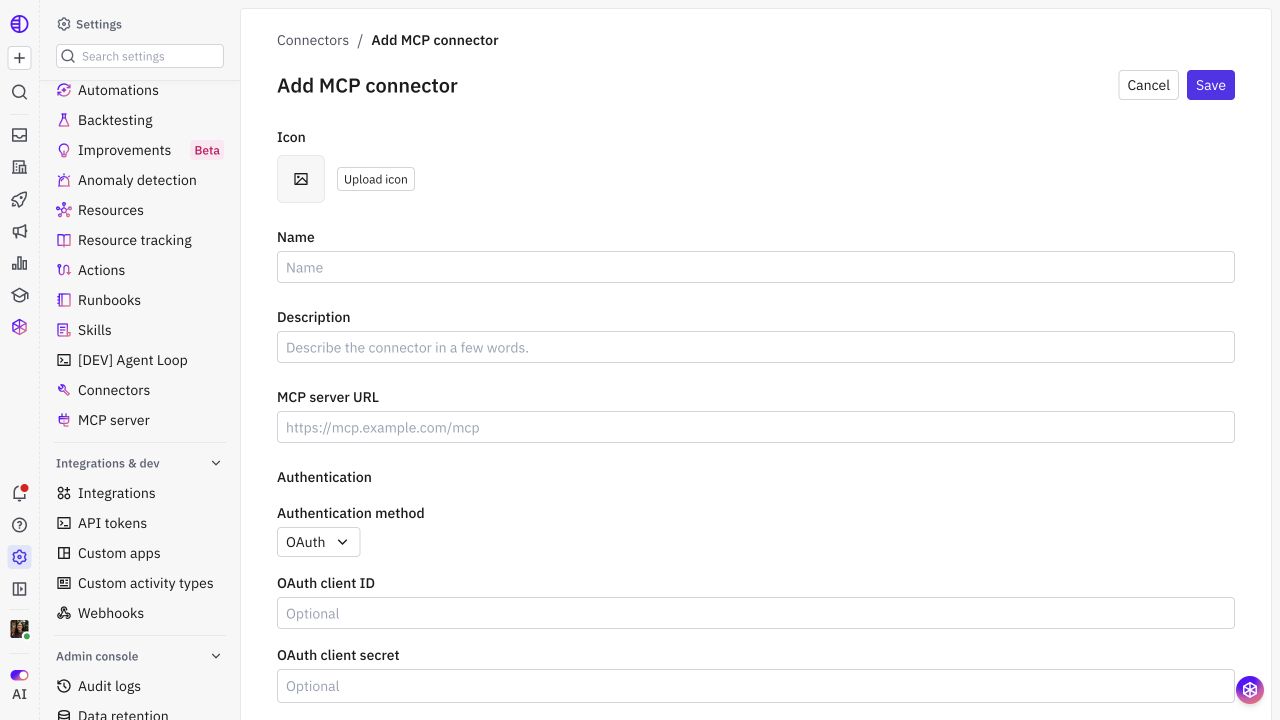
Use the server's actual endpoint and authentication requirements. An arbitrary REST API URL is not an MCP server; use the Custom API tool path when configuring a supported direct API operation.
4. Enable only the tools needed for this workflow
Return to the agent's Tools page. Expand the connector and review each operation. Use its allow/block control and the available group access modes to select the intended tool set.
Built-in and connector tools may have different prerequisites. If an agent connection is not enabled, complete that connection first. Review any acknowledgment shown for connector tools used in autonomous customer replies before enabling them.
The tool's connected account and service-side permissions still limit what it can read or change. For Pylon custom fields and tags, configure Custom field access as well.
5. Add procedural instructions
Use a Skill when the tool is part of a specific workflow. Explain:
The request that should load the Skill.
Required identifiers or account/issue context.
The lookup or action to perform.
How to recognize success, no matching record, and failure.
What the agent should say or do next.
For example, a troubleshooting Skill can tell the agent to retrieve the linked account's allowed deployment field, choose the documented procedure, and hand off if account-specific investigation remains necessary.
Keep broad communication rules in Guidance and handoff routing in Escalations.