What to do when the Agent Escalates?
Last updated: October 30, 2026
Configure Escalations in two parts: when the agent should involve a teammate, and what actions should run during the handoff. Both are configured on the agent's dedicated Escalations page.
This walkthrough builds an example handoff that sends the issue to your support team and explains the handoff to the customer.
1. Open Escalations
Go to Settings > AI controls > Support agents, open the agent, and select Escalations.
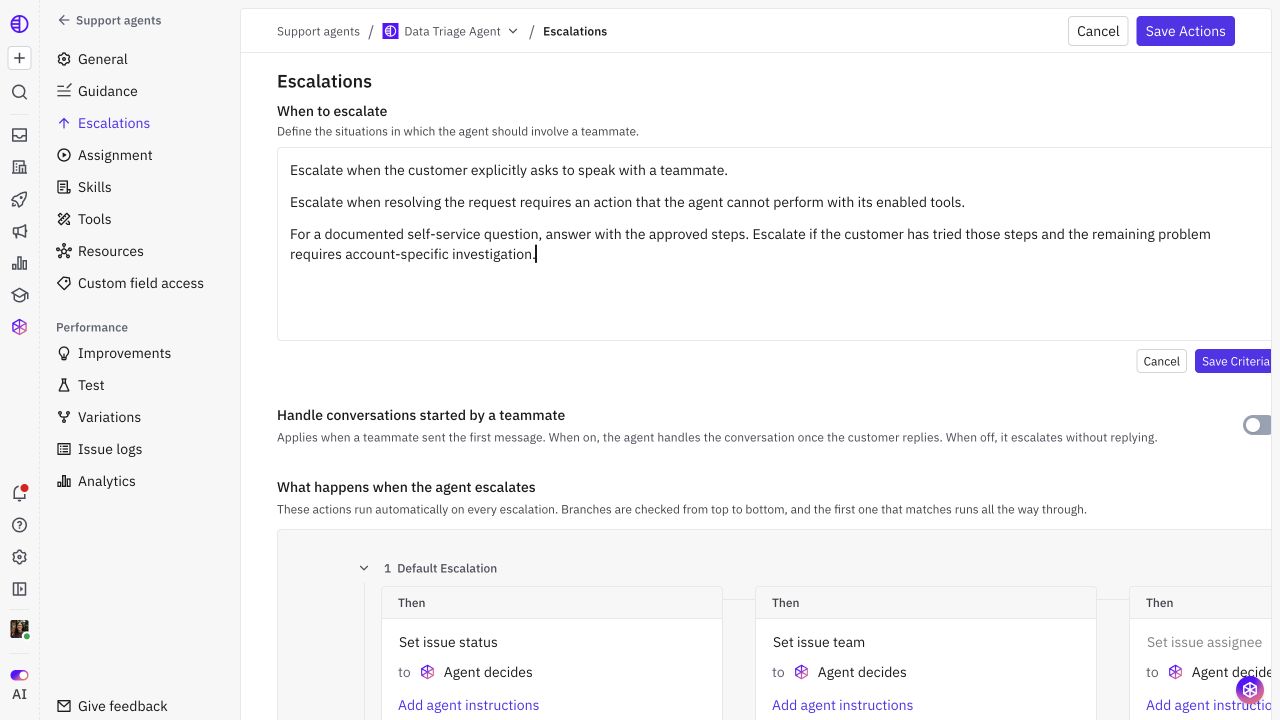
You will see When to escalate above the action flow under What happens when the agent escalates. Keep handoff criteria here rather than adding them to Guidance.
2. Write and save escalation criteria
Under When to escalate, select Edit.
Describe the situations that require a teammate.
Specify when the agent should continue helping, so the criteria do not send every ambiguous question to a human.
Select Save Criteria.
For example:
Escalate when the customer explicitly asks to speak with a teammate.
Escalate when resolving the request requires an action that the agent cannot perform with its enabled tools.
For a documented self-service question, answer with the approved steps. Escalate if the customer has tried those steps and the remaining problem requires account-specific investigation.
3. Choose how to handle teammate-started conversations
Review Handle conversations started by a teammate:
On: When a teammate sent the first message, the agent handles the conversation once the customer replies.
Off: The agent escalates without replying in that situation.
This switch changes the setting immediately. Choose the behavior intentionally rather than treating it as part of an unsaved action-flow draft.
4. Set the issue status, team, and/or assignee
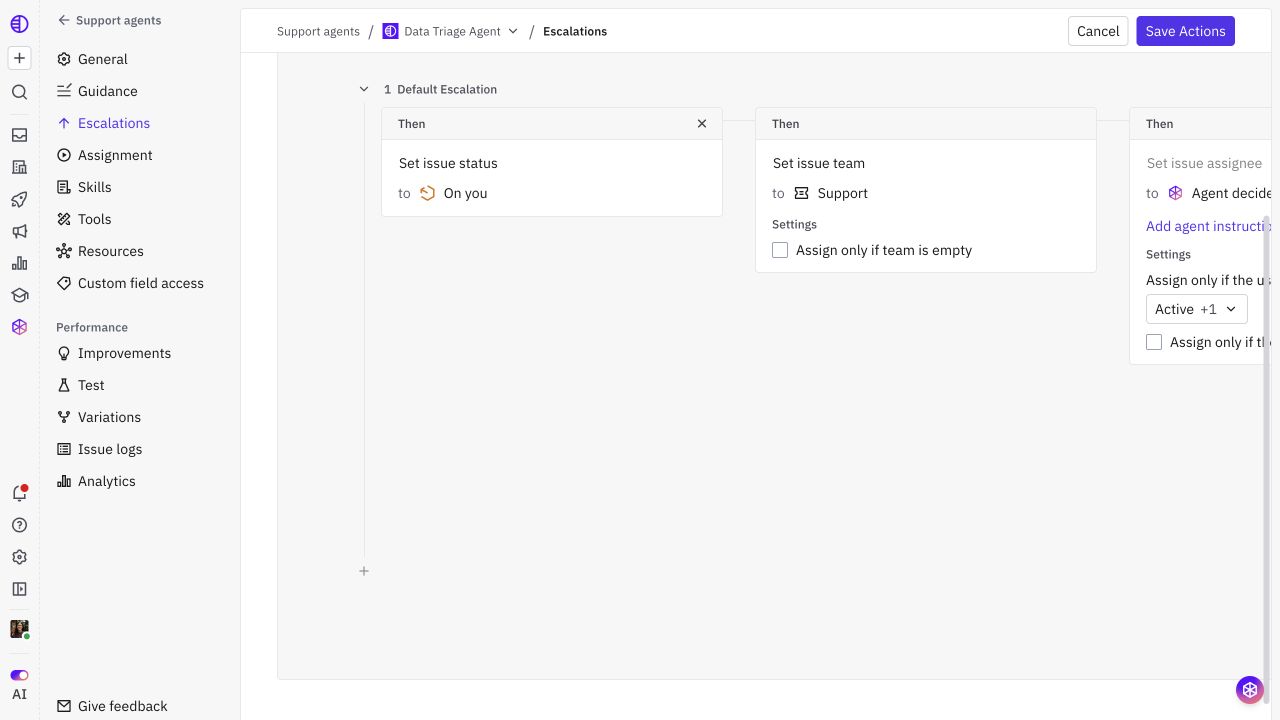
Decide what you want the agent to do when escalating - this should follow your default Support escalation flows.
For Agent decides, use Add agent instructions to explain the intended choice. A fixed team is the simplest setup when all handoffs should go to the same destination.
5. Configure the customer handoff message
In Send issue message:
Review as. For a customer-facing handoff, use Reply to customer thread.
Review from and select the intended sender.
Choose the message source:
Fixed message: Write the exact reusable handoff message.
Agent decides: Write instructions for the message; this mode also permits a silent handoff when no message is appropriate.
Review the optional message settings, such as auto-translation and Only send if agent has responded already.
Example fixed message:
I'm handing this to our support team for a closer look. They'll review the details shared so far and follow up here.
6. Check flow order and save the actions
The action builder supports conditional flows. Branches are evaluated from top to bottom, and the first matching branch runs all the way through.
For a simple setup, use one default handoff flow. If destinations differ by issue type, configure conditions on the earlier flows and leave a catch-all flow last. The builder requires conditions on prior flows before another flow can be added.
Before selecting Save Actions, check:
Each enabled branch includes a Set issue team or Set issue assignee action before a message.
A customer-facing message is the final action in its branch.
Conditions do not make a specific branch unreachable behind a broad earlier branch.
Routing choices and unassigned-only settings produce the intended human handoff.
The editor rejects an invalid action flow, including a branch without a team/person assignment or a customer message placed before the required assignment. Resolve any validation message and select Save Actions again.