Connecting External Documentation
Last updated: October 30, 2026
Connect product documentation as a Resource so your Support Agent can retrieve it while answering issues. Use public URL import for publicly accessible pages, a supported external source for private documentation, or the Training Data API for content your own system manages.
Import a public website
Open your Support Agent's Resources page and select Import Data.
Select Import from URLs.
Enter a descriptive resource Name.
Select Crawl webpages starting from a URL.
Enter the public documentation URL.
Choose whether to Crawl other sections of the same website. Off keeps the crawl within the starting path; on follows links into other sections on that website.
Set Who can access this resource's data?
Under Which agents can immediately use this data?, select the intended agent.
Select Import data.
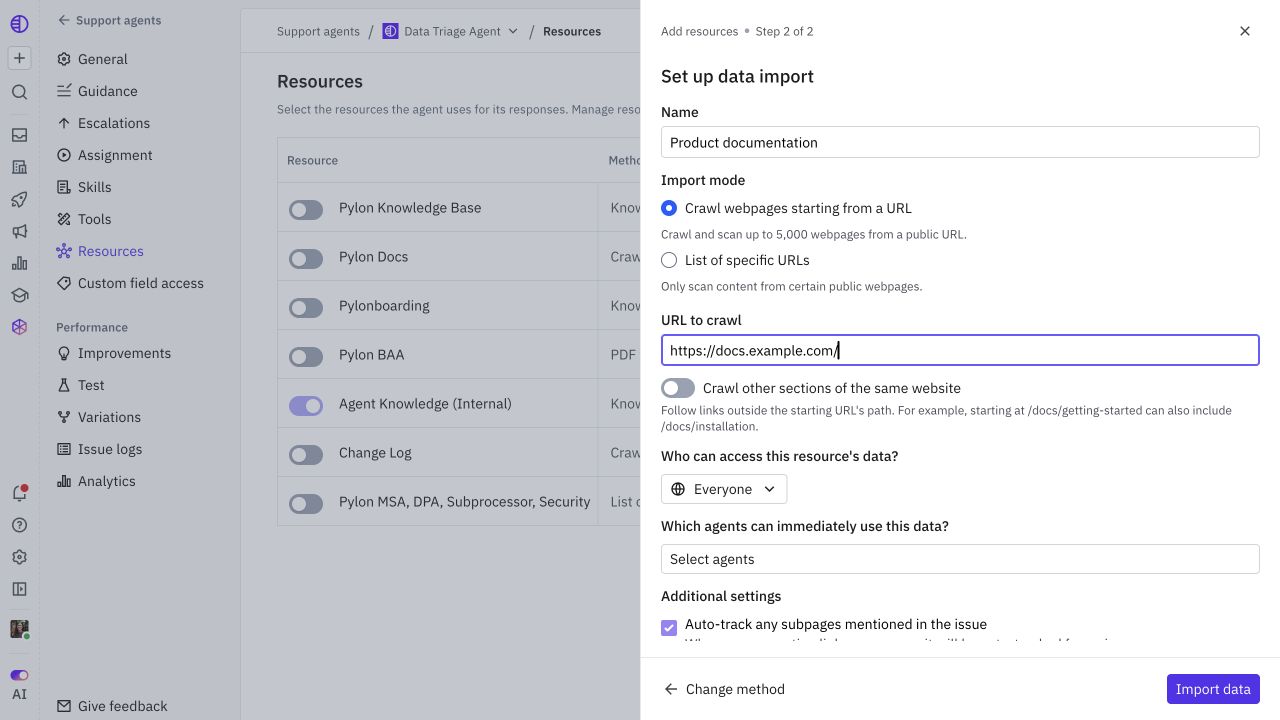
The current import form supports scanning up to 5,000 webpages. A crawler cannot use your browser's signed-in session to read a private site.
Import only selected pages
Choose List of specific URLs instead of a crawl. Add the public pages you want to include, then configure access and immediate agent use. This is useful when unrelated or stale material lives under the same documentation site.
After import, check status and object counts in Resources. Test a question that needs one of the imported pages.
Connect private documentation
Choose Import Data > Import from external source.
Select GitHub, GitBook, or Mintlify.
For GitBook, use Git Sync to place the documentation in GitHub, then connect that repository. Follow the equivalent repository-backed setup shown for your selected provider.
Use Manage GitHub Repositories to authorize the required repository with your organization's approved GitHub access.
Confirm the selected repository, resource name, access, and agents.
Select Import data and review the imported documents.
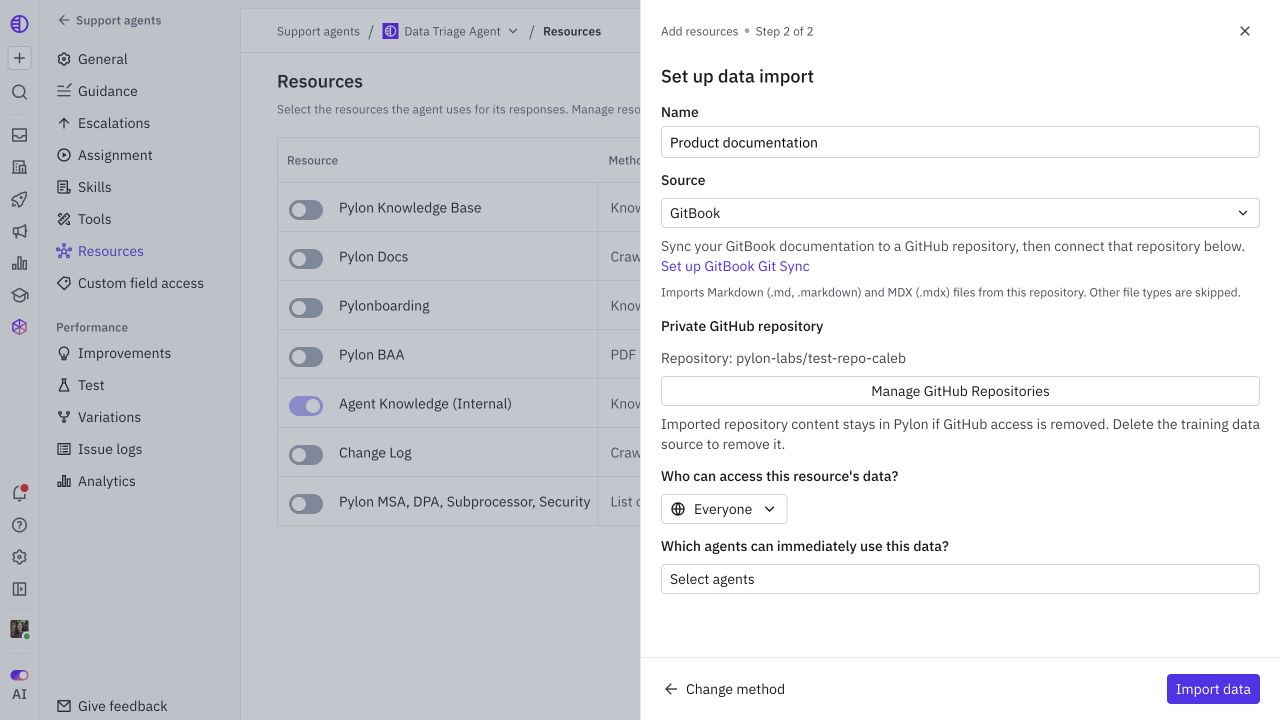
This documentation path imports Markdown and MDX files; other repository file types are skipped. Use Import from code for codebase context rather than assuming a documentation import ingests every source file.
Removing GitHub access does not remove content already imported into Pylon. If the material should no longer be available, remove the corresponding source content in Pylon and verify access.
Upload a document
Select Import from file, choose the supported file offered by the upload control, and complete resource access and agent selection. Check processing before testing the source. When the original document changes, update the imported material rather than leaving two conflicting versions selected.
Manage content through the Training Data API
Use this path when your application owns the source content and should send updates programmatically. Use your approved API credentials; do not paste credentials into a KB article or agent instruction.
The current API supports:
POST /training-data to create an empty named training-data container.
POST /training-data/upload-content to upload text into a container.
POST /training-data/upload for file uploads.
GET /training-data and GET /training-data/{id} to inspect sources.
Example JSON body for text ingestion:
{
  "training_data_name": "Product setup instructions",
  "file_name": "feature-a-setup.txt",
  "external_id": "feature-a-setup",
  "content": "Current, approved setup instructions for Feature A.",
  "visibility": "ai_agent_only"
}
Send that body to POST /training-data/upload-content. To add content to an existing container, use its training_data_id. The API supports a stable external_id for idempotent content operations. Store the returned source ID, verify ingestion, and enable the source on the agent's Resources page.
Build an update/removal process alongside ingestion. API ingestion does not automatically select the resource for every agent, and a successful upload is not proof the content has finished processing.