How do I integrate Google Meet (Gemini) with Pylon?
Last updated: October 7, 2026
Steps 1-5 of this installation process will require the user to be a Google Workspace administrator.
Note: Pylon requires Google Meet transcripts to be enabled and generated in order to ingest Google call recordings.
Go to the Google Workspace Admin console at admin.google.com.
In the sidebar, navigate to Security > Access and data control > API controls.
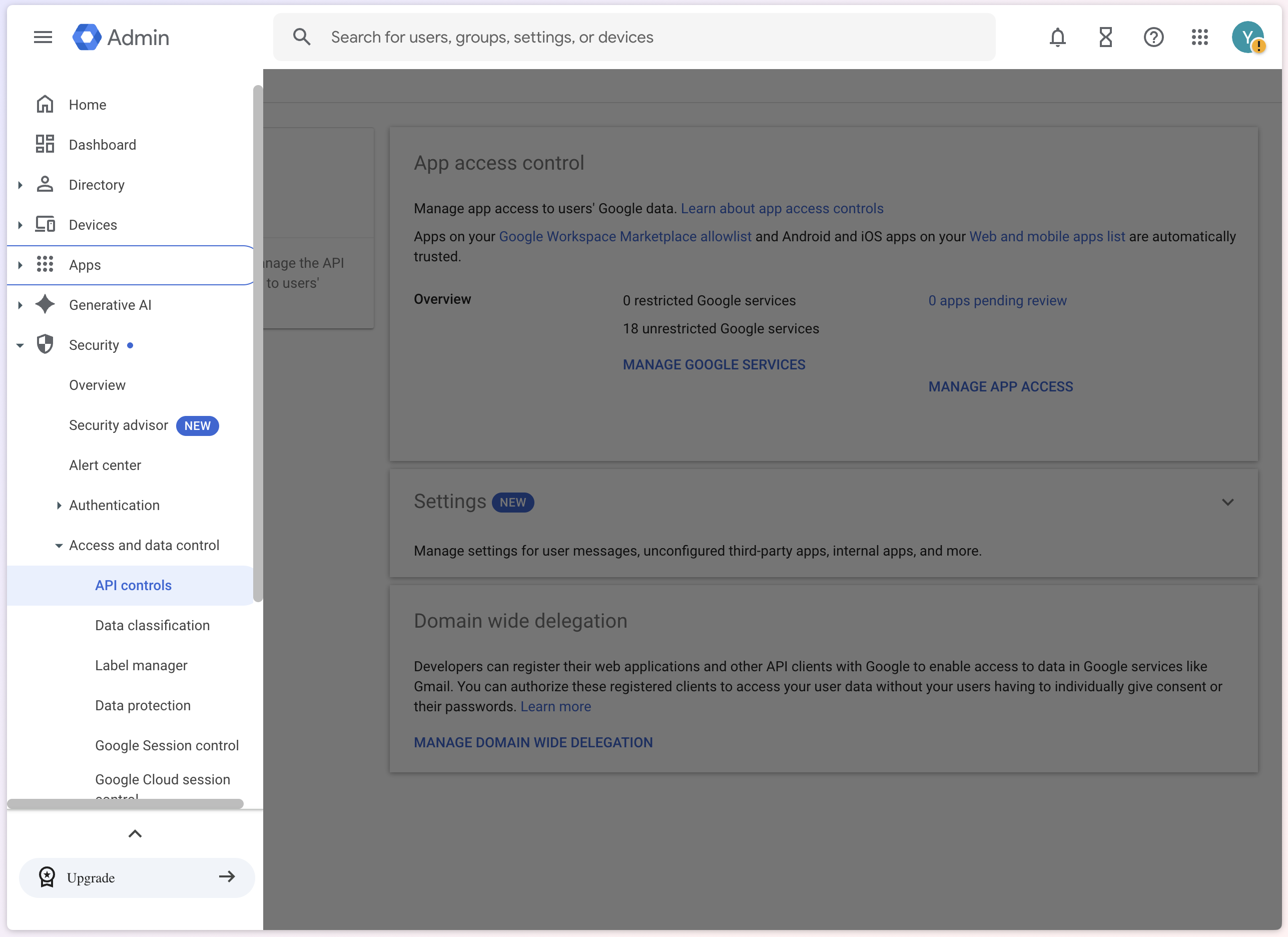
Click on Manage Domain Wide Delegation, and then Add new.
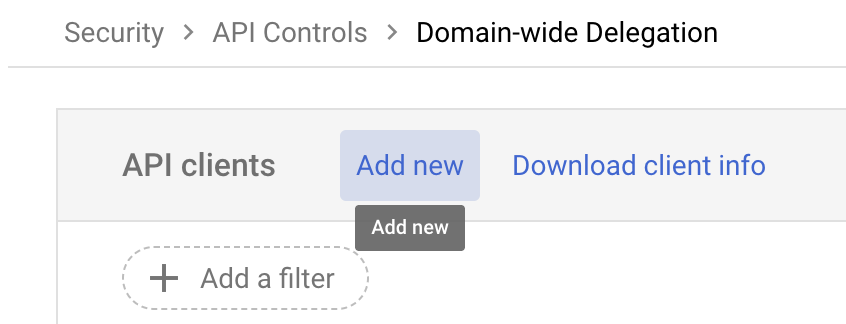
Under Client ID, enter the client ID of the Pylon app:
110854823076973996237(108855810437060358127if you're using Pylon EU).Add the following OAuth scopes and then click Authorize.
https://www.googleapis.com/auth/admin.directory.user.readonlyhttps://www.googleapis.com/auth/meetings.space.readonlyhttps://www.googleapis.com/auth/drive.meet.readonlyhttps://www.googleapis.com/auth/calendar.readonly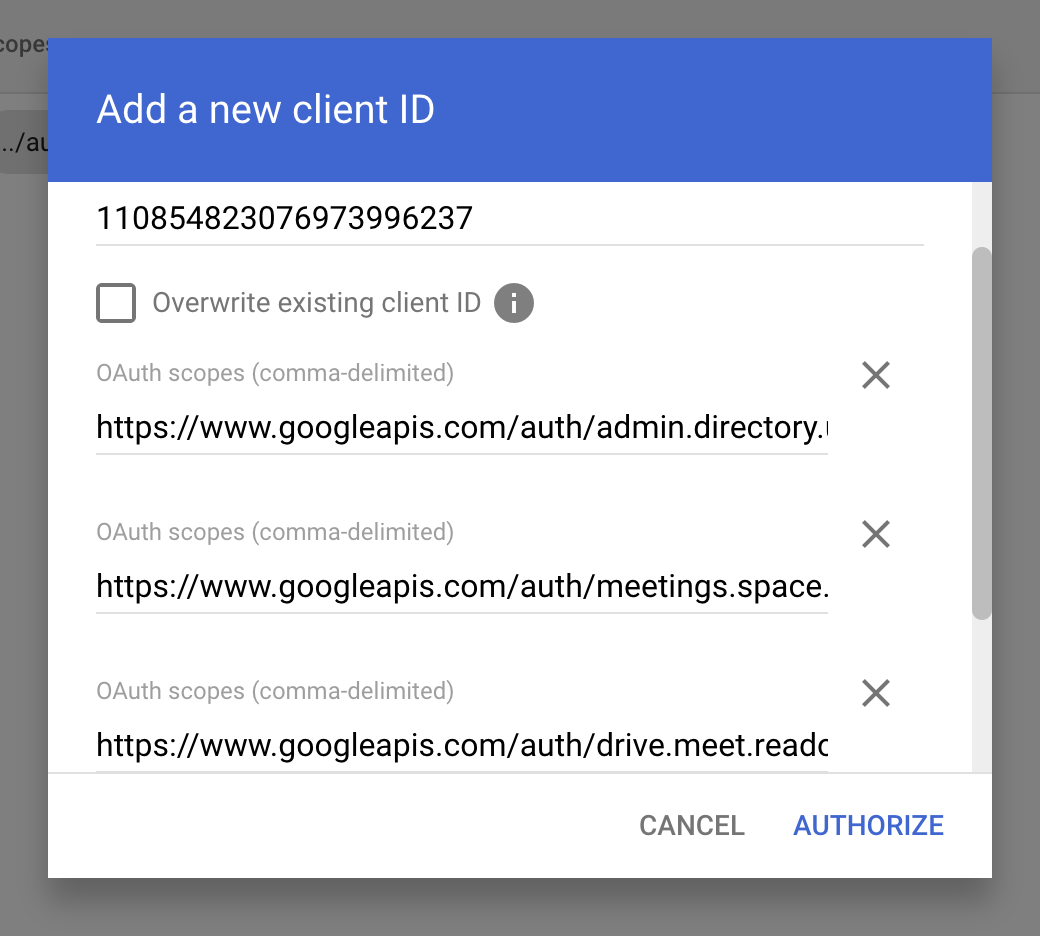
Now go to the Pylon Integrations Directory page and click on the Google Meet app under Call Recording.
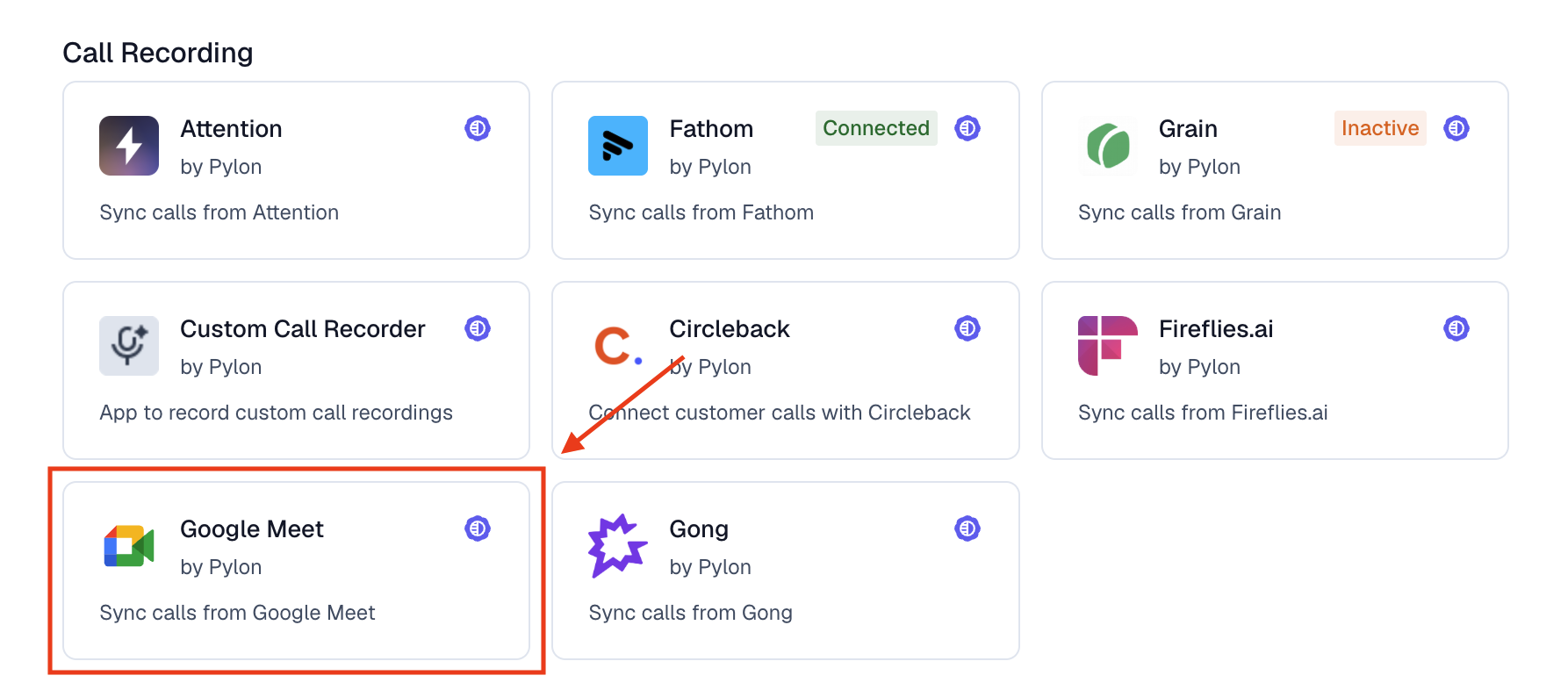
Hit Connect in the top right corner.
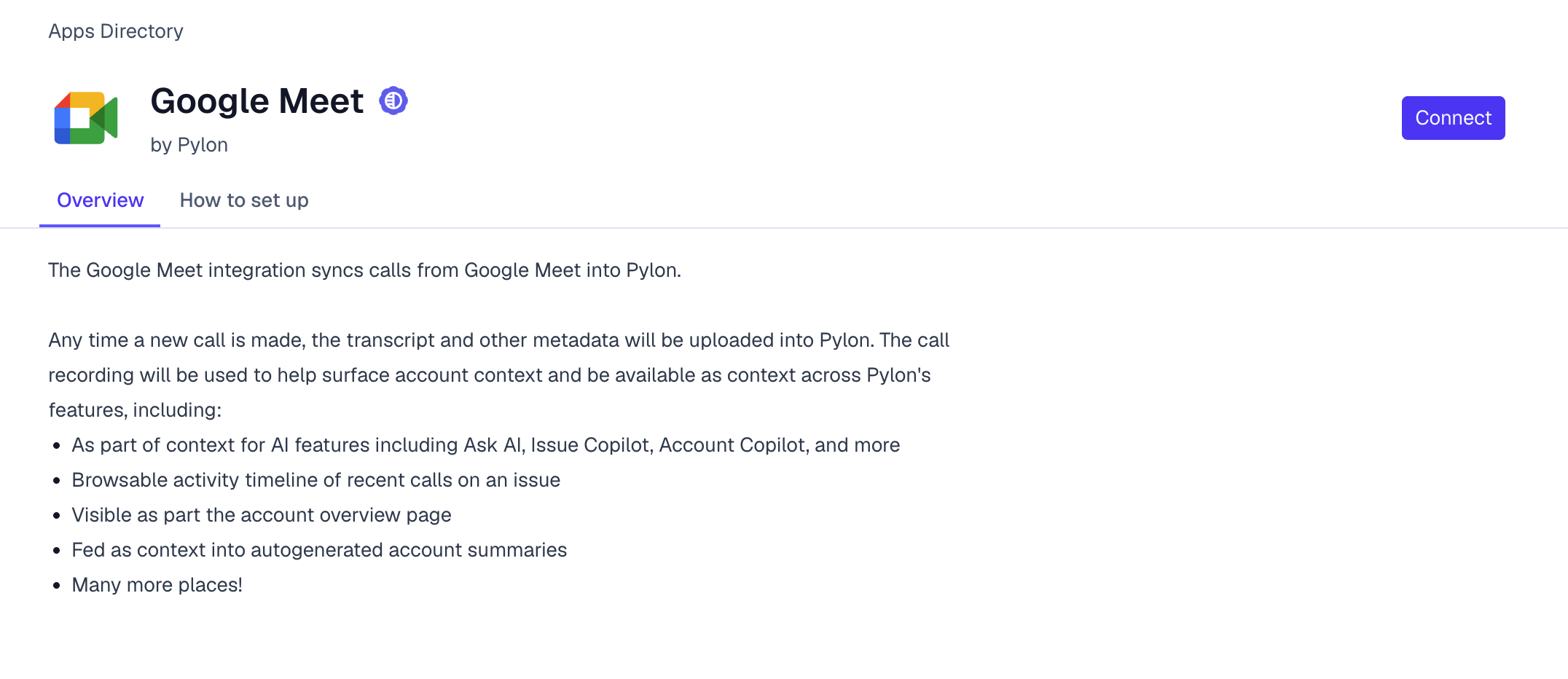
Enter the email of a Google Workspace administrator and hit Submit to finish installing the app. Pylon will utilize this email in order to fetch the active users in your organization so their call recordings can be synced.
Note: To protect participant privacy, on the call list in the Google Meet integration page in Pylon, you will only be able to see calls which you were a participant in. Calls from other members of your team in Google Meet will still be pulled in and attributed to the correct Pylon account.