How do I integrate Attention with Pylon?
Last updated: December 18, 2025
Make sure you are an Attention administrator before going through the app install process.
Connect Attention
Ask your Attention representative for your API key
Once you have your API key, click Connect on the Attention apps directory page and enter your API key and click Submit. This will kick off a backfill to populate Pylon with preexisting meetings from Attention.
Setup Webhooks
In Attention dashboard, navigate to Settings > Builder. You may need to ask your Attention representative to enable this feature for you if you do not see it in settings.
Click Create Workflow in the top right > From scrach
For Select trigger, choose Conversation Analyzed
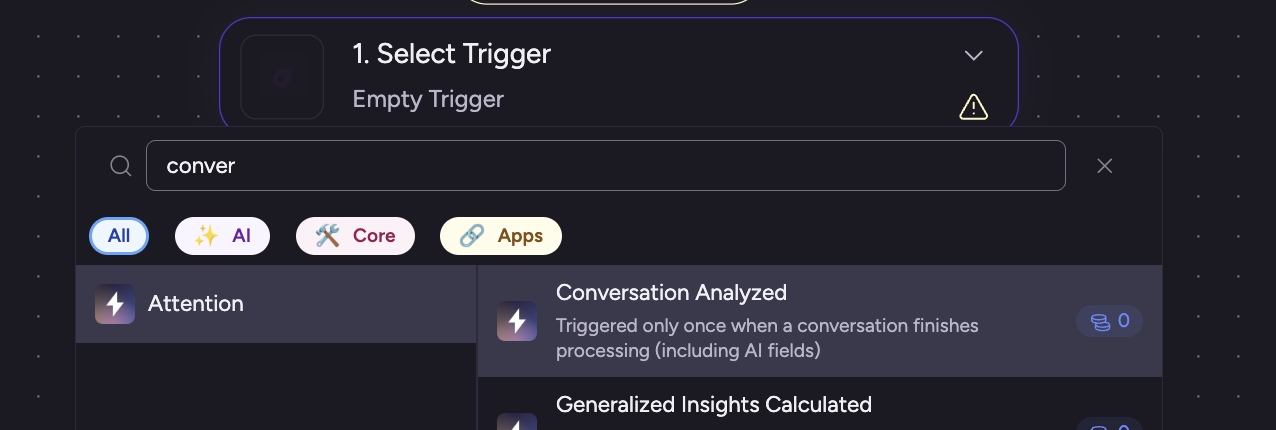
Make sure Use detailed transcript is toggled on. You can find this setting in the config sidebar for Conversation Analyzed if you click on that step.

Add a step HTTP (Send HTTP request)
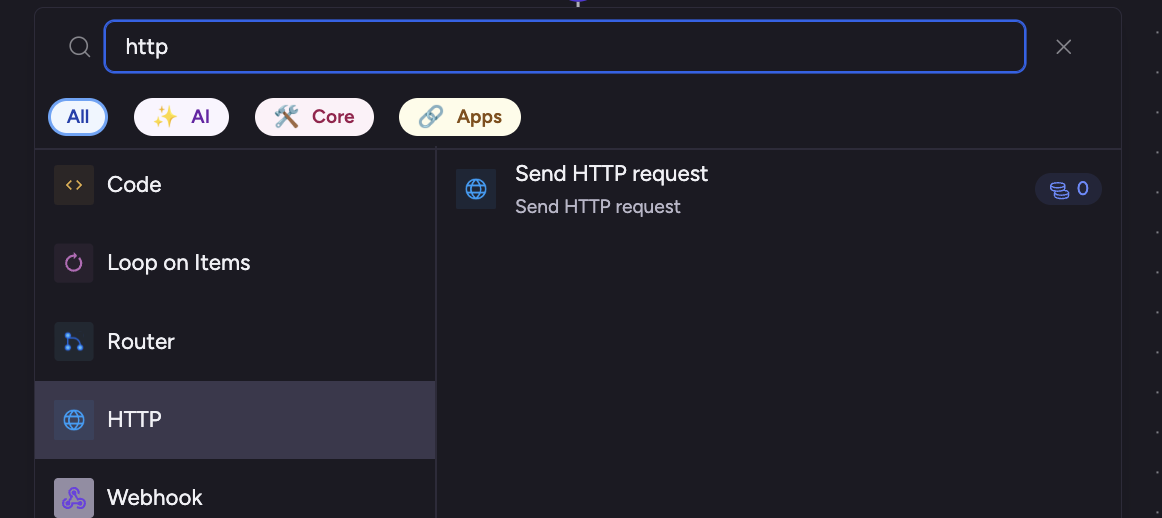
Configure HTTP request in sidebar with the following configuration:
Method - GET
URL - get the Webhook URL from the Connect modal from the Attention integration page within Pylon
Body Type - JSON
JSON Body
{
  "attributes": {{trigger['attributes']}},
  "id": "{{trigger['id']}}",
  "links": {{trigger['links']}}
}
Click Publish Changes to activate your flow.
Note: To protect participant privacy, on the call list in the Attention integration page in Pylon, you will only be able to see calls which you were a participant in. Calls from other members of your team in Attention will still be pulled in and attributed to the correct Pylon account.