How to compare your legacy support agent with your new support agent
Last updated: October 29, 2026
Before switching from a legacy support agent, you can run it alongside your new support agent on the same historical issues. This optional backtest gives you a quick preview of their initial responses without changing live assignment routing.
Use this comparison to decide what to improve before QA or launch. It complements the live routing steps in 📄 How to upgrade your legacy support agent (Assignment).
1. Create a dataset from the legacy agent's issues
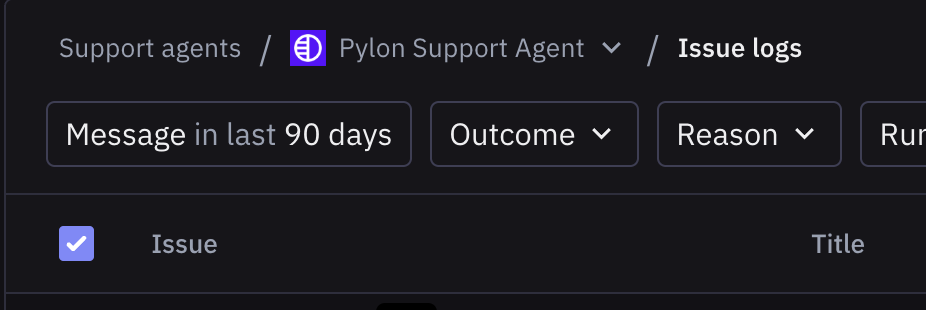
Open your legacy support agent and select Issue Logs.
Choose a relevant date range and select a sample of issues it handled.
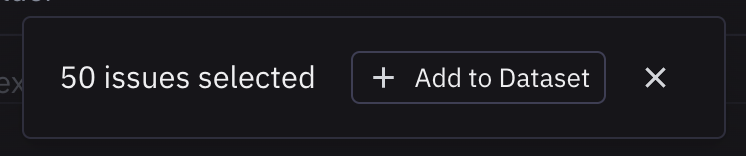
Select Add to Dataset in the selection bar.
Create a dataset with a recognizable name, such as Legacy agent comparison, or add the issues to an existing dataset.
Include common questions and some difficult cases or previous failures. Choose issues that reflect the work you want the new support agent to handle, rather than only selecting successful legacy responses.
If you do not have legacy issue logs
You can build the dataset from other historical support issues. If your Assist Agent has access to the backtesting tools, ask it to find relevant issues and create the dataset. For example:
Create a backtest dataset named “Support agent comparison” from 20 recent customer support issues about [topics] from [date range]. Include a mix of routine questions, difficult cases, and issues that required a handoff. Show me the included issues so I can review the selection. Do not change either agent's configuration or assignment routing.
Review the selected issues before running. The same historical inputs will be used for both agents even if the legacy support agent did not originally handle those issues. If you have no historical issues at all, use the agent's Test page for sample requests instead; that is a different kind of preview.
2. Run both agents on the same dataset
Go to Settings > AI controls > Backtesting.
Open Backtests and select New Backtest.
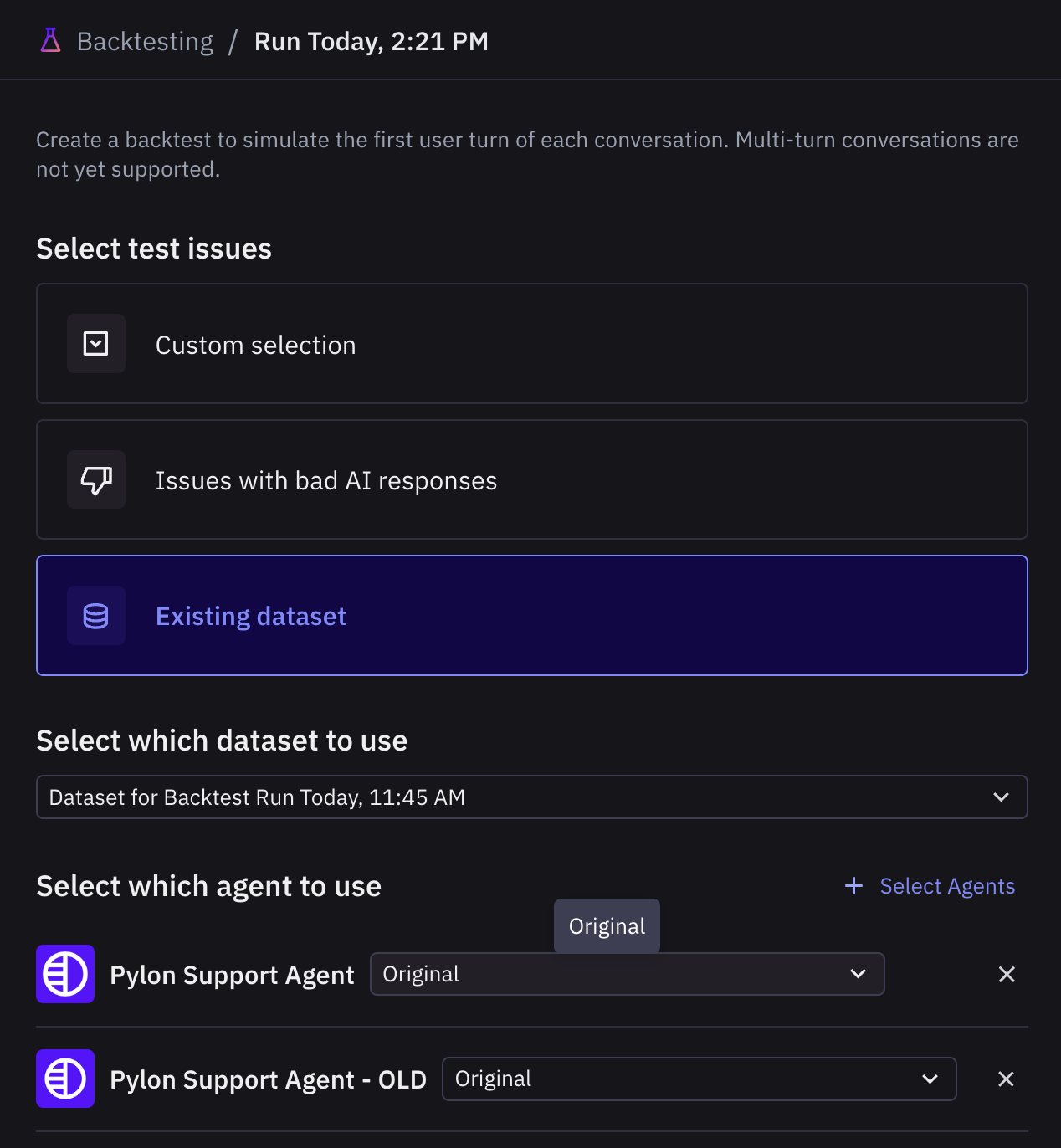
Choose Existing dataset and select the dataset you prepared.
Under Select Agents, add your legacy support agent and your new support agent. Confirm the intended configuration or variation for each.
Name the comparison, review the selected dataset and agents, then select Start Backtest.
Both agents should run against the same dataset. This compares the selected configurations on those inputs; it does not reproduce exactly what the legacy agent said when the original issues occurred.
3. Compare the results
Open the backtest and compare the agents' responses for the same issue. Look for:
Whether each response answers the customer's actual question accurately.
Whether the agent asks a useful clarifying question when information is missing.
Whether it answers or hands off appropriately.
Whether the new support agent improves the cases you care about without making routine answers worse.
Add feedback on responses that need improvement. Update the relevant configuration and rerun the same dataset to check the change.
Backtesting evaluates the initial customer turn, not the full conversation. Treat this as an optional preview of response quality, then continue QA and controlled launch checks for later turns, assignment routing, and customer message delivery.
Related guides
📄 Backtesting: general dataset options, grading, and reviewing results.
📄 Testing flow E2E (Internal QA Mode → Full Support): testing and launch checks beyond the historical comparison.