How do I set up, test, and launch my Support Agent?
Last updated: October 30, 2026
Set up your Support Agent by choosing its knowledge, defining how it communicates and hands off, enabling the workflows it needs, and testing before it handles customer issues.
1. Create the agent
Go to Settings > AI controls > Support agents, open the Support tab if shown, and select Create Agent. Choose the customer-facing name and image.
The v4 setup sequence is Agent settings → Resources → Guidance → Escalation → Preview → Deploy. Some workspaces also show Deflection potential before Deploy. Use Next to save each step or Save Draft to return later.
If you already have an agent, open its configuration pages to complete the same checks. Creating a variation copies a configuration; it does not by itself change an old agent to the new version.
2. Select Resources
Select the sources the agent should use and import missing documentation. Check processing status and content access instead of assuming every source in the workspace is available to this agent.
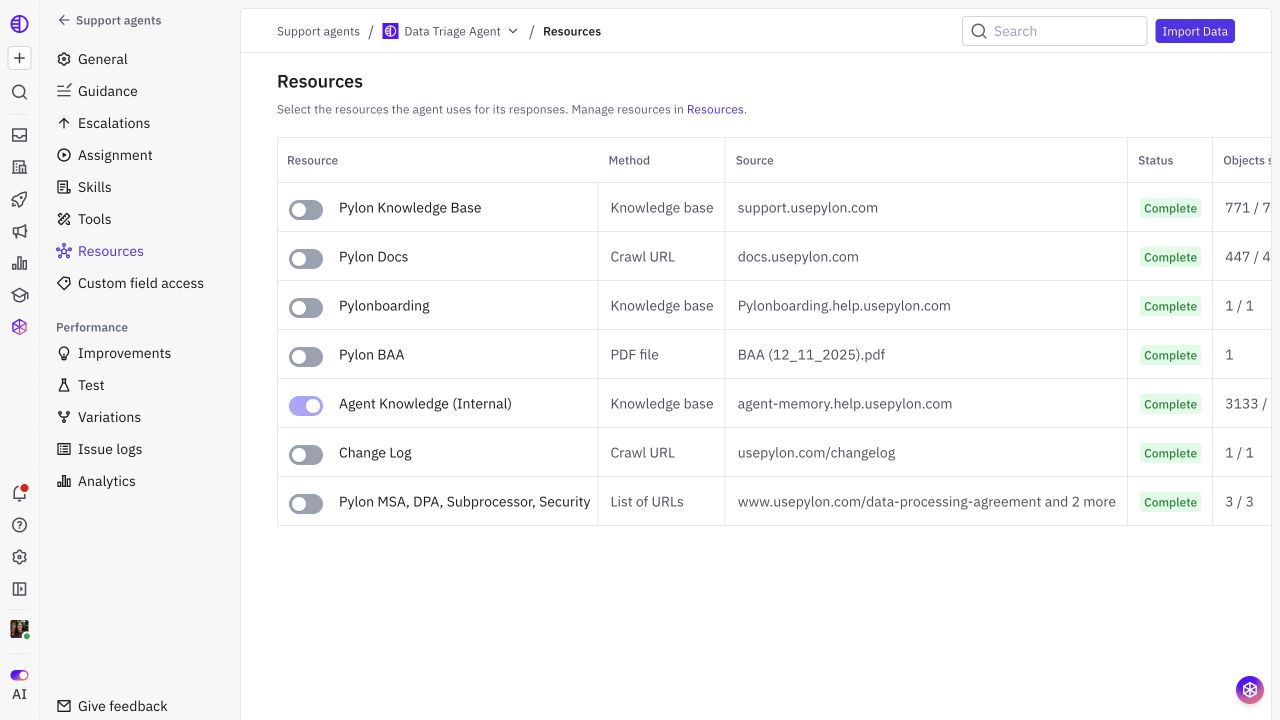
Use current product instructions, FAQs, and troubleshooting articles. For private sources, use the supported import/connection flow; public URL crawling cannot use a signed-in browser session.
Configure Custom field access separately when the answer depends on the customer's plan, deployment, or other record values.
3. Configure Guidance
Review the starting sections and write concise rules for terminology, tone, formatting, and source accuracy. Select Save for an edited section.
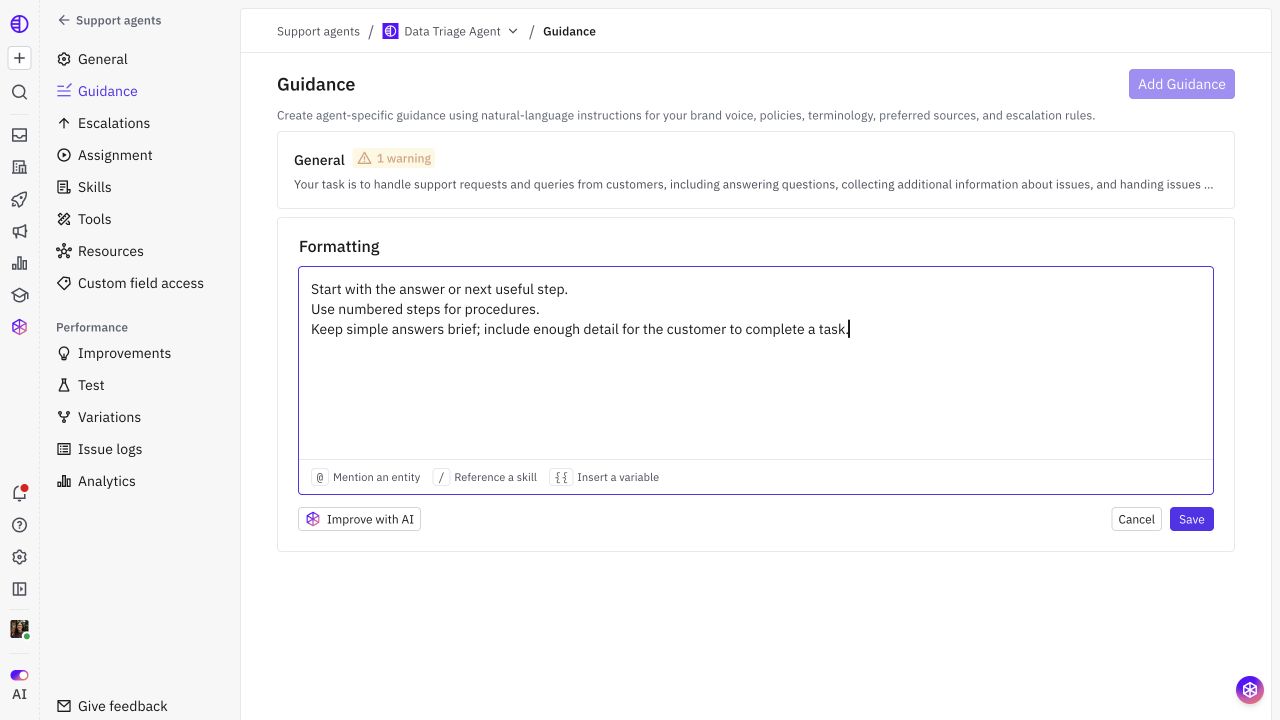
Example: “Start with the answer or next useful step. Use numbered steps for procedures. Do not claim an account check or completed action unless the available context or tool result confirms it.”
Keep scenario-specific procedures in Skills and product facts in Resources. Configure handoff criteria in Escalations rather than embedding the complete handoff process in Guidance.
4. Configure Escalations
In When to escalate, describe cases that need a teammate and select Save Criteria. In the action flow, review status, team/person, and customer messages, then select Save Actions.
Each enabled branch needs team/person assignment before its message. A customer-facing final message must be the last action in the branch. Branches are checked top to bottom, and the first matching branch runs.
Test both a required handoff and a routine question that should stay with the agent.
5. Add Skills and Tools after setup
Skills are optional procedures for particular requests. Create or convert the workflow in Settings > AI controls > Skills, then enable it on the agent's Skills page. Check Support agent compatibility and precise loading conditions.
On Tools, allow only the operations the workflow needs. Connect external systems and complete authentication separately. A Skill or Guidance instruction does not grant tool or field access.
6. Preview and Test
The wizard's Preview uses a past issue. Review it, then use Try Another Issue for another example where available.
After setup, open Test. Use Custom Chat or Existing Issues, choose relevant channel/account/contact context, and inspect the response and actions.
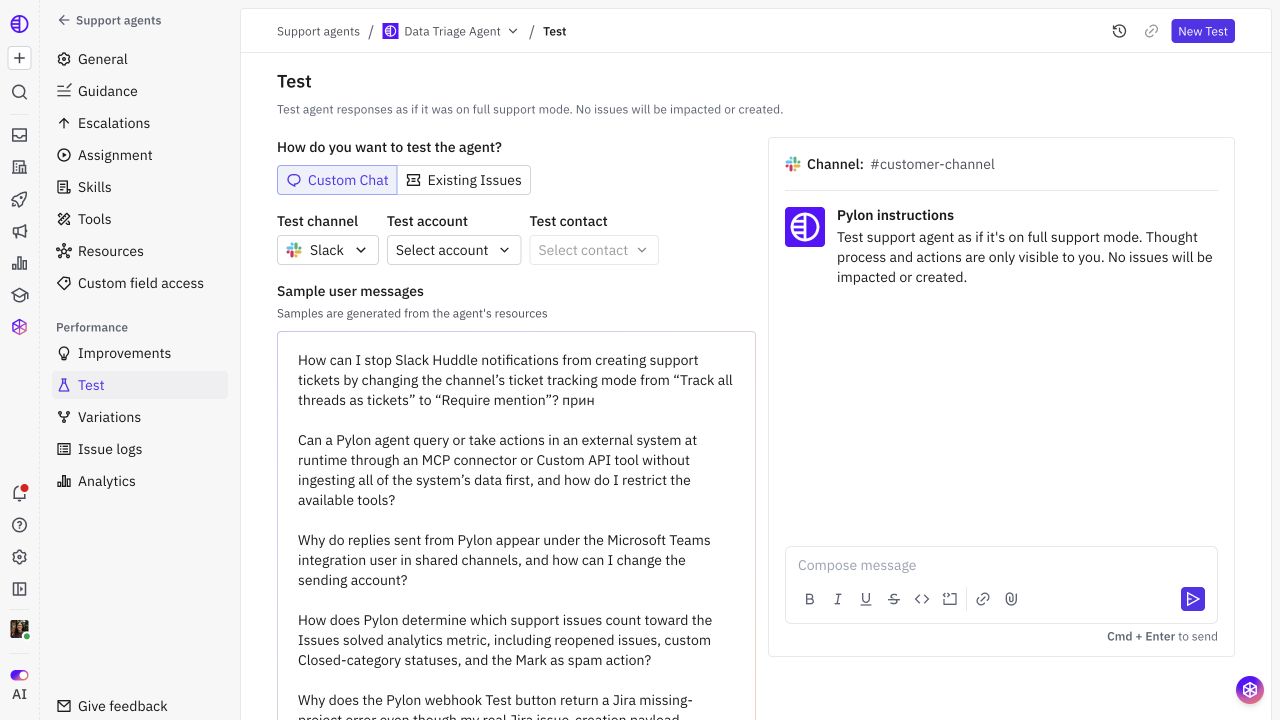
One good preview is not a launch gate. Include normal questions, missing context, unsupported requests, tools, and handoffs.
7. Backtest a repeatable dataset
Open Settings > AI controls > Backtesting. Create a dataset, then use New Backtest to compare the baseline and candidate configurations against the same cases. Review grading and the actual responses.
Backtesting currently simulates the first user turn. It does not establish every later turn or the actual delivery of a live message.
8. Start with Internal QA
In Deploy or the agent's General page, choose QA mode. Under Apply internal QA mode to, select all new issues, matching conditions, or issues that would have been assigned by the agent's triggers. Save the intended scope.
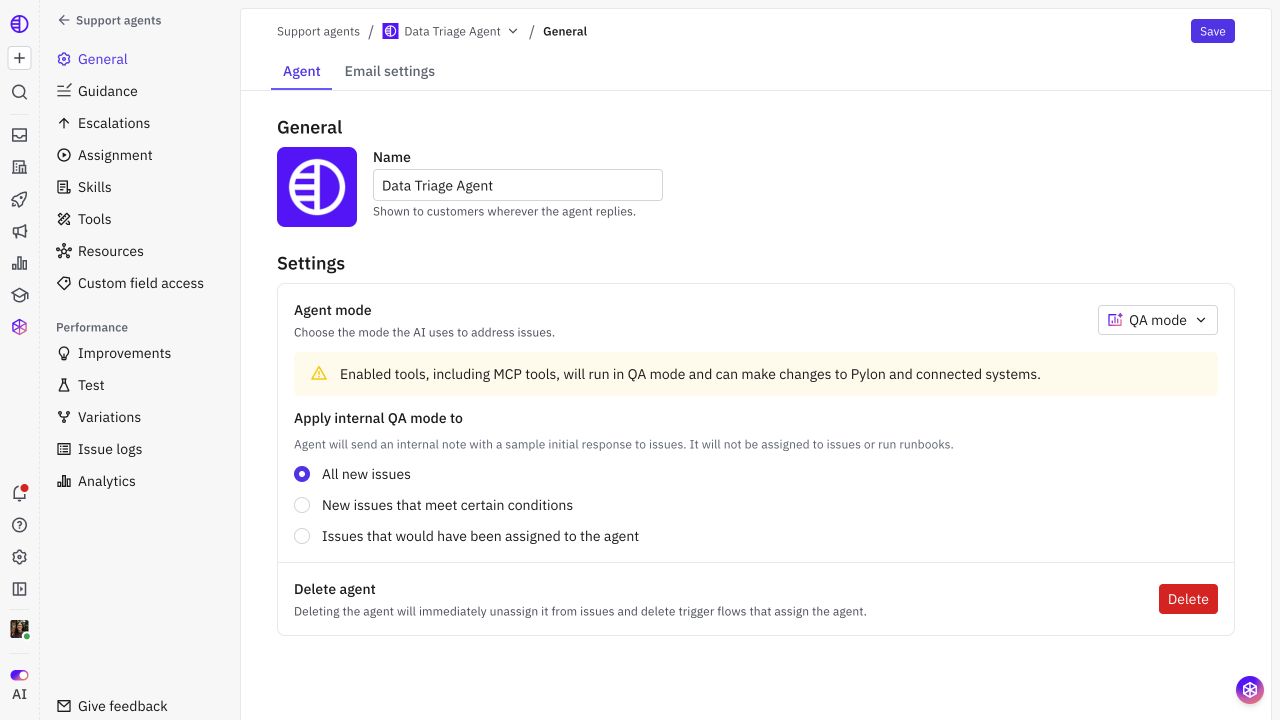
QA creates an internal sample initial response and does not assign the issue to the agent. Enabled tools can still run against live Pylon and connected systems, so review access before evaluating real issues.
9. Build Assignment and launch Full support
Open Assignment > View All Triggers. Create a trigger with the event and filters for the intended scope, then add Set issue assignee and select the Support Agent.
Review the unassigned-only setting and overlapping routing triggers. Test a matching and a nonmatching issue. When the configuration is validated, save Full support mode and enable the narrow assignment scope you intend to launch.
Inspect actual customer replies, tool results, and escalation destinations on the first controlled issues.
10. Monitor and maintain
Review Issue logs and feedback for individual failures, Improvements for proposed changes, and Analytics for coverage and outcomes. Record the active configuration and deployment date so comparisons are meaningful.
If behavior is unsafe or substantially below expectations, narrow/disable assignment and return to QA or Disabled while fixing the relevant layer. Inspect active conversations separately, then repeat the original tests before expanding again.
Give each source and workflow an owner. After a release, update the authoritative documentation, refresh ingestion where supported, and rerun the cases that depend on the changed behavior.