How to upgrade your legacy support agent
Last updated: October 30, 2026
Upgrade your legacy support agent by testing a separate support agent in QA mode alongside it, then switching your assignment routing when you are ready.
This guide covers the routing part of the upgrade: keeping the legacy support agent live, evaluating the new support agent on the same issues, and switching over without leaving both agents in live routing.
Before you start
Prepare and test the new support agent's configuration, including any workflows you are moving from legacy runbooks to Skills.
Keep your legacy support agent enabled while you evaluate the new one.
Open the legacy support agent's Assignment page and identify the trigger flows that route its issues.
Optional: preview both agents on historical issues
Before evaluating new incoming issues in QA, you can run your legacy support agent and new support agent on the same historical dataset. This gives you a quick comparison of their initial responses without changing live assignment routing. Follow 📄 How to compare your legacy support agent with your new support agent. This is an optional preview, not a prerequisite for setting up parallel QA.
1. Use the existing routing scope for QA
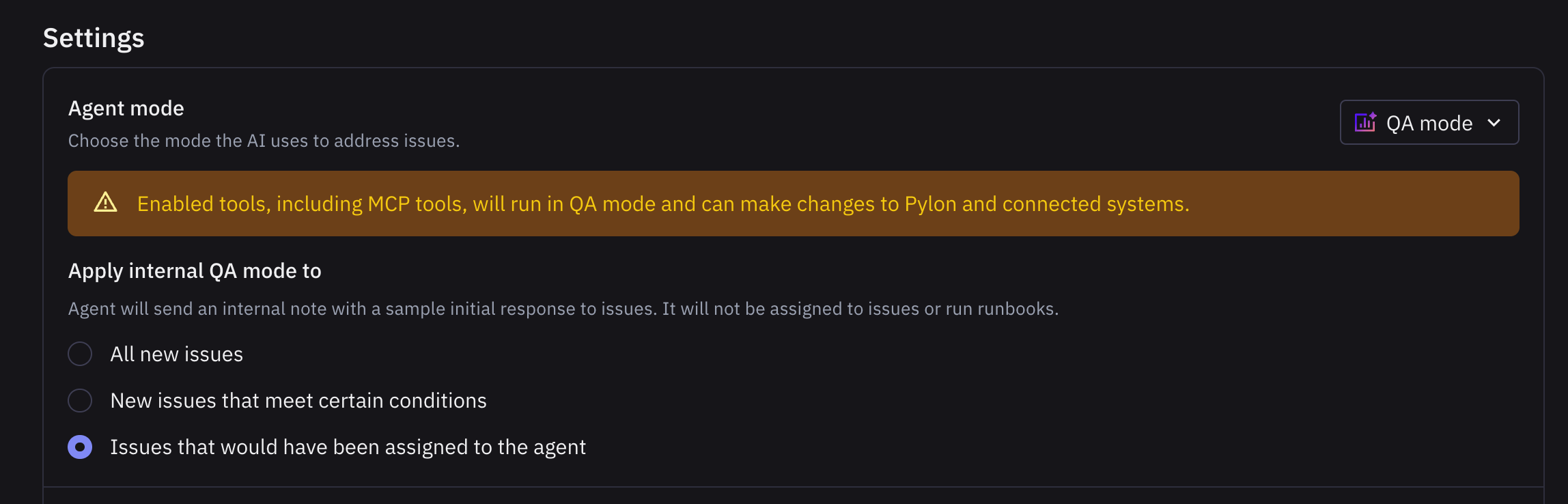
Open the new support agent's General page and set Agent mode to Internal QA only.
Under Apply internal QA mode to, select Issues that would have been assigned to the agent.
Save your changes.
This setting lets your assignment trigger select the QA issues. It avoids expanding the evaluation to every new issue in your workspace.
2. Add the support agent to the existing trigger
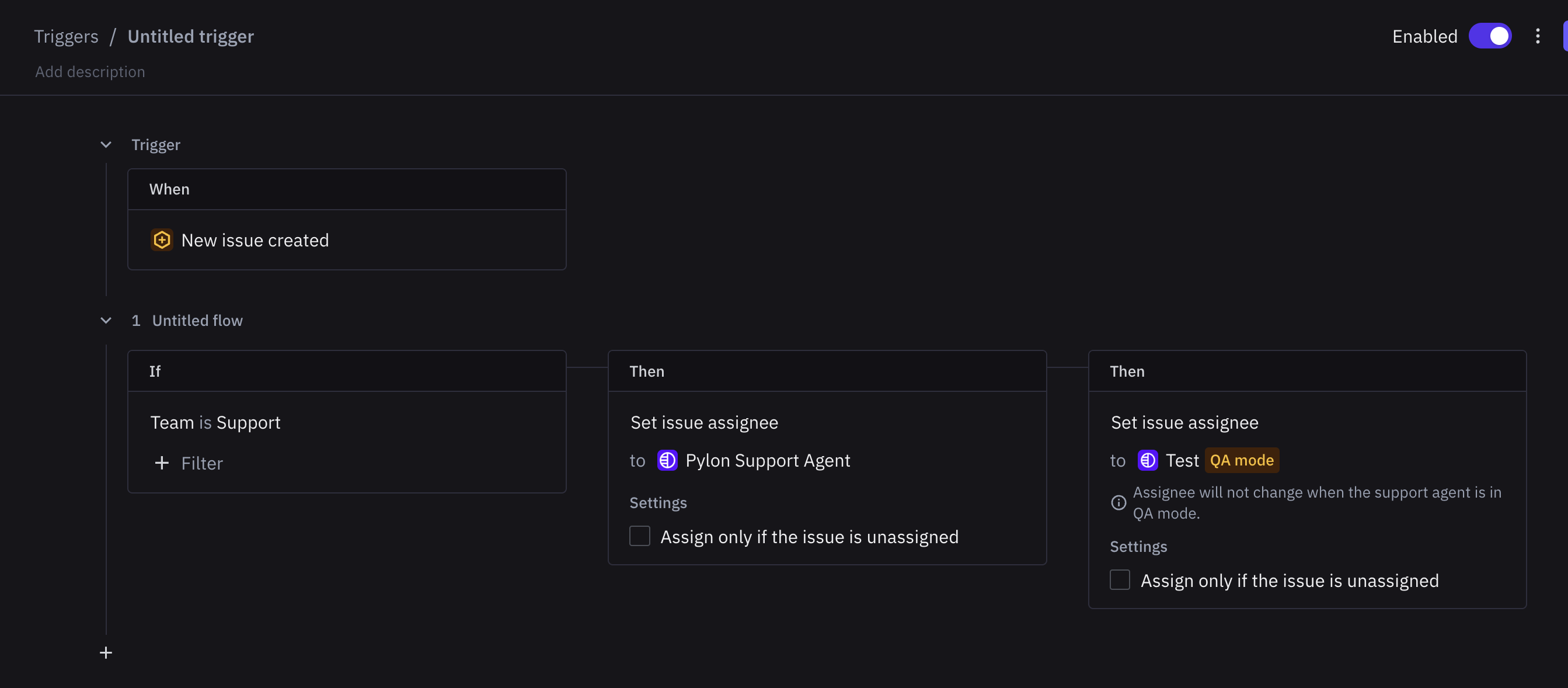
Open the trigger that currently routes issues to your legacy support agent.
Keep the existing legacy assignment flow enabled.
Add an Assign issue action for the new support agent after the legacy assignment. If you use a separate flow, make sure its conditions select the intended issues.
Confirm the relevant flows are enabled and save the trigger.
While the new support agent is in QA mode, its assignment action starts a QA evaluation without replacing the issue's current assignee. Your legacy support agent can continue the live conversation while the new support agent provides an internal sample initial response.
3. Check the parallel QA results
On new issues that match the trigger, confirm the legacy support agent continues handling the live conversation. Review the new support agent's Issue Logs and internal sample responses to confirm it evaluates the intended issues.
Complete your testing before switching routing. QA samples cover the initial response, so also validate the follow-up workflows you expect the new support agent to handle.
4. Switch routing to the support agent
When you are ready to switch, update the modes and routing together:
Change the new support agent to Full Support and save.
Set the legacy support agent to Disabled and save.
Remove the legacy assignment action from the trigger. If it has a dedicated assignment flow, you can disable that flow instead. Preserve any other actions your workflow needs.
Confirm the remaining assignment action selects the new support agent and the flow is enabled. Review Assign only if the issue is unassigned so it matches your intended routing.
Check other triggers that assign issues to the legacy support agent and update the relevant routes. Save your changes.
Check a new matching issue to confirm it is assigned to the new support agent and receives the expected response. Review active conversations separately rather than assuming a new-issue routing change has transferred them.