How do I set up Microsoft Teams Chats?
Last updated: January 13, 2026
If you already have the Teams integration installed before Jul 2025, have an admin reauthorize the integration to ensure it works properly with Teams chats.
Creating a new Microsoft Teams group chat
Click "New message" in the Chat tab
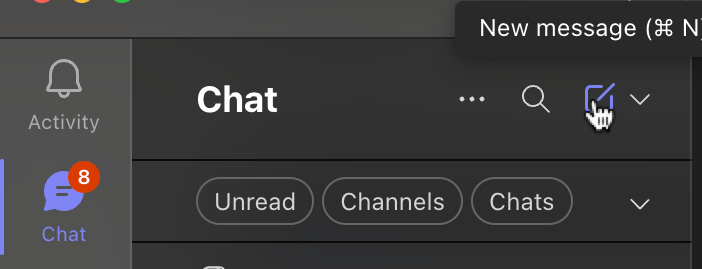
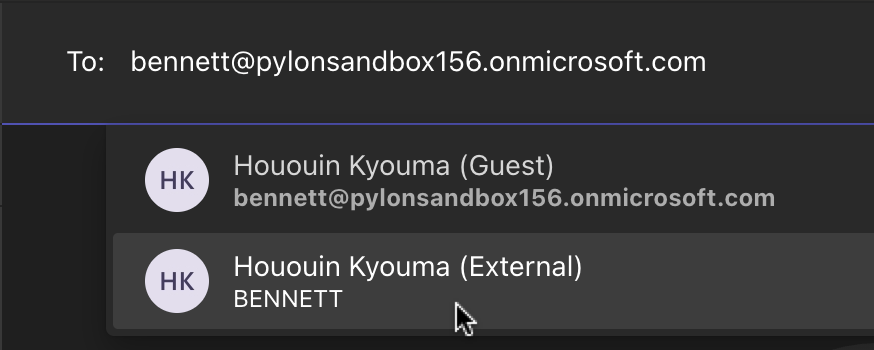
Enter the emails of the users you'd like to invite
If these are customer users, and both "Guest" and "External" options show up, you should select "External" to ensure your customer can access the chat from their tenant
Send an initial message to the group
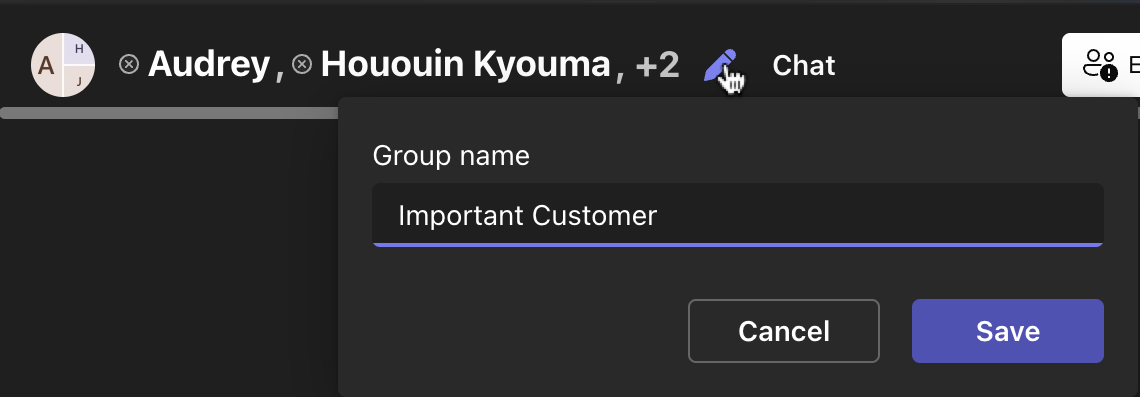
Optionally, edit the name of the group chat
Notes
Currently, only group chats, not DMs, are supported.
Teams Chats do not support threads, so the issue creation logic is:
New messages for an account/chat will be automatically grouped with the latest existing issue in that chat, provided that it is not closed.
Once the latest issue for an account is closed, the next new Teams Chat message will open a new issue.