Automations
Last updated: October 7, 2026
Overview
Automations run AI instructions and skills for you when something happens in Pylon, such as a new issue being created. They do the legwork before a human picks up the issue: pulling account context, searching your knowledge base, docs, past issues, and connected tools, and running your skills. By the time you open the issue, the results are waiting in the Assist Agent panel.
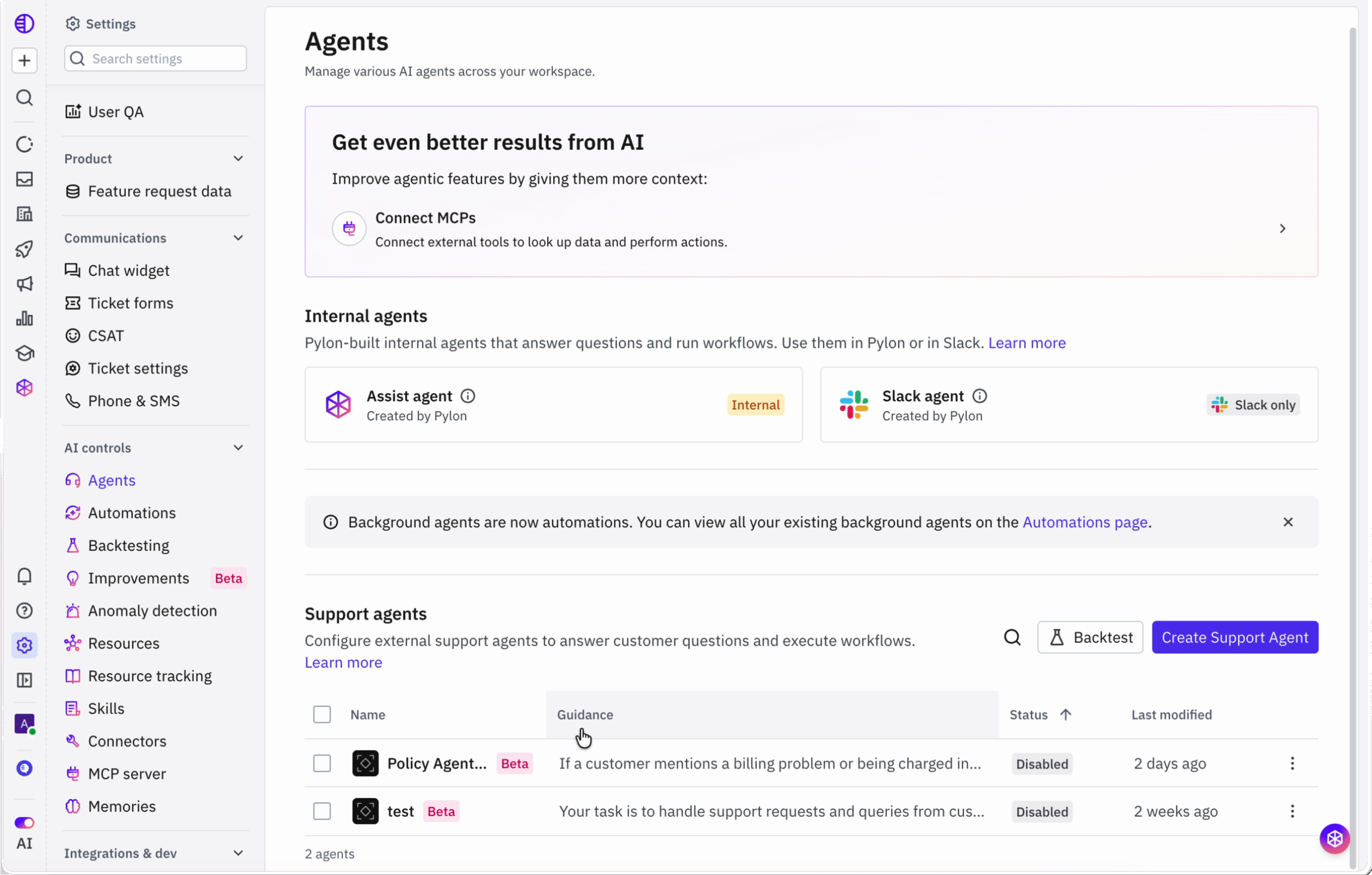
Note: Automations were previously called Background Agents. Your existing background agents were moved to the Automations page automatically, and they run exactly as before.
With automations you can:
Pre-investigate every new issue with the out-of-the-box
investigateskill, so findings and a suggested reply are ready when your team arrives.Run different skills for different kinds of issues - for example, a separate investigation for billing issues.
Kick off work from an external system by sending a webhook to Pylon.
Review every run in the logs and improve the agent from there.
Set up an automation
Go to Settings > AI controls > Automations.
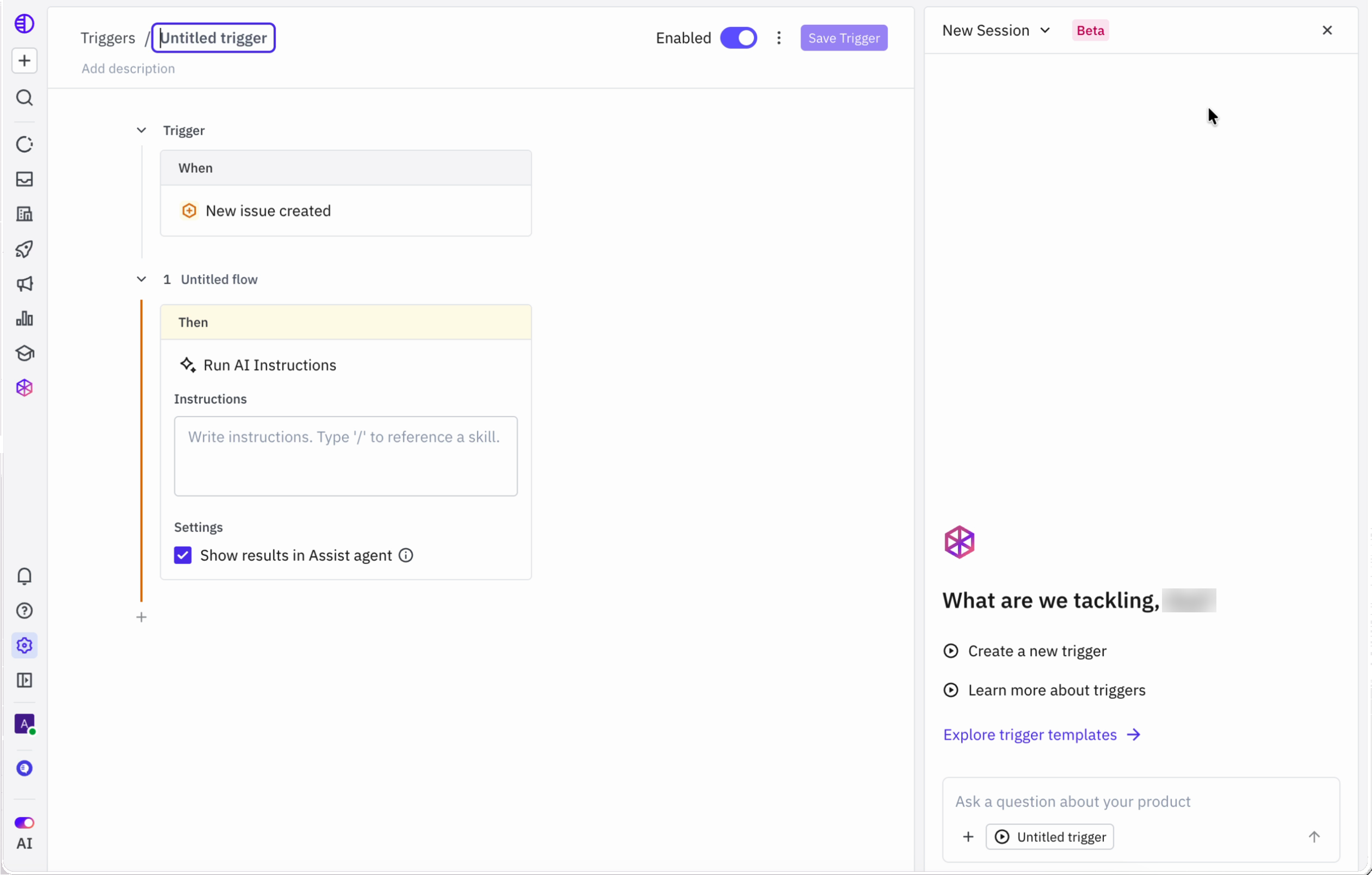
Click Create Automation. The editor opens with an untitled automation. Click the title to give it a name.
Under Trigger > When, choose what kicks off the automation - for example, New issue created. Add conditions if you only want it to run on some issues.
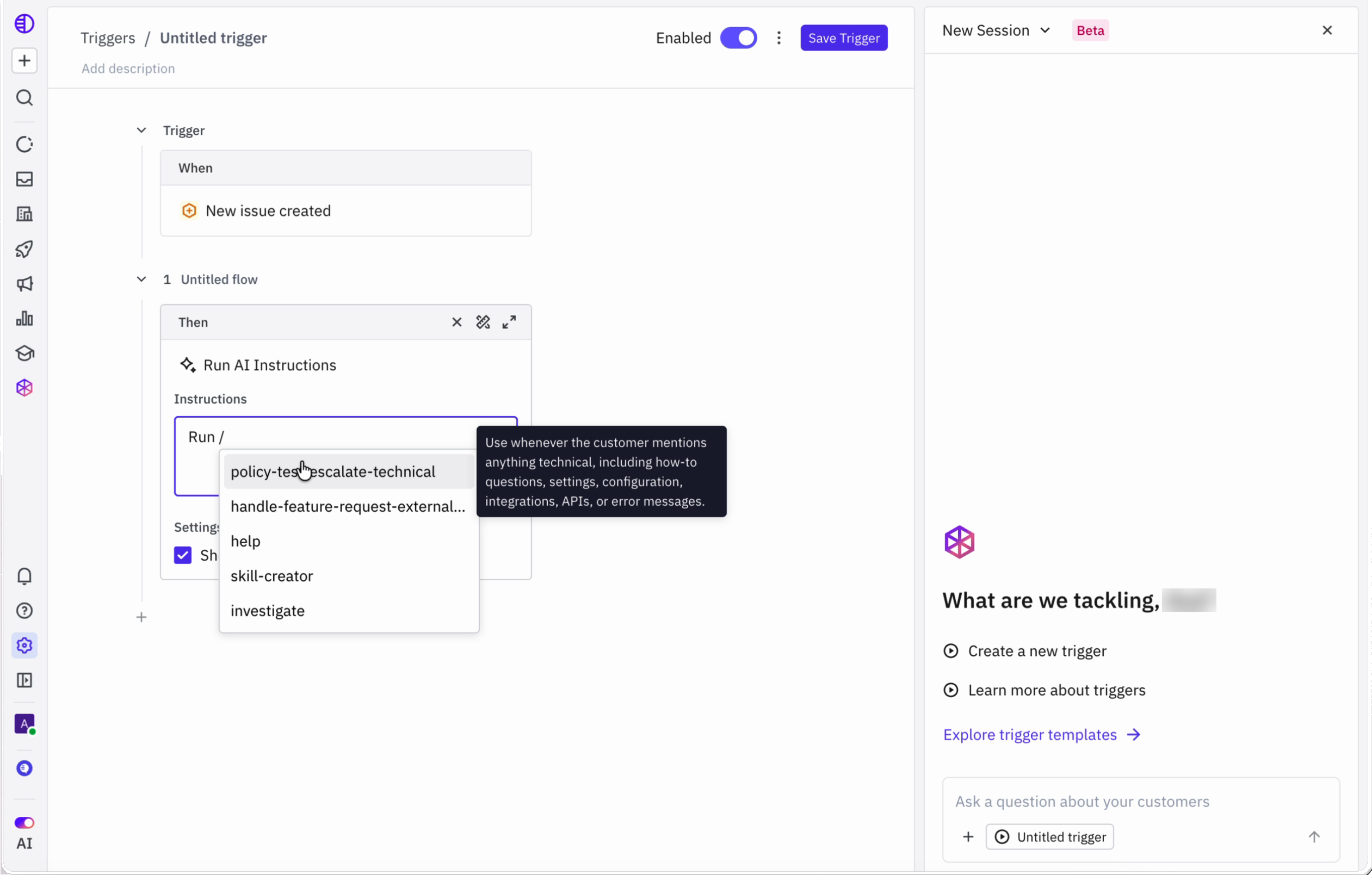
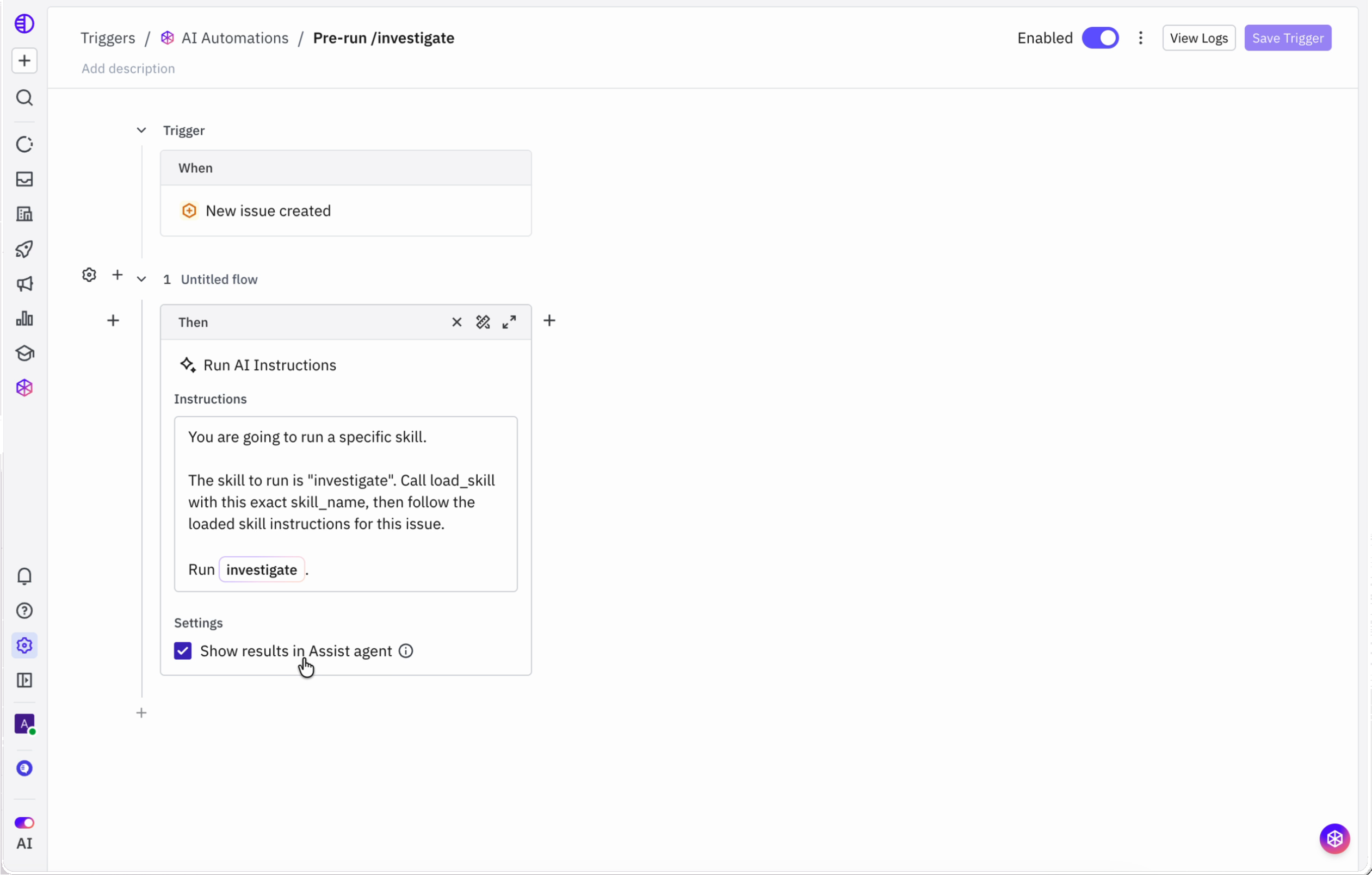
Under Then, the Run AI Instructions action is added for you. In Instructions, describe what the automation should do. Type
/to reference a skill - for example,Run /investigate.Under Settings, keep Show results in Assist agent checked if you want the output to appear in the Assist Agent panel on the issue.
Make sure the Enabled toggle is on, then click Save Trigger.
Note: Automations are built on Pylon triggers, which is why the editor uses Trigger, When, and Then.
Where automations live
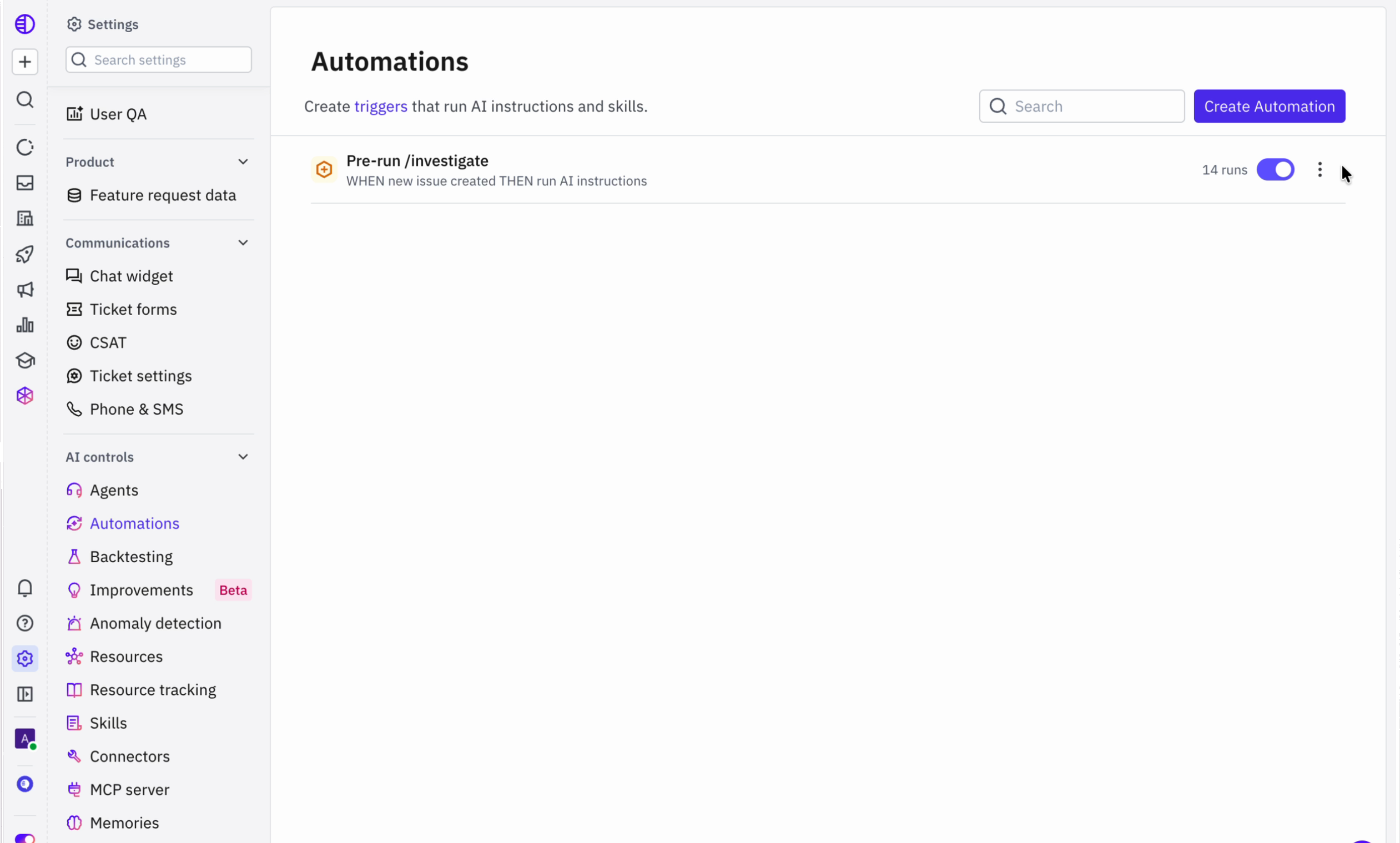
The Automations page (Settings > AI controls > Automations) lists every automation, with its kickoff condition, how many times it has run, and a toggle to turn it on or off.
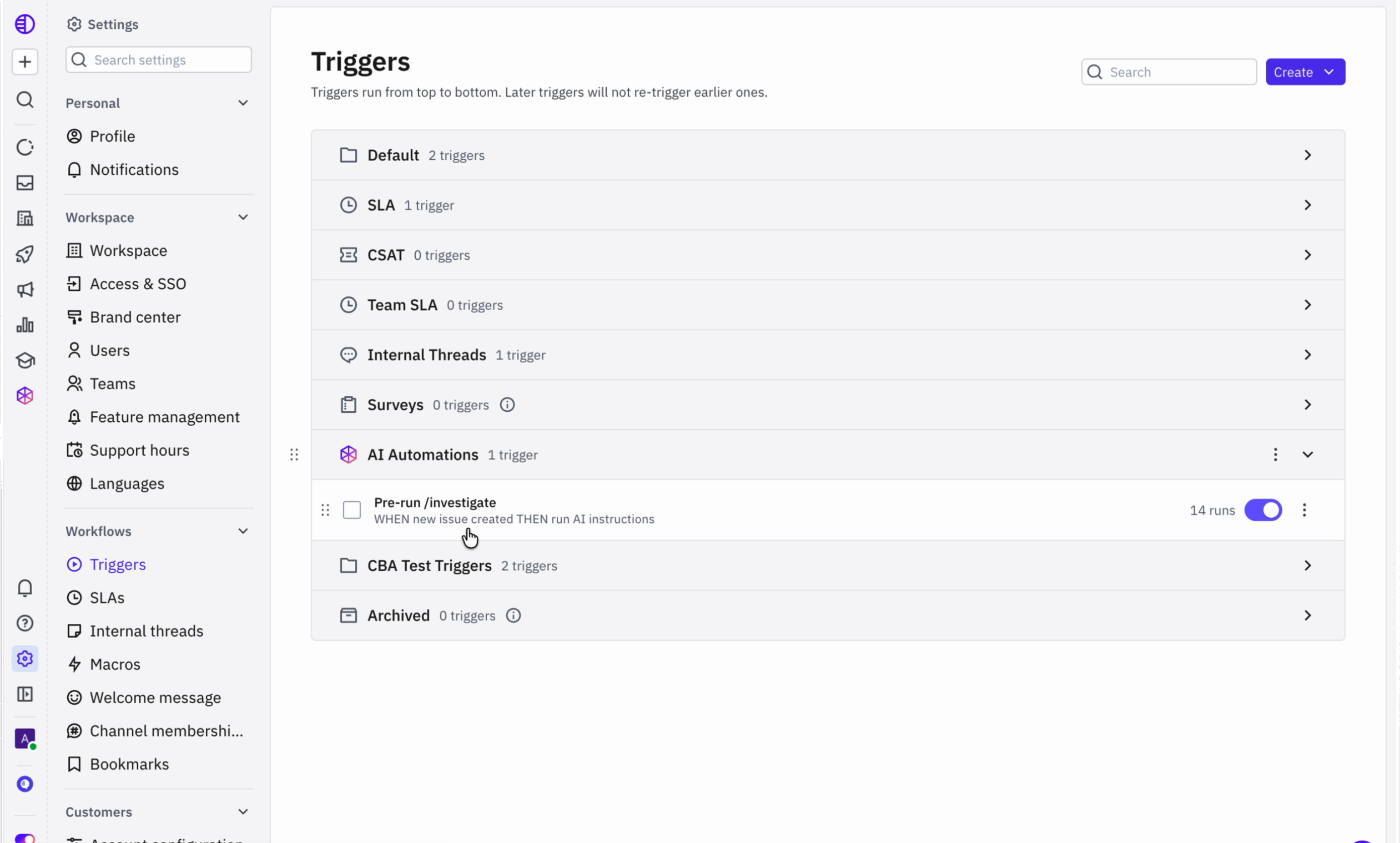
Automations also appear on the Triggers page (Settings > Triggers), grouped under AI Automations. Both pages show the same automations, so a change in one place appears in the other.
See results in the Assist Agent
When Show results in Assist agent is on, the automation's output appears in the Assist Agent panel on the issue. You can pick up where the automation left off - ask follow-up questions, refine its findings, or use them to draft a reply. See 📄 How does the Assist Agent on issues work?
Automations have access to:
Your knowledge base
Docs (through Training Data)
Past issues
Any codebase integrations you have connected
Account context from fields and notebooks
Any connected MCPs you give them access to
Review runs and improve your automation
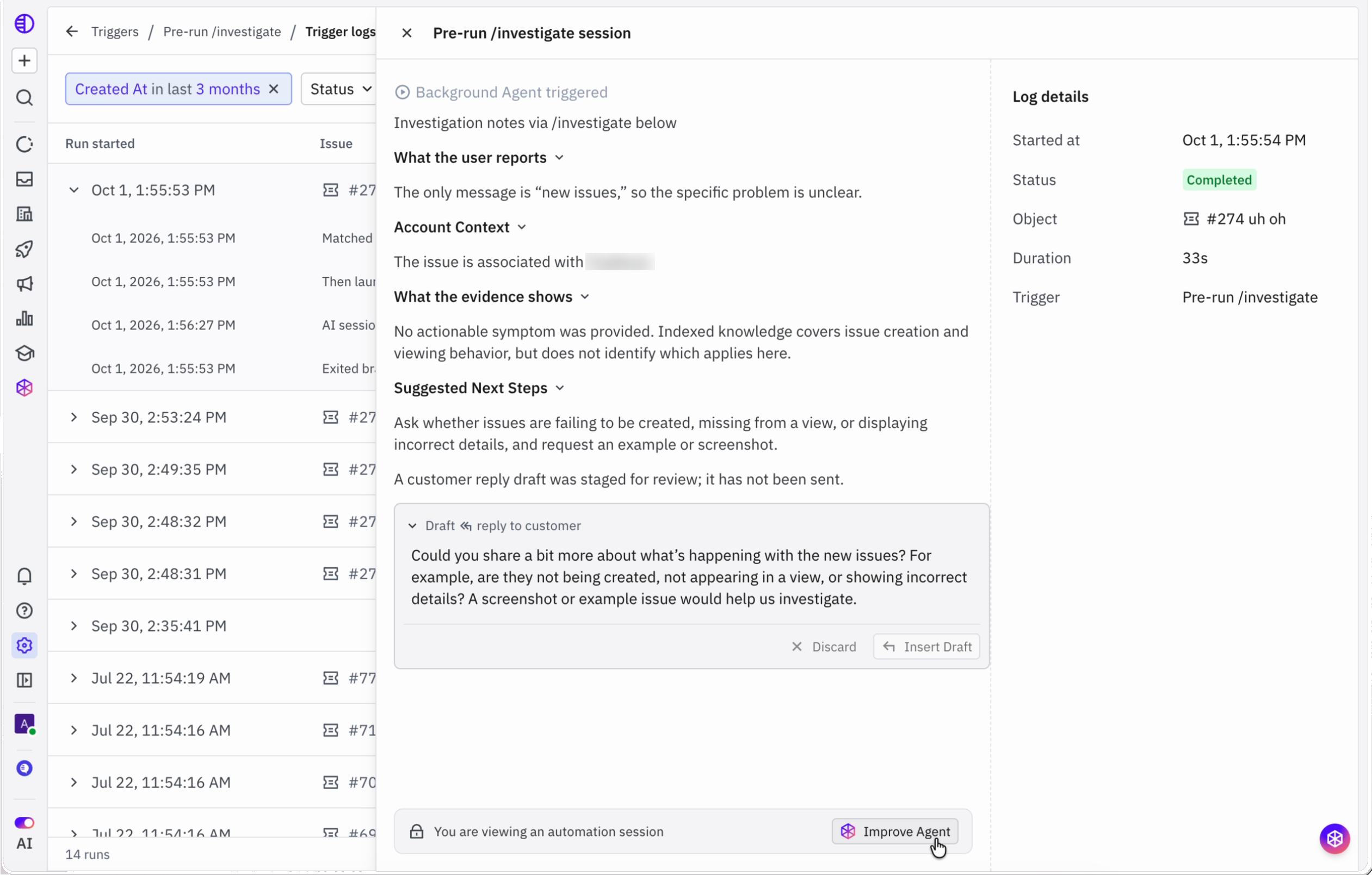
Open an automation from the Automations page and click View Logs.
Each run is listed with its start time and the issue it ran on. Click a run to open its session and see the full output alongside the log details: status, duration, the issue, and the trigger.
If the output wasn't what you expected, click Improve Agent to start an improvement from that run. This is the easiest way to improve an automation that doesn't post its results to the Assist Agent.
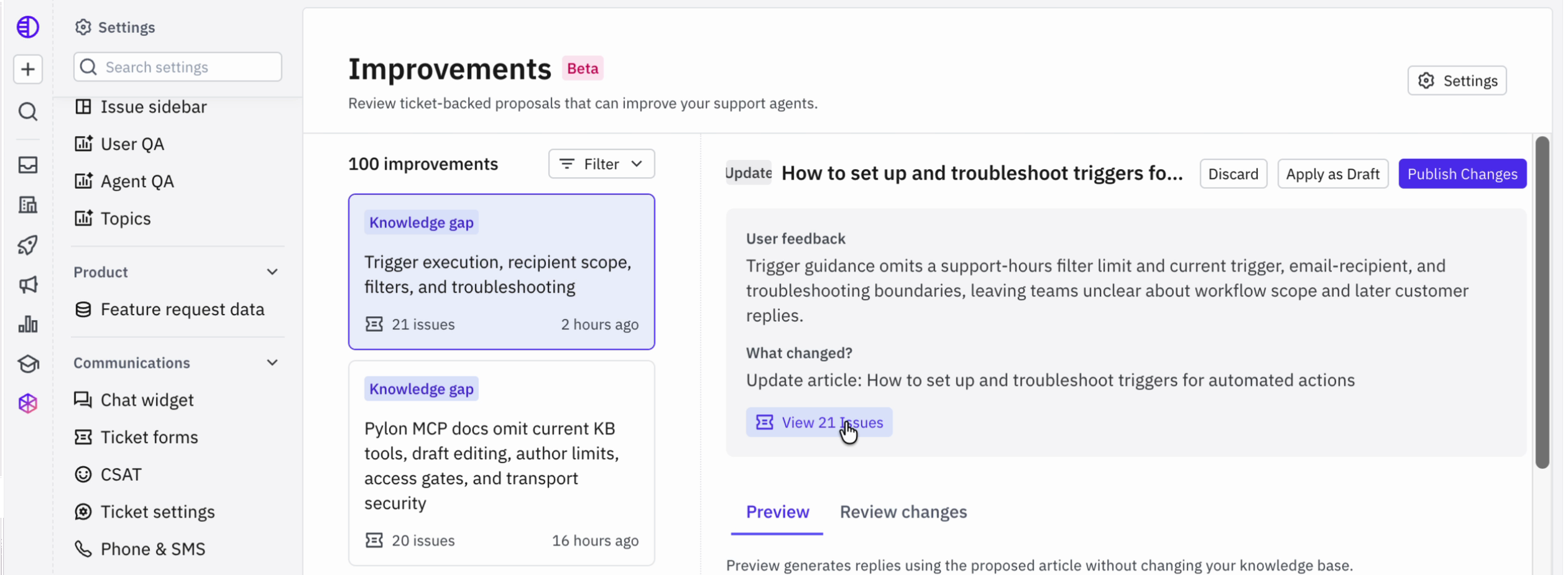
Thumbs up and thumbs down feedback on Assist Agent responses now also feeds Settings > AI controls > Improvements, alongside Support Agent feedback. Improvements suggests changes such as filling a knowledge base gap, updating guidance, or fixing an existing skill.
Webhook-triggered automations
To start an automation from an external system - for example, a GitHub webhook or an event in your own app - see 📄 How do webhook-triggered automations work?
Frequently Asked Questions
What happened to my background agents?
They are now automations. Every existing background agent was moved to the Automations page automatically and runs exactly as before. You don't need to set anything up again.
Where did the Background tab on the Agents page go?
It was removed. The Agents page now shows your internal agents (Assist agent and Slack agent) and your Support agents. A notice on the Agents page links to the Automations page.
Can I run different skills for different issues?
Yes. Create a separate automation for each case and use the When conditions to decide which issues each one runs on.
How do I stop an automation from running on every issue?
Add conditions under When so it only runs on the issues you want, or turn it off with the toggle on the Automations page.
Do automations cost extra?
Nothing about pricing changed with the rename. If you have questions about your plan, reach out to your Account Executive or Customer Success Manager.