How does work get to the team that does the work?
Last updated: November 3, 2025
Scope: This article applies to inbound customer conversations which then need to be routed to the appropriate team or person who does the work
To set up routing, there's two key questions to answer:
Manual or automatic routing?
Who should it route to?
More information on AI conditions for routing can be found here.
Q1: Manual or automatic routing?
Manual routing:
Typical team setup: Support Team is the first point of contact for your Issues. Manual routing is commonly used for smaller customers, or customers where there is less well-defined logic of which Issues go to whom
Sample flow: The Support Team manages a Pylon view of either Issues in the main Issues Kanban, or a filtered view for the Support Team of all Issues without an Assignee. Support Team will review Tickets within New Issue status and manually assign the Issue to a Person or Team
Automated routing:
Typical team setup: No dedicated team for triaging and well-defined logic of which Issues go to whom
Q2: Who should Issue route to?
If the Person or Team lives in Pylon:
Set the Assignee or Team for the Issue within Pylon
If the Person or Team lives in Slack-only:
Use Internal threads to loop in the Person or Team in Slack
Use our Github or Linear integrations for assigning work, while the Customer Issue is still owned in Pylon (this can only be done manually for now)
💪 Putting it all together: Manual routing to Recipient in Pylon
Support Team member receives Issue in New column in Kanban board
Support Team member reviews Issue and assigns either Assignee or Team
The recipient Assignee or Team manages their own board filtered to Issues assigned to themselves (Assignee) or their Team (e.g. Customer Success Team)
💪 Putting it all together: Manual routing to Recipient outside of Pylon
Example 1: Manual route to a Slack Internal thread
Support Team member receives Issue in New column in Kanban board
Support Team member reviews Issue and creates Internal thread (e.g. #bugs Slack channel)
Engineering team is alerted in #bugs Slack channel and works on the Issue
Engineering team completes task and notifies in the same #bugs Slack channel thread
Support Team member sends response to customer, based on the updates from the Internal Thread
Example 2: Manual route to Github / Linear
See our examples here
💪 Putting it all together: Automated routing to Recipients in and outside of Pylon
Triggers are rules that can be configured for Assignment. Here's how to setup the Triggers:
Note on Email-based Triggers: Triggers work with both in-app chat and email-based issues. When a trigger sends an "issue message" action, it will automatically send an email reply to customers who submitted via email, and the message will also appear in the customer thread within Pylon. However, if you experience issues with email-based triggers not working as expected, verify your trigger configuration and contact support for troubleshooting.
Determine what property to route on. Some common examples are:
Account Tier synced from CRM: Enterprise, MM, SMB?
Account
Priority
Question Type: Is this is Issue a Bug, Feature Request, etc.? Can be AI-classified
Topic area: What part of our product is the customer question about? Can be AI-autofilled
Customer provided field via Ticket Forms
Any other Account Fields, Issue Fields, or properties that you can filter on can also be used for routing
Determine who is the recipient
Within Pylon: Recipient will be either an individual Assignee or Team
Outside Pylon: Internal threads
Create the Triggers
Triggers are rules that can be configured for routing Issues from a Customer
Combining Steps 1 and Step 2, here are some examples:
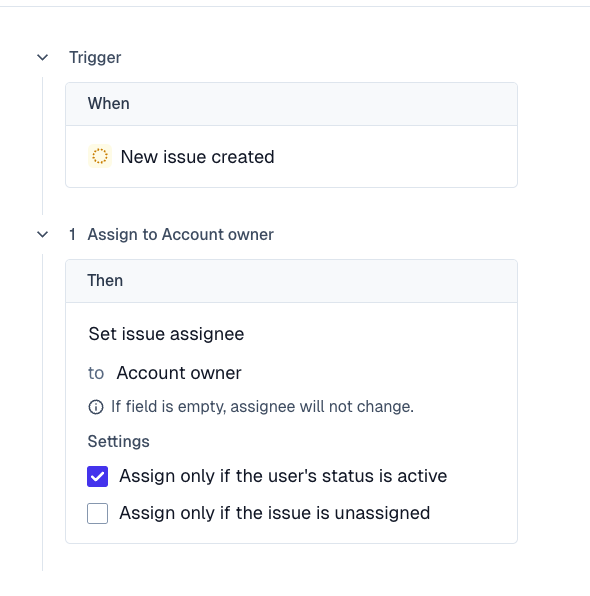
Example 1: Auto-route Issues from Account to Account Owner in Pylon
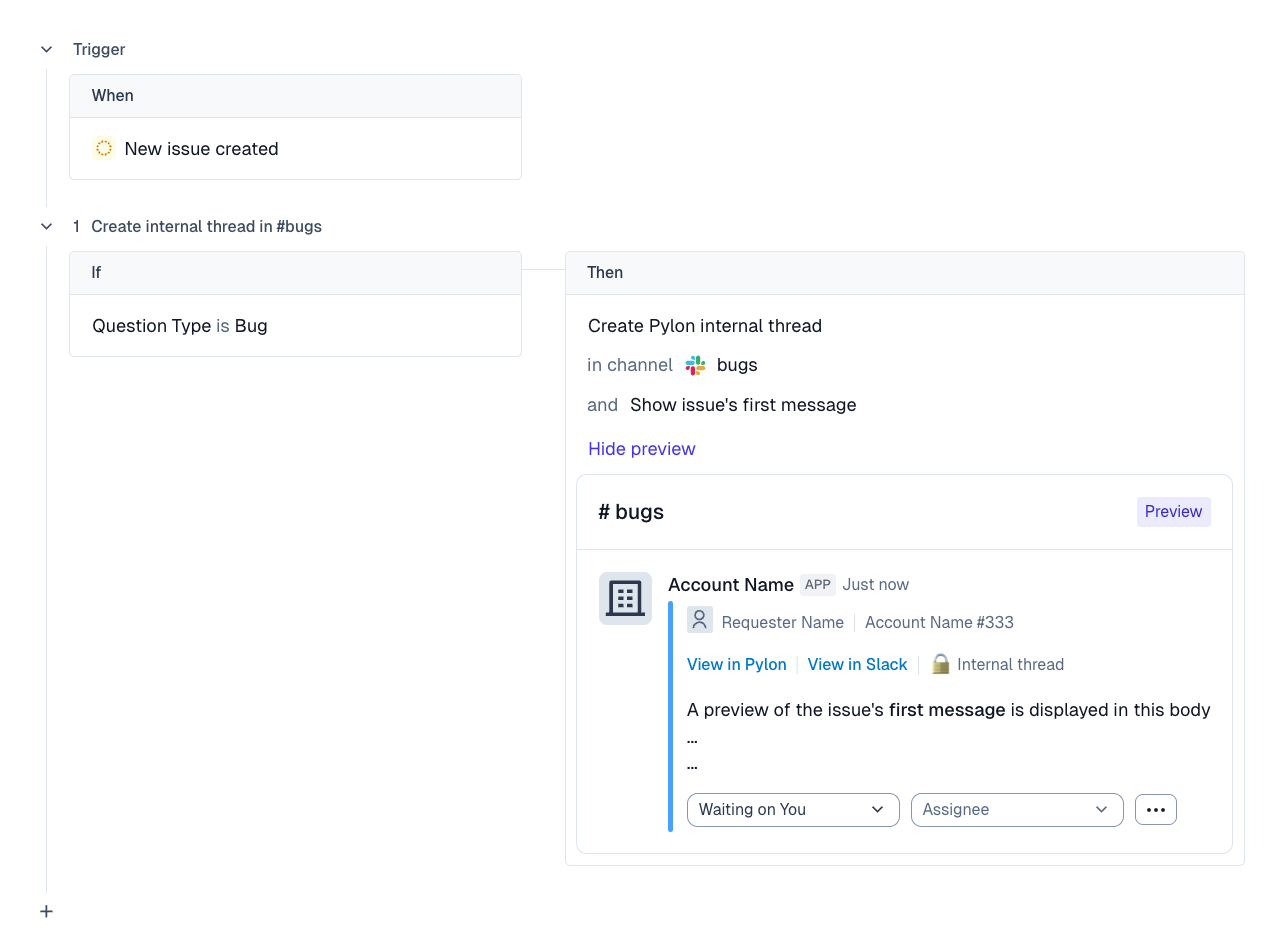
Example 2: Auto-route Issues of specific Question Type Bug to our Engineering Team in Slack
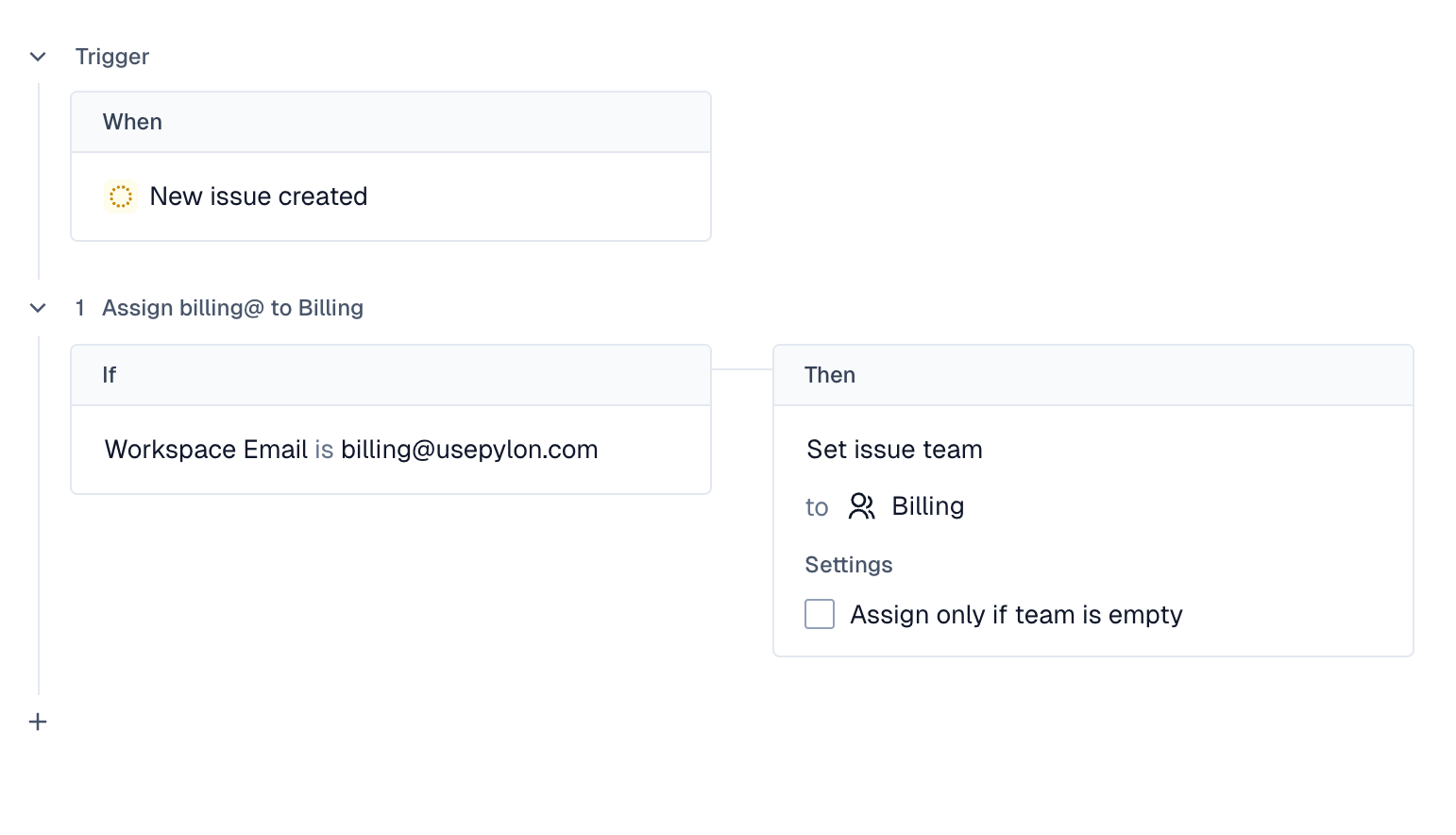
Example 3: Auto-route Issues received by billing@ email to Billing Team in Pylon