How does the Linear integration work?
Last updated: August 29, 2026
Connect Linear on the Integrations Page.
The Linear integration allows you to create new or link existing Linear tickets to Pylon Issues.
You might want to do this because a customer conversation is blocked by engineering efforts, and you want to consolidate all of the conversations into a product ticket
Important Setup Requirements & Troubleshooting
- Linear teams must be public for the integration to work properly. Private teams will prevent proper linking between Pylon and Linear issues.
- If you experience integration issues, reauthorize the integration as a first troubleshooting step: Go to Apps Directory > Linear tile > Reauthorize. This solution is effective for:
Search not working or loading problems when creating tickets
Connection issues or error messages when linking tickets
Outdated team names or cache issues after making changes in Linear
Team slug updates not reflecting in Pylon
Tickets not linking or missing Linear tickets
The most common reasons to make a Linear ticket would be for:
Product Feedback
Bugs
Create a New Linear Ticket
There are two ways to create a Linear Ticket:
Kanban Board (in Pylon)
Triage Channel (in Slack)
Kanban Board
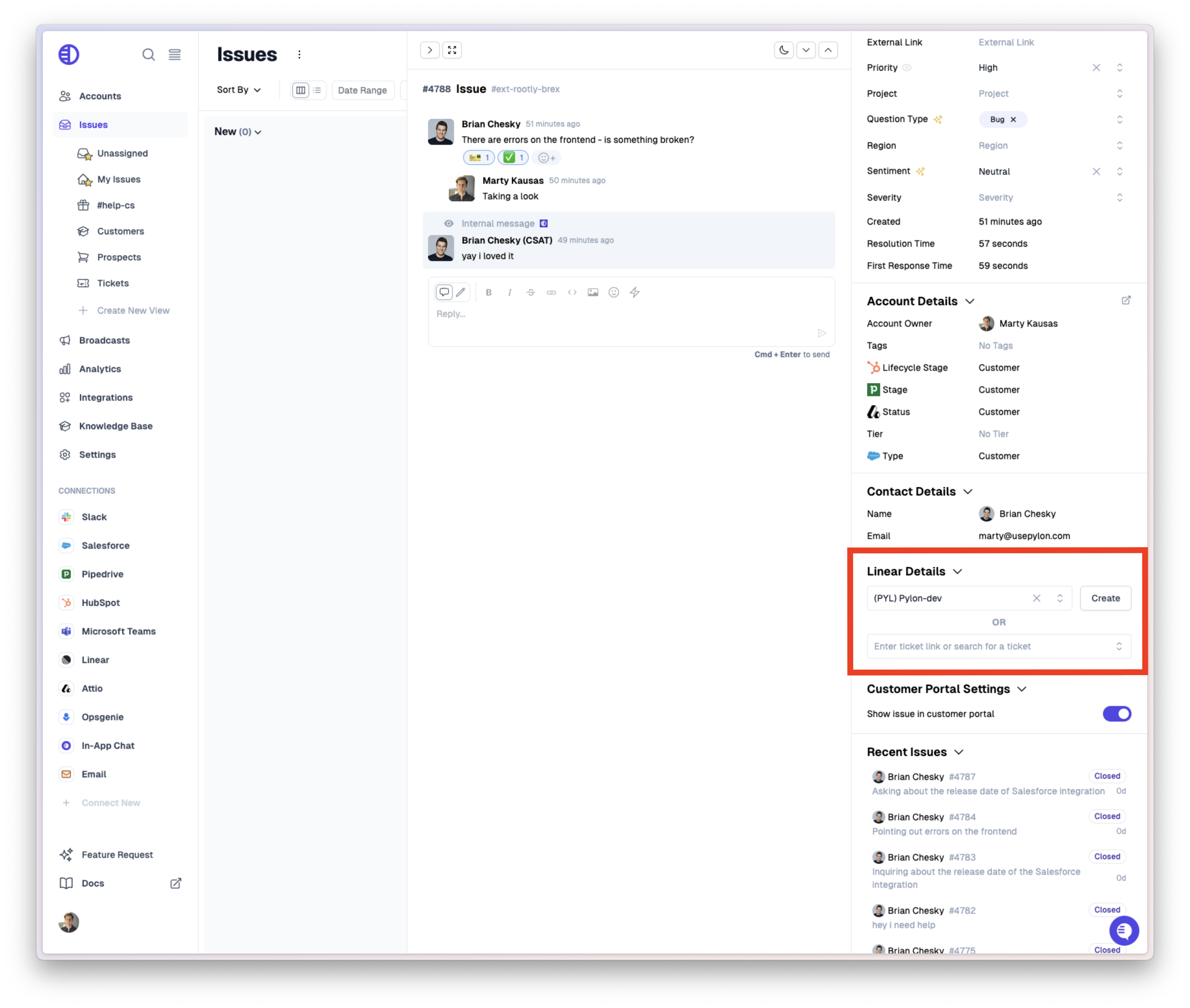
When looking at an issue you'l see a section with an option to either create a Linear Ticket or link and existing one.
You can set a default Team into which the Linear ticket will be created can be set in your Linear Settings (in Pylon).
Internal Thread Channel
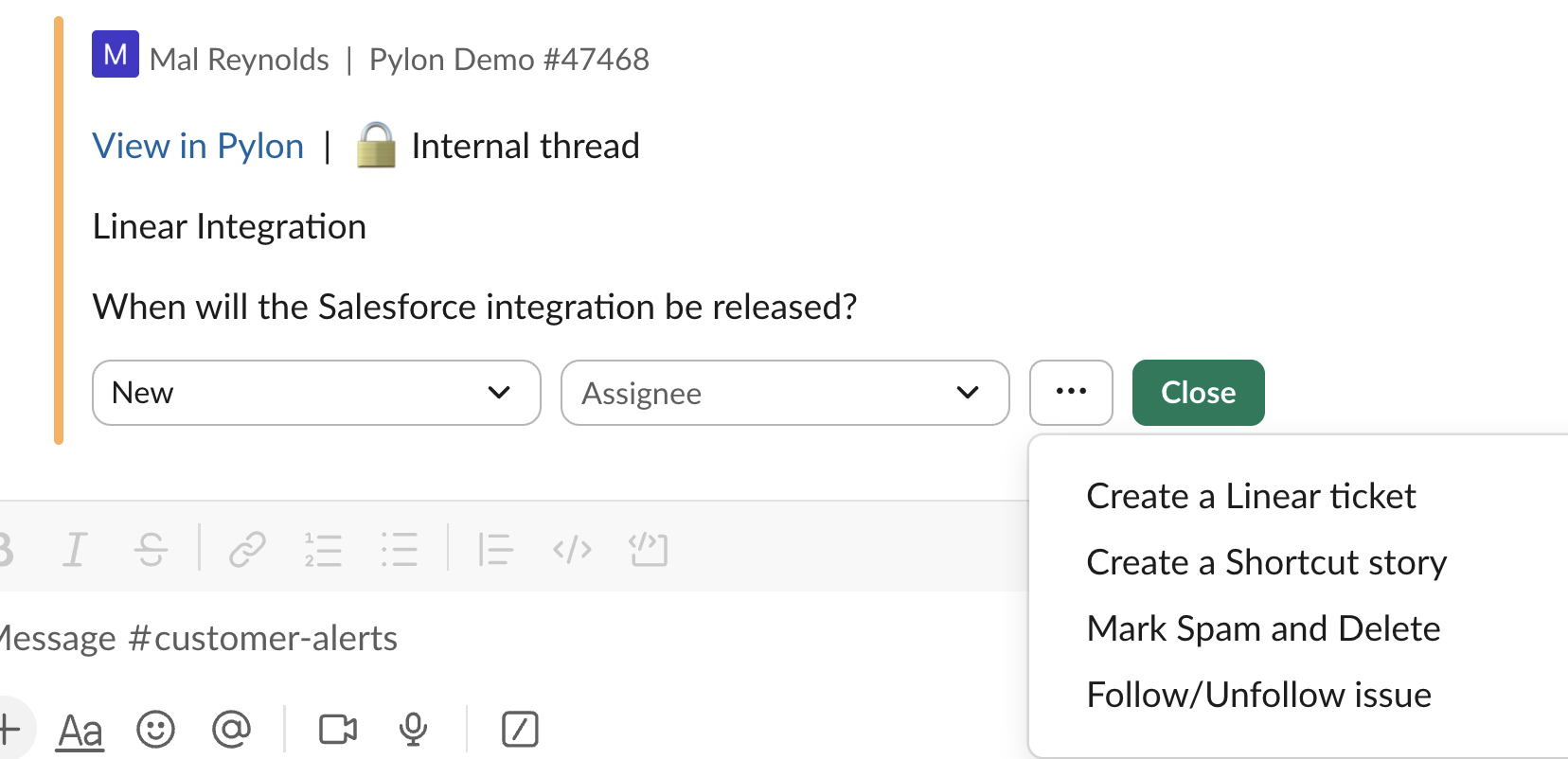
From the Internal Thread Channel you can select "Create a Linear ticket" from the kebab menu to create the Linear Ticket.
Ticket Creation
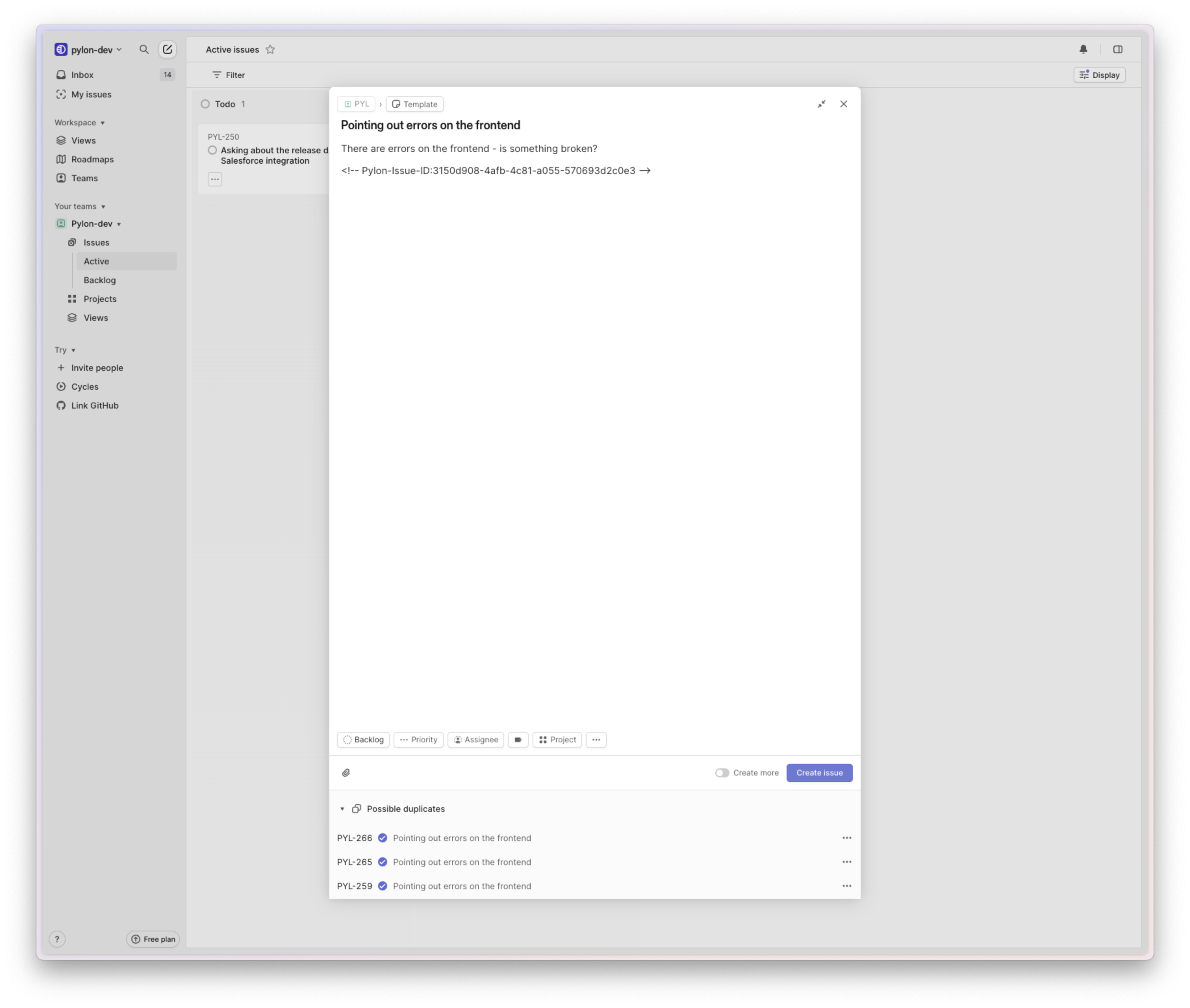
In both cases, after clicking Create or the Product Ticket button, Linear will be opened up with some AI summarized details. You can change it all (or even use templates) as long as you leave the Issue ID text.
The Issue ID text (which appears as <!-- Pylon-Issue-ID:... -->) is required for Pylon to automatically link the Linear ticket back to the Pylon conversation - this will be automatically removed in a future update.
Important: If you edit the Linear ticket body later, you must preserve the <!-- Pylon-Issue-ID:... --> comment text. Removing or modifying this ID will break the link between Pylon and Linear.
Note: Do not include @pylon mentions in the Linear ticket description when creating tickets from Pylon, as this will cause creation errors. Remove any @pylon mentions before creating the ticket.
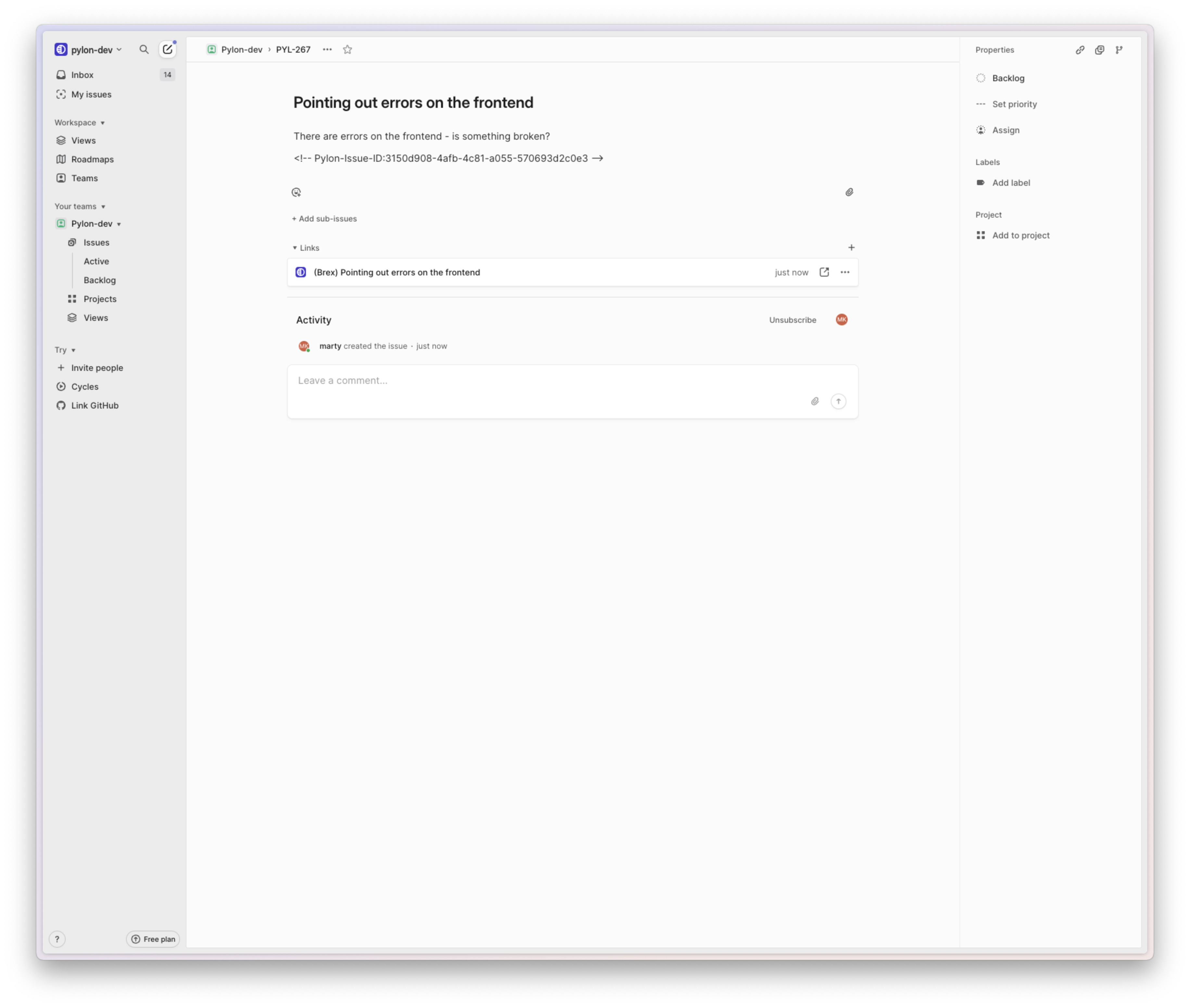
After clicking creating the issue, you'll see a link to the Pylon conversation in Linear. Subsequent Pylon Issues that you link to a Linear Ticket will be included in the list of Linear links making it really easy for product & engineering to quickly jump to the conversations where customers where encountering the specific issue.
Linking existing Linear Issues
You can link existing Linear Issues to a Pylon Issue right under where you create them in the Issue detail sidebar. When searching for Linear tickets to link, the system will pre-fill the project based on your default team setting. If you need to search across different projects, first select the appropriate project from the dropdown, then search for your Linear ticket.
Note: The search functionality will find Linear tickets with most statuses (open, cancelled, completed, etc.), but archived tickets will not appear in search results. If you can't find a ticket you're looking for, try using the full Linear ticket URL instead of just the ticket number - this works even for archived tickets.
Workflow
When you create or link a Linear ticket to a Pylon Issue, Pylon can automatically change the Pylon issue status. If the Change issue status setting is enabled in the Linear integration, linked issues move to the status selected there.
If you want linked issues to stay in their current status, open Settings > Integrations > Linear, go to Sync Settings, turn off Change issue status, and save.
When a linked Linear ticket is closed, linked Pylon issues can still move back to Waiting on You if that separate setting is enabled.
Comment sync
Comments sync in both directions between Pylon and Linear, but the Pylon → Linear direction only works from the Linear internal thread on the issue.
Linear → Pylon
Any comment posted on a Linear ticket automatically appears as an internal note on the linked Pylon issue, so your team sees engineering updates without leaving Pylon.
If a Linear comment is edited later, the linked Pylon note is updated to match the edited comment.
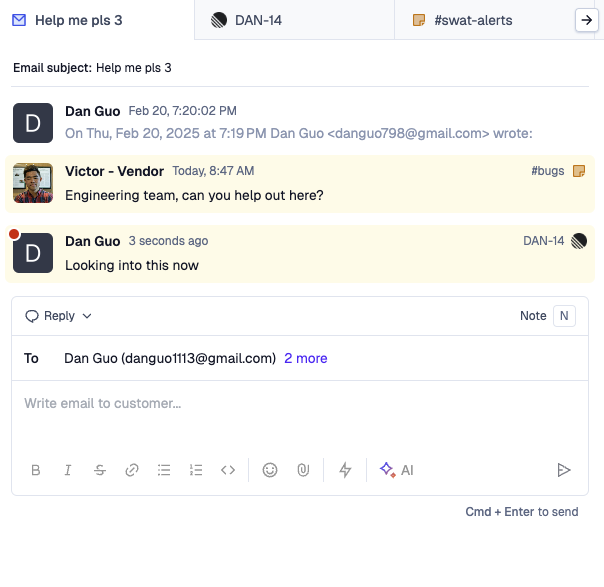
Pylon → Linear
Open the linked issue in Pylon and find the Linear internal thread. It shows the Linear ticket key and a yellow comment composer ("Add a comment to Linear...").
Type your comment and send. The comment posts back to the Linear ticket and stays in sync.
Note: Only the Linear internal thread syncs to Linear. Replies from the main customer-facing reply box and other internal notes do not sync.
Status updates from Linear
When the Linear ticket is closed, all linked Pylon issues move back to
Waiting on Youso you know it's time to update the customer.
Disconnecting & Reconnecting Pylon <> Linear
If you "disconnect" the Linear integration from the Pylon side, you'll also need to revoke the app access from Linear's side as well. A Linear admin in your organization will need to follow these steps to remove the lingering app state from Linear's side:
In Linear, sign in as an admin and go to Settings → Administration → Applications → Pylon (or the list of installed apps).
Choose "Revoke access" (or uninstall/remove) for the Pylon app.
From here, both sides will be in a good state to re-initiate the Linear connection from the Integrations page. Follow the OAuth flow to grant access again.