Seamless Migrations
Last updated: May 15, 2026
Overview
A Seamless Migration is a way to bring over open tickets as live tickets from a source platform while preserving the underlying conversation. We call this "seamless" because it's seamless for the end user, to them it well seem as if there was no disruption to the ticket they have open while you and your team migrate over.
They don't have to do anything on their end and can continue replying to the original message thread. This means we can migrate your tickets and keep the conversation live in Pylon and bring over the relevant data associated with each ticket.
However, this approach does have some caveats, and each platform handles this differently. For certain platforms we will be able to set up an automated workflow using a script or on a call and have the migration process done automatically. For other platforms, due to the limitations in their APIs or workflows, we will need to kick off these workflows manually.
How it Works
For tickets tracking an email thread, the process is fairly simple. You will send out an email (either in bulk or manually) to all open tickets and do the following two things:
CC the new Pylon Support Email to ensure the thread gets into Pylon
Make sure forwarding is set up for your email - Setup Email.
Add the Ticket External ID to make sure the correct information is backfilled during the data migration. Our Migration vendor will then take the following steps to backfill any metadata.
Check for existing ticket: Verify if an open ticket exists on Pylon with the same
body_htmlvalue[external-<source-id>]as the imported ticket.If a matching ticket is found:
Update all fields of the existing Pylon ticket with data from the imported ticket.
Import all private comments associated with the imported ticket to the existing Pylon ticket.
Automated Vs Manual
On some platforms we have the opportunity to automate this process by setting up workflows to automatically send out this message. It will look like the following:
Overview: This process automatically sends tickets to Pylon when marked for migration, creating a seamless handoff.
Setup Steps:
Create a custom checkbox field called
Send to Pylonin your source platform that will set off the webhook.Configure a webhook/action event that:
Adds a comment to the ticket with the external id
CCs your Pylon support email (e.g.,
support@<your-company>.usepylon.com)
Create an automation trigger that fires when the checkbox is checked:
Calls the webhook to create the comment with Pylon CC'd
Tags the ticket as
sent_to_pylonto prevent duplicates
How it works: When an agent checks the Send to Pylon field, the automation fires, creating a comment that imports the ticket into Pylon as a live conversation.
Slack/Teams
Bringing over tickets from Slack and Teams is fairly straightforward. To bring old tickets over to your new platform make sure that:
The Pylon Bot is in the channel where the ticket was first tracked.
Ticket settings are set such that the Ticket Emoji can create tickets.
Find all threads currently tracked as tickets in your platform and add the ticket emoji to them.
Data Backfilling: A limitation here is that we cannot backfill the Metadata on these migrated threads as of now.
Platforms and Limitations
Zendesk
Zendesk has the simplest seamless migration as all tickets are tracking Emails and the workflows needed to set up the seamless migration are all native to Zendesk. We have a script we run on our end which will do the following on your Zendesk instance:
Overview:
Setup Steps:
Create a custom checkbox field in Zendesk called
[Pylon] Send Migration EmailCreate a webhook that targets the Zendesk Tickets API endpoint. Configure the webhook payload to:
Add a comment to the ticket
CC your Pylon support email (e.g.,
support@<your-company>.usepylon.com)
Create a trigger with:
Conditions:
Ticket does not have tag
sent_migration_email[Pylon] Send Migration Emailcheckbox is checked
Actions:
Notify active webhook with the configured payload
Add tag
sent_migration_emailto ticket
How it works: When an agent checks the [Pylon] Send Migration Email field, the trigger fires the webhook, which creates a comment on the Zendesk ticket and CCs Pylon. This imports the ticket into Pylon as a live conversation.
Helpscout
In Helpscout we have a custom Zap set up to make the seamless migration automated, similar to Zendesk. The Helpscout migration requires a more detailed setup but follows the same main beats.
Prerequisites:
Create a custom dropdown field in Help Scout:
[Pylon] Send Migration Emailwith valuesNo(default) andYesZapier account with Help Scout integration enabled
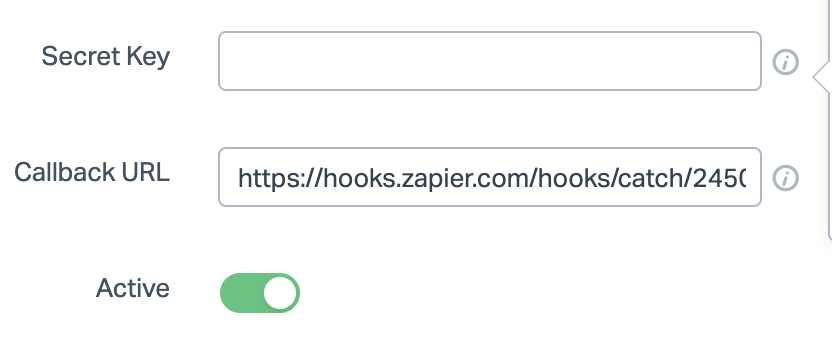
Get Secret key -> Create App: Go to My Apps > Create My App, give it a name and redirect URL (can be a placeholder), and click Create. You'll get your App ID and App Secret.
Setup Steps:
Our team will give you a webhook URL and copy this webhook URL
In Help Scout, go to Manage → Apps → webhooks paste the callback url provided to you.
Event: pick a conversation update that includes custom field changes (e.g., Conversation Updated / Custom Fields Updated).
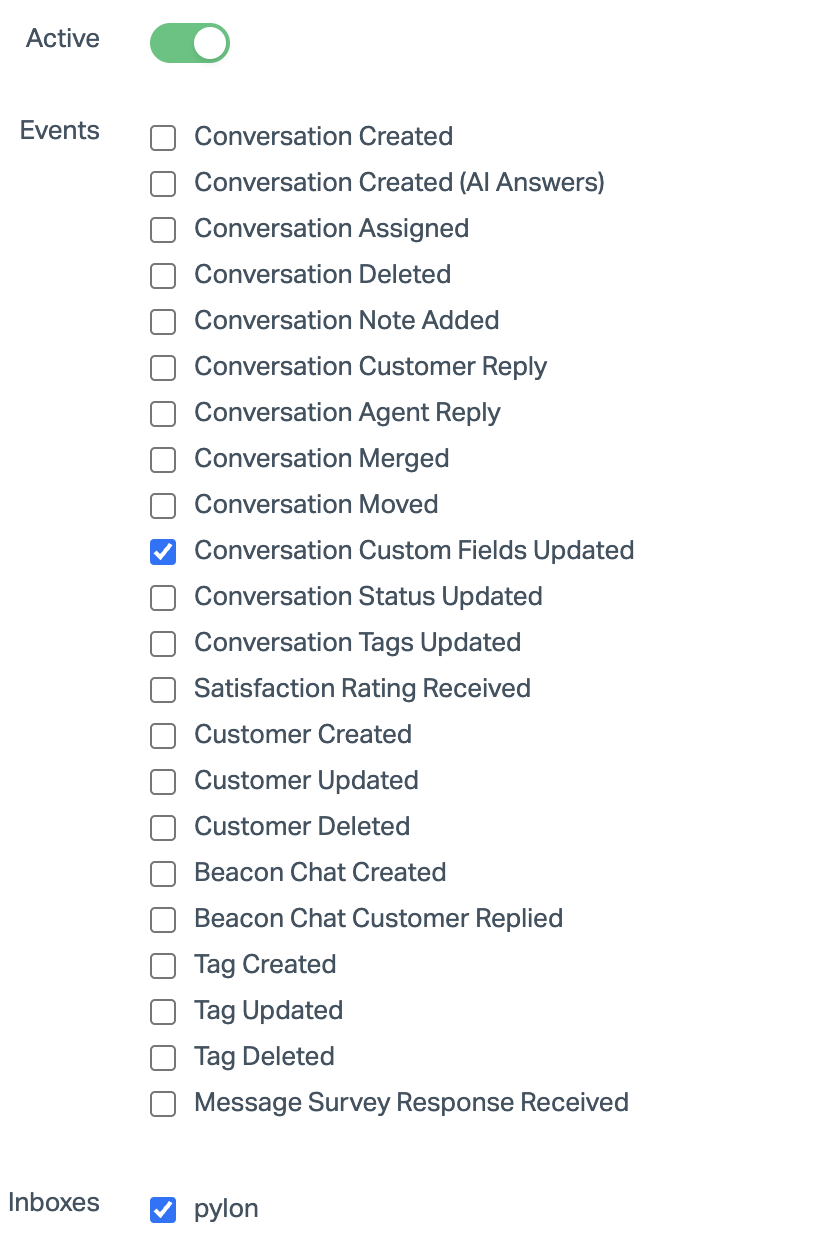
Click save and make sure that your SE has turned the Zap on.
Jira Service Management
We currently do not have any way to migrate JSM tickets as open. Clients will need to be told that open tickets can be replied to but there is no way to CC tickets into Jira at this point.