How do I set up my support email?
Last updated: September 9, 2026
Set up a support email in Pylon when you want email to be one of your support channels. If you only plan to handle support in Slack or other non-email channels, you do not need to connect a support email. When you do connect one, Pylon gives you a unique forwarding address so incoming emails can be routed into Pylon. Google Workspace, Outlook / Microsoft 365, and other providers can all use this forwarding-based setup. We offer multiple types of email setup - click here to learn more when you should use what.
How to set up your support email in Pylon
In Pylon, go to Integrations and filter to the Email category (or open the Email integrations page directly). Select the provider you want to use.
Click + Add Email and follow the prompts to add the email you're connecting. You'll be redirected to a settings page for the email once it's connected.
On that settings page, find the forwarding address under Incoming emails and save it for a later step. It will look like
xxxxxxxx-xxxx-xxxx-xxxx-xxxxxxxxxxxx@parse.usepylon.com.(Optional) When you reply, you probably want it to appear as if you're replying from the email you just added. To enable this, scroll to the Outgoing emails section and turn on the Customize outgoing domain toggle. This displays the DNS records you need to add. Hand these to an engineer on your team, they'll know what to do.
How to set up forwarding from the provider side
The exact steps depend on your email provider. Detailed instructions for Google Workspace are below. For Outlook / Microsoft 365, we recommend following Microsoft's documentation for setting up forwarding on a shared mailbox or Microsoft 365 Group, using the parse.usepylon.com address from the previous step as the destination.
You must be a Google Workspace Admin to set up email forwarding. If you are not an admin, you can share the forwarding address and setup instructions with your admin using the "View Instructions" link in the email's configuration in Pylon.
You cannot set up email forwarding with normal Google Group forwarding. There are subtleties in how Google changes the headers that cause downstream data hygiene issues.
Visit admin.google.com. In the left navbar click Apps > Google Workspace > Gmail. Scroll to the bottom and click Routing to go to the routing config page. Do NOT click on Default Routing.
Scroll down to Email forwarding using recipient address map and add a new email rule. Give it a title, add your support email in the Address field and the parse.usepylon.com email in Map to Address. Scroll down and check Also route to original destination. Save it.
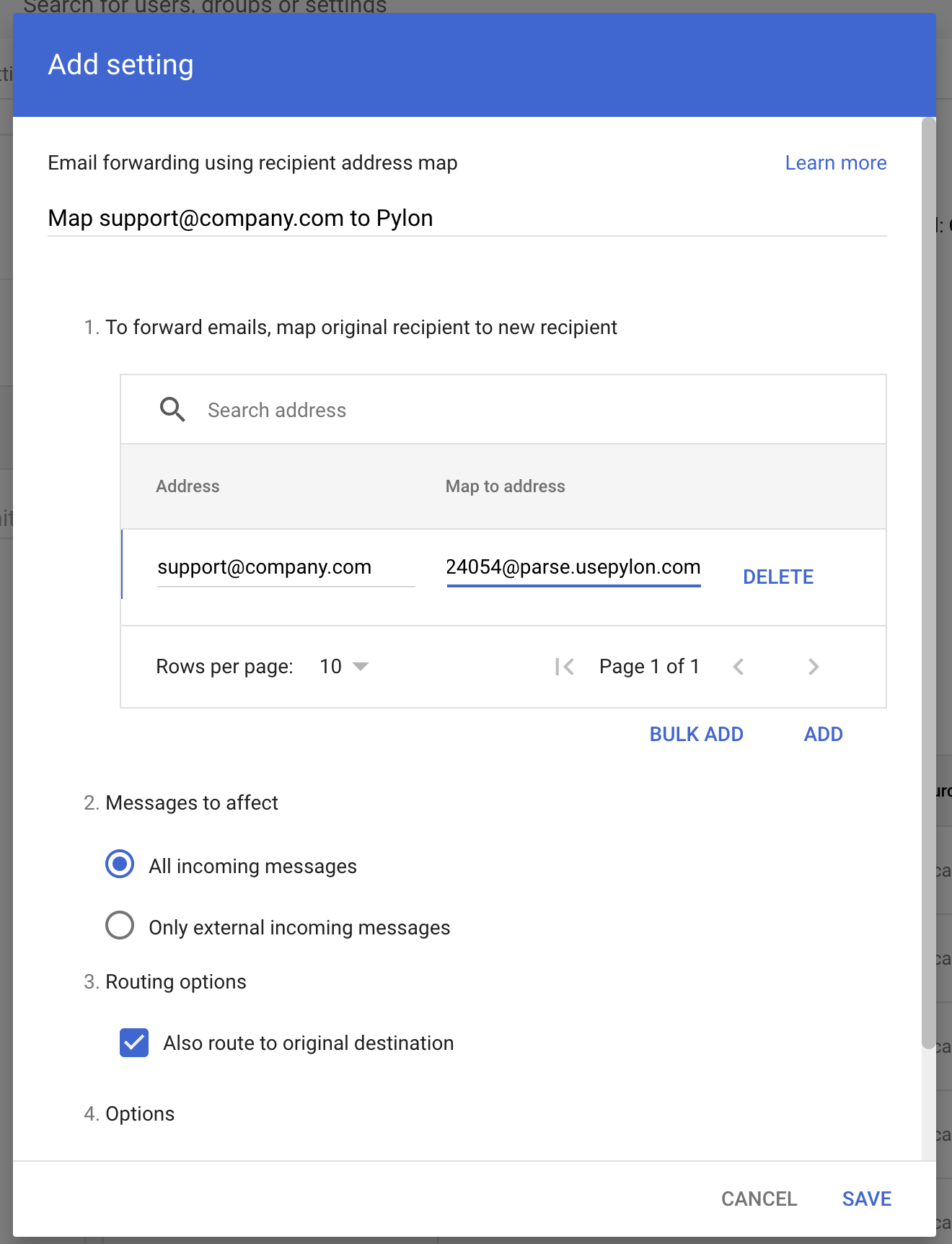
If you are setting up multiple emails, each parse email is uniquely mapped to a forwarded email. Do NOT use the same parse email multiple times.
Outlook / Microsoft 365
Forwarding setup varies based on whether you're using a shared mailbox, a Microsoft 365 Group, or an individual mailbox. Follow Microsoft's documentation for your setup and forward to the @parse.usepylon.com address from your Pylon email settings. Make sure the forwarding rule preserves the original recipient so Pylon can thread incoming messages correctly.
Testing the email setup
After setting up on both the Pylon and email provider side, verify your setup by testing forwarding:
Navigate back to your email settings page in Pylon.
Click Test forwarding (either from inside the settings page or from the three-dot menu next to the email). If everything is set up correctly, this sends a test email to your email group and forwards it into Pylon.
If Test forwarding fails
If you see an error such as Failed to forward email or The mail server for the destination address is currently unreachable, Pylon generated the forwarding address, but your email provider has not successfully routed mail to it yet.
Confirm the forwarding rule uses the exact
@parse.usepylon.comaddress shown in Pylon for that email. Each email app has its own unique forwarding address.Check that no mailbox rules, filters, spam settings, or security policies are blocking external forwarding.
For Google Workspace, use Gmail > Routing > Email forwarding using recipient address map, not standard Google Group forwarding.
For Microsoft 365 / Outlook, make sure external automatic forwarding is allowed by your tenant’s outbound anti-spam policy, then retry after the policy change has propagated.
Once you have confirmed the provider-side forwarding rule, return to Pylon and click Test forwarding again.
You now have emails forwarding into Pylon.