Connectors & Tool Permissions
Last updated: November 2, 2026
Overview
Connectors give Pylon's AI agents access to systems outside of Pylon, such as Linear, Notion, Calendly, or your own internal tools. Each connector exposes a set of tools, which are the specific things an agent can do with that system. Tools come in two kinds:
Read-only tools - what the agent can see, such as looking up a Linear issue or reading a Notion page.
Write/delete tools - what the agent can change, such as updating an issue status or creating a record.
All connector and tool configuration now lives in one place. Admins decide which connections are allowed and who can use each tool. Each teammate then decides how the agent uses the tools they have access to, including whether an action needs their approval first.
With connectors and tool permissions, you can:
See every connector in your workspace, including Pylon's own built-in tools, in a single list.
Control whether teammates use their own account, a shared org account, or a dedicated agent account for each connector.
Give each tool to everyone, to some teammates, or to no one.
Require a human to approve an action before the agent runs it.
Note: Connectors and tool permissions are generally available for Pylon Agentic customers. Reach out to your Account Executive or Customer Success Manager if you are interested in Agentic features.
Find and add connectors
Go to Settings > AI controls > Connectors.
Use Your Connectors to see connectors that are set up in your workspace, with their Type, Org status, and your Personal status. Use the Status and Type filters or search to find a specific connector.
Use All Connectors to browse the catalog by category: Built-in, API tools, Codebase, and MCP connectors.
To add a connector that is not set up yet, select it from the catalog or click Add Connector. To connect a system that is not in the catalog, see How do I connect a custom MCP to Pylon?
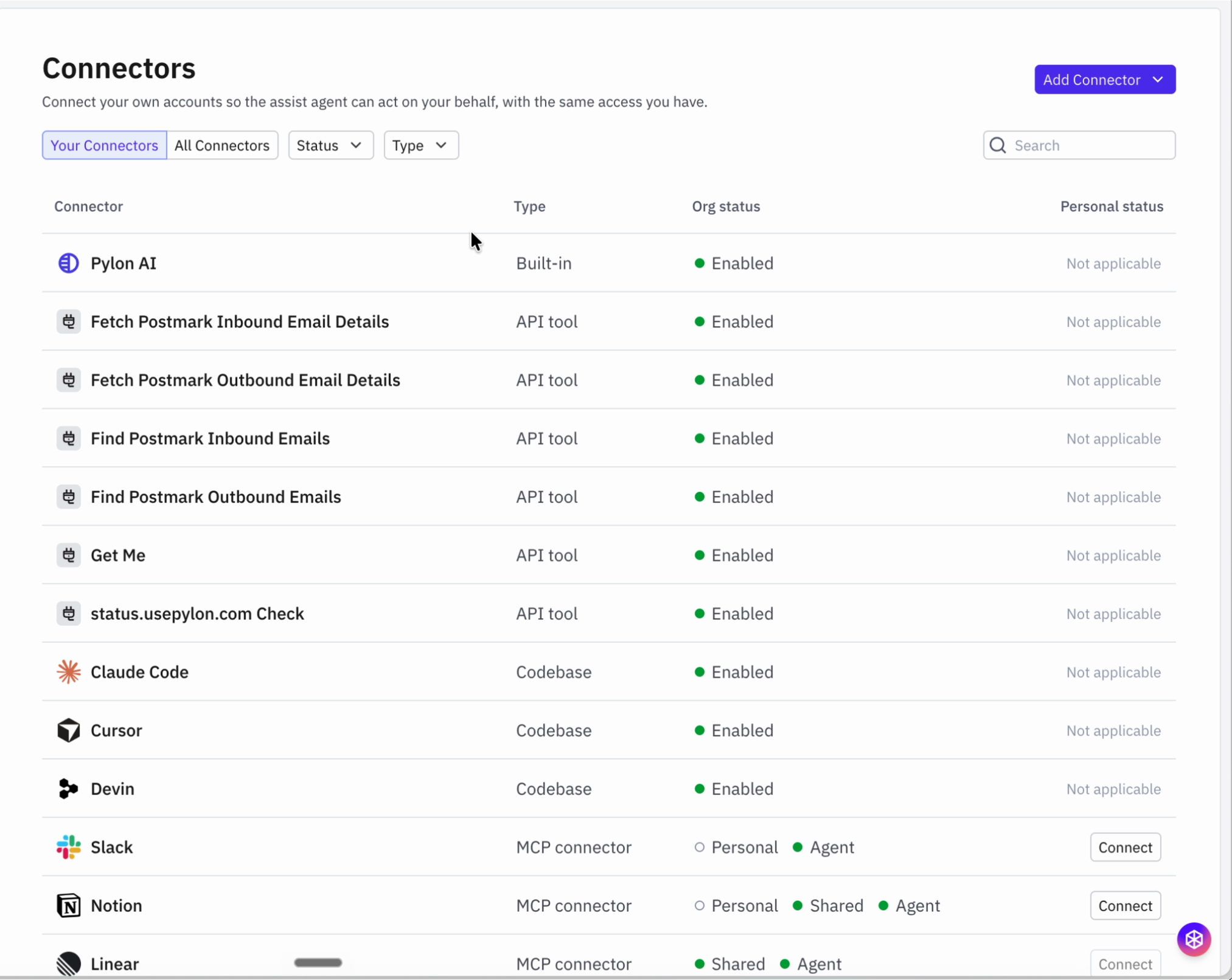
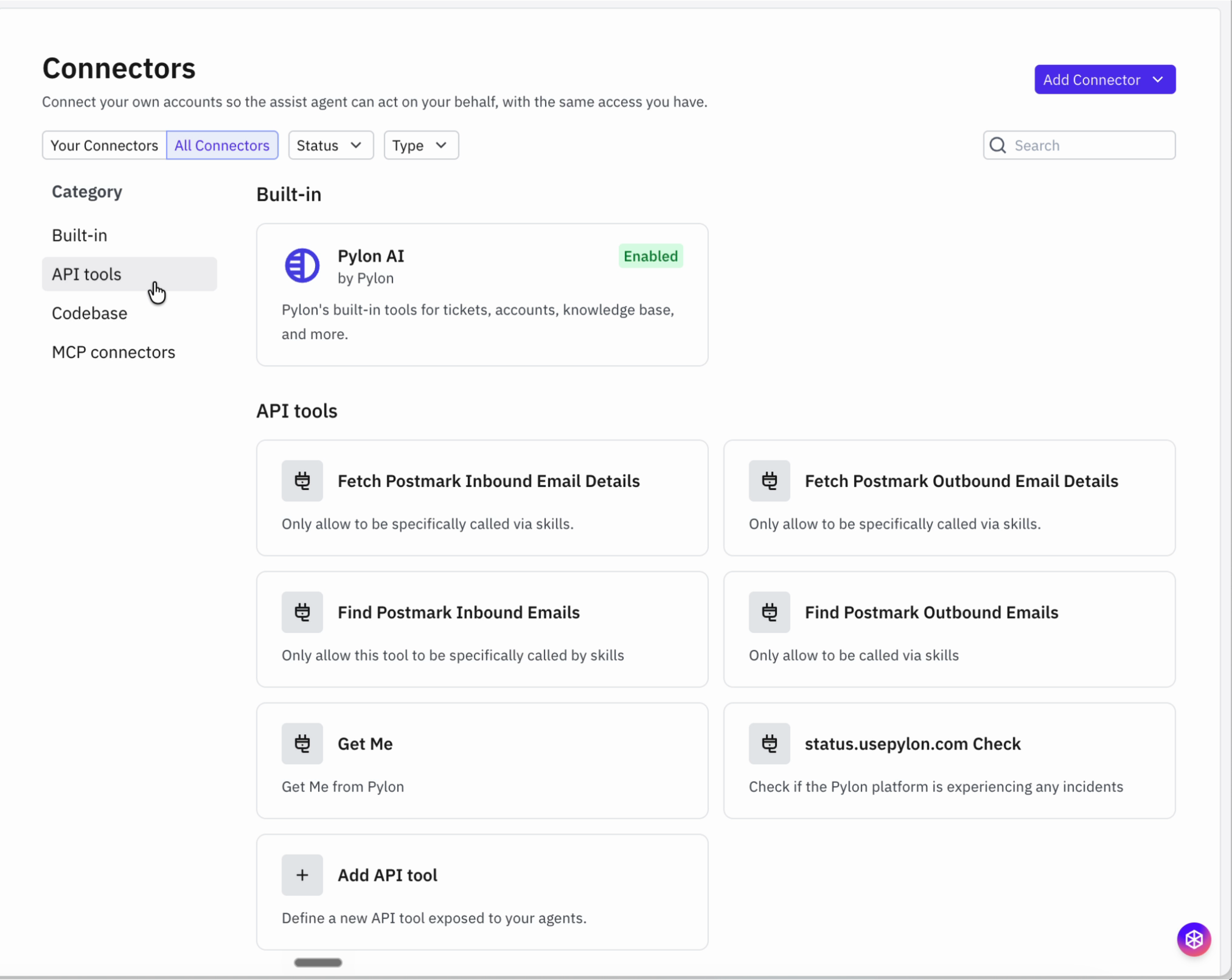
Note: Only admins can add connectors and change org settings. Every teammate uses the same Connectors page to connect their own personal account.
Set up connection types
A connection type decides whose account Pylon uses when it calls a connector's tools. The connected platform sees that identity on every action. Open a connector and go to Org settings > Connection types to turn each type on or off.
Personal - When using the Assist agent, each teammate can use their own connection. The badge shows how many teammates have connected. Teammates connect from the connector's Your connection tab.
Shared - When using Ask AI or the Assist agent, teammates reuse the org connection if they don't have a personal connection. Everyone in your organization can use this connection, so connect a service account with only the permissions your team needs.
Agent - When using Automations and Support agents, allow them to use this connection autonomously. Use a dedicated service account, not a personal one, so agent access survives credential rotation and team changes.
Use Reauthenticate or Disconnect to manage a Shared or Agent connection. The Connected members tab lists teammates who have connected a personal account.
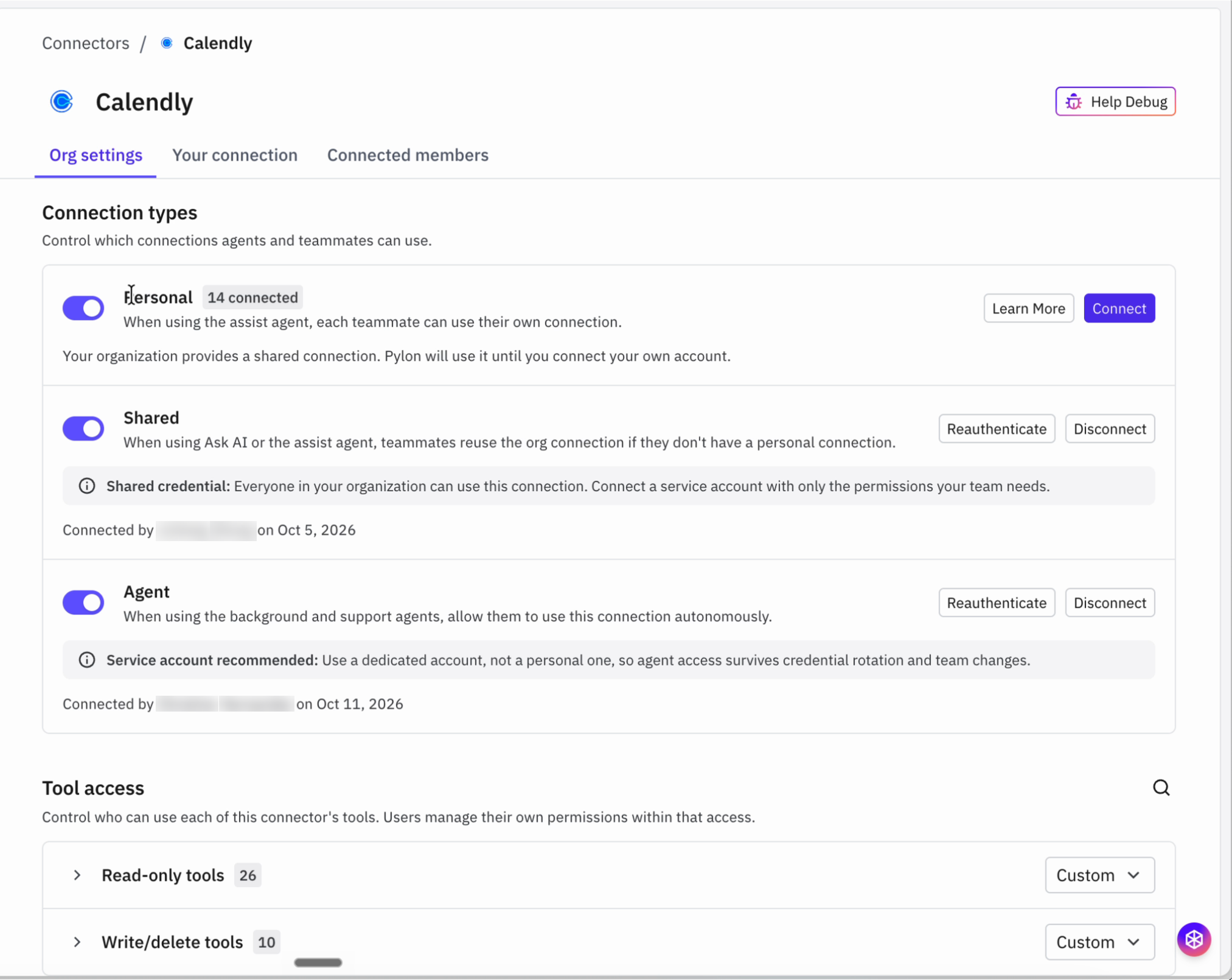
Note: Not every connector offers all three connection types. The available types depend on how the connected system authenticates.
Control tool access for your org
Tool access sets the ceiling for who can use each of a connector's tools. Teammates manage their own permissions within that access, but they can never go beyond it.
Open the connector and go to Org settings > Tool access.
Expand Read-only tools or Write/delete tools to see each individual tool.
Set access for a whole group, or for an individual tool:
Everyone - every teammate can use the tool.
Some - only the teammates you select can use the tool.
No one - the tool is turned off for everyone.
When tools in a group have different settings, the group shows Custom.
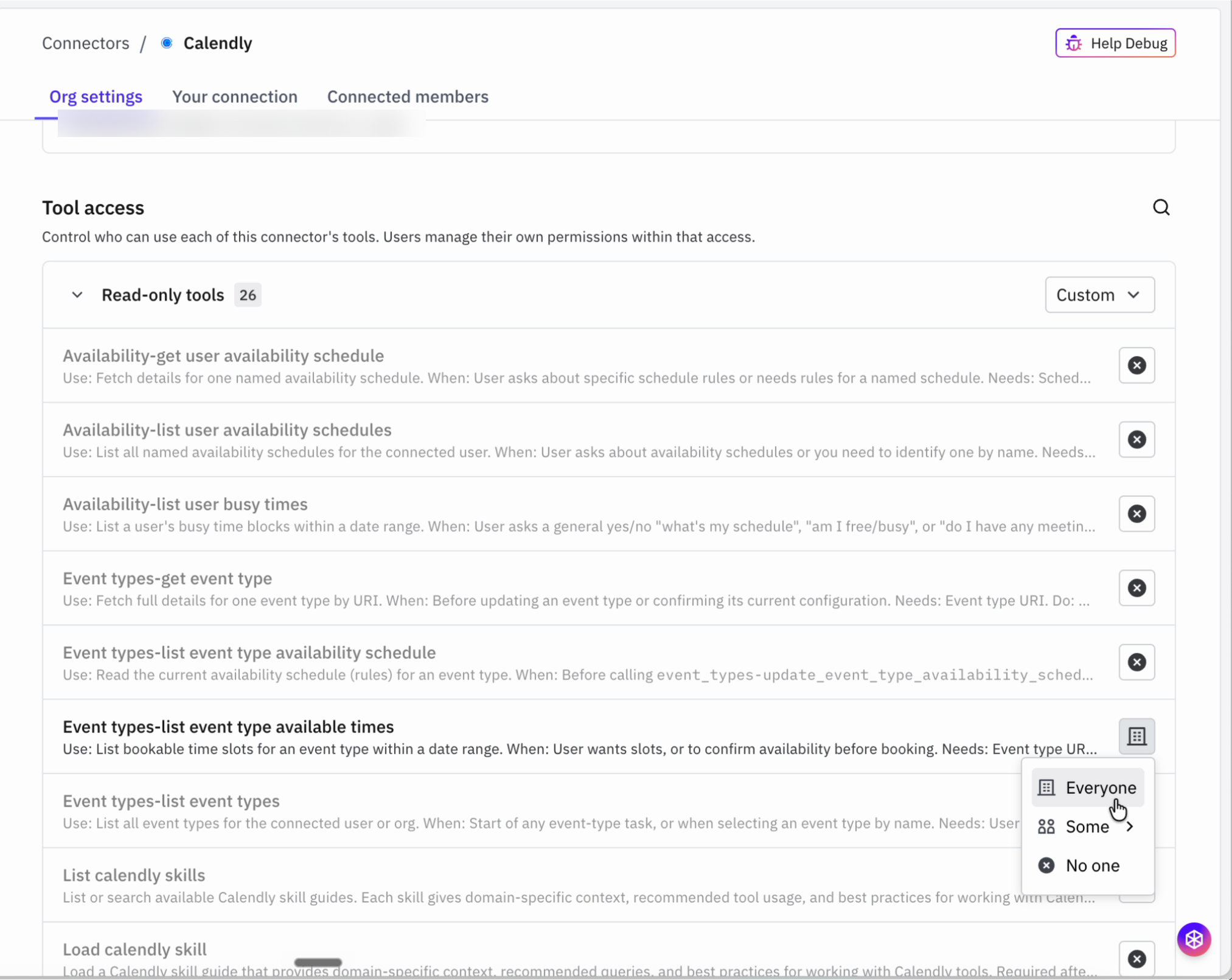
Set your own tool permissions
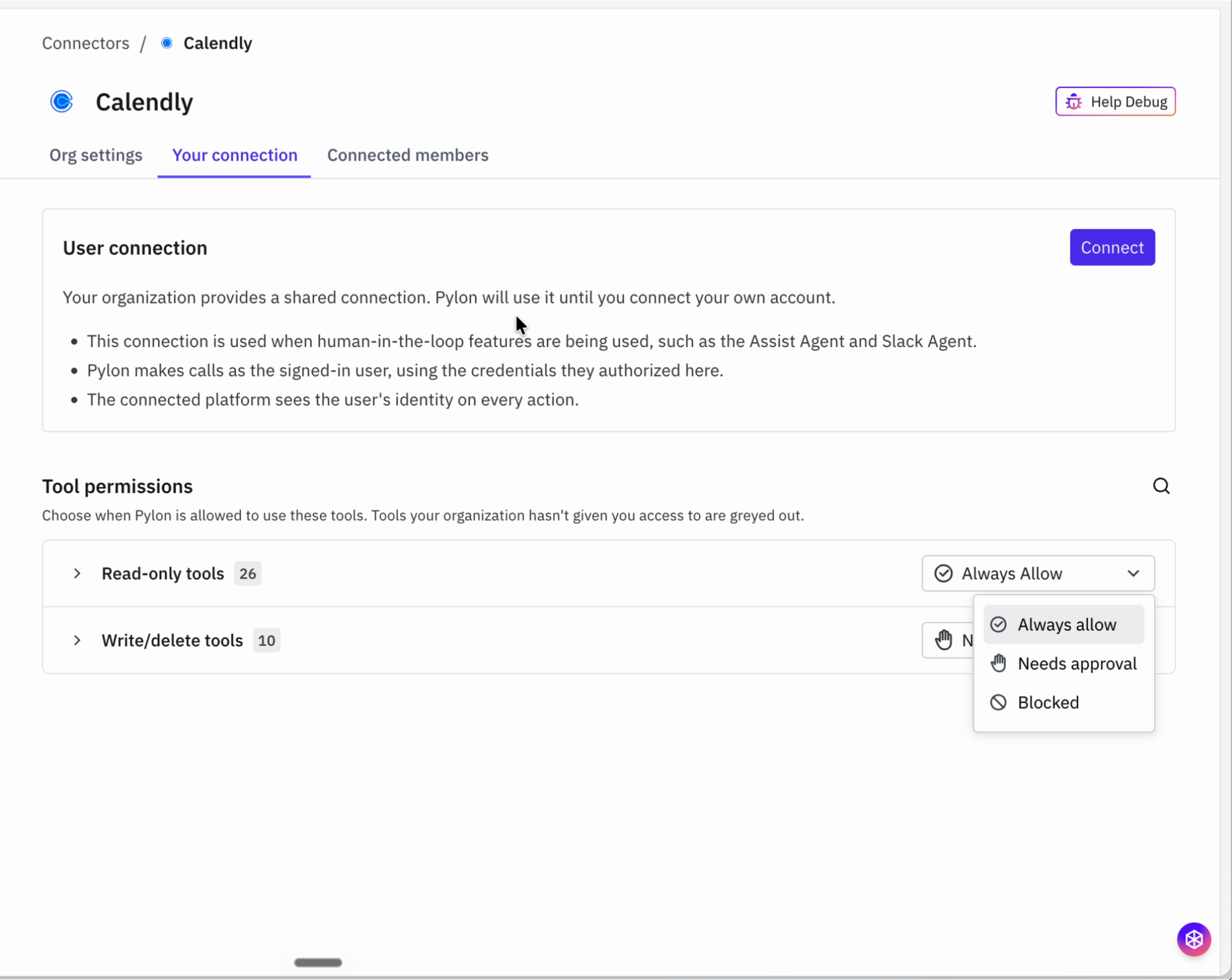
Each teammate chooses how the agent uses the tools they have access to. Open a connector and go to Your connection. If you have not connected your own account yet, click Connect under User connection. Until you do, Pylon uses your organization's shared connection, if one exists.
Under Tool permissions, set each group or tool to one of three states:
Always allow - the agent uses the tool whenever it decides the tool is needed.
Needs approval - the agent asks you before it runs the tool, and waits for you to approve.
Blocked - the agent never uses the tool for you.
By default, read-only tools are set to Always allow and write/delete tools are set to Needs approval. Tools your organization hasn't given you access to are greyed out.
Approve actions
AI agents decide on their own which tools to use. Needs approval keeps a human in the loop for actions you want to review. When the Assist agent wants to run a tool that needs approval, it shows you the action it is about to take and asks for permission. The agent runs the tool only after you approve it.
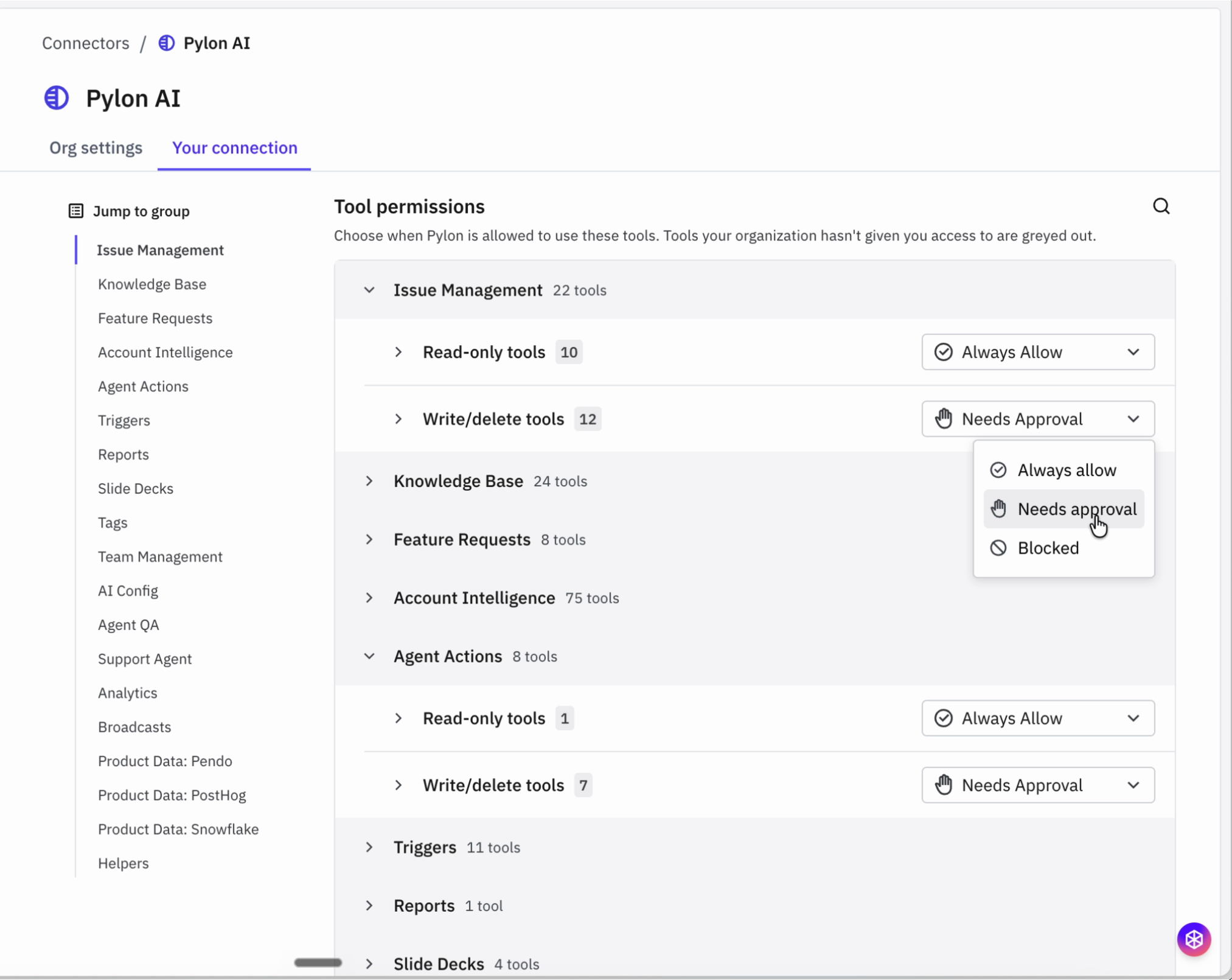
Pylon AI built-in tools
Pylon's own tools are managed in the Pylon AI connector, so you can see and control everything the agent can do inside Pylon. Tools are organized into groups such as Issue Management, Knowledge Base, Feature Requests, Account Intelligence, Agent Actions, Triggers, Tags, and Analytics. Use Jump to group to move between them.
Pylon AI works like any other connector: admins set tool access on Org settings, and each teammate sets their permissions on Your connection.
How agents use connectors
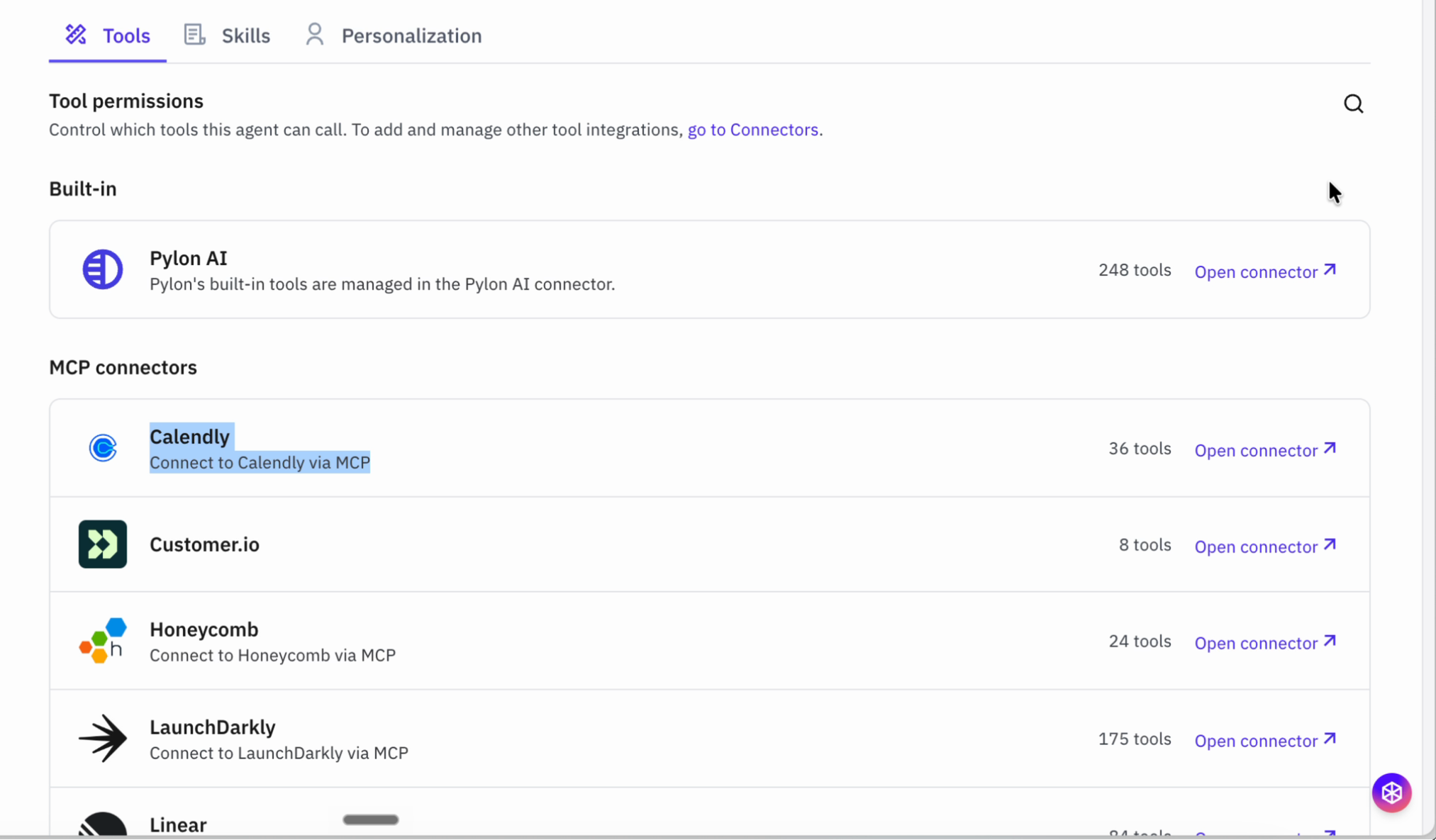
Assist agent (in Pylon and in Slack) - Assist agent and Slack agent now share the same tools and connectors, so you configure them once. The Assist agent uses each teammate's personal connection, or the shared connection when the teammate hasn't connected. To review which connectors it can call, go to Settings > AI controls > Assist agent > Tools and click Open connector to manage a connector.
Support agents and Automations - These agents run autonomously, so they use the connector's Agent connection. They use the same connector tools, with their own permissions and access. For Support agent setup, see Setting up Connectors & Tools.
Agents always respect each teammate's Pylon role. For example, a teammate with a viewer role cannot use the agent to make changes, whatever tools are allowed. The connected system also enforces its own permissions for the account that is connected.
Frequently Asked Questions
Where do I connect my own account if I'm not an admin?
Go to Settings > AI controls > Connectors, open the connector, and click Connect on the Your connection tab. If you don't see the connector, ask an admin to add it.
Why is a tool greyed out on my Your connection tab?
Your organization hasn't given you access to that tool. An admin can change this under Org settings > Tool access.
If an admin sets a tool to Everyone, can I still block it for myself?
Yes. Org tool access is the ceiling. Within it, you can set any tool to Always allow, Needs approval, or Blocked for your own connection.
Why did the agent ask me for approval before changing a field?
That tool is set to Needs approval on your connection. Write/delete tools use this setting by default. To let the agent run it without asking, change it to Always allow on the connector's Your connection tab.
Where did the Slack agent's tool settings go?
The Slack agent is now the Assist agent in Slack. It uses the same connectors and tool permissions as the Assist agent, so there is no separate Slack tools list to manage.
Does connecting a tool import its data into Pylon?
No. Connecting a tool makes specific tools available for agents to call when needed. Pylon does not copy that system's data.