How to invite the correct Pylon bot to a Slack channel
Last updated: February 23, 2026
When inviting the Pylon bot to a Slack channel, especially in external or multi-workspace collaborations, it's important to ensure you're inviting the correct bot instance.
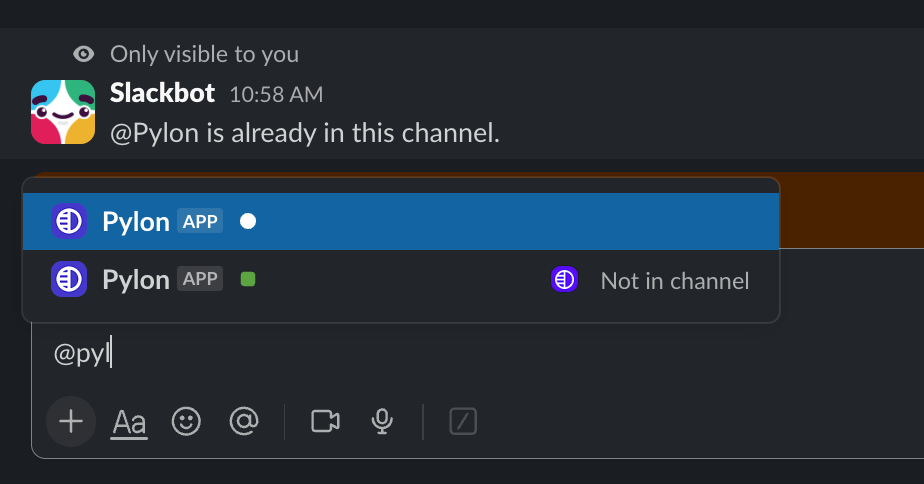
Two-Step Process for Pylon Setup
Step 1: Invite the Bot – Use /invite @Pylon in the channel (replace “Pylon” with your custom bot name if applicable). Use the @ symbol from Slack, not brackets.
Step 2: Link the Channel (Required) – After inviting the bot, you’ll receive a prompt to enable Pylon in the channel where you can select the appropriate channel type (Customer, Internal, etc.). This step links the Slack channel to a Pylon account, which is required for messages to be routed to Pylon and for Pylon functionality to work.
Critical: Simply adding the bot to the Slack channel is not sufficient. Without linking the channel as an account, Pylon functionality including issue tracking will not work.
Identifying the correct Pylon bot
When inviting a bot to a channel, pay attention to the bot's name and logo.
Your organization's Pylon bot may have a custom name (e.g., "Your Company team" instead of "Pylon team").
Look for the logo of your workspace next to the bot's name in the invitation dialog.
Customizing your Bot
You can find information on how to change your Pylon app logo here.
Troubleshooting
If you receive a message stating that the bot cannot be invited because it's from outside the organization:
Troubleshooting Advanced Pylon Bot Invitation Issues
While the basic process of inviting the correct Pylon bot is straightforward, several specific scenarios require additional troubleshooting steps:
Double-check that you're inviting the correct bot associated with your workspace.
Verify the channel permissions allow for inviting apps and integrations.
If the issue persists, contact your Slack workspace administrator to ensure the Pylon bot has the necessary permissions to join channels.
Customer-Created Channels
If the channel was created by a customer, stricter permissions might prevent you from adding Pylon:
Ask the customer to adjust their channel permissions to "Post and invite" in the channel settings.
Private Channels
See 📄 How do I add Pylon to private Slack channels?
Channel Not Appearing in Pylon
If the bot was successfully added to the Slack channel but the channel isn't showing as linked in Pylon:
Confirm the bot has been added to the Slack channel.
Go to app.usepylon.com/accounts.
Click “Add Account” (or “Link Account”) in the upper right corner.
Select “Slack Channel” as the account type.
Pick the channel from the list.
Click “Add For Review”.
Click “Save Account”.
Common Confusion Points
Channel already linked elsewhere – If you see a message that the channel is already linked to another account, this means the channel was previously connected to a different Pylon account. You’ll need to unlink it from the previous account first.
Bot appears but no functionality – This indicates step 1 was completed but step 2 (linking) was skipped. Follow the manual linking process above.
Private channel invitation – For private channels, use
/invite @Pyloninside the private channel itself.