How do I enable a customer Slack channel?
Last updated: September 2, 2025
You can only link public channels from Pylon. To link a private Slack channel, follow the instructions below in Link Channel from Slack.
Link from Pylon
You can bulk link many channels at once from the Accounts Page.
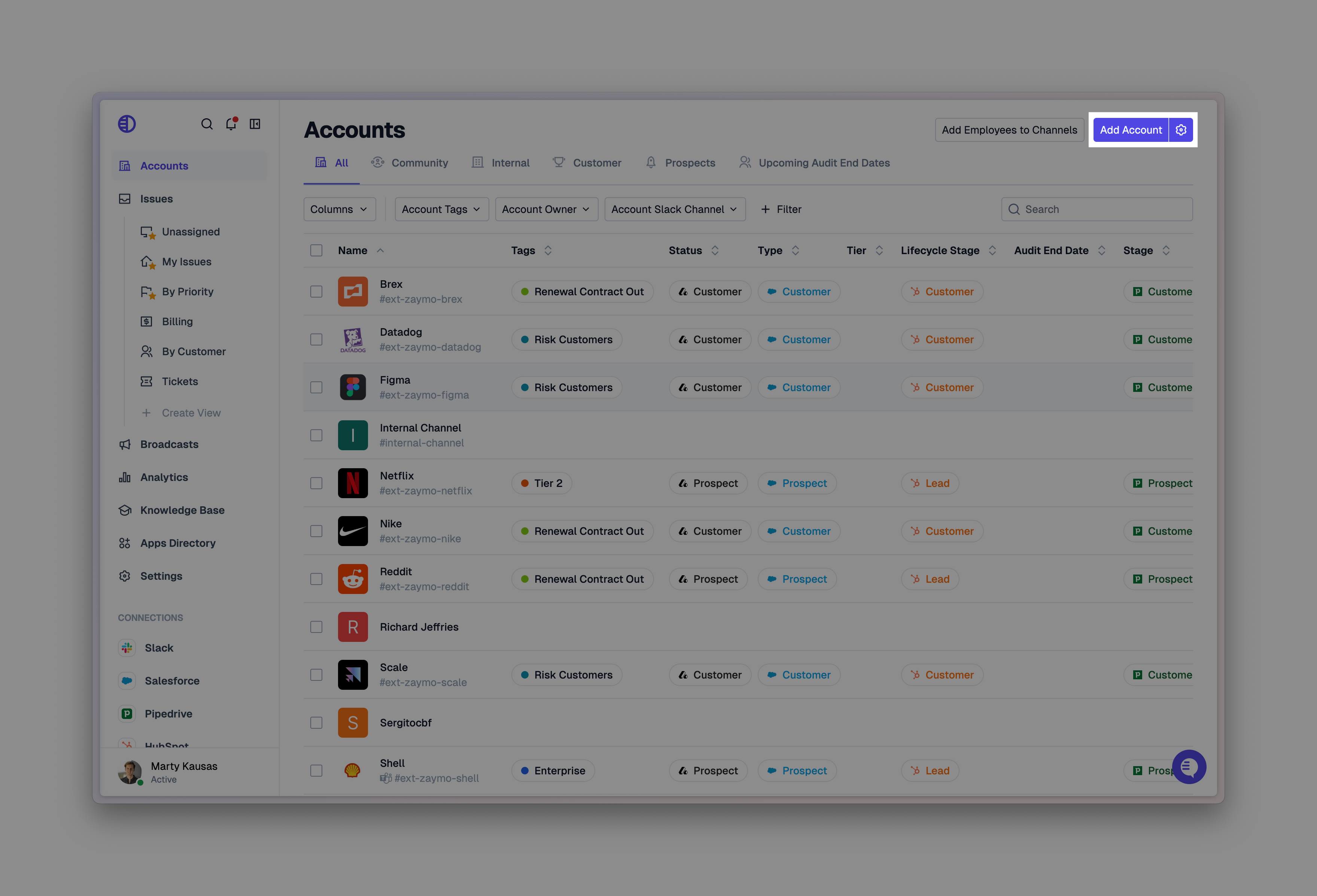
Click on Slack Channels.
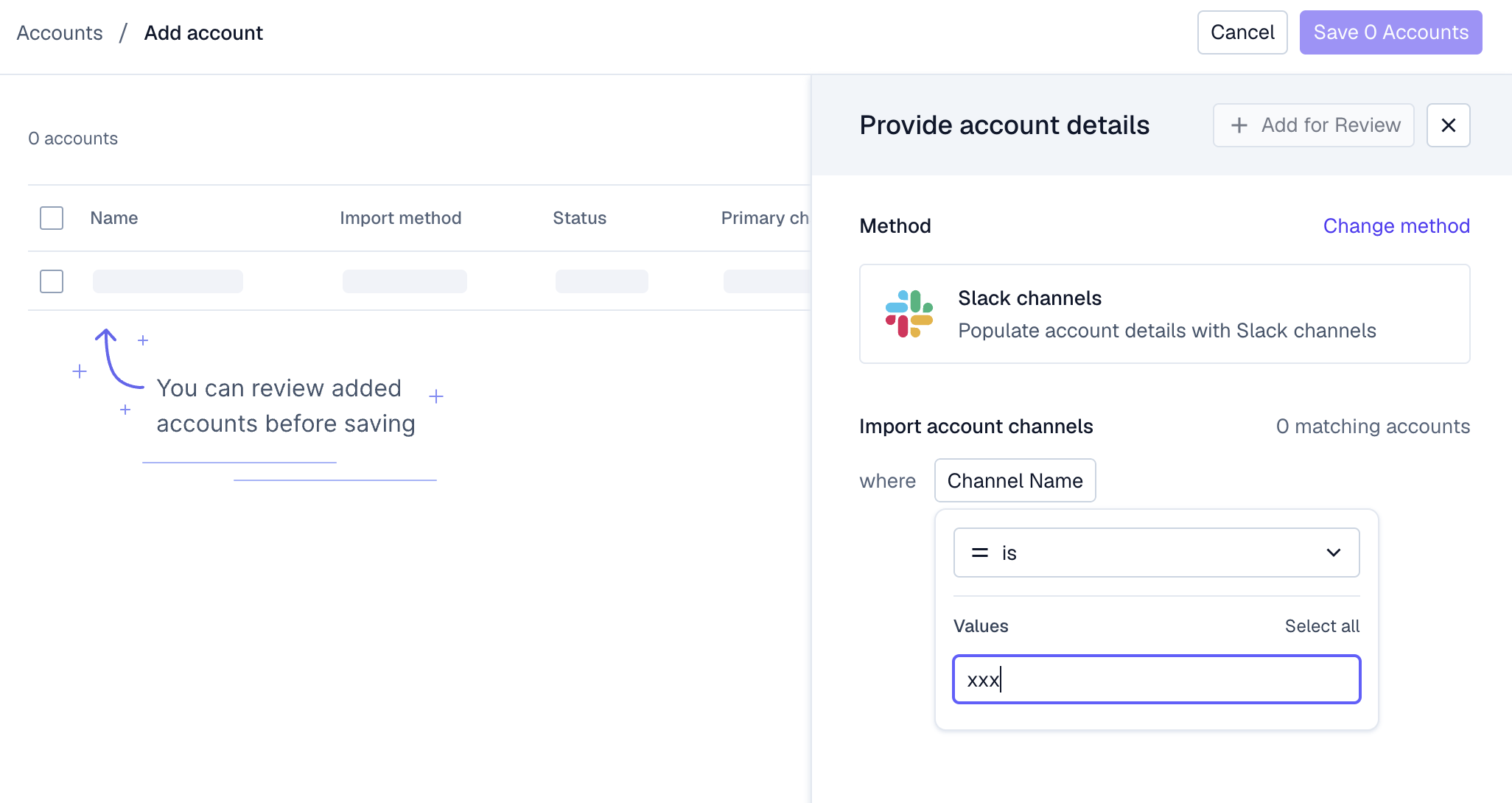
Add Accounts that follow a defined naming convention. Add them to review and save them after the review.
Link Channel from Slack
Go into the customer channel and type in /invite [pylon botname].
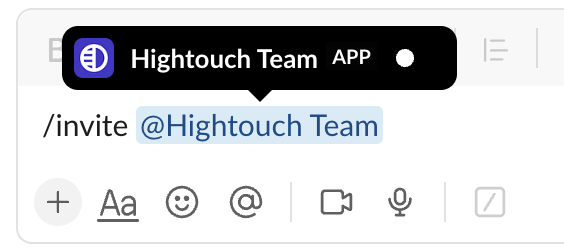
After adding the bot you'll see three options for what to enable the channel. You want to select Customer Channel.
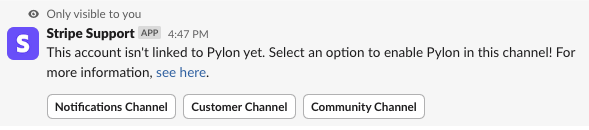
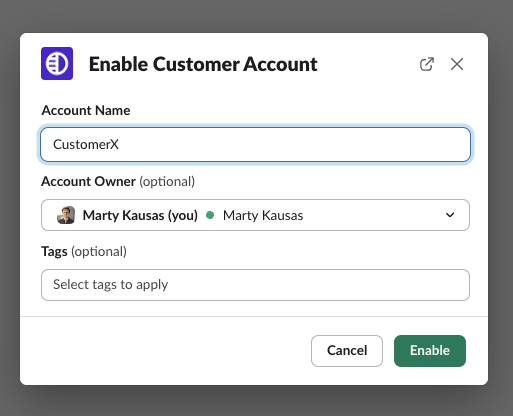
You'll see a popup with some configuration options.
Account Name | The customer name (e.g. Spotify) |
Account Owner | The person on your team who owns the account. For some teams this might not be relevant. Account owners can be used throughout the app to help route issues, create custom views, or sending broadcasts to segments of accounts. |
Tags | Account tags that can be used to group accounts (e.g. Tier 1). |