Getting started: Formulas
Last updated: October 29, 2026
Purpose: Share a non‑comprehensive set of formula examples to cover the majority of customer use cases
Note: Without the Account Intelligence add‑on product, you can only create 2 formula fields for free. It is still possible to use 2 formula fields to build out a health score, but it
0. Data to power formulas
Here's a list of data you can use in Pylon to power formulas
Issue data
Meetings (via Google Cal Integration or Meeting Recorder Integration)
Custom Activities (note: custom activity types require descriptions to work with formula field generation)
Product usage data, or any other data synced in from a data warehouse
Note: Formulas are currently only available for Custom Account Fields, not Custom Issue Fields. Support for Issue field formulas is planned for a future release.
1. Standard formulas
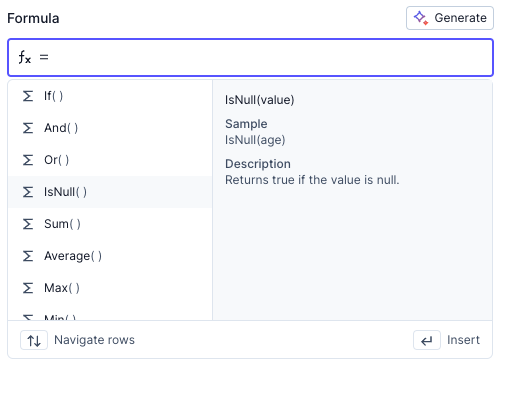
These are standard formulas for what you see in Excel or Google Sheets. Type directly into the formula editor and you will see the list of formulas and options. Some common ones we use:
Logic: If, And, Or, Not
Math: Sum, Average, Max
Date: Today, Day, Month, Year
Month example: To convert the numeric month returned by
Month()into a name, use nestedIfstatements (e.g.,If(Month=1,"Jan", … )).
2. Query formulas
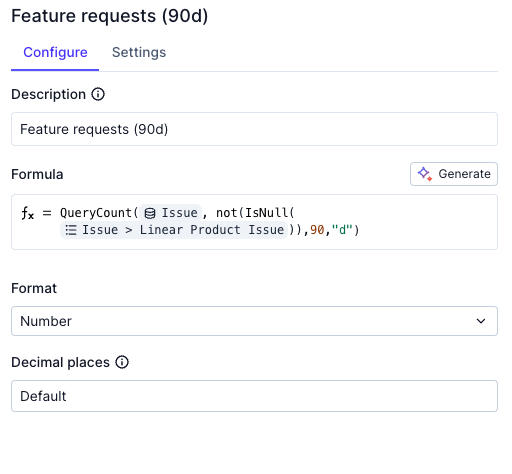
These look like simple formulas, but are actually querying your customer data. The one below will return the number of issues that each account submitted, that is tied to a Linear ticket, in the last 90 days
Using custom activities in query formulas: To use custom activity types in account‑level formulas:
Go to Settings › Account data › Create Field › choose Formula
In the formula editor, start typing to add a query on Activities / Custom activities
Use the editor’s prompts to filter by your custom activity type (by its name) and aggregate (e.g., COUNT, SUM)
Note: Custom activity types work with specific query functions like querycount, which are primarily for time‑based metrics.
Here are common QUERYCOUNT formula patterns:
Tip: When creating a Formula account field, Pylon offers standard formula templates for common account‑level statistics like issue counts to help you get started.
Count issues by time period
QUERYCOUNT({{ pylon.issue.issues }}, null, 30, "d")This returns the number of issues created in the last 30 days for each account.
Count issues by status
QUERYCOUNT({{ pylon.issue.issues }}, {{ pylon.issue.state }} != {{ closed }})This returns the total number of open issues per account. You can then filter an account view based on this field.
Count issues with specific criteria
QUERYCOUNT({{ pylon.issue.issues }}, {{ pylon.issue.linear_product_issue }}, 90, "d")This returns the number of issues tied to a Linear ticket in the last 90 days.
3. AI formulas
AI formulas require the following sequence to setup:
Creating AI-based categorical fields
To create AI‑based categorical fields (like sentiment):
Add the categorical values as options in a new select‑style field
Create a prompt for each category option so the AI knows how to categorize it
The AI will then automatically categorize based on these prompts
This approach can be applied at both the account level and the issue level to manage issues according to sentiment.
Create a custom Account notebook with the relevant data you'd like to reference
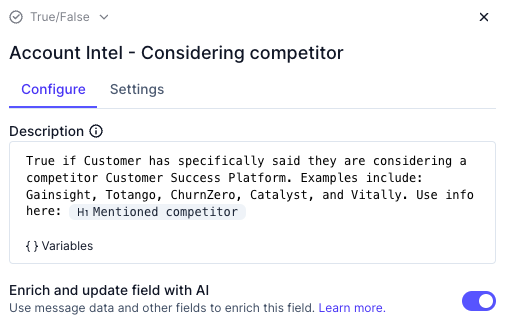
Create an AI formula field that uses the Account notebook as its context. In the below explain,
Mentioned competitoris an Account notebook AI block. To create such formula, create a Text, Select, Multi-Select, or True/False Account field and set Fill field with AI to Enabled
Create a custom Account notebook with the relevant data you'd like to reference
Create an AI formula field that uses the Account notebook as its context. In the below explain,
Mentioned competitoris an Account notebook AI block. To create such formula, create a Text, Select, Multi-Select, or True/False Account field and set Fill field with AI to Enabled
Creating AI formulas from the Accounts page:
To create AI formulas directly from the Accounts page:
Navigate to the Accounts page
Add a column for the formula
Select Formula
If the AI formula feature is available, you will see a “Generate” button in the pop‑up
Best practices for AI formulas
Craft specific, account‑scoped prompts
Write prompts that are clear and specific to the account level. The AI is already scoped to the account, so avoid redundant phrasing. For example: “Mark as true if there is an executive sponsor identified in {account block}. Otherwise, mark as false.”
Include relevant keywords and properties in your prompts to help the AI identify the information you need.
Test prompts using preview functionality
When iterating on AI field prompts, create a new field from the Accounts view (rather than from Account data in settings) to access the preview feature. Click “Preview changes” to see the field values for up to 30 rows before saving.
Configure sentiment fields effectively
For sentiment analysis, use Select or Multi‑Select field types for best results. Ensure your field option descriptions align with the wording in your prompt to improve accuracy. Save the field as a column on the Accounts View to make results visible once data populates.
Common formula patterns
A. Signal, explanation, next step
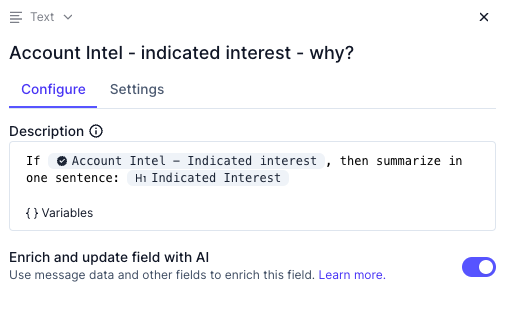
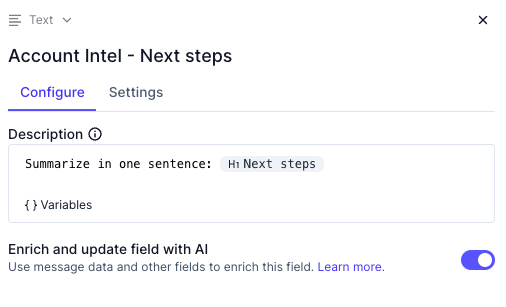
Set up an Account notebook specific for a given signal (upsell or risk), and create a series of formulas to extract the relevant insights. In this below case, we created a notebook for identifying customers that are interested in Account Intelligence product
In the below example, Indicated Interest and Next steps are two different AI fields within our custom Account notebook
Overall signal that aggregates multiple signals
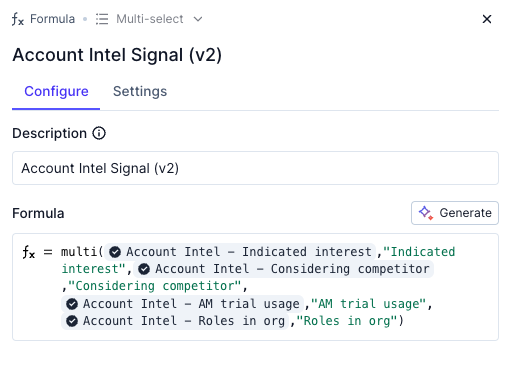
The signal is an AI indicator of a possible upsell or risk
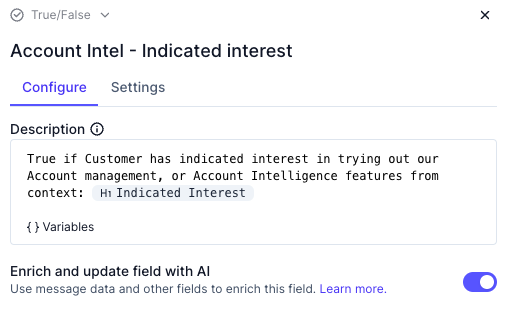
The explanation is an AI explanation of why the signal was flagged
Next step is an AI recommended of how to address the signal
B. Health scores
Best practice: Use formula‑based health scores
Use formula‑based health scores instead of AI‑only health scores for reliability. LLMs are probabilistic, not deterministic, so scores can vary for similar accounts—for example, one might score 75 while a similar one scores 65.
Instead, calculate health scores based on formulas using data from product usage, Pylon data, and CRM data.
For AI‑based sentiment, consider using categorical text values (like Low, Mid, High or Advocate, Positive, Neutral, Frustrated, High Risk/Detractor) rather than numeric scores.
Example formula structure
Health scores can be calculated using weighted formulas that combine multiple data sources. Example structure: Weight for (Usage) + Weight for Set‑up Score + Weight for Engagement + Sentiment.
You can also create formulas to detect significant changes in health score over time periods (e.g., last 30 days).
Aggregate health score weighted across multiple sub‑scores
Sub‑health score based on your org's definitions
Implementation steps:
Create custom Account fields for each signal you care about (engagement metrics, meeting frequency/recency, support volume, sentiment analysis, issue counts, last meeting date).
Populate these fields through manual entry, formula‑driven calculations, or AI‑filled values.
Incorporate product usage data by syncing it into Pylon and combining it with conversation sentiment, ticket volume, and engagement patterns in your formulas.
Add a Formula field that rolls those signals into a weighted overall score (e.g.,
(engagement * 0.5) + (sentiment * 0.3) + (meetings * 0.2)).
C. Last conversation tracking
Track the most recent interaction with a contact by combining message and meeting data:
Create a trigger for Last Message Received: When an issue has a new message from a customer, set an action to update a custom account field (date type) with the current date.
Use the existing Last Meeting Date field, which is automatically populated based on the Google Calendar connection.
Create a formula field that takes the larger of the two dates:
IF (Last Message Received > Last Meeting Date, Last Message Received, Last Meeting Date)
This formula field will show the most recent interaction, whether it was a message or a meeting.