How to generate an article in Knowledge Base with Assist Agent?
Last updated: July 13, 2026
You can use Assist Agent to draft new Knowledge Base articles directly from Pylon. This is useful when you want to quickly turn product knowledge, support learnings, or internal notes into a draft article that your team can review and publish.
Assist Agent creates the article as an unpublished draft, so you can review the content, make edits, move it to the right collection, and publish it when ready.
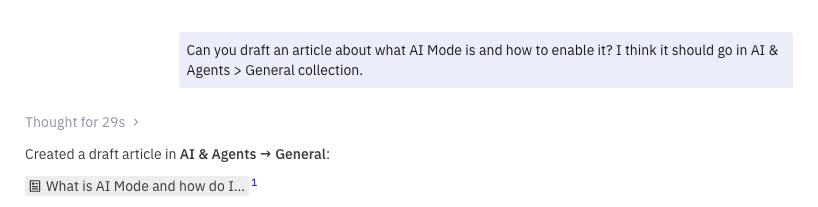
How to generate a Knowledge Base article with Assist Agent
Open Assist Agent in Pylon.
Describe the article you want to create. Include the topic, intended audience, and any details you want covered.
If you know where the article should live, include the target collection or knowledge base in your prompt. For example: “Can you draft an article about what AI Mode is and how to enable it? I think it should go in AI & Agents > General.”
Assist Agent will create an unpublished draft article in the Knowledge Base.
Open the draft, review the content, and make any changes before publishing.
Can I choose the collection or knowledge base?
Yes. When you ask Assist Agent to create an article, you can specify where the article should be created. Include the knowledge base, collection, or collection path in your prompt.
For example, you can say:
“Draft this article in the AI & Agents > Knowledge Agents collection.”
“Create this as a Knowledge Base draft under AI & Agents > General.”
“Put this article in the public Knowledge Base, under Assist Agent.”
If Assist Agent is unsure which collection you mean, it may ask for clarification or create the draft in a default location. You can always move the draft afterward.
What to include in your prompt
The more specific your prompt is, the better the first draft will be. Helpful details include:
The article title or topic
The intended knowledge base or collection
The audience, such as admins, agents, or customers
Steps, screenshots, or examples you want included
Any caveats, limitations, or best practices the article should mention
How to move a draft article to a different collection
If the article is created in the wrong collection, you can move it before publishing.
Open the draft article in the Knowledge Base editor.
Find the article’s collection setting in the editor.
Select the collection where the article should live.
Save the draft.
You can also ask Assist Agent to move an article for you if you know the destination collection. For example: “Move this article into AI & Agents > Assist Agent.”
Best practices
Review every draft before publishing. Assist Agent creates a starting point, but a human should verify accuracy and tone.
Include the destination collection in your prompt. This helps Assist Agent place the draft in the right part of your Knowledge Base.
Use the full collection path when possible. This is especially helpful when multiple collections have similar names.
Attach screenshots when useful. Screenshots help explain UI-driven workflows more clearly, and can be included in the body of the article.
Keep the article focused. If a topic covers multiple workflows, consider creating separate articles for each one.