How do I organize and manage my skills in Pylon?
Last updated: July 13, 2026
You can organize skills in Pylon by creating groups, setting group visibility, and reviewing skill version history. This helps teams keep skills organized by theme, workflow, team ownership, or permission level.
Where to manage skills
Go to Settings > AI Controls > Skills to view and manage your workspace’s skills.
Create a skill group
Groups are a helpful way to organize related skills. For example, you might create groups for Support workflows, onboarding, escalations, product feedback, or team-specific skills.
Go to Settings > AI Controls > Skills.
In the top-right corner, click the dropdown arrow next to Create Skill.
Select the option to create a group.
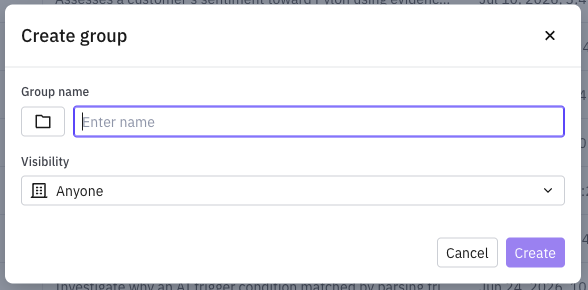
Enter a group name.
Choose the group’s visibility.
Click Create.
Set group visibility
When you create a group, you can set its visibility. Use visibility settings to control who can access or manage the skills in that group. This is useful when different teams own different skill sets, or when some skills should only be visible to specific users or teams.
Use groups to organize by theme or ownership
Common ways to organize skills include:
By workflow: Support triage, escalations, feature requests, bug reports, onboarding, or renewals
By team: Support, Customer Success, Sales, Product, or Operations
By ownership: Skills owned by a specific team or subject-matter expert
By access needs: Public workspace skills vs. restricted team-specific skills
View skill version history
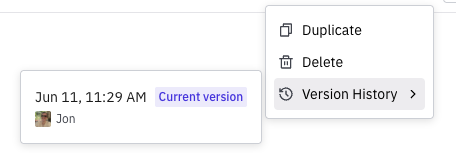
You can view a skill’s version history to see previous versions and maintain an audit trail of changes. Version history helps you understand when a skill was edited and who made the update.
To view version history, open the skill’s menu and select Version History.
Best practices
Use clear group names that describe the workflow or owning team.
Set visibility based on who should use or maintain the skills.
Review version history when troubleshooting skill behavior or auditing changes.
Keep similar skills grouped together so teammates can find the right workflow quickly.