How do I add Pylon to customer-created Slack channels?
Last updated: February 18, 2026
If the customer created the Slack channel, you should be able to add Pylon into the channel as if it were your own provided you have the permissions to invite members/apps to the channel. Everything will work as intended.
What if I still can't add Pylon into the channel the customer created?
If you're unable to add Pylon as you normally would, this means your customer has set stricter channel permissions and you may need to ask the customer to give you permissions to invite users.
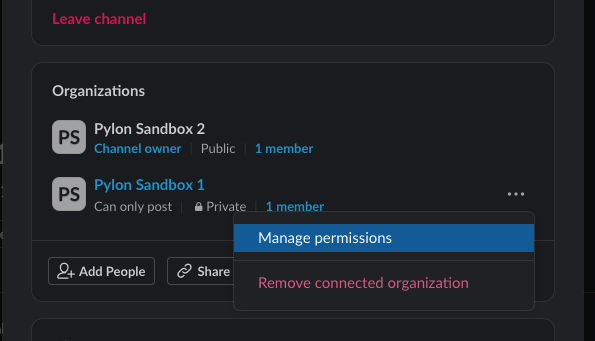
Here's what they'll need to do. In Channel settings, look for organization and select "Manage permissions"
Then change the permissions to "Post and invite"
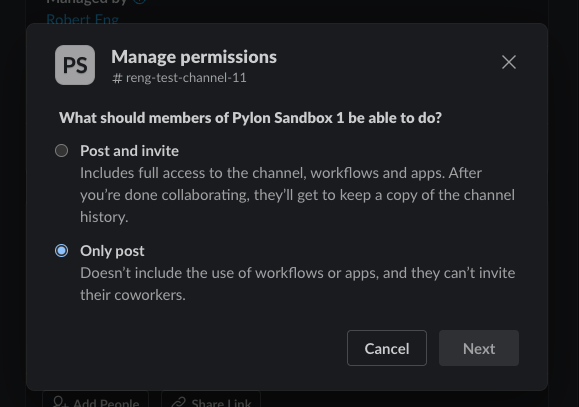
You should be able to add Pylon in as well as other teammates.
If your customer is unwilling to grant permissions for a member of your team to add members to the channel, there is currently no way for your customer to add the Pylon app to the channel. The app being in the channel is a requirement for the connection to Pylon.