How do I integrate Pylon with ClickUp
Last updated: July 11, 2025
We currently don't have an out of the box ClickUp integration. However, you can build a custom one based on your needs and preferences. This will primarily work through utilizing triggers, webhooks, zaps, and custom fields. To start, here is a guide on the linear integration and its capabilities. You will probably want to built something similar with following capabilites:
Create a ClickUp task in Pylon
Access the ClickUp task directly through Pylon (URL)
Access the Pylon issue directly through ClickUp (URL)
Update the Pylon issue state when the ClickUp task is closed (or other states)
API tokens:
You will need API tokens from both Pylon and ClickUp to make this work:
How to create an API token in Pylon
How to create an API token in Clickup - we recommend using the personal API token
1. Create a new ClickUp ticket through Pylon
TLDR: Pylon has a True/False custom field on the issue that hits a webhook in a trigger and sends the Pylon issue id and link (and other things link issue body) to ClickUp.
Step: Create custom fields in ClickUp for data that you want to send from Pylon (i.e. issue id, issue url, ...)
Step: Create custom fields in Pylon (trigger field to fire webhook, custom fields to store ClickUp task ID, ClickUp task URL, ...)
Step: Create a webhook in Pylon that gets triggers by a boolean custom field
Details
Custom field in Pylon:
You can create a custom field by going to the Issue Custom Fields settings page and adding or editing field options. This allows you to expand question types without altering existing choices. Create a toggle/boolean field (i.e. ClickUp ticket) that then triggers the webhook.
Create a trigger in Pylon
Follow this guide to create a trigger that then fires the webhook. Include the custom field that was created in the first step.
Create a webhook in Pylon
Follow this guide to create a webhook in Pylon. You will most likely want to use following URL:POST https://api.clickup.com/api/v2/list/{list_id}/task
Include your authorization token that you collected from ClickUp by adding an additional header with following format
key: Authorization:
value: ClickUp API token
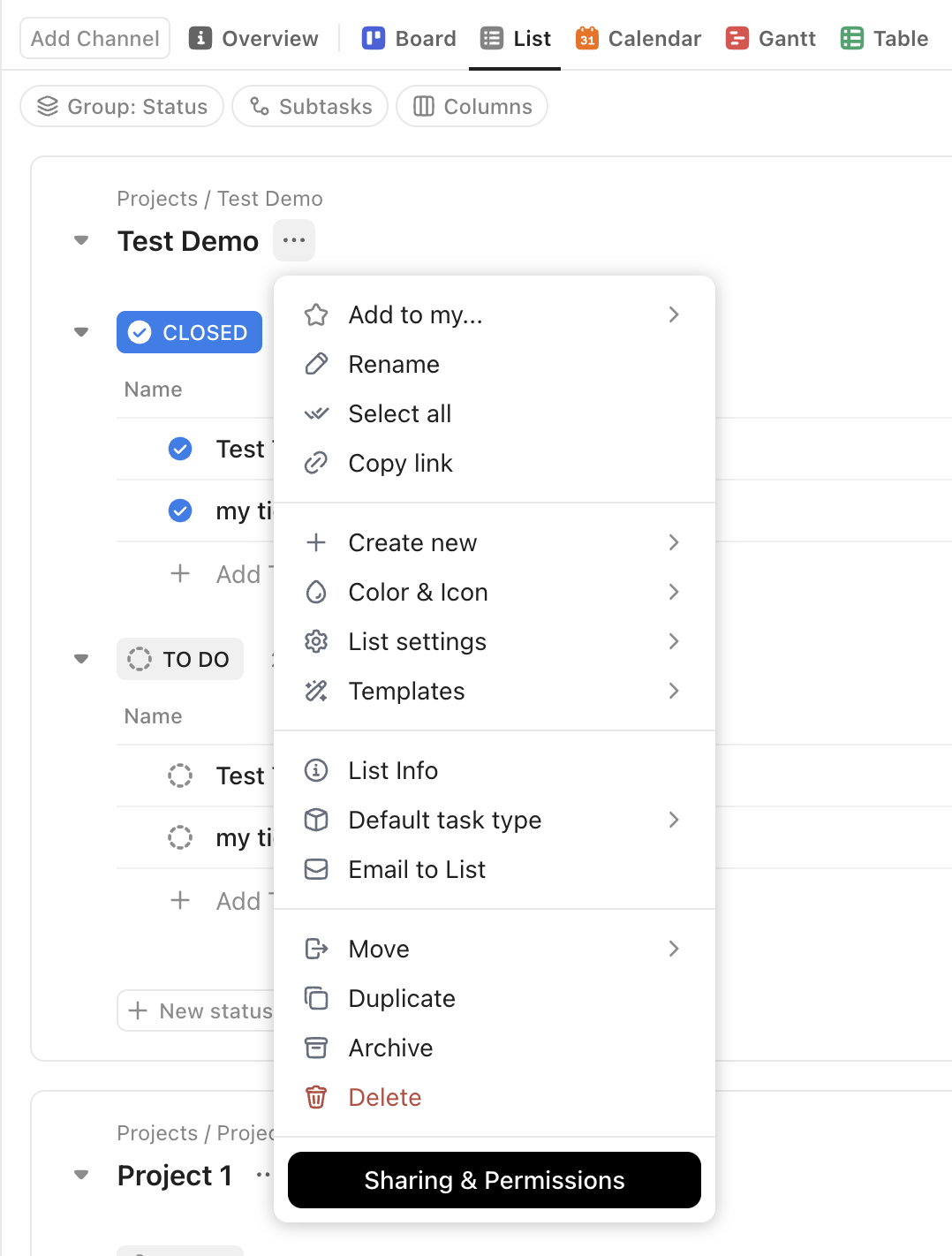
You will need the list_id that from you list of tasks:
To find the List ID, right-click the List in your Sidebar, select Copy link, and paste the link in your URL. The last string in the URL is your List ID.
ClickUp custom fields & payload
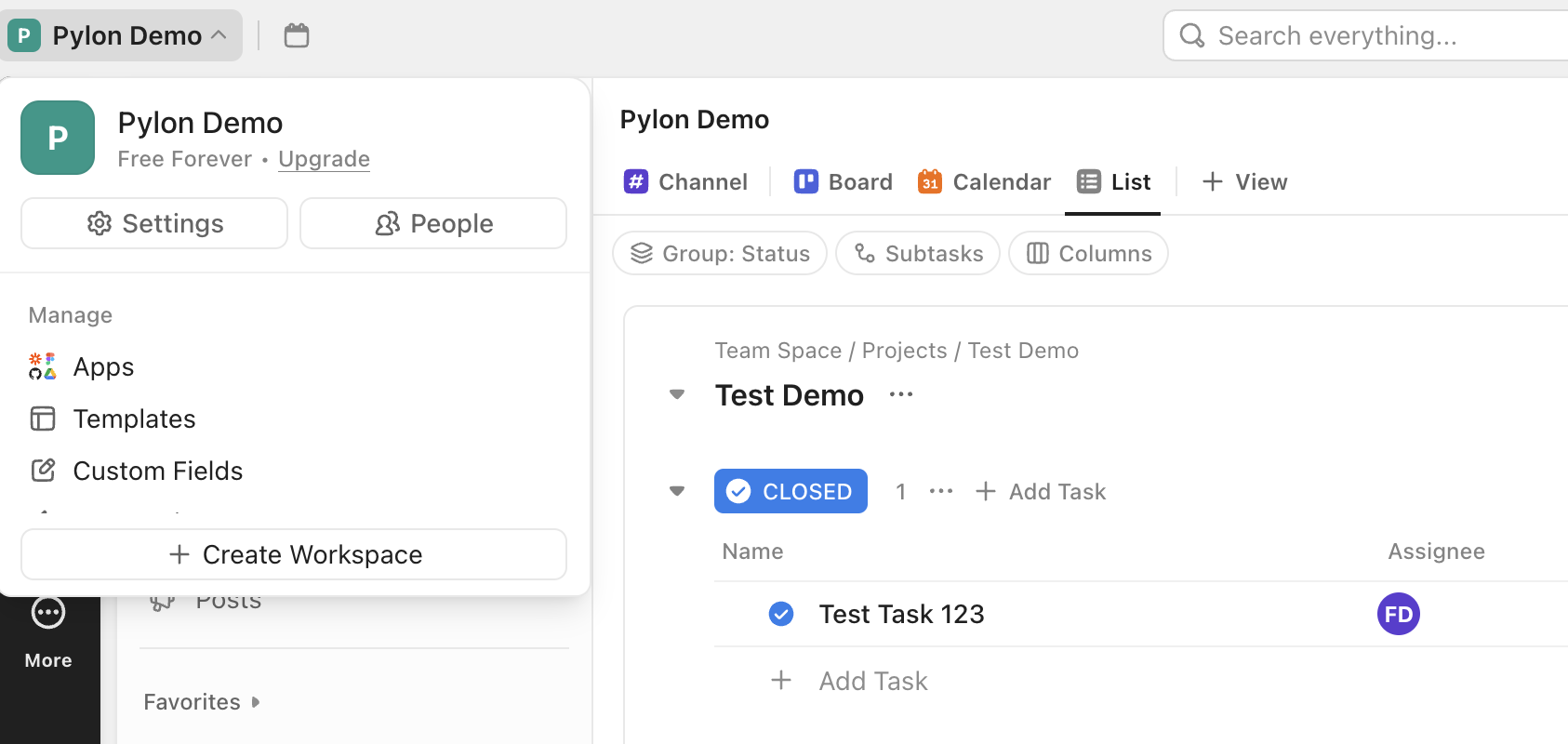
In the webhook body, specify which information you want to send to ClickUp. This page specifies which issue related fields can be posted. See this documentation on posting new tasks in ClickUp. Make sure to create a custom fields in ClickUp to store the Pylon issue ID as well as the issue URL. See screenshot for where you can find custom fields:
2. Send data from ClickUp to Pylon
TLDR: Set up a Zapier automation that triggers a webhook sending data to Pylon.
Depending on your use cases, these things might be necessary:
Set up a zap that triggers when a new task is created to bring the ClickUp URL to Pylon.
Set up a zap to update the state of the Pylon ticket based on changes on the ticket. You would want to set up different zaps (since the trigger is based on changing the ticket's status to a specific state) for different use cases such as closed or canceled.
Details to 1:
Create a zap that triggers when a new task gets created in ClickUp (you can filter for Pylon ID available to only include tickets that were created in Pylon).
Add a webhook with action event: Custom Request . You can use this endpoint: PATCH https://api.usepylon.com/issues/{id} - see API reference here.
Add headers, probably similar to this:
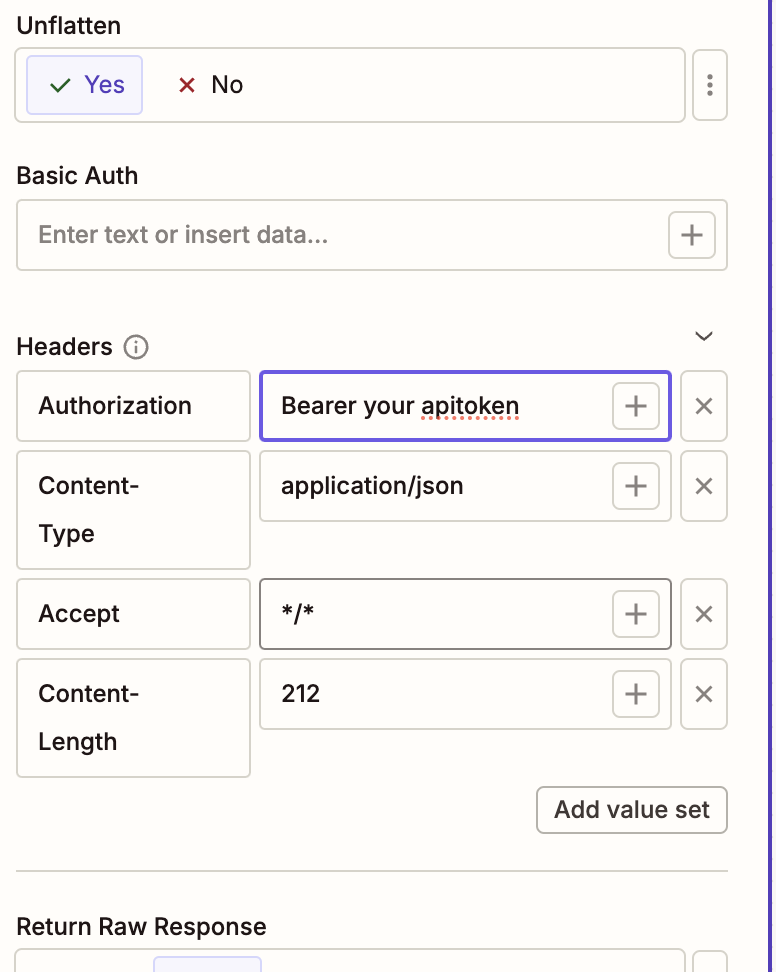
In the payload, include the ClickUp ID. To create a URL you will need to construct the URL yourself. This is the structure:
https://app.clickup.com/t/asdf1234 where asdf1234 is your task ID.
Map this URL to your previously created custom field and you should be able to access the Task through Pylon.
Details to 2:
Similar to the above, we recommend using a zap to trigger a webhook that sends data to Pylon.
Ticket = CLOSED
Once the ticket is closed, you would want the ticket to jump back into the "Waiting on you" queue so that the support team can inform the customer that the problem has been solved. To do that, to go Zapier and create a zap that is triggered by a status change on a ClickUp task. You can again filter for Pylon ID exists. The trigger event would be Task changes . Under What changed? select Status and set Task Status to closed (or whatever task status you are using).
Similar to above, add a webhook with action event: Custom Request . In the load, include the data you want to send as well as the status change (i.e. "state": "waiting_on_you" ).
Ticket status = CANCELED / OTHER STATUS UPDATE
Create a similar zap for other status updates that trigger state changes in Pylon. For instance: If a ticket gets canceled, you may want to change the state to waiting_on_you and add a tag to indicate that the ticket did not get resolved.