SSO & SCIM Setup
Last updated: February 18, 2026
This guide is for customers that are looking to set up SSO/SCIM for Pylon with their IDP (eg. Okta). If you are looking to set up login through Slack / Google Mail or Microsoft, please click here for common troubleshooting tips.
Domain Management
Navigate to Settings > Access & SSO.
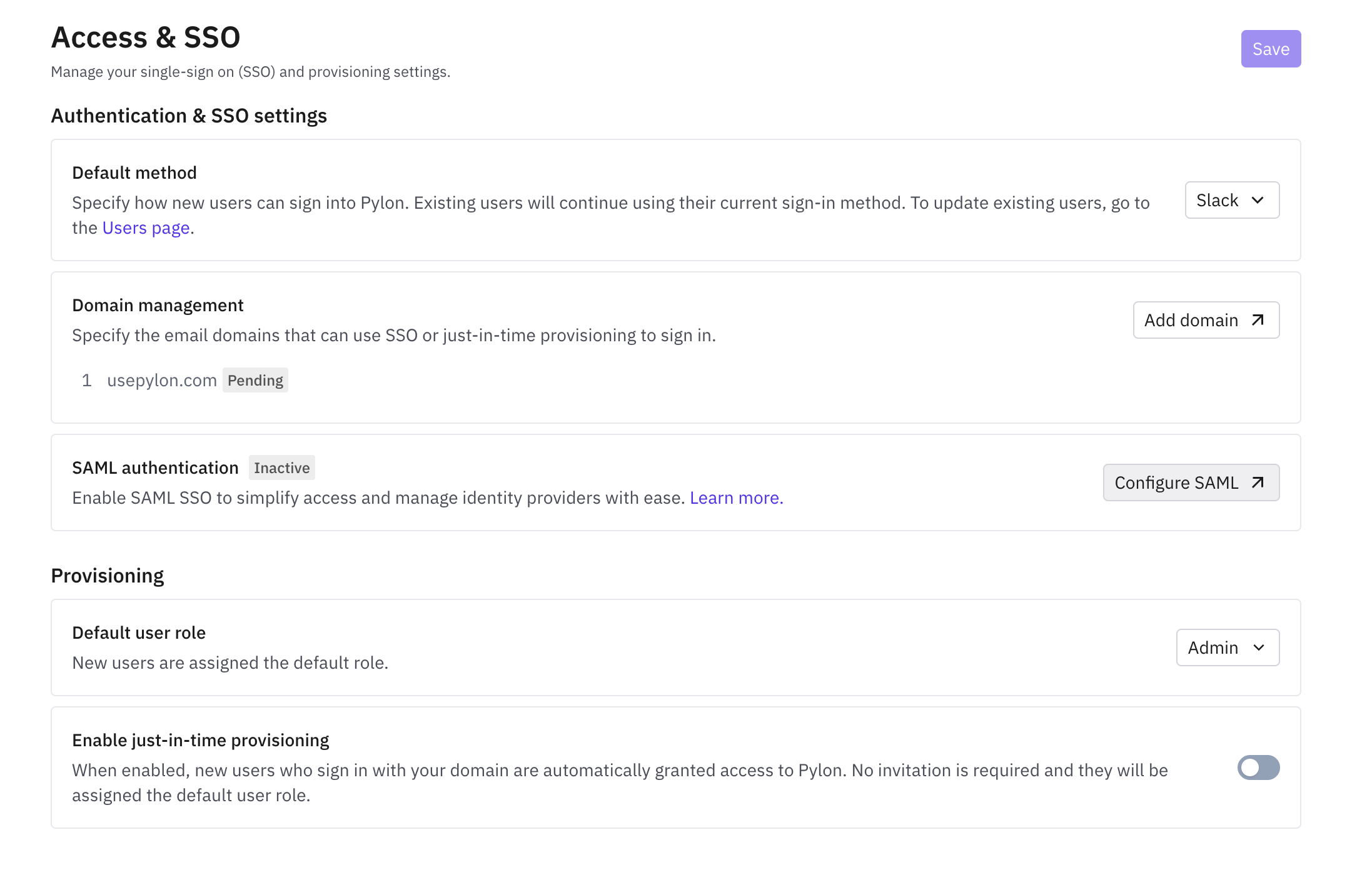
If the navigation tab just says "Access", please reach out to our Support team.
Click Add domain and follow the steps listed there to configure your DNS settings. It should automatically verify once fully set up.
SAML authentication
Follow the steps laid out in the linked walkthrough. Once configured, ensure that you set the default login method is set to SAML.
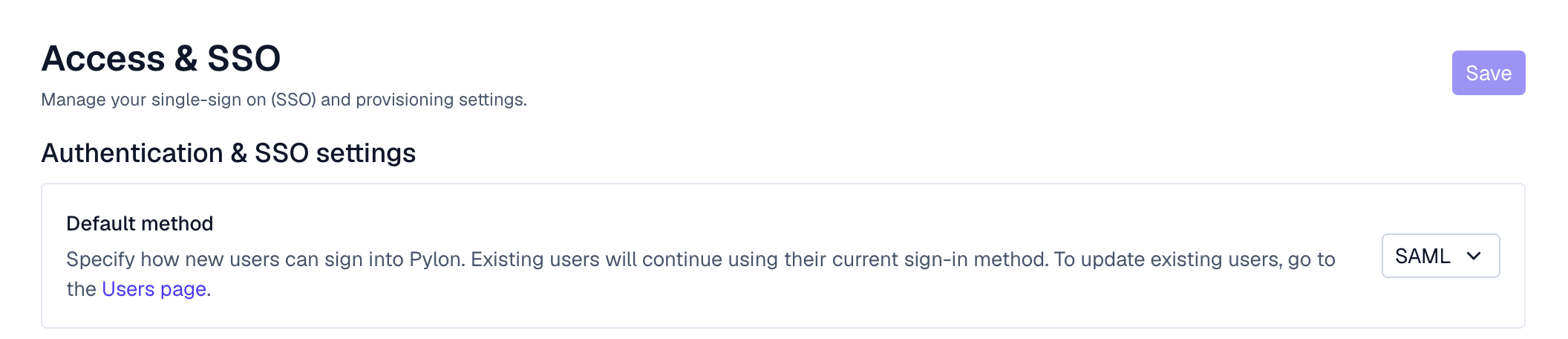
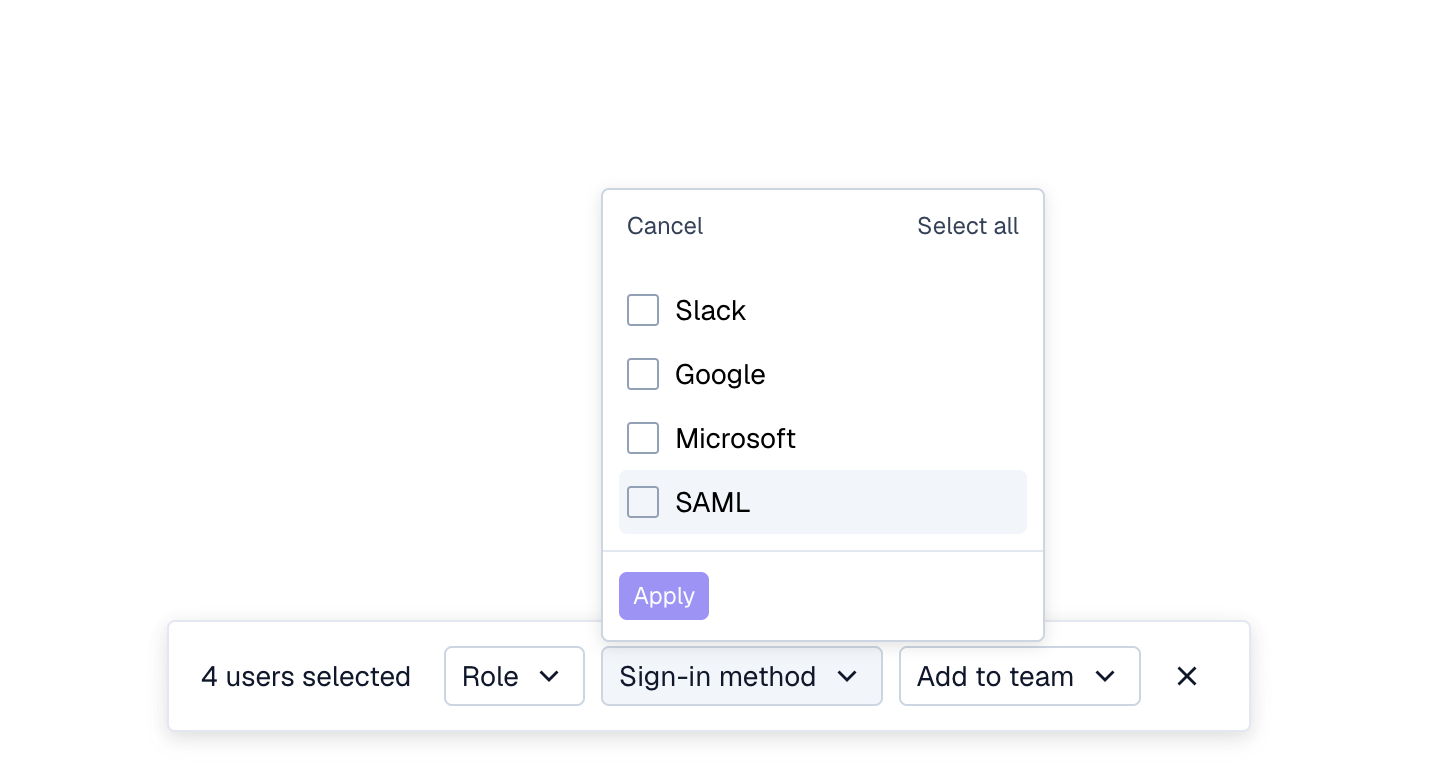
To update existing users, go to the Users page and edit the login method of existing users.
SCIM Setup
Once you have SAML set up, you should see the option to set up SCIM. Follow the linked steps to Configure SCIM.
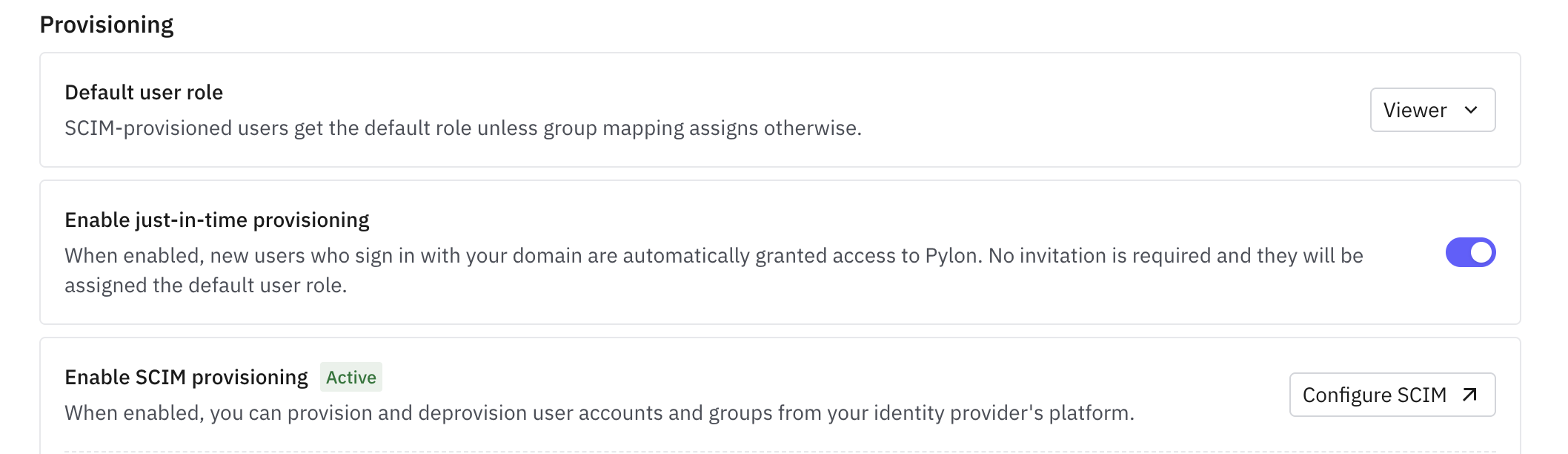
If you don't see the Enable SCIM provisioning section, please reach out to our Support team.
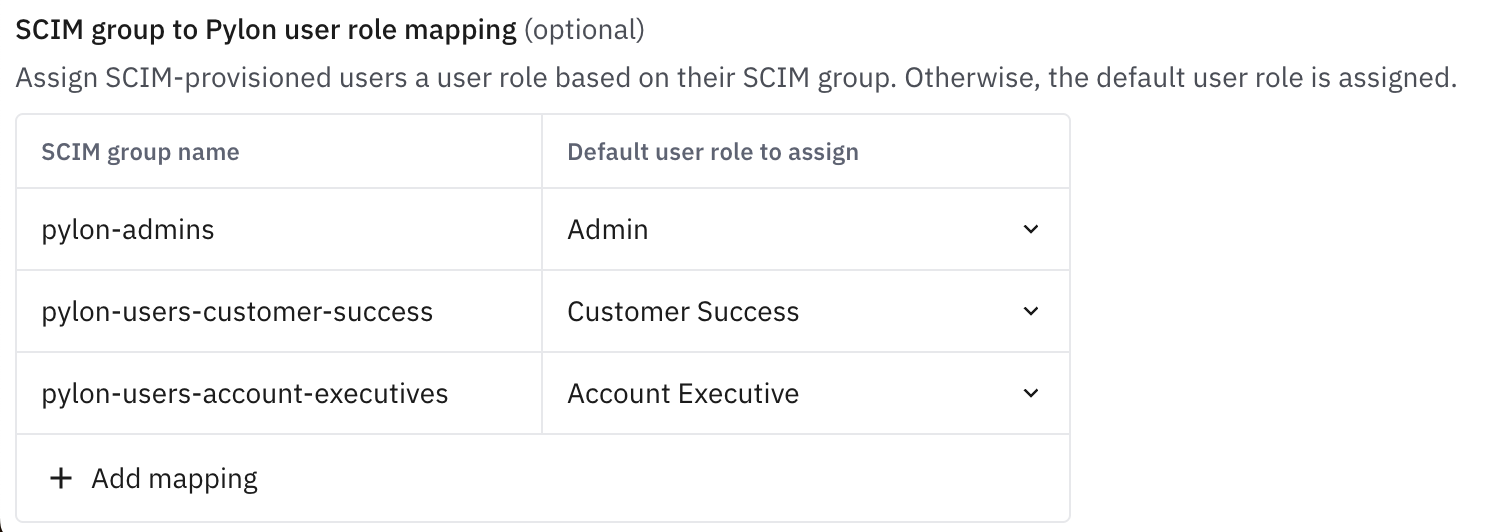
When configuring SCIM, there will be a step that asks you to map existing IDP groups to Pylon groups. You'll want to Create Group (not Link Group) as these do not correlate with Teams / Users within Pylon. Once Groups are linked and pushed to Pylon, you'll have the ability to map the Groups you configured in the previous step to Roles you've created within Pylon.