How do I use a custom domain for my knowledge base?
Last updated: March 13, 2026
Pylon supports automatic SSL generation for your custom domain, and will host your knowledge base behind a CDN to improve load times.
For setting up a custom domain for the Customer Portal, see this article.
Setup
Step 1: generate DNS values from Pylon
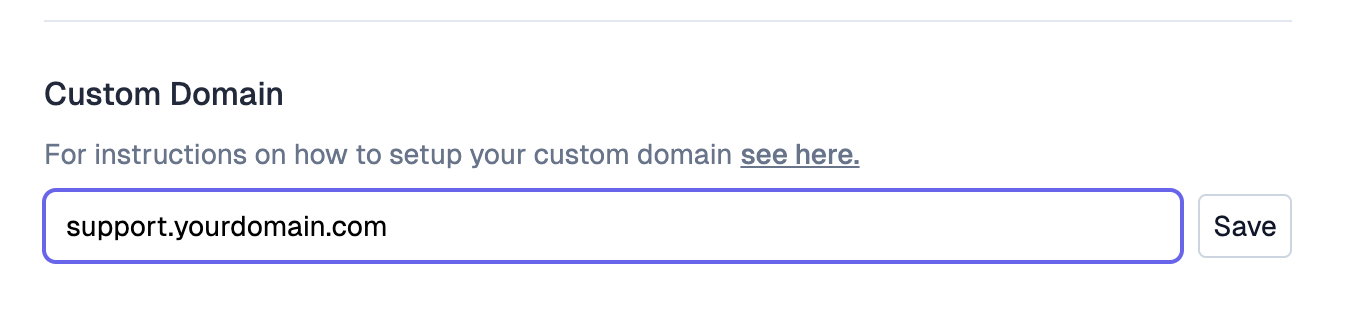
Navigate to the General tab of your Knowledge Base config, and input your custom domain.
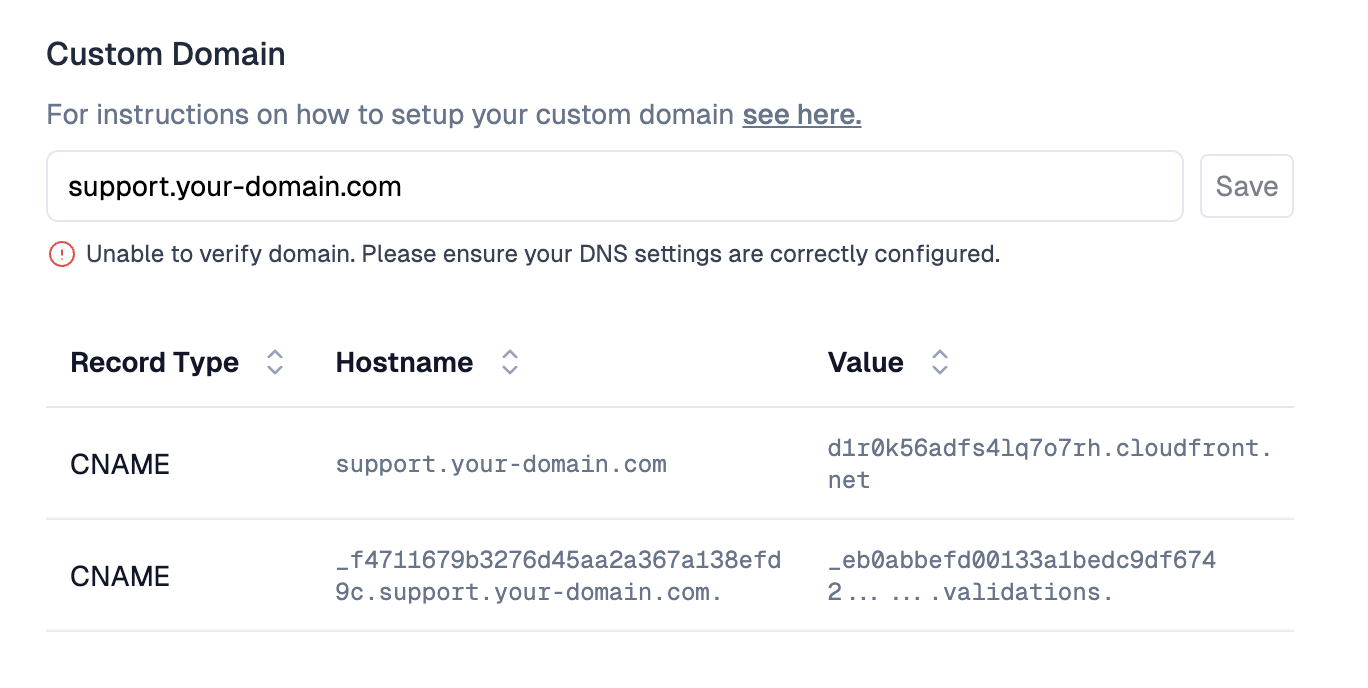
Pylon will generate DNS records for your SSL certificate and hosting URL.
Step 2: update DNS values in your provider
Add these CNAME records to your domain using your DNS provider (e.g. Cloudflare, Namecheap, AWS Route53). Once set, Pylon will verify your domain within 30 minutes.
Caveats
Domains with CAA records: If your domain has a CAA (Certificate Authority Authorization) record, please ensure that it includes
amazon.com. This is necessary for us to generate certificates for your domain.If you are running into errors, make sure the domain is not already connected to any existing systems.
If you are migrating from a previous AWS Cloudfront Distribution, make sure you remove the domain from the distribution's "Alternate domain names". Cloudfront only allows your domain to be associated with a single distribution, so Pylon cannot complete setup if your domain is used elsewhere.
GoDaddy and Namecheap DNS Configuration for Custom Domain Validation
When setting up CNAME records for custom domain validation in GoDaddy and Namecheap, be aware that these providers automatically append your root domain to CNAME record entries.
When entering CNAME records in GoDaddy or Namecheap for subdomain validation, only enter the subdomain portion without the root domain. For example, use
_f4711679b3276d46aa2a367a138efd9c.supportinstead of_f4711679b3276d46aa2a367a138efd9c.support.your-domain.com. GoDaddy/Namecheap will automatically append the root domain to create the correct full record.