Custom Themes
Last updated: May 13, 2026
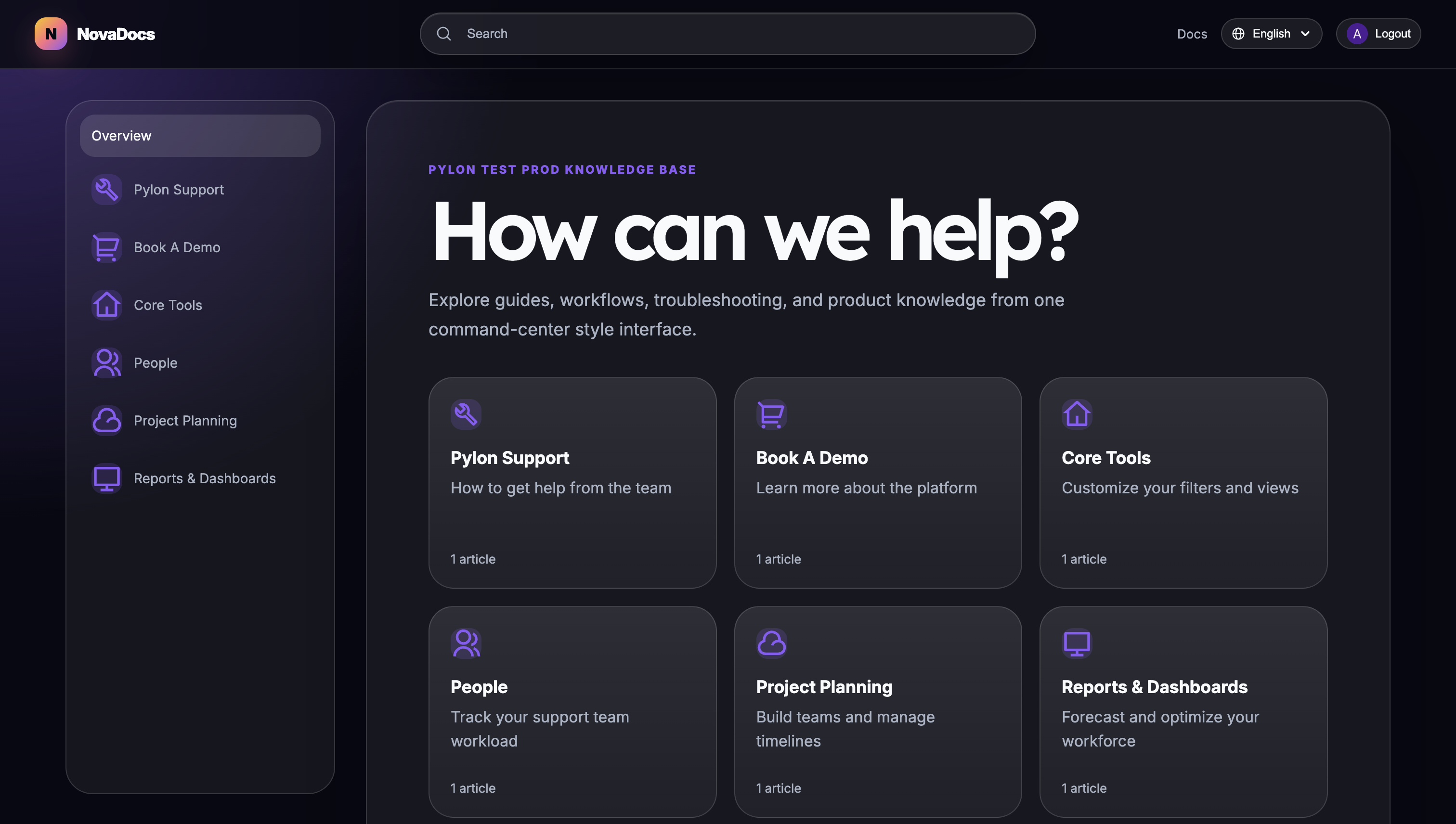
The custom themes editor lets you take full control of your knowledge base's HTML, CSS, and JavaScript. Edit page layout templates, style everything with custom CSS, and add scripts -- all from a built-in code editor with live preview and draft/publish workflow.
Your theme builds on top of the branding defaults you've already configured in Brand center and Styling & customization. The theme editor is where you go when you need control beyond what those visual settings offer.
Getting started
To open the theme editor, navigate to your knowledge base in the sidebar and click Code.
Theme files
The sidebar organizes your theme into four groups of editable files:
Layouts -- HTML templates that control the structure of each page type:
homepage -- The main landing page of your knowledge base
collections -- The page displayed when viewing a collection of articles
articles -- The page displayed when reading an individual article
Navigation -- Shared components rendered on every page:
navbar -- The top navigation bar
footer -- The bottom footer section
Styling:
styles.css -- Custom CSS that applies across all pages
Scripts:
scripts -- Custom JavaScript (e.g., analytics, third-party widgets)
Click any file in the sidebar to open it in the editor.
Template Syntax
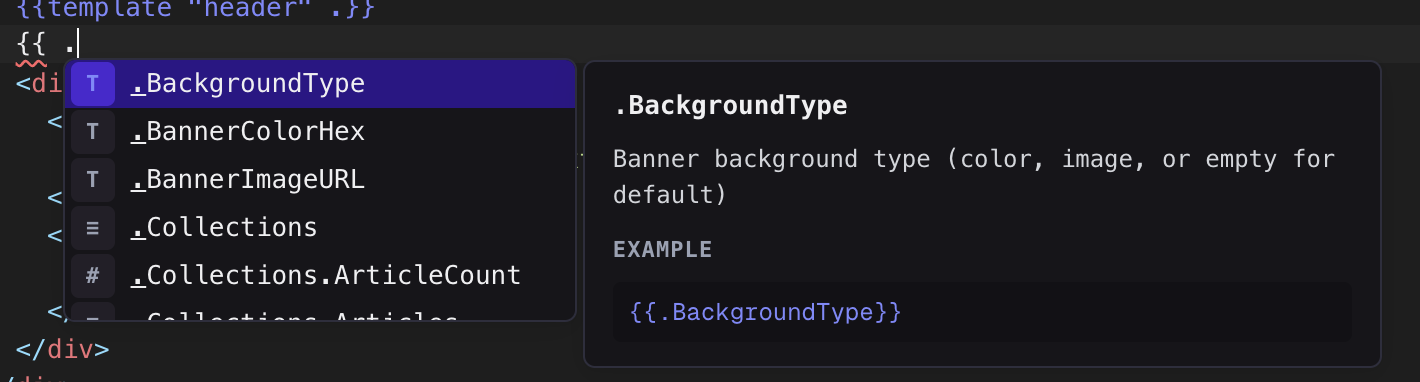
Layout and navigation files use Go template syntax. Dynamic content is inserted using double curly braces: {{ }}. Below is a list of possible variables but the editor autocomplete dropdown contains the most complete, up to date list.
Variables available on all pages
These variables are available in every template file (homepage, collection, article, navbar, footer):
{{.KB.Title}}-- Knowledge base title{{.KB.LogoURL}}-- Logo image URL (light mode){{.KB.LogoDarkURL}}-- Logo image URL (dark mode){{.KB.Header}}-- Banner headline text{{.KB.Links}}-- Navigation links configured for this knowledge base{{.Org.Name}}-- Organization name{{.Org.BrandColorHex}}-- Brand color hex code (e.g.#4F46E5){{.CurrentPath}}-- Current page URL path{{.PageType}}-- Page type (homepage,collection, orarticle){{.FaviconURL}}-- Favicon image URL{{.Collections}}-- Top-level collections (for building navigation menus){{.Footer.LogoURL}}-- Footer logo image URL{{.Footer.Sections}}-- Footer link sections{{.Footer.SocialLinks}}-- Social media links
Homepage variables
In addition to the shared variables above, the homepage template has access to:
{{.PopularArticles}}-- Most-viewed articles{{.BannerColorHex}}-- Banner background color hex code{{.BannerImageURL}}-- Banner background image URL{{.BackgroundType}}-- Banner background type (color,image, or empty for default){{.DarkText}}-- Whether banner text should be dark (true) or light (false)
Collection page variables
The collections template has access to:
{{.Collection}}-- The current collection object (.Title,.Slug,.Description,.Icon,.CustomIconURL,.ArticleCount,.URL){{.Articles}}-- Articles in this collection (each with.Title,.Slug,.URL){{.Subcollections}}-- Child collections{{.Breadcrumbs}}-- Navigation breadcrumb trail (each with.Title,.URL){{.ActiveTopLevelCollectionURL}}-- URL of the top-level ancestor collection (useful for sidebar active states)
Article page variables
The articles template has access to:
{{.Article}}-- The current article object (.Title,.Slug,.Identifier,.LastUpdatedDisplay,.URL){{.ArticleHTML}}-- Rendered article body HTML{{.Collection}}-- Parent collection (may be nil if the article is uncategorized){{.TOC}}-- Table of contents generated from article headings (each entry has.ID,.Title,.Level){{.RelatedArticles}}-- Related articles{{.SectionArticles}}-- All articles in the same collection{{.PreviousArticle}}/{{.NextArticle}}-- Adjacent articles in the same collection (nil if first/last){{.Breadcrumbs}}-- Navigation breadcrumb trail
Common template patterns
Looping over a list:
{{range .Collections}}
  <a href="{{.URL}}">{{.Title}}</a>
{{end}}
Conditional rendering:
{{if .NextArticle}}
  <a href="{{.NextArticle.URL}}">Next: {{.NextArticle.Title}}</a>
{{end}}
Looking up a specific collection by identifier:
{{with collection "getting-started"}}
  <a href="{{.URL}}">{{.Title}}</a>
{{end}}
Rendering the article body:
<div class="article-content">
  {{.ArticleHTML}}
</div>
Building a table of contents:
<nav>
  {{range .TOC}}
    <a href="#{{.ID}}">{{.Title}}</a>
  {{end}}
</nav>
Rendering footer sections with nested links:
{{range .Footer.Sections}}
  <div>
    <h4>{{.Title}}</h4>
    {{range .Links}}
      <a href="{{.URL}}">{{.Label}}</a>
    {{end}}
  </div>
{{end}}
Editing Workflow
Autosave
Changes are automatically saved as drafts as you type. You'll see:
A Draft badge next to the file name when there are unpublished changes
A "Saving..." or "Last saved..." indicator in the toolbar

Undoing changes
To discard your draft and revert a file to its last published version, click the undo button in the toolbar.
Template validation
The editor validates your templates in real time. If there are syntax errors in your Go templates, error indicators appear in the editor. All template errors must be fixed before you can publish.
Previewing
Click the Preview button in the toolbar to open a live preview of your knowledge base with all current draft changes applied. The preview opens in a new browser tab.
Use the preview to verify your layout, styling, and dynamic content before publishing.
Publishing
When you're ready to make your changes live:
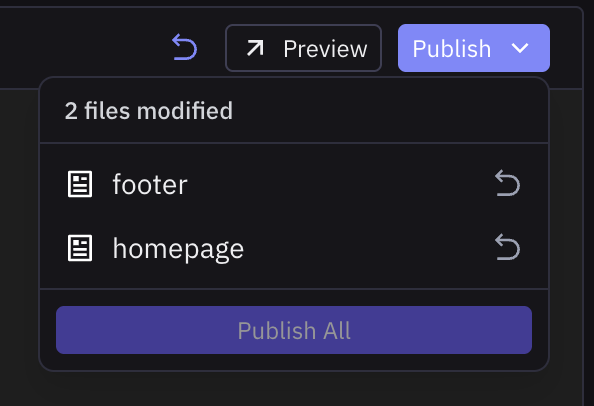
Click the Publish button in the toolbar
A dropdown appears showing all modified files and how many have been changed
To discard a specific file's draft, click the undo icon next to it
Click Publish All to push all draft changes live
Important notes:
Publish All deploys all modified files at once -- you cannot publish individual files separately
Publishing is disabled if any template file has errors -- fix all errors first
Files that have not been modified are not affected by publishing