CSM Home View
Last updated: August 11, 2026
The Home page is your personal command center for your entire book of business. It brings your tactical to-dos, book-level analytics, your accounts, and AI-surfaced signals into one place, and it is fully customizable per user.
Overview
Your Home page shows:
Your day at a glance - meetings, projects, tasks, and the issues assigned to you.
Book-of-business analytics - open issues, open tasks, and total accounts.
Your accounts - every account where you are the account owner.
Signals - AI-surfaced accounts that need attention (churn risk, upsell, renewal), with one-click actions.
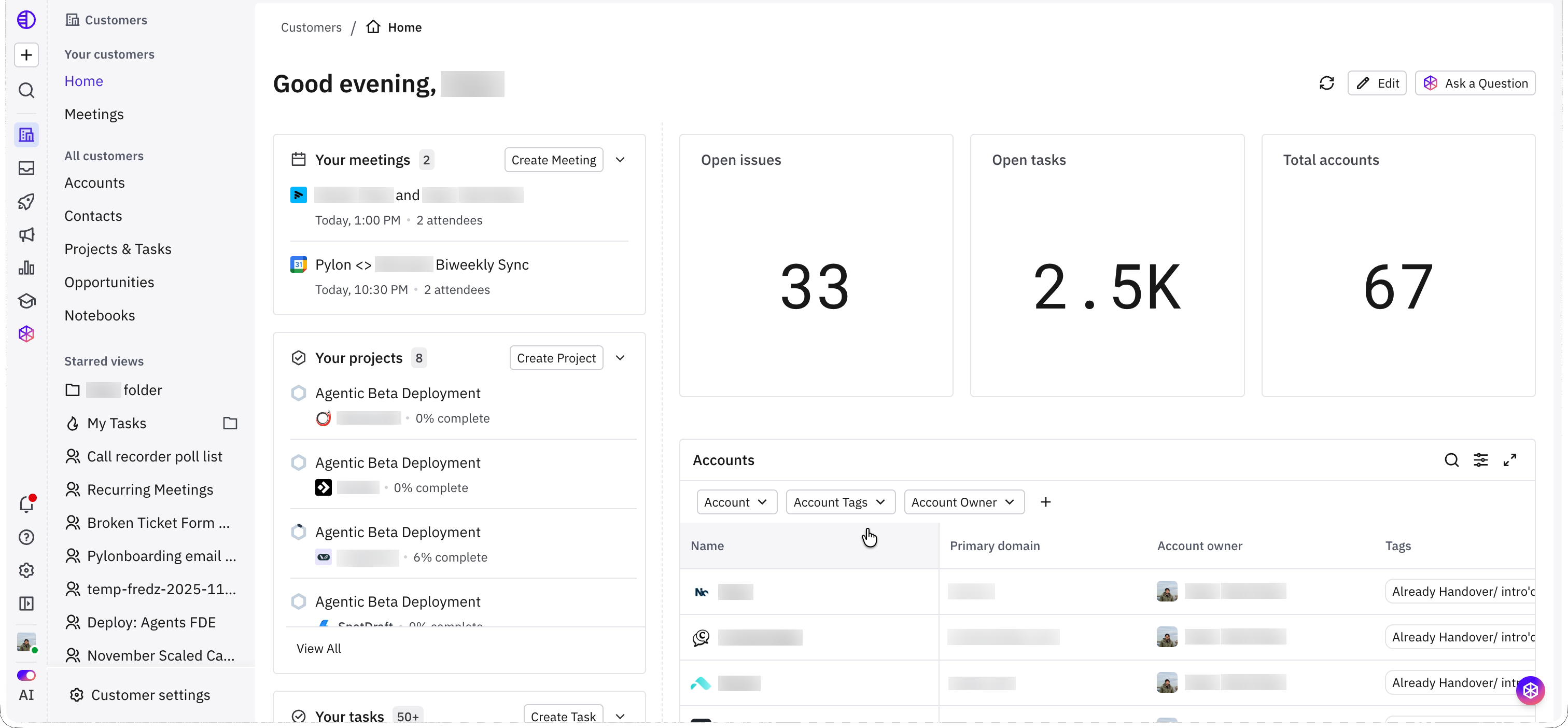
What's on your Home page
Left column: Your meetings (today's calls, with filter available to change), Your projects (open), Your tasks (open), and Issues on you.
Analytics: three tiles - Open issues, Open tasks, and Total accounts - each with an adjustable time range.
Accounts: a table of the accounts you own.
Signals: AI-generated tables (for example, Churn risks or Potential upsells) listing accounts with a short summary of why each surfaced.
Customizing your Home page
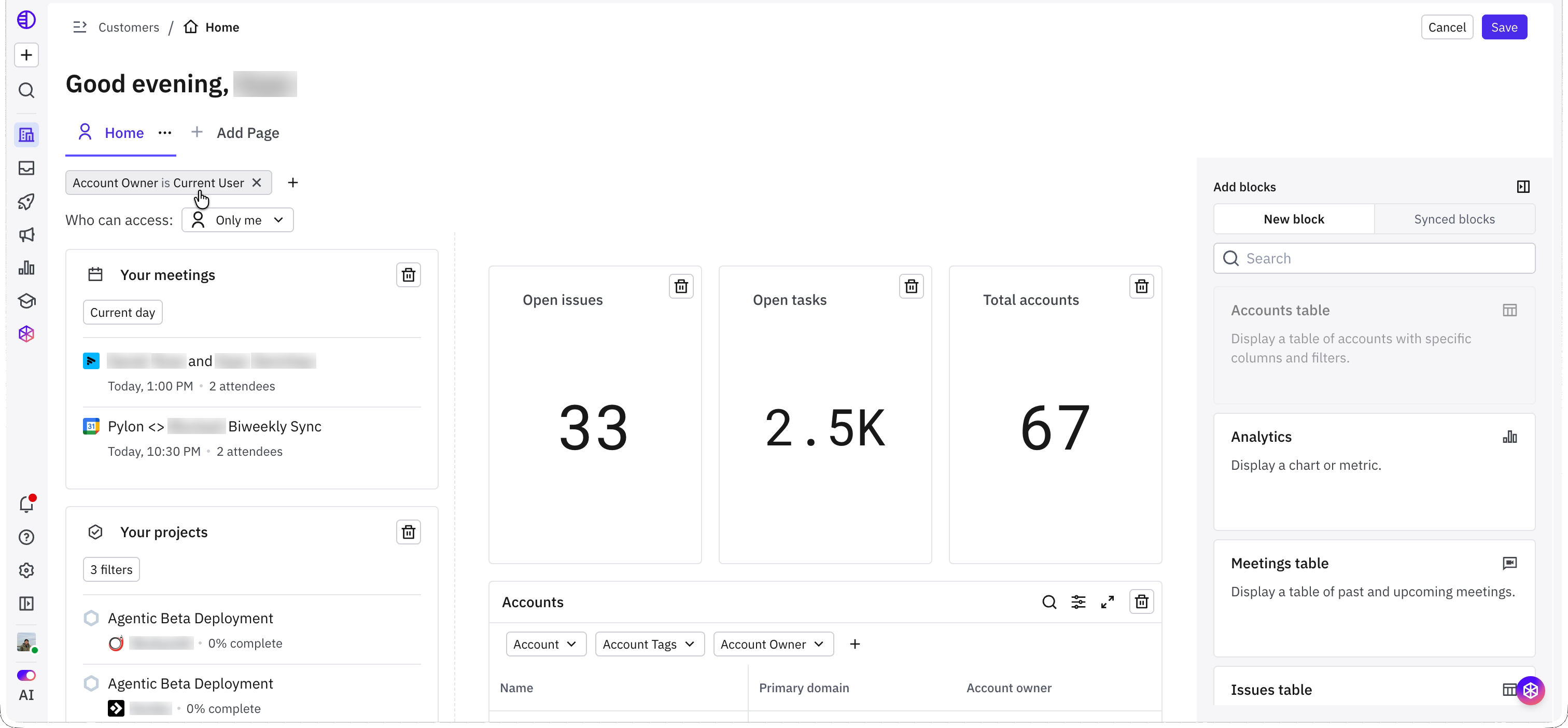
Click Edit (top right) to enter edit mode.
Set the page filter - by default the page is filtered to
Account Owner is Current User. If your team organizes book of business by a different field, change this filter.Edit any widget - delete it, change a widget's filter (for example, the meetings day range or project filters), or adjust the analytics look-back window.
Add blocks from the right panel: Analytics, Accounts / Meetings / Issues tables, a Signal table, or a Signal overview (which groups signals by account owner).
Click Save.
Note: Synced blocks let you share a common block across your whole CS team. Team-wide permission lock-down for synced blocks is coming soon.
Signals
Signals are AI rules that sweep your book of business and surface the accounts you should act on. Pylon ships three templates:
Churn risk - accounts showing credible retention risk.
Potential upsells - accounts showing expansion intent.
Upcoming renewals - accounts approaching renewal.
Each signal runs off a natural-language prompt, so the AI pulls from your entire book of business and surfaces the right accounts with a summary of why.
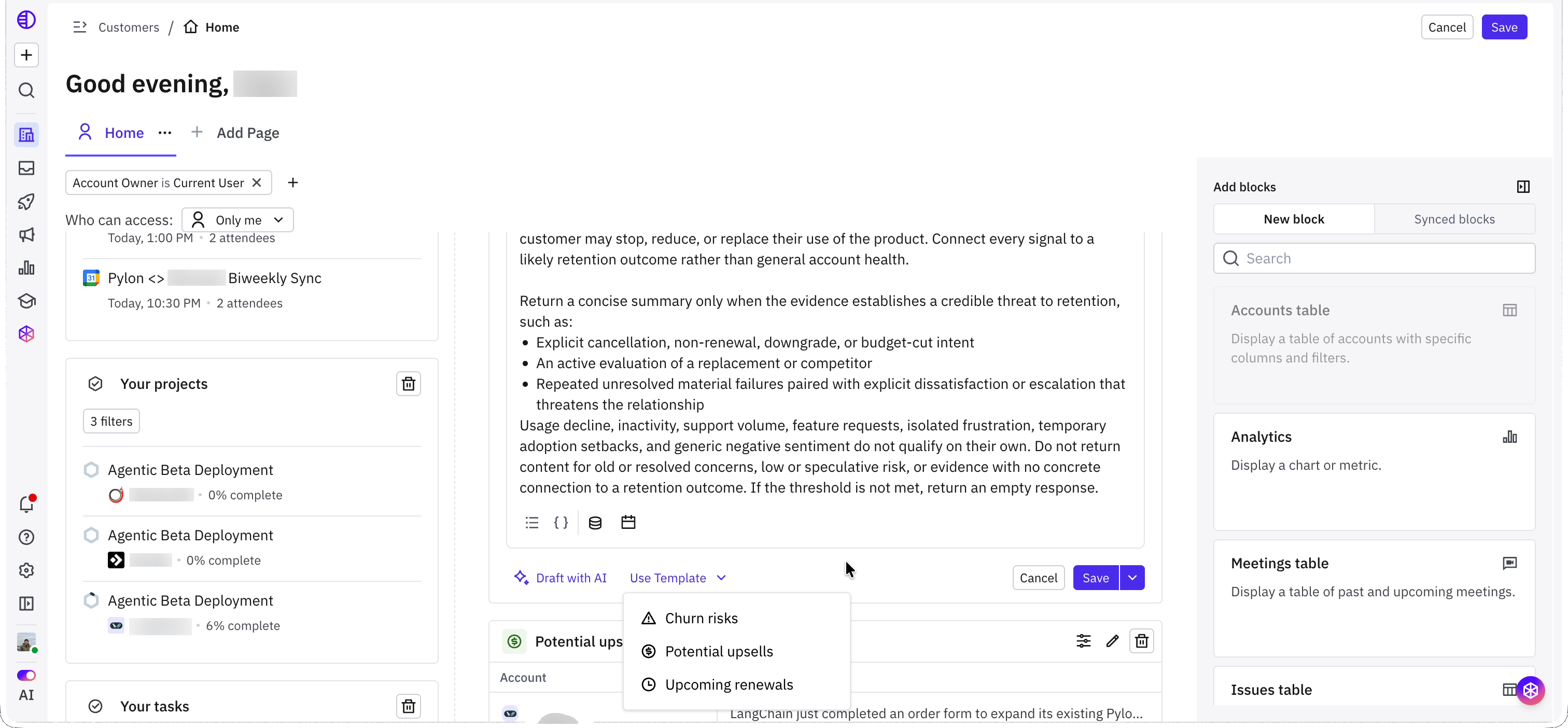
Editing a signal
Click the edit (pencil) icon on a signal to open its configuration:
Prompt / instructions - describe what should qualify an account for the signal.
Variables - insert fields like renewal date (for example, surface accounts 90 days from renewal).
Time filter and data sources - control the time window and which sources the AI reads from.
Use Template - start from a built-in signal.
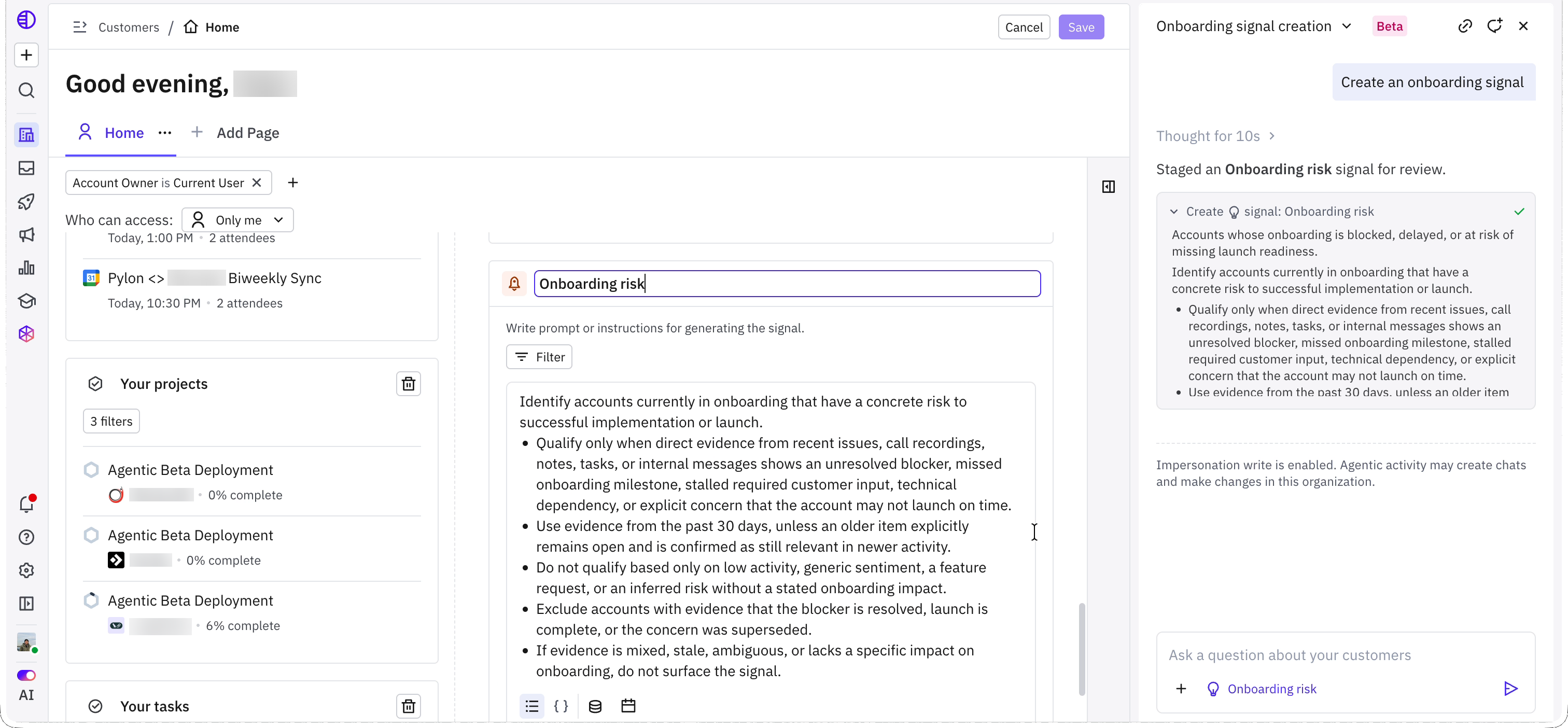
Creating your own signal with AI
If the templates do not cover what you need, use Draft with AI. Describe the signal in plain language (for example, "create an onboarding signal") and the AI writes the full signal definition for you, which you can review and save.
Acting on a signal
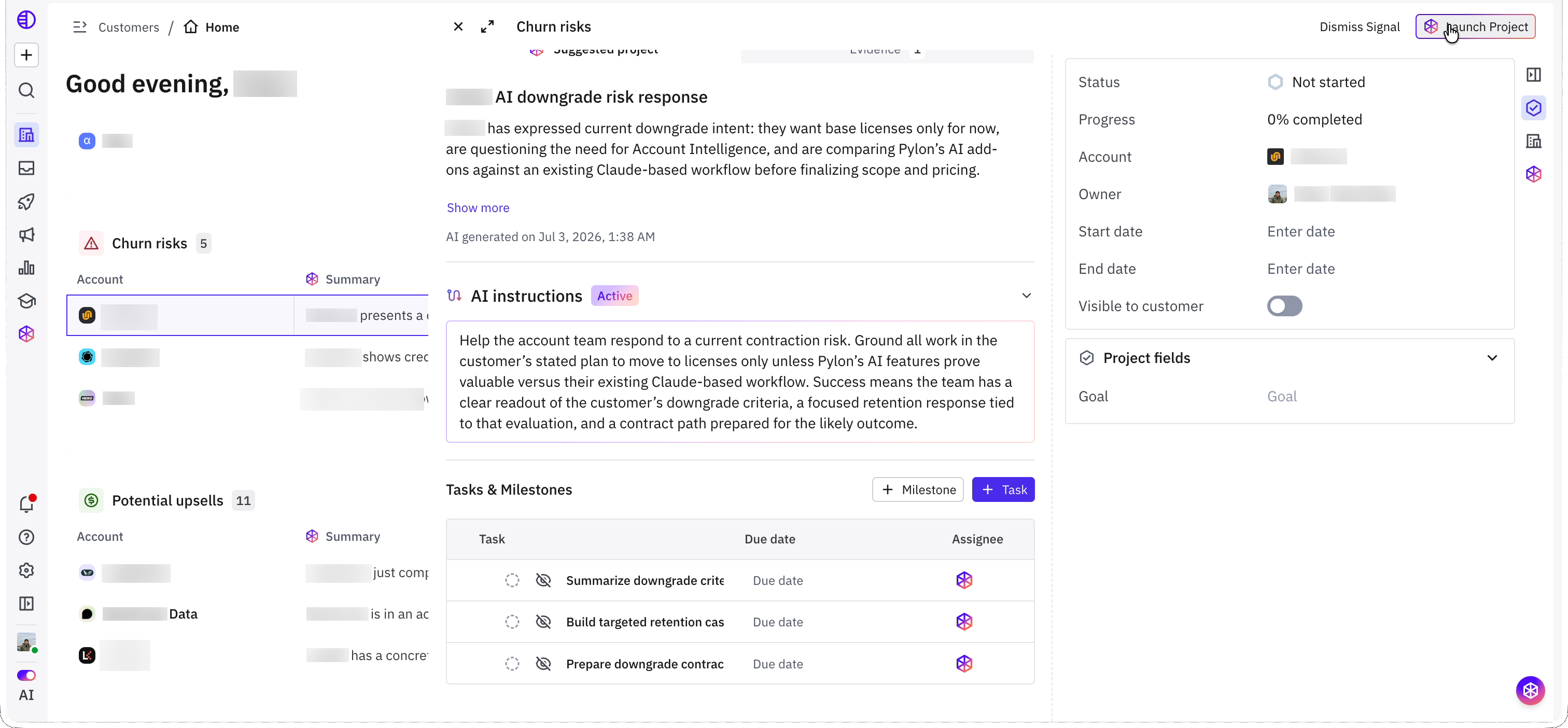
Click into a signal card (for example, an account under Churn risks).
Review why it surfaced - the AI summary and the Evidence tab show the supporting signals (for example, stated downgrade intent).
Pylon auto-generates a set of Tasks & Milestones with AI instructions for how to work the account.
Choose an action: Dismiss Signal, or Launch Project to turn it into a working project (for example, a churn-risk save plan) with those tasks.
Availability
The CSM Home view and Signals are part of Pylon's Account Intelligence. The product is currently in an alpha, for access please contact your CSM/
Frequently asked questions
Whose accounts show up on my Home page?
By default, accounts where you are the Account Owner. This is controlled by the page filter, which you can change in Edit mode.
Can each CSM customize their own Home page?
Yes. Widgets, filters, and signals are configured per user in Edit mode.
What happens when I launch a project from a signal?
Pylon creates a project pre-populated with AI-generated tasks and instructions tailored to that signal.