How does CRM attribute syncing work?
Last updated: October 7, 2026
Account and Contact Syncing
Pylon only syncs attributes that you have explicitly added to the Account Attributes or Contact Attributes pages in the Integrations Directory. Data types must match between Pylon and your CRM (e.g. user fields map to user fields, select fields map to select fields, etc.)
Accounts:
Pylon matches accounts in Pylon with CRM accounts based on domain and name. Account mappings can be updated in the Account Mapping tab.
Syncing occurs several times a day, pulling the defined attributes from your CRM into fields on the respective objects in Pylon.
Contacts:
Pylon matches CRM contacts based on email address/domain to avoid duplication.
Contacts are only pulled in from the CRM when there is new activity from those users (e.g., a customer reaches out through a pylon-connected communication channel). We will auto-create the contact, associate it with the correct account, and then sync the relevant contact-level information.
Bulk importing contacts from a CRM:
Currently, Pylon does not automatically import all contacts from your CRM, however, you can use our POST Contacts API to add multiple contacts to an account programmatically.
To configure CRM attribute syncing:
Go to the Settings > Integrations find your CRM
Configure the desired attributes under the account/contact tabs
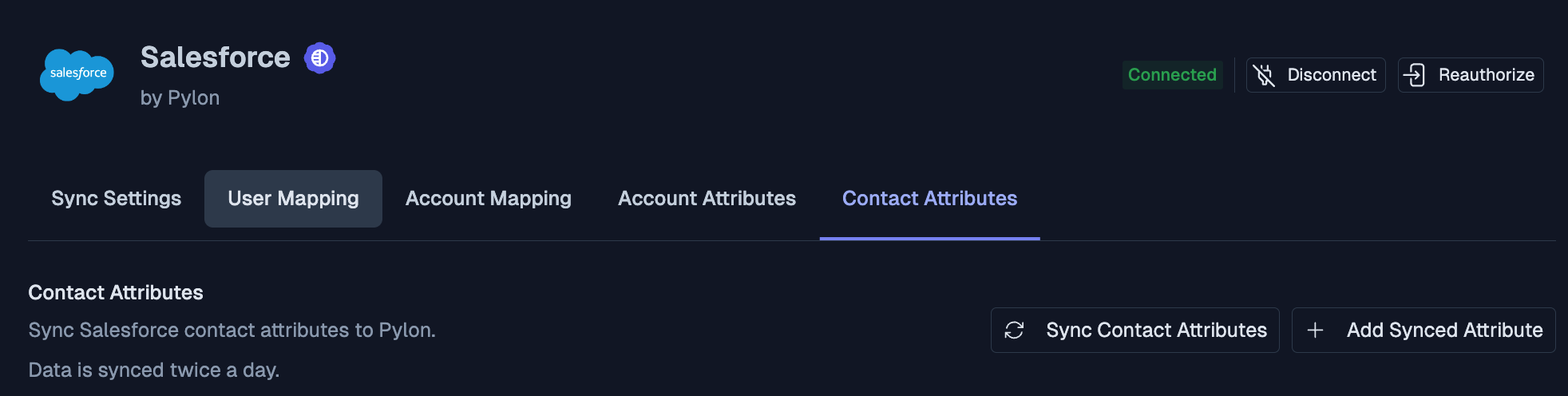
Attributes/Fields:
The sync supports both unidirectional and bidirectional sync (account fields only) between Pylon and your CRM
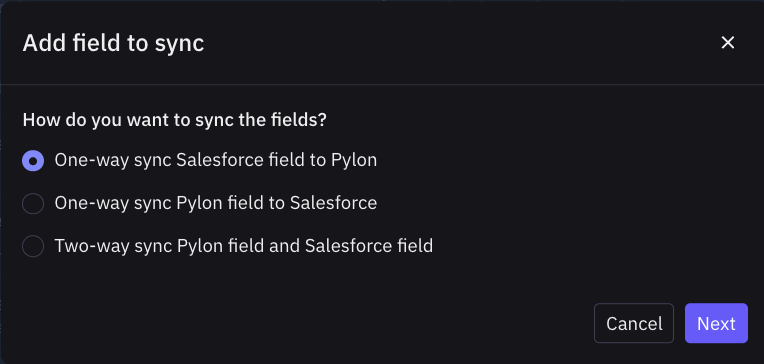
Prerequisites:
Destination CRM properties must already exist in your CRM before you can configure field mapping in Pylon
To Pylon (CRM → Pylon)
Pulls data from your CRM and creates a new custom field in Pylon
Syncs automatically every 3 hours
Read-only in Pylon
From Pylon (Pylon → CRM)
Pushes data from Pylon to your CRM
Maps to an existing Pylon custom field
Syncs when values change in Pylon (near real-time)
Bidirectional sync (Pylon <-> CRM)
Supported for Account fields only
Editable in both Pylon and your CRM
Syncs when values change (near real-time)
IMPORTANT: Syncs replace existing Pylon values with data from your CRM. If accounts don't have values in your CRM, their Pylon values will be cleared. Export existing Pylon data before setting up sync to avoid data loss.