Backtesting
Last updated: November 6, 2026
Backtesting compares agent configurations against a repeatable set of past issues. Use it to evaluate a candidate before launch and rerun important cases after changing Resources, Guidance, Skills, tools, or Escalations.
The current batch workflow simulates the first user turn of each conversation. It does not evaluate a complete multi-turn conversation.
1. Build a dataset
Go to Settings > AI controls > Backtesting.
Open Datasets and select New Dataset.
Enter a descriptive name.
Use issue views, Support agent history, filters, or issue search to find relevant cases.
Select issues and choose Add to Dataset.
Review the preview and select Save Dataset.
Datasets are limited to 100 cases. Include normal questions, prior failures, missing-context cases, handoffs, and examples where a new rule should not apply. Keep a stable core so later comparisons remain meaningful.
You can also select rows in the agent's Issue logs and use Add to Dataset where that action is available.
2. Create a backtest
Open the Backtests tab and select New Backtest.
Name the run so the configuration and intended change are recognizable.
Choose Existing dataset for a reproducible comparison, then select the dataset.
Alternatively, use Custom selection or Issues with bad AI responses for exploratory diagnosis.
Select Select Agents and choose the baseline and candidate configurations.
Review the issue selection and run settings before starting.
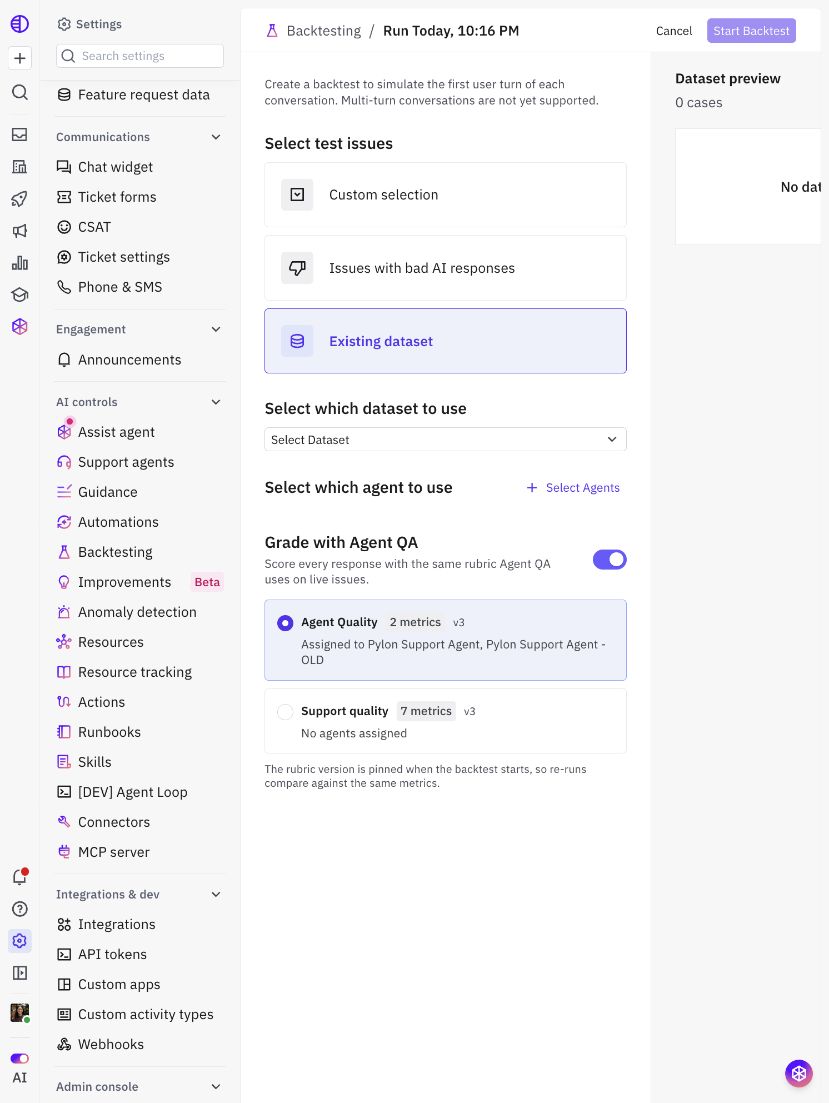
The selected dataset is the test input. A successful response on one unrelated preview is not a substitute for running the same cases.
3. Choose grading
When available, Grade with Agent QA scores responses with a selected QA rubric. Review the rubric and version before starting. The rubric version is pinned when the backtest starts so reruns compare against the same metrics.
Automated grades and human feedback are different evidence. Inspect responses and tool/handoff behavior even when the aggregate grade is high.
4. Start and review
Select Start Backtest, wait for results, then open the run. For each configuration:
Read the original request and generated response.
Check factual accuracy, missing context, and the intended next action.
Check whether it answered, handed off, or combined an answer with a handoff.
Add feedback/comments with the expected behavior and supporting evidence.
Review failures and incomplete cases before comparing summary rates.
Keep the configuration, dataset, rubric, and any shared source changes with the result. Do not silently drop failed cases from the comparison.
5. Use results to make a change
Correct missing facts in Resources, broad writing rules in Guidance, scenario steps in Skills, handoffs in Escalations, and access failures in Tools or field permissions.
Rerun the same dataset after the fix. A candidate should fix the target cases without regressing normal answers or causing unnecessary handoffs.
6. Validate beyond the batch test
Before launch, use the agent's Test page for targeted examples and controlled QA/live issues for routing, message delivery, and later turns. The batch result does not prove a full conversation or actual external action.
Use a variation to keep the candidate separate until it is reviewed. Launching a variation is a separate deployment step; completing a backtest does not deploy it.