How does Salesforce default account matching work?
Last updated: May 8, 2026
When the Salesforce integration is connected, Pylon automatically maps Pylon accounts to Salesforce accounts. The default matching strategy is account domain.
Default behavior - domain matching
Pylon takes each Pylon account's primary domain and looks for a Salesforce Account whose Website field contains the same domain. Both values are normalized first — the protocol (http://, https://), leading www., and trailing / are removed, and casing is ignored.
Subdomain matches count: a Pylon account with primary domain acme.com will match a Salesforce Account whose Website is support.acme.com. The reverse is not true — a Pylon account with primary domain support.acme.com will not match a Salesforce Account whose Website is acme.com.
Freemail domains are excluded
Pylon does not use freemail domains (such as gmail.com, outlook.com, yahoo.com) for account matching. Accounts whose contacts only use freemail addresses will not be auto-matched by domain.
Fallback to name matching
If no Salesforce Account matches by domain, Pylon falls back to name matching — looking for a Salesforce Account whose Name matches the Pylon account name (case-insensitive, with spaces ignored).
Reviewing or changing mappings
Account mappings can be reviewed and manually adjusted in App Directory → Salesforce → Data mapping. See How to update Salesforce Account Mapping for the UI walkthrough.
Additional matching options
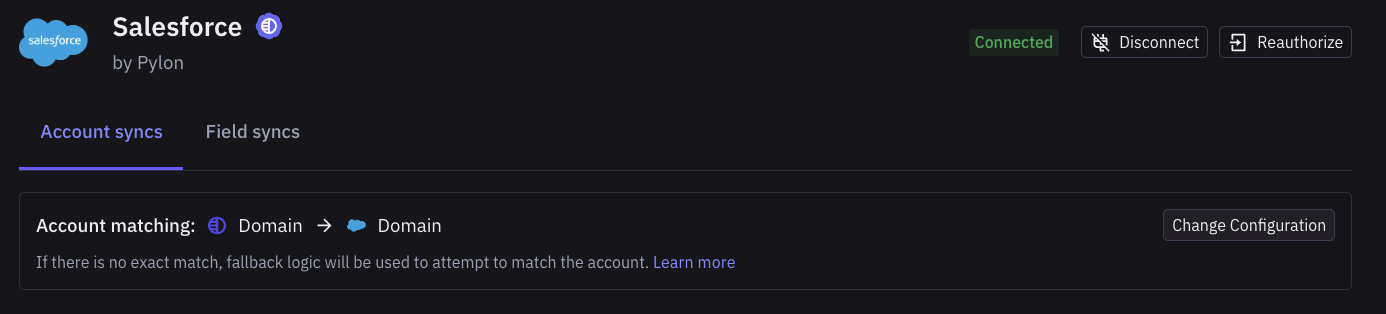
Pylon can also map accounts based on Pylon account custom field values. To configure this, head to Integrations > Salesforce > Data mapping tab > Accounts and locate the 'Change Configuration' button at the top of the Account syncs tab.
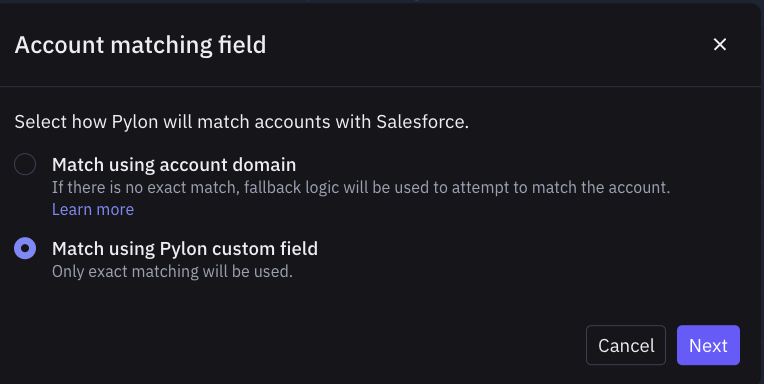
Select 'Match using Pylon custom field and click Next:
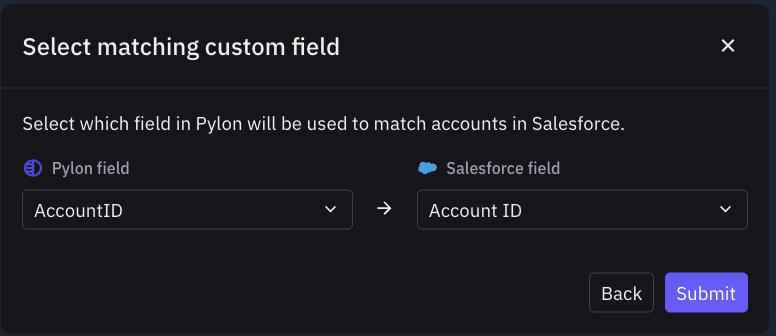
Select the appropriate Pylon and Salesforce fields in the modal and click Submit