How do I integrate Pylon with Shortcut
Last updated: September 24, 2025
Setting up the Integration
Make sure you are a Shortcut administrator before going through the app install process.
Go to the Apps Directory page.
Click on the Shortcut app and hit Connect.
Login to Shortcut and generate an API token.
Go to Settings > API Tokens.
Give a name to your new token and hit "Generate Token".
If you're having trouble, follow this link.
Copy the Shortcut API token into the configuration modal on Pylon.
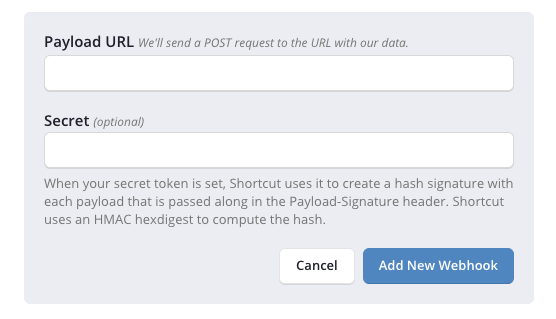
Copy the Webhook URL and Secret Key from Pylon.
In Shortcut, click on Integrations > Webhooks.
Paste the copied values from Pylon into the Shortcut Webhook configuration.
If you're having trouble, follow this link.
Additional App Configuration
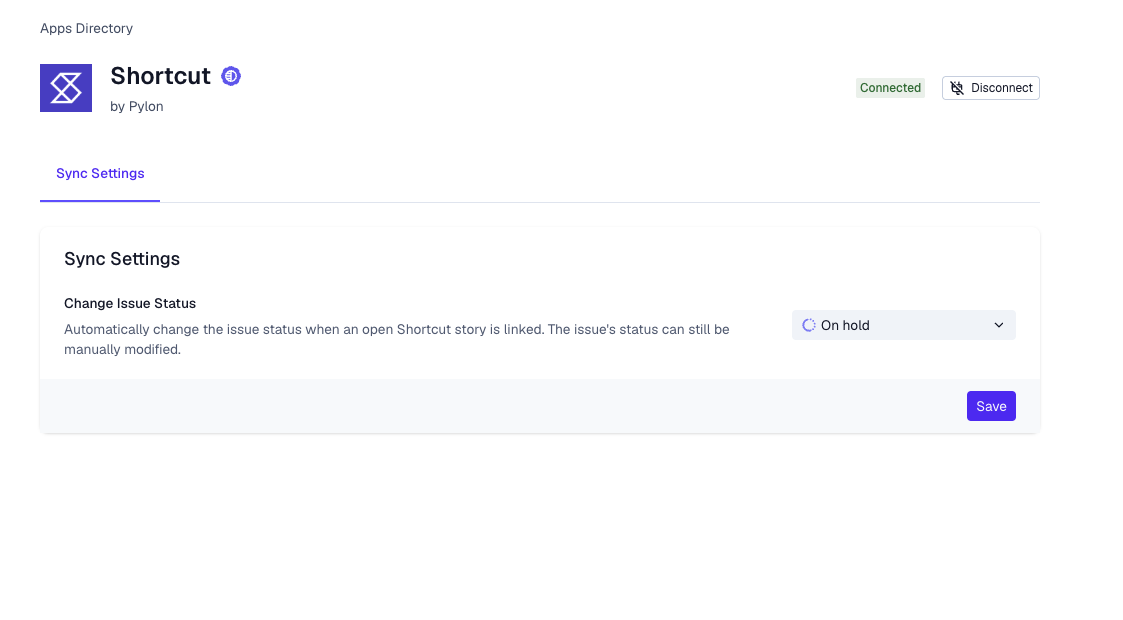
From the App Directory > Shortcut page, you can choose an "Issue Status" which will automatically be set whenever an open Shortcut story is linked.
Connecting Pylon issues to Shortcut
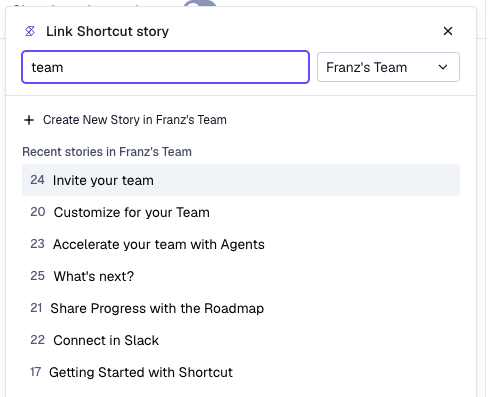
In the Issue sidebar, you can search for Shortcut stories to attach. Search for existing stories, or create a new story.
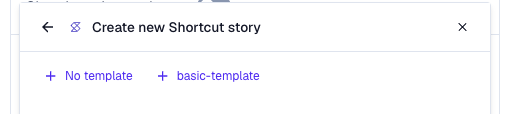
When creating a new story, you can choose existing Story Templates in your Shortcut workspace to apply.