How to create Support Agent Skills
Last updated: October 30, 2026
Create a Skill when your Support Agent needs a repeatable procedure for a particular request. A Skill combines a description of when it should load with instructions for what to do.
Skill Creation Avenues:
From a real workflow
Walk Assist Agent through a live case, refine what it investigated and what you wanted, then ask it to turn that into a skill. Review the result before attaching it — this is usually the fastest path to a good first draft.
From a template in the Skill Library
Start from a built-in template and edit. Templates leave placeholders for the parts only you know, such as which channel a bug report goes to.
From a file
Upload a Markdown file, or import skills you already wrote for another AI tool. A name and description in front matter become the skill's name and trigger.
---
name: escalate-to-eng
description: Use when a customer reports behavior that
  contradicts documented behavior and reproducing it
  requires internal logs or configuration.
---

# Escalate to Engineering
...
Versions
Skills are versioned. Users can edit a draft, publish it when it is ready, and can compare any two versions to see exactly what changed. Agents can follow the latest published version or stay pinned to a specific one — useful when you want to change a skill without disturbing an agent that is running well.
This walkthrough creates a bug-report intake Skill and enables it for a Support Agent.
1. Create the Skill
Go to Settings > AI controls > Skills.
Select Create Skill.
Enter a clear name, such as collect-bug-report-details.
Review Scope to choose who can use or manage the Skill in your workspace.
Under Agent compatibility, ensure Support agent is included. Compatibility and enabling the Skill on a particular agent are separate choices.
2. Define when it should load
In Conditions to load this skill, describe the specific customer situation and useful exclusions. We recommend describing your desired workflow to the Assist Agent and letting it draft up the skill for you.
Example:
Use when a customer reports an error or broken behavior and the conversation is missing details needed for investigation. Do not use for feature requests or general setup questions.
Use Account Condition when the procedure should be limited to a configured account segment. A broad description such as “help customers” makes it harder for the agent to distinguish this Skill from other procedures.
3. Write the procedure
In Outline skill content, write ordered instructions. Again, highly recommend utilizing the Assist Agent to write these skills. For example:
Review the conversation before asking questions.
Identify expected behavior, actual behavior, reproduction steps, affected environment, and approximate time.
Ask only for missing details that change the next step.
Do not request passwords or API tokens.
Summarize confirmed facts and unknowns for the receiving team.
Follow the configured Escalations handoff when a teammate is required.
Use actual available tools when the procedure needs to look up data or perform an action.
4. Create and test
Review the content, then select Create. Use Test Skill where available to try a matching request and a request that should not use the Skill.
Check the missing-information path and tool-failure path as well as the successful example. Inspect results rather than assuming the instructions were followed.
5. Enable it for your Support Agent
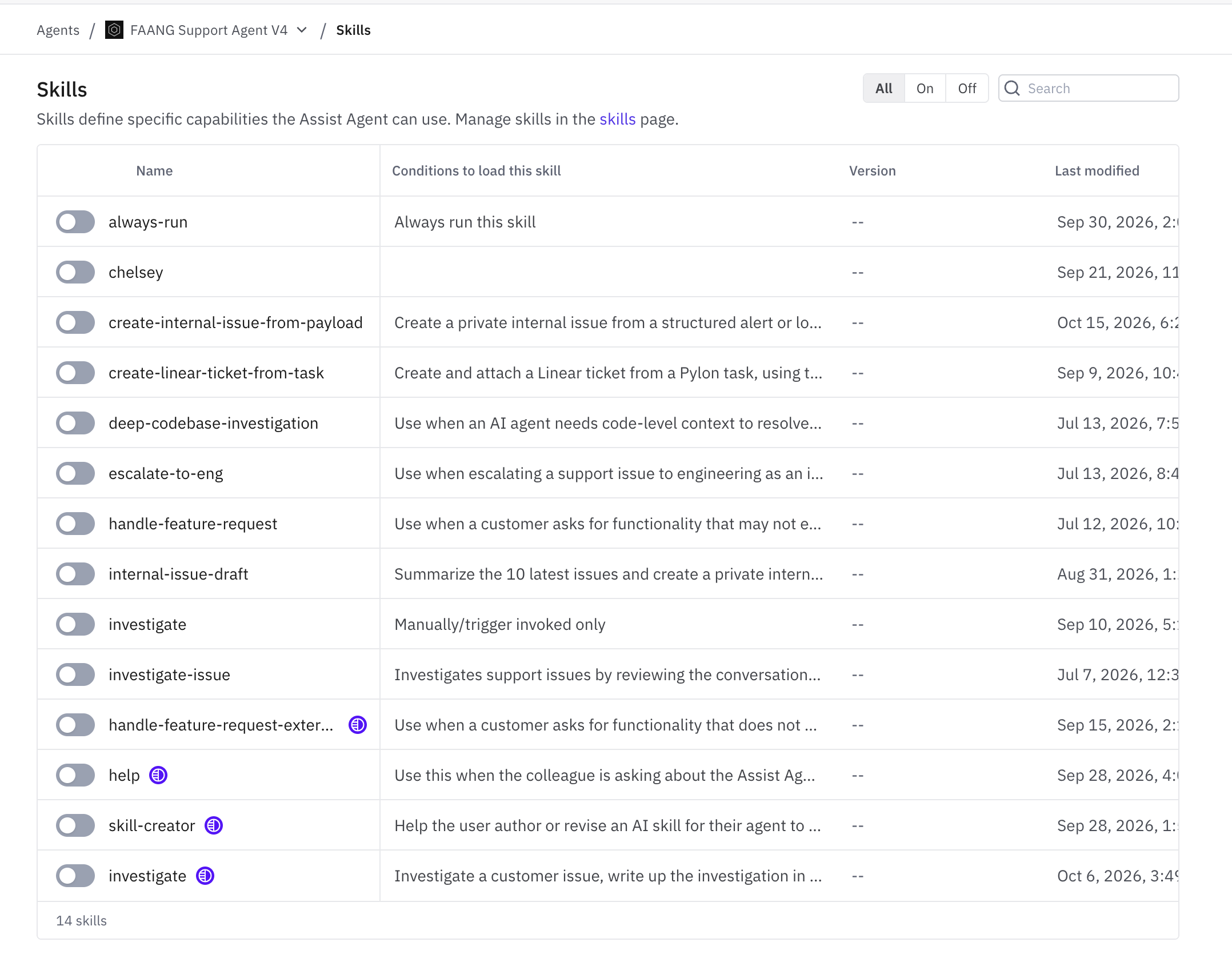
Open your Support Agent and select Skills.
Search for the Skill.
Turn its switch on.