How to Set Up Auto-Bump and Auto-Close Triggers
Last updated: August 13, 2026
This article explains how to configure auto-bump and auto-close triggers to automatically follow up with customers and close inactive tickets.
Setting Up the Triggers
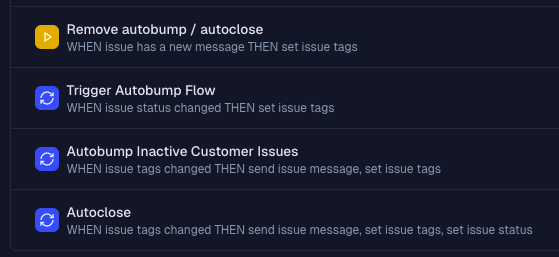
To create an effective auto-bump and auto-close workflow, you'll need to set up 3-4 triggers:
Kickoff trigger
Auto-bump trigger (optional)
Tag removal trigger
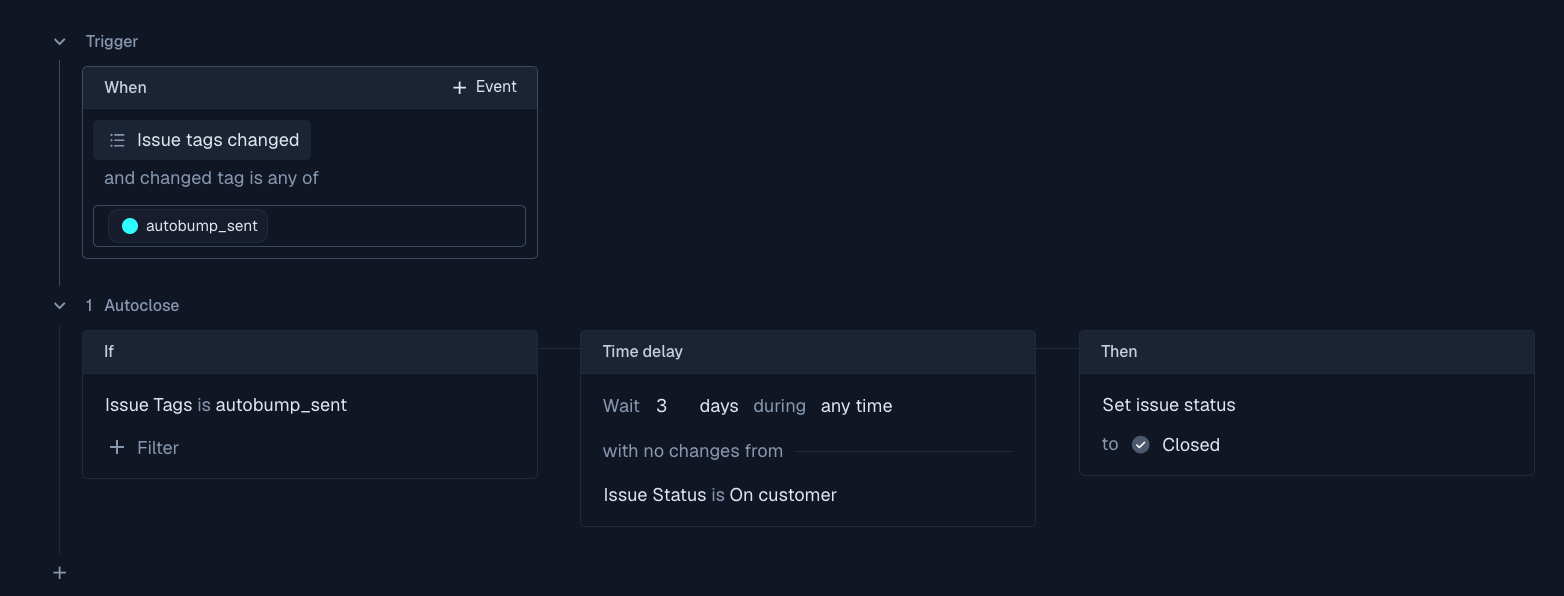
Auto-close trigger
Ensure your triggers are in this order, so that it always checks first whether the customer responded and restarts the flow accordingly if needed.
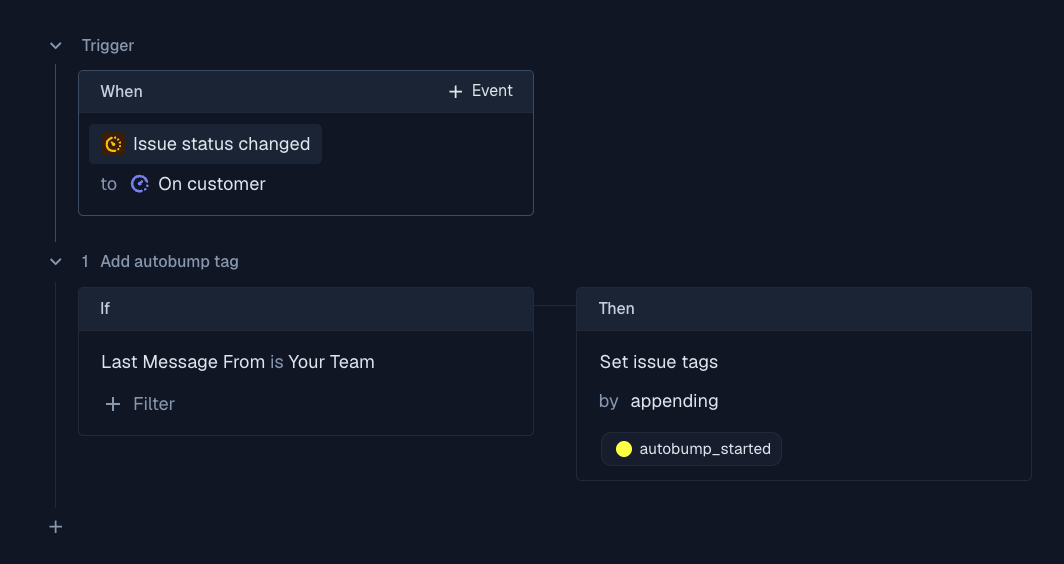
1. Kickoff trigger
This trigger kicks off the process via application of a tag (or custom field if you prefer). The benefit to having this as a separate trigger is that it will run instantly, giving your team maximum visibility into which issues are currently pending on an auto-bump / auto-close.
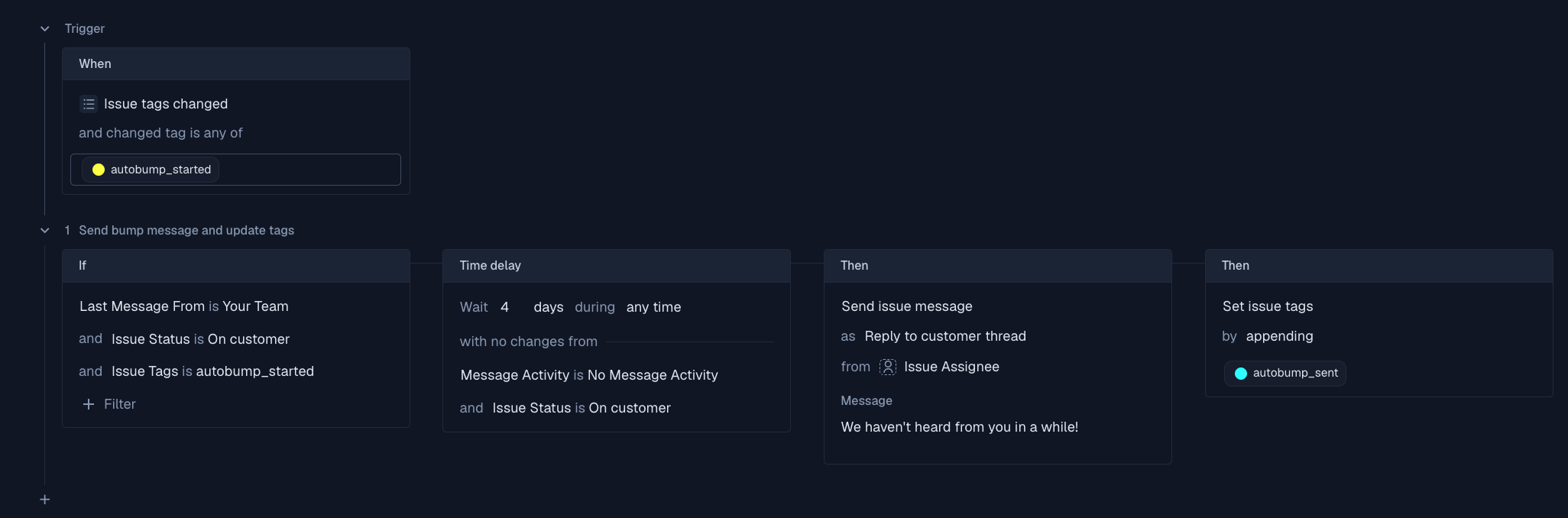
2. Auto-bump Trigger (Optional)
This trigger sends a message to the customer after a period of inactivity and adds a tag to the issue. It's recommended to filter to only issues in the status "On Customer" so that issues in an on hold status will not be eligible.
Condition: If Last Message from your team, Issue Status On customer, and Issue Tags is
autobump_started+ Time Delay: No message activity for X days (e.g., 6 days), [optional] Issue Status is On Customer
Action 1: Send an auto-bump message to the customer
Action 2: Add a tag (e.g.,
autobump_sent) to the issue
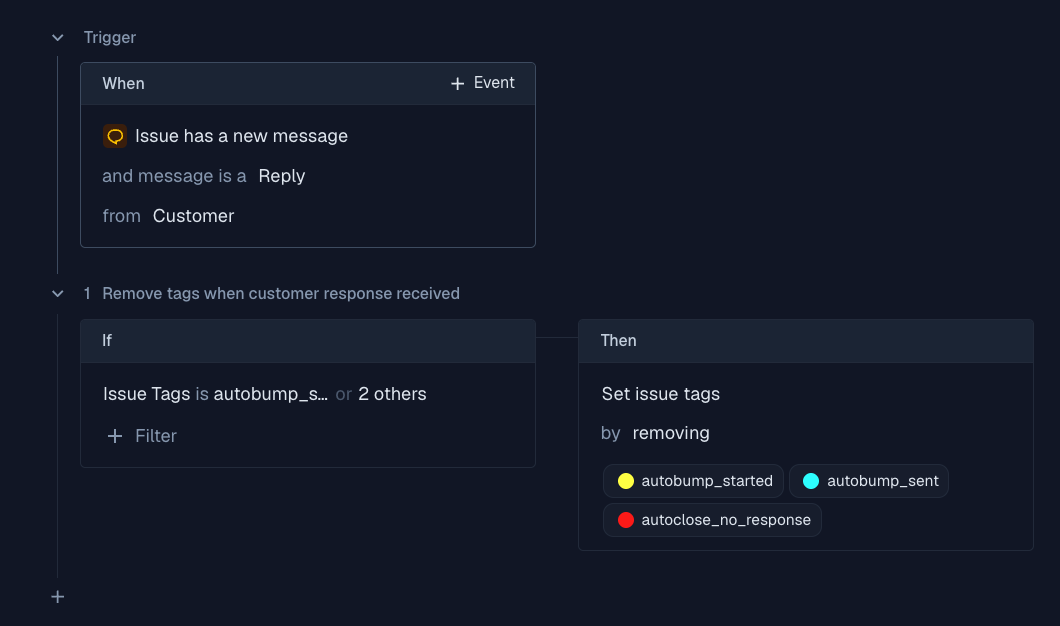
3. Tag Removal Trigger
This trigger removes all relevant tags when the customer responds, resetting the workflow.
Condition 1: New message received from customer
Condition 2: Issue has the
autobump_started,autobump_sent, orautoclose_no_responsetagAction: Remove the
autobump_started,autobump_sent, orautoclose_no_responsetag
4. Auto-close Trigger
This trigger closes the ticket if there's no response after the auto-bump message.
Condition 1: Issue has the
autobump_senttag (to ensure this does not fire when you're removing the tag if the customer responds)Condition 2: No message activity for Y days (e.g., 4 days)
Condition 3: Issue status is "On customer"
Action: Close the ticket and send a notification to the customer
[Optional] Apply a tag marking the ticket as autoclosed for reporting purposes, such as
autoclose_no_response
How the Workflow Works
If a ticket has no activity for X days, the auto-bump trigger fires, sending a message and adding the tag.
If the customer responds, the tag removal trigger fires, removing the tag and resetting the workflow.
If there's no response Y days after the auto-bump, the auto-close trigger fires, closing the ticket.
Important Notes
The auto-bump message counts as message activity, which is why we use a tag to trigger the auto-close instead of relying solely on inactivity.
Currently, both public messages and internal notes count as message activity. There is no way to exclude internal notes from breaking the "no message activity" criteria.
The total time before a ticket is closed will be X + Y days (e.g., 6 + 4 = 10)
If at any point you want to restart the workflow, you can do so by removing the 3 tags and then manually applying the
autobump_startedtag