Create a Google Slide deck from Pylon with Google Scripts
Last updated: November 3, 2025
This guide shows you how to accept a POST from Pylon, copy a Slides template, replace placeholders with data from the payload, and save a payload sheet in the same folder.
What you will need
A Google account with access to Google Drive, Slides, and Apps Script
A destination Drive folder ID
A Google Slides template whose text contains placeholders like {{{ account.name }}}
Permission to create a webhook in Pylon
1) Create the Apps Script project
Go to script.new and choose “Standalone” project.
Replace the default code with the script below.
Set the constants PARENT_FOLDER_ID and TEMPLATE_ID.
/************************************
 * CONSTANTS (your “working” IDs)
 ************************************/
var PARENT_FOLDER_ID = 'YOUR GOOGLE FOLDER ID'; // destination folder
var TEMPLATE_ID      = 'KICK OFF TEMPLATE ID'; // template deck

/************************************
 * HTTP ENTRYPOINT
 ************************************/
function doPost(e) {
  try {
    if (!e || !e.postData || !e.postData.contents) {
      return json_(400, { ok:false, error:'No post data found' });
    }
    var payload = JSON.parse(e.postData.contents);
    var result = handle_(payload);
    return json_(200, result);
  } catch (err) {
    Logger.log('doPost error: ' + err + '\n' + (err && err.stack || ''));
    return json_(500, { ok:false, error:String(err) });
  }
}

/************************************
 * CORE HANDLER (used by doPost and local test)
 ************************************/
function handle_(payload) {
  Logger.log('payload: ' + JSON.stringify(payload));

  // 1) Flatten
  var flat = flattenObject(payload);
  Logger.log('flat keys: ' + Object.keys(flat).length);

  // 2) Parent + new folder
  var parent = DriveApp.getFolderById(PARENT_FOLDER_ID);
  var folderName = flat['account.name'] || ('Submission ' + new Date().toISOString());
  var folder = parent.createFolder(folderName);

  // 3) Copy template into folder
  var tmpl = DriveApp.getFileById(TEMPLATE_ID);
  var deckFile = tmpl.makeCopy('Slide Deck', folder);
  var deckId = deckFile.getId();

  // 4) Replace {{{ dotted.keys }}} in deck
  replaceSlideDeckPlaceholders(deckId, flat);

  // 5) Write Payload Data sheet in same folder
  var ss = SpreadsheetApp.create('Payload Data');
  var ssFile = DriveApp.getFileById(ss.getId());
  folder.addFile(ssFile);
  DriveApp.getRootFolder().removeFile(ssFile);

  var rows = [['Key','Value']];
  Object.keys(flat).forEach(function(k){ rows.push([k, flat[k]]); });
  ss.getSheets()[0].getRange(1,1,rows.length,2).setValues(rows);

  // 6) Return useful links
  return {
    ok: true,
    parent_folder: { id: parent.getId(), link: 'https://drive.google.com/drive/folders/' + parent.getId() },
    folder: { id: folder.getId(), name: folder.getName(), link: 'https://drive.google.com/drive/folders/' + folder.getId() },
    deck: { id: deckId, name: deckFile.getName(), link: 'https://docs.google.com/presentation/d/' + deckId + '/edit' },
    payload_sheet: { id: ss.getId(), name: ss.getName(), link: ss.getUrl() }
  };
}

/************************************
 * LOCAL TEST (run this from the editor)
 ************************************/
function runLocalTest_() {
  var mock = {
    account: { name: 'Acme Health', id: 'abc-123' },
    placeholders: {
      'Account Name': 'Acme Health',
      'ARR': '5000',
      'Account Sentiment': 'positive',
      'Champion': 'Dana Lee',
      'Product List': '{Professional Seat,Account Intelligence}',
      'Renewal Date': '2026-08-31',
      'Why Did They Buy Pylon': 'Multi-channel integration with AI insights'
    }
  };
  var res = handle_(mock);
  Logger.log(JSON.stringify(res, null, 2));
}

/************************************
 * PLACEHOLDER REPLACEMENT
 ************************************/
function replaceSlideDeckPlaceholders(deckId, flat) {
  var deck = SlidesApp.openById(deckId);

  // Replace every {{{ key.path }}} found in deck with flat[key]
  for (var key in flat) {
    if (!flat.hasOwnProperty(key)) continue;
    var ph = '{{{ ' + key + ' }}}';
    var val = flat[key] == null ? '' : String(flat[key]);
    deck.replaceAllText(ph, val);
  }
  Logger.log('Replaced placeholders in: ' + deck.getName());
}

/************************************
 * UTILS
 ************************************/
function flattenObject(obj, parent, out) {
  out = out || {};
  parent = parent || '';
  for (var k in obj) {
    if (!Object.prototype.hasOwnProperty.call(obj, k)) continue;
    var prop = parent ? parent + '.' + k : k;
    var v = obj[k];
    if (v && typeof v === 'object' && !Array.isArray(v)) {
      flattenObject(v, prop, out);
    } else {
      out[prop] = v;
    }
  }
  return out;
}

function json_(status, body) {
  return ContentService.createTextOutput(JSON.stringify(body, null, 2))
    .setMimeType(ContentService.MimeType.JSON);
}
2) Deploy as a Web App
In Apps Script, click Deploy → New deployment → Web app.
Set “Who has access” to Anyone with the link, or to your Google Workspace if Pylon will call from a fixed identity behind an allowlist.
Copy the Web app URL.
3) Test the endpoint
curl -X POST "<YOUR_WEB_APP_URL>" \
-H "Content-Type: application/json" \
-d '{
"account": { "name": "Acme Health", "id": "abc-123" },
"placeholders": {
"Account Name": "Acme Health",
"ARR": "5000",
"Champion": "Dana Lee"
}
}'
From a terminal, send a sample payload that mirrors what Pylon will send.
4) Create the webhook in Pylon
In Pylon, go to Settings → Webhooks.
Create a new webhook with the target URL set to your Web app URL from the previous step.
Choose the event scope that makes sense for when you want decks created.
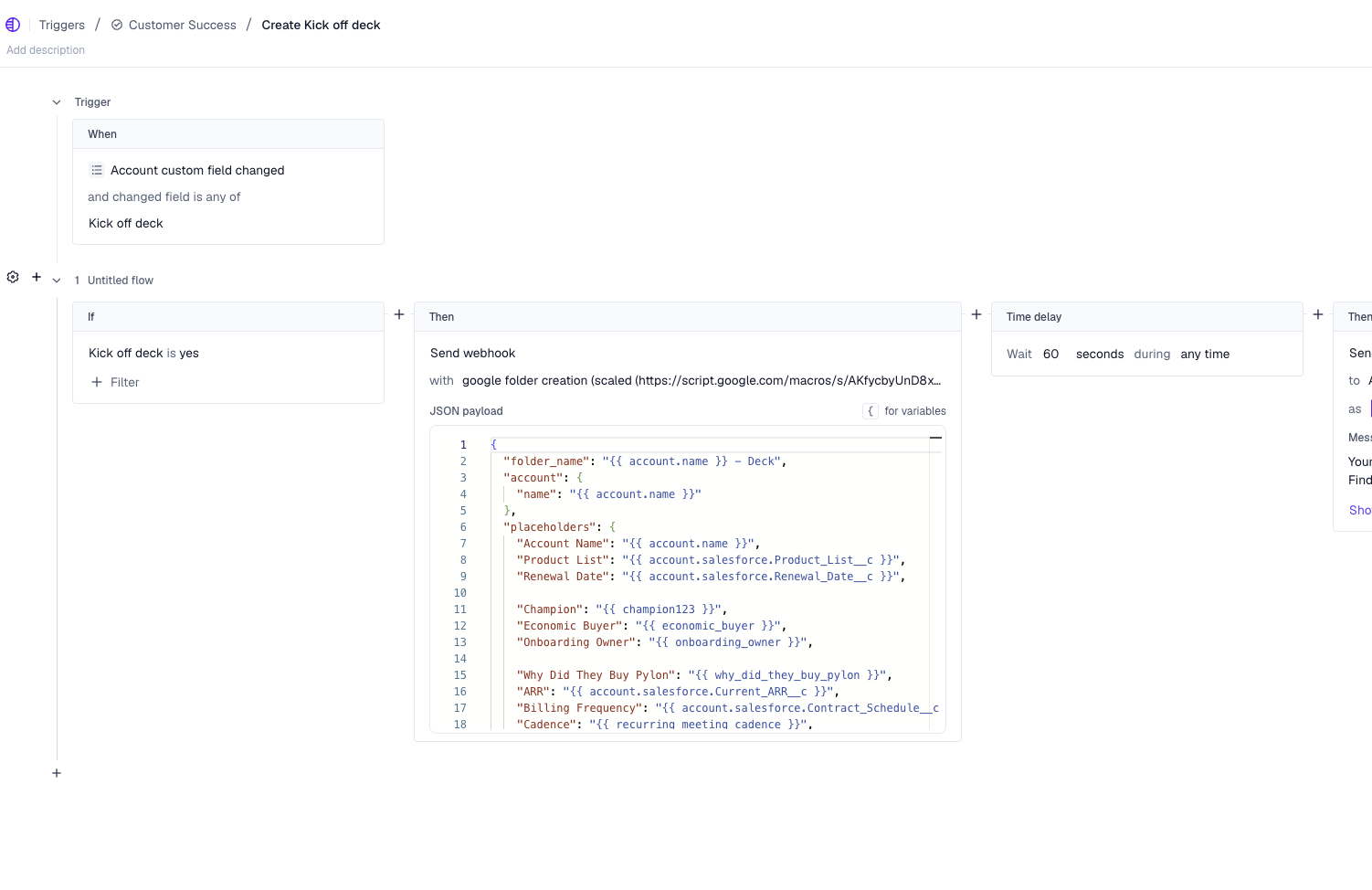
5) Add a custom field to trigger creation
Create an account-level custom field in Pylon, for example Create Kickoff Deck.
Use a boolean or picklist that your team can set during onboarding.
Configure your webhook rule to fire when this field changes to the value that should create a deck.