How do I integrate WhatsApp with Pylon?
Last updated: August 18, 2026
Go to the Apps Directory page
Select the WhatsApp integration and click connect
You do not need a WhatsApp Business Number or Meta account to use the WhatsApp integration. If you do not have your own business number, you can use Pylon's number instead.
Option 1: Using Pylon's WhatsApp business account
Meta has restrictions on the Groups API which means your WhatsApp business account may not be eligible to manage group chats.
Your WhatsApp business account must have Official Business Account (OBA) status and Groups API access granted by Meta to manage group chats using your own WhatsApp business account.
We provide a dedicated WhatsApp account for users who want to manage group chats in Pylon but can't do so using their WhatsApp business account because they don't have access to the Groups API.
You are not currently able to white label the WhatsApp Group Message Number or display name when using the Pylon Business Account. Messages in the Groups will display as Pylon due to the limitations of Meta's display name guidelines.
Important: Pylon's WhatsApp number only works when invited to group chats. You cannot send direct messages to this number — it is exclusively for group conversations. For 1‑1 WhatsApp conversations in Pylon, you must connect your own business account number using Option 2 below.
In Pylon, on the WhatsApp integration page:
Click "Add Group chat" in the "Connected group chats" section
Enter the invite link for your WhatsApp group chat
You should see the group chat in the "Group chats" section in Pylon. You should also see the WhatsApp account "Pylon" join your group chat via invite link
Option 2: Using your own WhatsApp business account
Group chats require Official Business Account (OBA) status. To use your own number for WhatsApp group chats in Pylon, your number must have OBA status granted by Meta. OBA is invite-only and must be approved by Meta directly - Pylon cannot grant or expedite this. If you do not have OBA status, you will not be able to use your own number for group chats.
You will need a verified WhatsApp business account in order to access the API.
Click "Add a number" in the "Connected numbers" section
Follow the steps in the modal to sign in to your Meta account
Select the Meta business portfolio and WhatsApp account you'd like to sync with Pylon
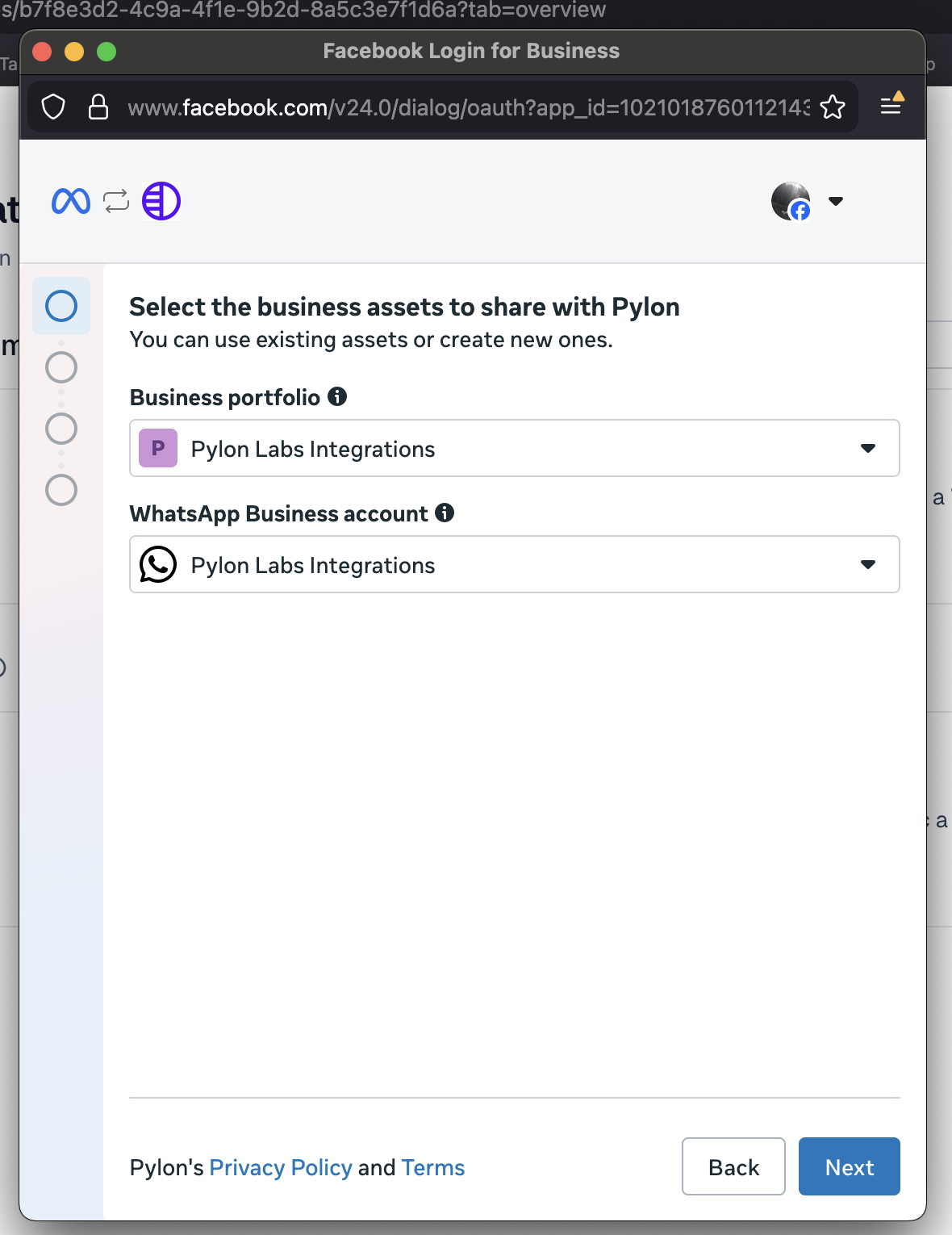
When prompted to add your WhatsApp phone number, select "Use a new or existing WhatsApp number"
Select the phone number you'd like to use or add a new phone number. If adding a new phone number, you will have to verify the phone number by entering the code sent to your number via SMS.
Enter your WhatsApp phone number's 6-digit two-step verification code
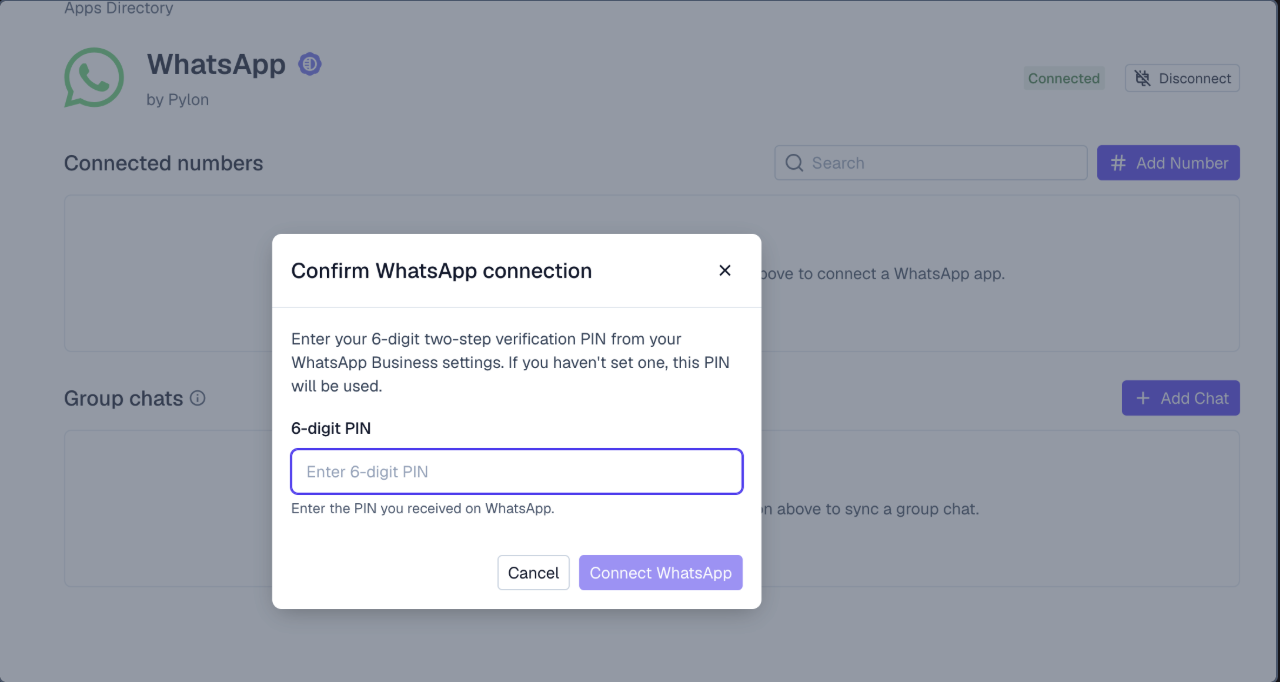
Note: This is not the code sent to your number in step 6. This can be configured in your Meta WhatsApp manager:
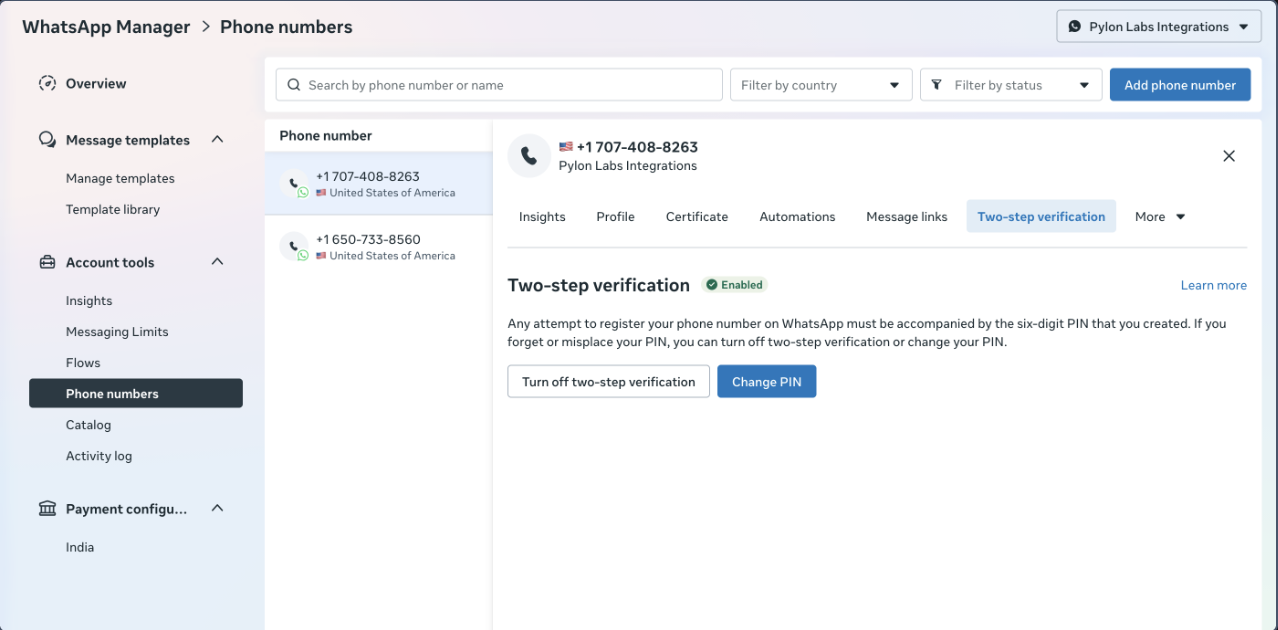
If a PIN does not exist, the PIN entered in the modal will be used.
How the integration works
Limitations of the integration
Default Pylon number | WA non-business number | WA business number | WA business number, OBA | |
WA Group chat | ✅ | ❌ | ❌ | ✅ |
WA DM | ❌ | ❌ | ✅ | ✅ |