How do I set up AWS Redshift for warehouse sync?
Last updated: September 12, 2025
Pylon uses IAM role credentials to temporarily access your AWS Redshift resources for data warehouse sync purposes. Below are the minimum permissions and setup required to set up the Redshift sync via Pylon.
We support both Redshift Standard and Redshift Serverless but the set up varies depending on which one you are using, so please make sure you follow the instructions accordingly.
AWS Setup
IAM Policy
First you will need to create a new IAM policy with minimum Redshift permissions required for Pylon warehouse sync access. Pylon also uses an S3 staging approach for Redshift syncs, so you will also need to provide some S3 read permissions on the staging buckets.
Please use the sample policy for your Redshift setup.
S3 Permissions
Please ensure the resource bucket names are exactly "pylon-staging-*". These S3 buckets are not stored in your AWS account.
{
    "Version": "2012-10-17",
    "Statement": [
        {
            "Effect": "Allow",
            "Action": [
                "s3:GetObject",
                "s3:ListBucket",
                "s3:GetBucketLocation"
            ],
            "Resource": [
                "arn:aws:s3:::pylon-staging-*",
                "arn:aws:s3:::pylon-staging-*/*"
            ]
        }
    ]
}
Redshift permissions:
Standard Redshift:
{
    "Version": "2012-10-17",
    "Statement": [
        {
            "Sid": "VisualEditor0",
            "Effect": "Allow",
            "Action": "redshift:GetClusterCredentials",
            "Resource": [
                "arn:aws:redshift:<region>:<your-account-id>:dbuser:<cluster-id>/<dbuser>",
                "arn:aws:redshift:<region>:<your-account-id>:dbname:<cluster-id>/<db>"
            ]
        },
        {
            "Sid": "VisualEditor1",
            "Effect": "Allow",
            "Action": [
                "redshift-data:ExecuteStatement",
                "redshift-data:BatchExecuteStatement",
                "redshift-data:GetStatementResult",
                "redshift-data:DescribeStatement"
            ],
            "Resource": "*"
        }
    ]
}
Serverless
{
    "Version": "2012-10-17",
    "Statement": [
        {
            "Sid": "VisualEditor0",
            "Effect": "Allow",
            "Action": [
                "redshift-data:GetStatementResult",
                "redshift-data:DescribeStatement",
                "redshift-data:ExecuteStatement",
                "redshift-data:BatchExecuteStatement",
                "redshift-serverless:GetCredentials"
            ],
            "Resource": "*"
        }
    ]
}
IAM Role
Next you will create a new IAM Role with an AWS account trusted entity type. Select "Another AWS account" and enter the Pylon service account ID:
825765419603
We also require an external ID, which you can supply here under Options. This external ID is a key that you will supply to our client for an extra layer of security.
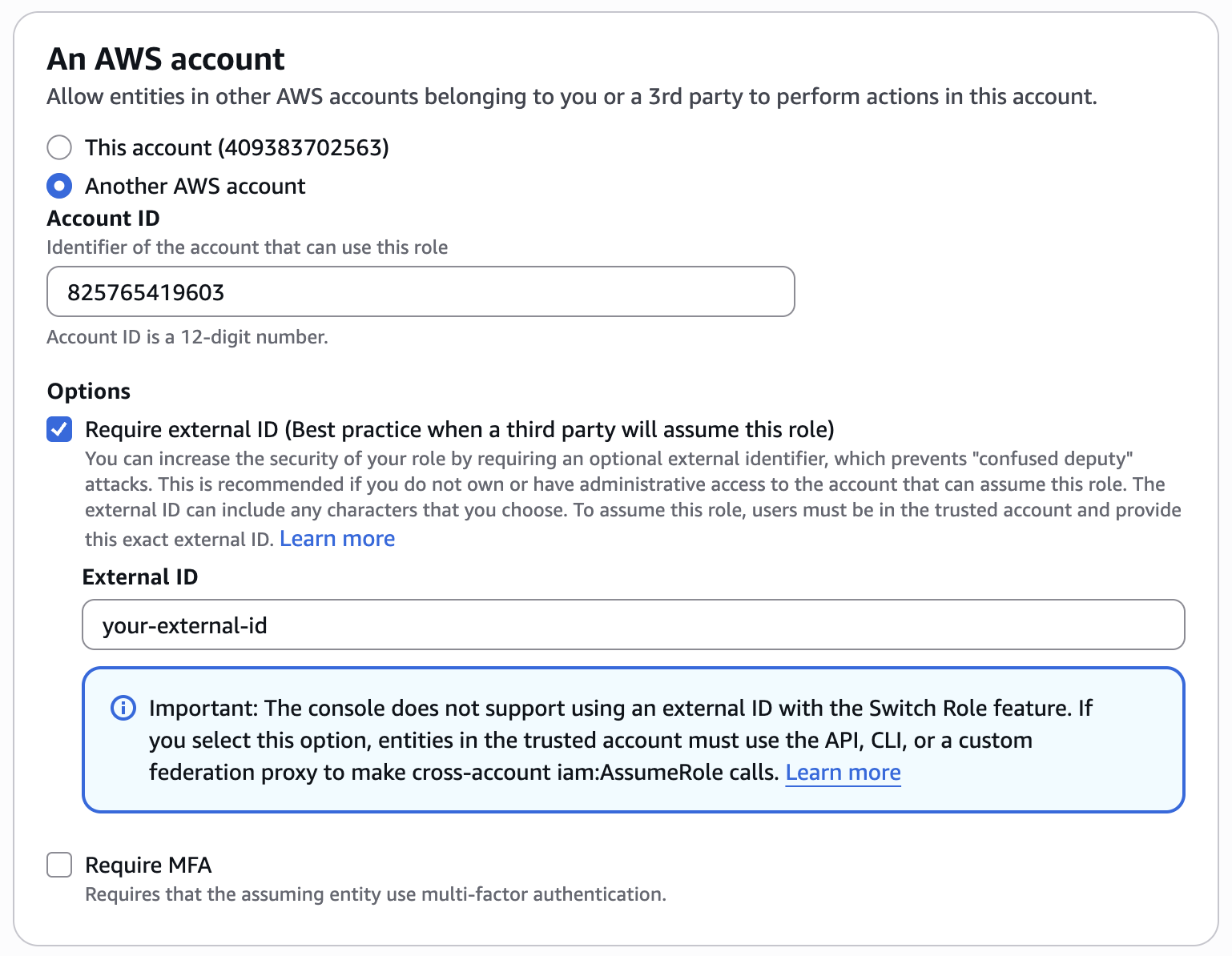
Attach the policy you just created above to this role.
You'll need to ensure that the IAM role and Redshift both have STS assume role permissions. The trust policy should look something like the following:
{
    "Version": "2012-10-17",
    "Statement": [
        {
            "Effect": "Allow",
            "Principal": {
                "AWS": "arn:aws:iam::825765419603:root"
            },
            "Action": "sts:AssumeRole",
            "Condition": {
                "StringEquals": {
                    "sts:ExternalId": "<your-external-id>"
                }
            }
        },
        {
            "Effect": "Allow",
            "Principal": {
                "Service": "redshift.amazonaws.com"
            },
            "Action": "sts:AssumeRole"
        }
    ]
}
Redshift Cluster Permissions
You will also need to grant permissions on the actual Redshift cluster to the IAM Role/DB user that Pylon will assume for the data syncs.
Add IAM role to Redshift
You will also need to add the IAM role that you just created to the Redshift cluster, and run some commands to grant permissions on the cluster.
For standard Redshift, you can associate an IAM role under Actions -> Permissions -> Manage IAM Roles. Then you will need to run the following commands on your cluster:
-- Create user
CREATE USER <dbuser> WITH PASSWORD '<your-password>';

-- Grant database-level permissions
GRANT CREATE ON DATABASE <db> TO <dbuser>;
GRANT TEMP ON DATABASE <db> TO <dbuser>;

-- Grant schema permissions
GRANT USAGE ON SCHEMA <schema> TO <dbuser>;
GRANT CREATE ON SCHEMA <schema> TO <dbuser>;

-- Grant insert permissions on tables (for existing tables)
GRANT INSERT ON ALL TABLES IN SCHEMA <schema> TO <dbuser>;

-- Grant permissions for future tables
ALTER DEFAULT PRIVILEGES IN SCHEMA your_schema_name GRANT INSERT ON TABLES TO your_username;
For serverless, you can associate an IAM role by clicking on your workgroup -> Security and encryption tab -> Manage IAM roles. Then you can run the following commands to grant permissions:
-- Create a user that maps to the IAM role you just created
CREATE USER "IAMR:<your-IAM-role-name>";

-- Grant necessary permissions for db
GRANT CREATE ON DATABASE <db> TO "IAMR:<your-IAM-role-name>";
GRANT TEMP ON DATABASE <db> TO "IAMR:<your-IAM-role-name>";

-- Grant necessary permissions if specifying a schema (unnecessary for public)
GRANT CREATE ON SCHEMA <schema> TO "IAMR:<your-IAM-role-name>";
Now you should be all set up to create a sync from Pylon.
Pylon Setup
Install the Redshift App from the Apps Directory.
Click Create to create a new sync with your specified credentials and required settings.
If using serverless, you only need to provide the workgroup name (not an ARN, just the name)
If using standard, you will need to provide the cluster ID (not ARN) and DB user (created above in Redshift Query Permissions)
Ensure you test your connection and then save the settings. After the sync is created, be sure to toggle on the sync so that it is connected and enabled.
Note: If you are running into internal server errors or AWS permissions errors, please double check that your IAM and permissions setup is correct.