Health Score Builder
Last updated: August 18, 2026
Overview
The Health Score Builder is a guided way to turn the data already in Pylon, plus the tools you have connected, into a single account health score. Instead of writing formulas from scratch, you start from Pylon's Health Score template, map each sub-score to a field, set the weights, and preview the result against your real accounts before you activate it.
A health score is created as an account field, so once it is live you can sort, filter, and build views on it like any other account field.
With the Health Score Builder you can:
Start from Pylon's recommended health score structure instead of building one from scratch
Score accounts across five components: Support, Product usage, Engagement, Commercial, and Relationship
Add your own scores and sub-scores, and use AI to draft a formula and explain it in plain English
Weight each component to match how your team thinks about health
Create separate scorecards so different segments (for example Enterprise vs. everyone else) are scored differently
Preview a live score for any account and review the distribution across your accounts before activating
Scores run from 0 to 10 and fall into four bands: Critical, At-risk, Healthy, and Thriving.
Create a health score
Go to Settings > Account data.
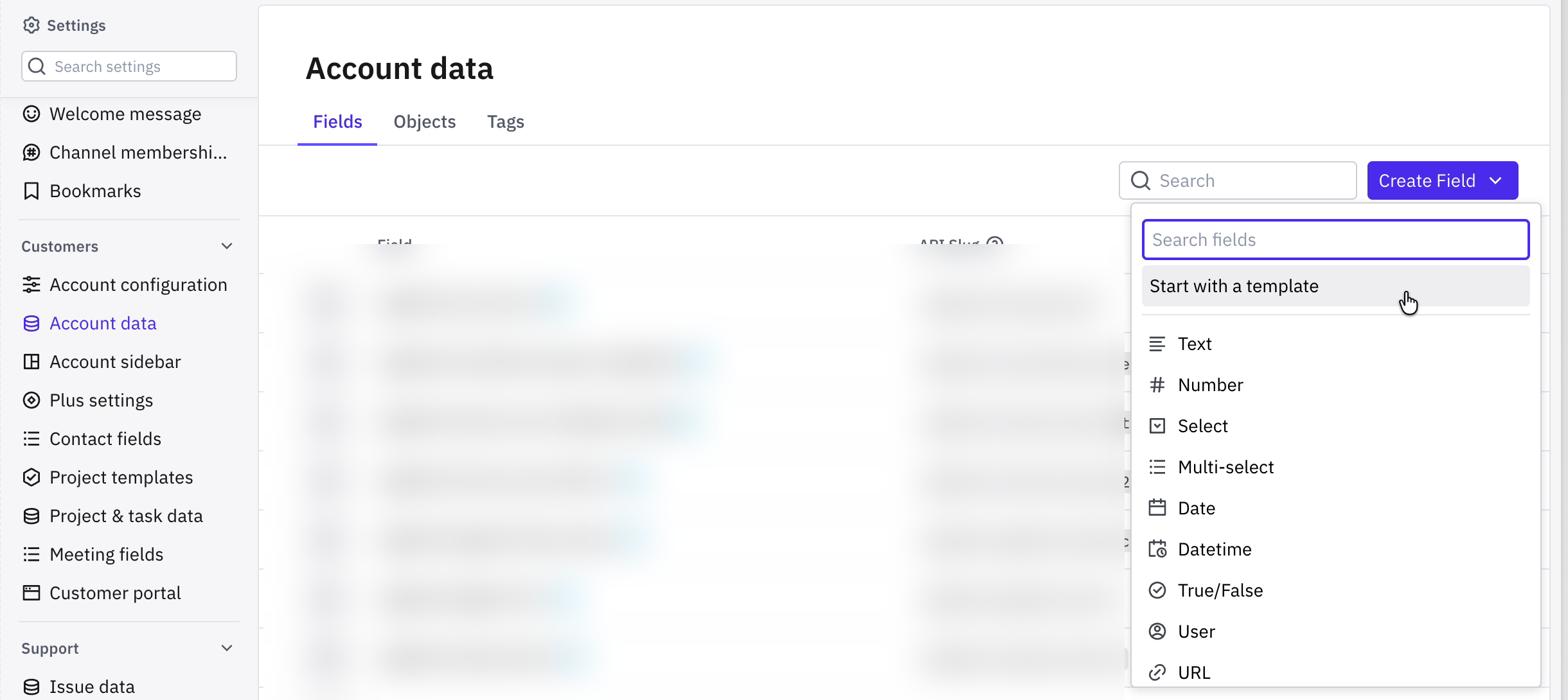
Click Create Field, then choose Start with a template at the top of the menu.
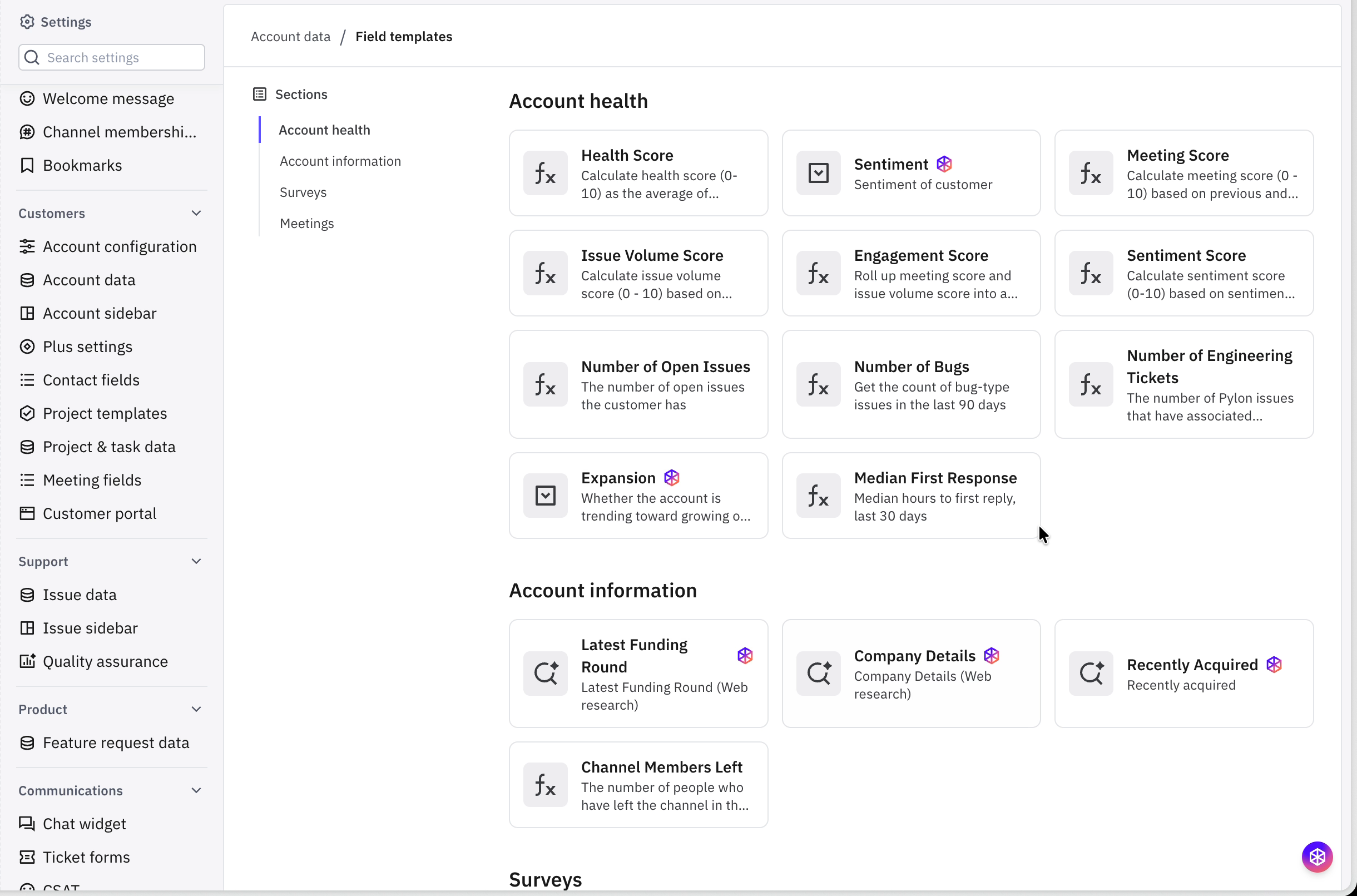
Under Account health, select Health Score.
This opens the builder, which walks through three steps: Connect data sources, Scorecards, and Review.
Step 1: Connect data sources
The first step is where you define what goes into the score. At the top, Health score strength shows how complete your setup is based on the tools you have connected. Pylon considers a health score strong when you have connected all four:
A support tool
A product data tool
A CRM tool
A calendar tool
Below that, the score is broken into five components. Each one lists its sub-scores and the account field that feeds it. The badge next to each component (for example 1/3 sub-scores) shows how many are mapped.
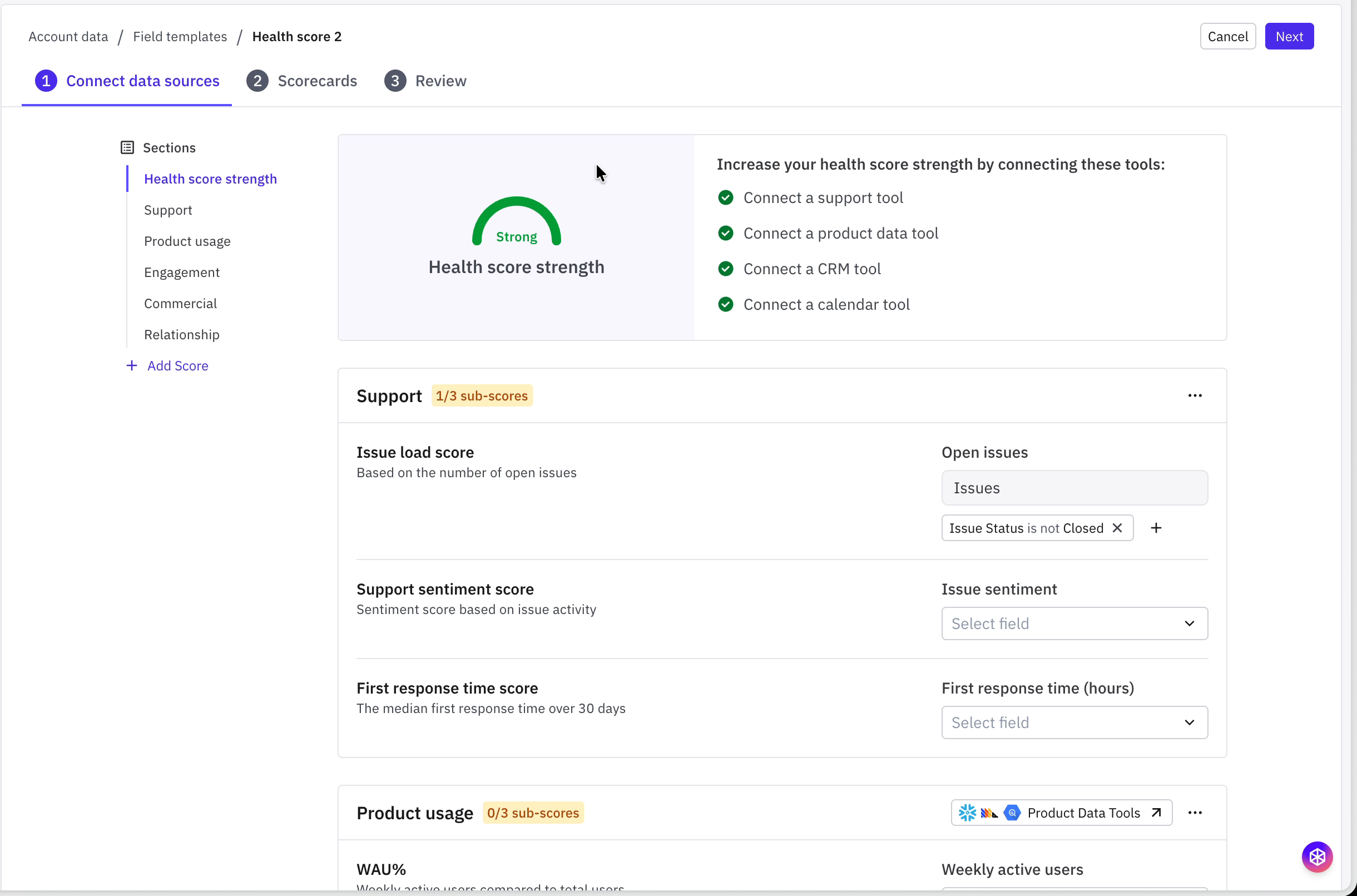
The components and their sub-scores are:
Support
Issue load score - based on the number of open issues submitted by the customer over 30 days - higher score for normal amount of engagement, lower score for either too low or too high of issue volume
Support sentiment score - sentiment score based on issue activity
First response time score - the median first response time over 30 days
Product usage (requires a connected product data tool)
WAU% - weekly active users compared to total users
WAU% trend - 30 day comparison for WAU% direction
Feature breadth - distinct value-driving features used in the last 30 days
Engagement (requires a connected calendar tool)
Meeting score - based on how recently the account last met
Issue volume score - based on the number of issues
Commercial (requires a connected CRM tool)
Expansion - expansion intent across the account's activity over 90 days
Renewal proximity - based on how close the renewal date is
Relationship
Account sentiment score - sentiment score based on all account activity
Note: You do not have to map every sub-score. Anything you leave unmapped simply does not contribute to the score, and the component badge will show how many are still unconfigured.
Add your own scores and sub-scores
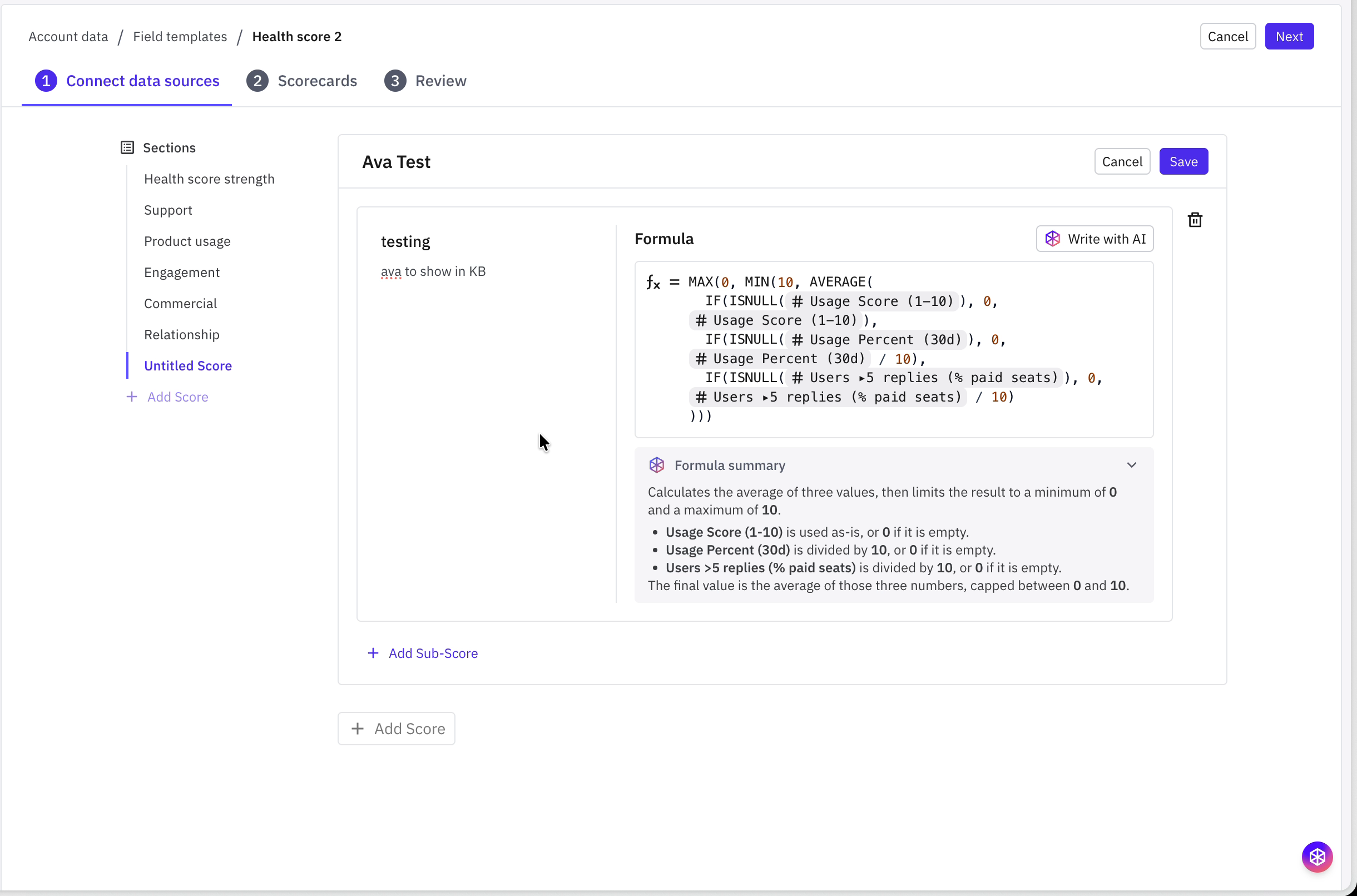
The five components are how Pylon thinks about account health, but most teams will want to adjust them. You can add your own at any point in Step 1:
Click Add Score in the Sections list to create a new component, and give it a name.
Click Add Sub-Score to add a sub-score underneath it, with its own name and description.
Write the formula for the sub-score, then click Save.
If you are not sure how to express what you want, click Write with AI next to the formula. Describe the sub-score in plain language (for example, "help me write a formula for product usage") and the assist agent drafts a formula for you. Review the draft, then accept it to drop it into the formula field.
Every formula also has a Formula summary, which explains in plain English what the formula does step by step. This is useful whether you wrote the formula yourself or had AI draft it, and it makes the score easier to explain to the rest of your team.
Step 2: Scorecards
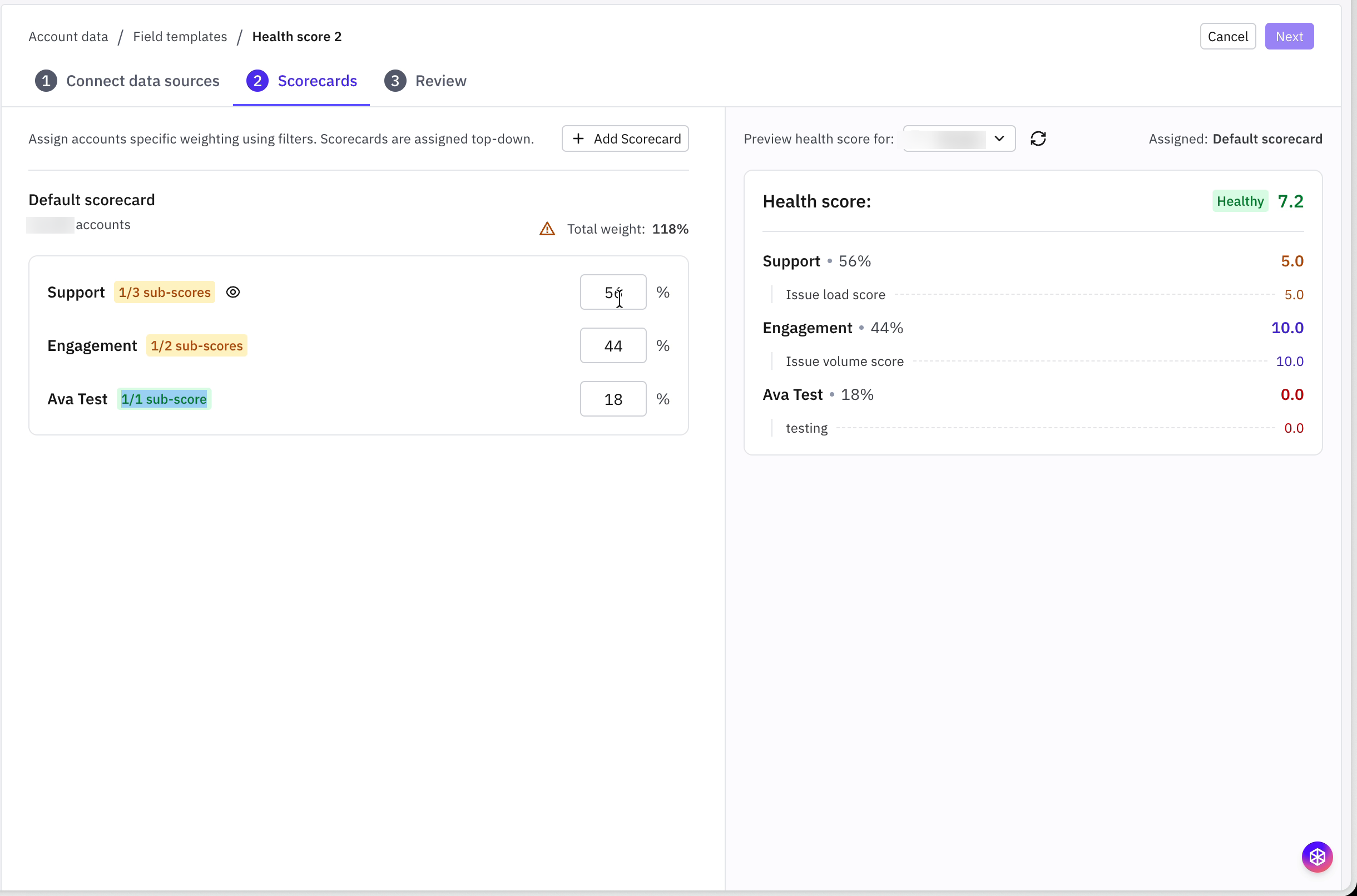
A scorecard decides how much each component counts toward the final score. Enter a percentage for each component and Pylon weights them accordingly.
On the right, Preview health score for lets you pick any account and see exactly what it would score with the current setup, including its band and the contribution of every component and sub-score. Change a weight and the preview updates, so you can sanity check the score against accounts you already have an opinion about.
Note: Pylon warns you when a scorecard's weights do not total 100%. Adjust them until the warning clears, otherwise you will not be able to go to the next step.
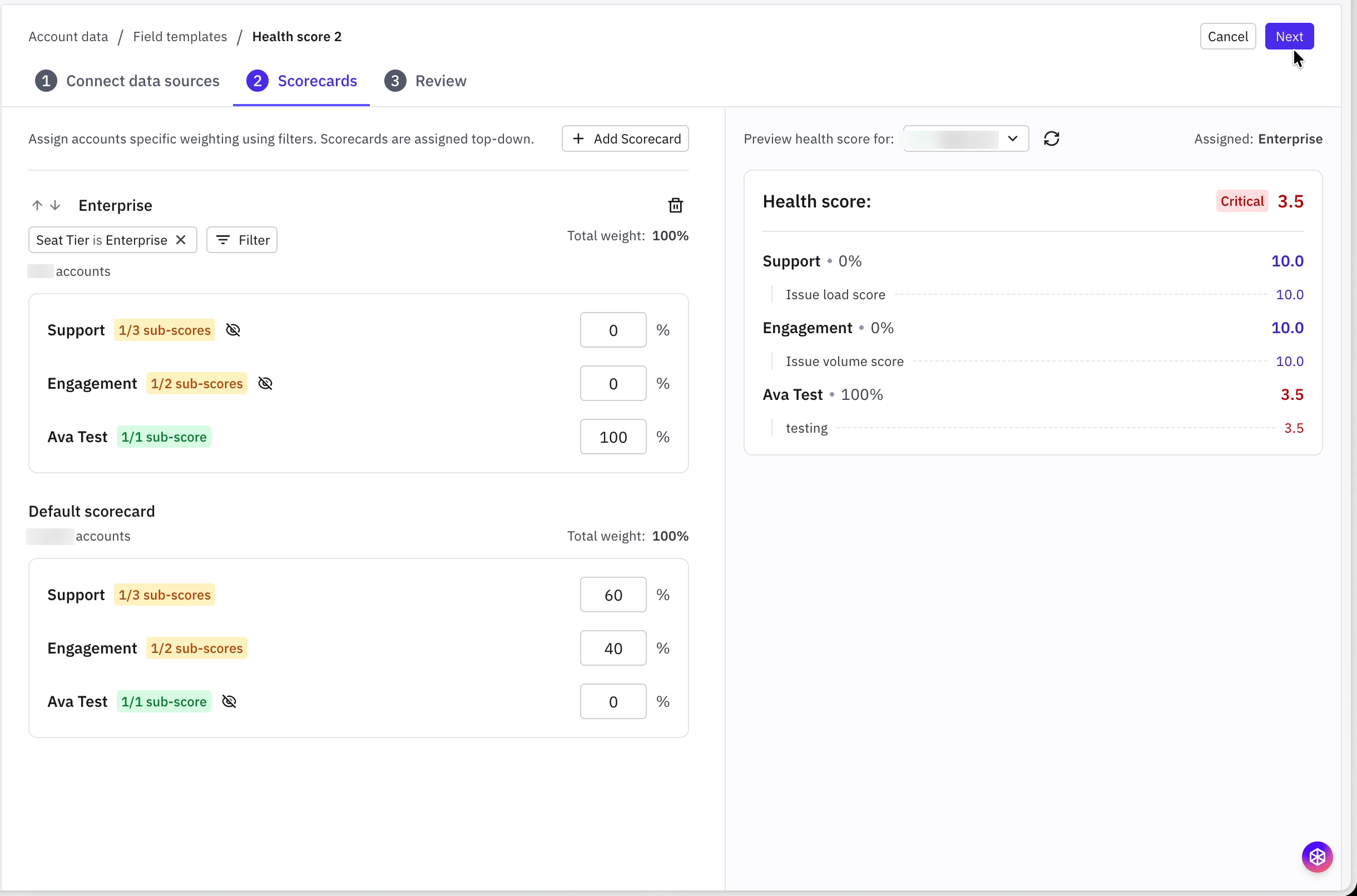
To score a segment differently, click Add Scorecard, give it a name, and add a Filter to define which accounts it applies to (for example Seat Tier is Enterprise). Each scorecard has its own weights, and the account count under the name tells you how many accounts it covers.
Scorecards are assigned top-down: an account is scored by the first scorecard whose filter it matches, and anything left over falls to the Default scorecard.
Step 3: Review
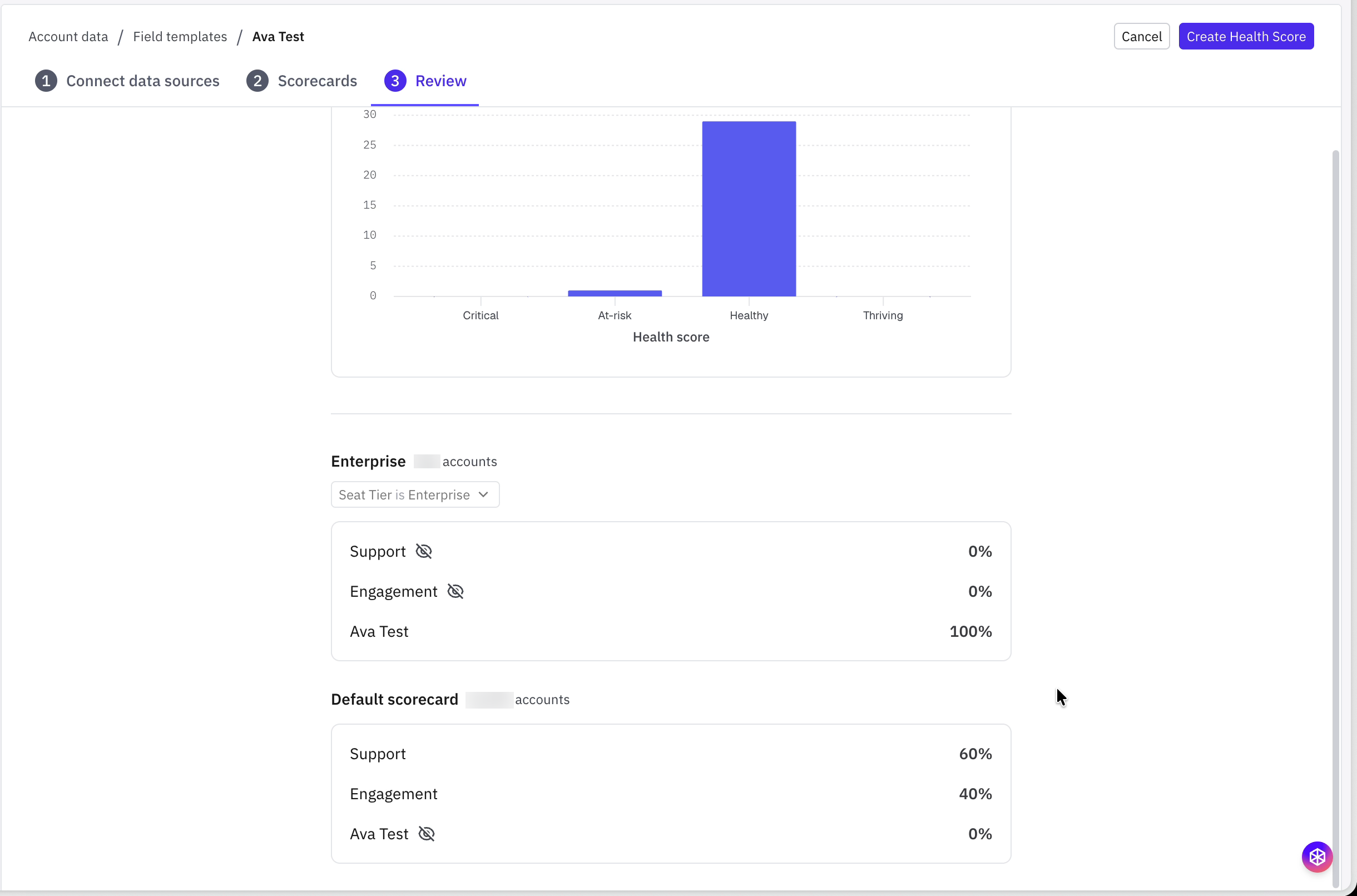
The final step shows how the score behaves across your accounts before anything goes live. Pylon samples your accounts, scores them with the setup you just built, and charts the distribution across the four bands so you can see whether the result is realistic. Underneath, each scorecard is listed with its filter and final component weights.
If the distribution looks wrong (for example nearly every account lands in one band), go back and adjust the weights or sub-scores. When you are happy with it, rename the health score if necessary (in the navigation menu, ex. in screenshot below you would click 'Ava Test' in the nav to rename) and click Create Health Score.
Frequently Asked Questions
Do I need to connect all four tools before I can use this?
No. You can create a health score with whatever you have connected. Sub-scores you cannot map yet simply do not contribute, and the Health score strength meter shows which tools would strengthen the score. You can come back and map them later.
Do I have to use Pylon's five components?
No. The template is a starting point. You can set any component to 0% to exclude it, and you can add your own scores and sub-scores with Add Score and Add Sub-Score.
Can different types of accounts be scored differently?
Yes. Add a scorecard, filter it to the accounts you want, and give it its own weights. Scorecards are matched top-down, so put the most specific one first and leave the Default scorecard to catch everything else.
How do I explain a score to my team?
Use the preview in Step 2. It breaks the score down by component and sub-score, showing each contribution and weight. For an individual formula, the Formula summary explains the logic in plain English.
Can I check the impact before turning it on?
Yes. Step 3 scores a sample of your accounts and charts the distribution across the four bands, so you can confirm the score behaves sensibly before you click Create Health Score.
I am not sure how to write a formula. What are my options?
Click Write with AI next to any formula field and describe what you want in plain language. The assist agent drafts the formula, you review it, and you can then edit it by hand or ask the agent to modify it.