Out of Office: How to set up Team and Subteam Assignments for OOO
Last updated: June 3, 2026
Learn how to set up your overall Support Hours, Teams, Subteams for coverage during employee vacations.
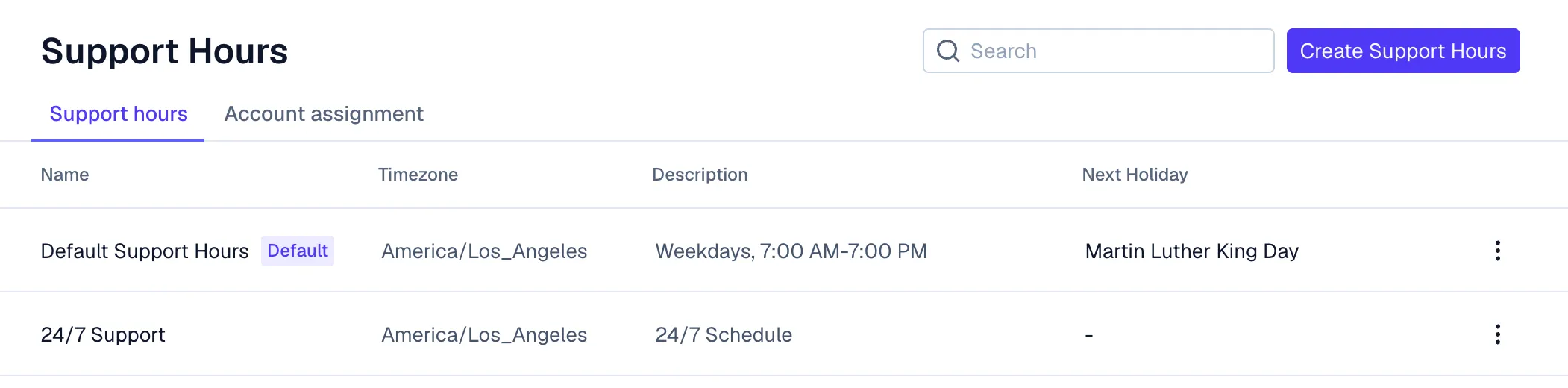
1. Support Hours Configuration
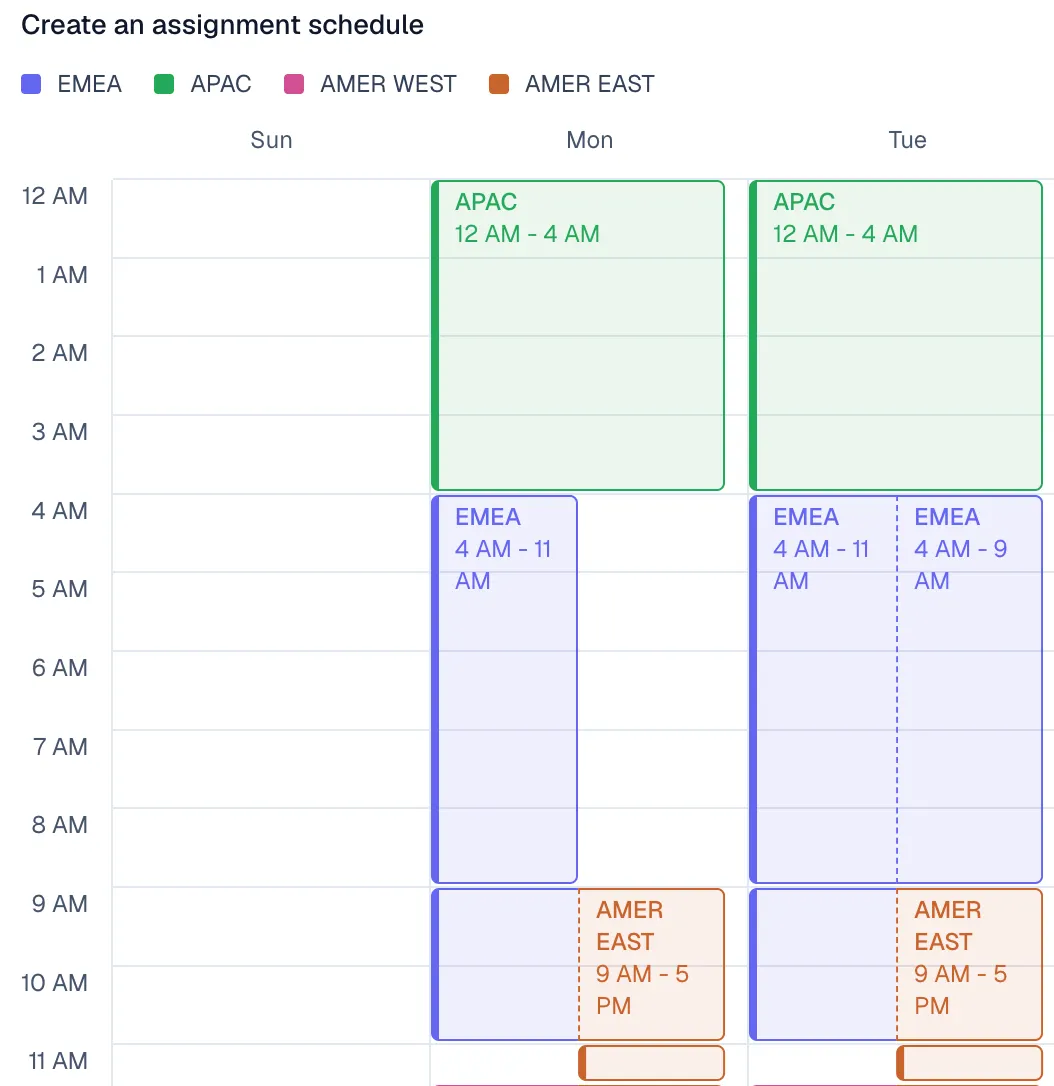
Set company-wide Support hours that cover your full operating window, then navigate to Teams then Assignment. From there, set the desired Assignment schedules (whether it's round robin or setting separate hours for international team coverage) to route issues to the appropriate regional teams during their working hours.
You can configure different Support hour schedules by region to account for variations.
2. Set up Teams and Subteams for Coverage
Next, set up your broader Teams within Settings and add in your Subteams.
Create a hierarchical team setup with regional sub-teams:
Example:
Parent team (e.g., Global Support)
Regional sub-teams (e.g., APAC Support, EMEA Support, US Support)
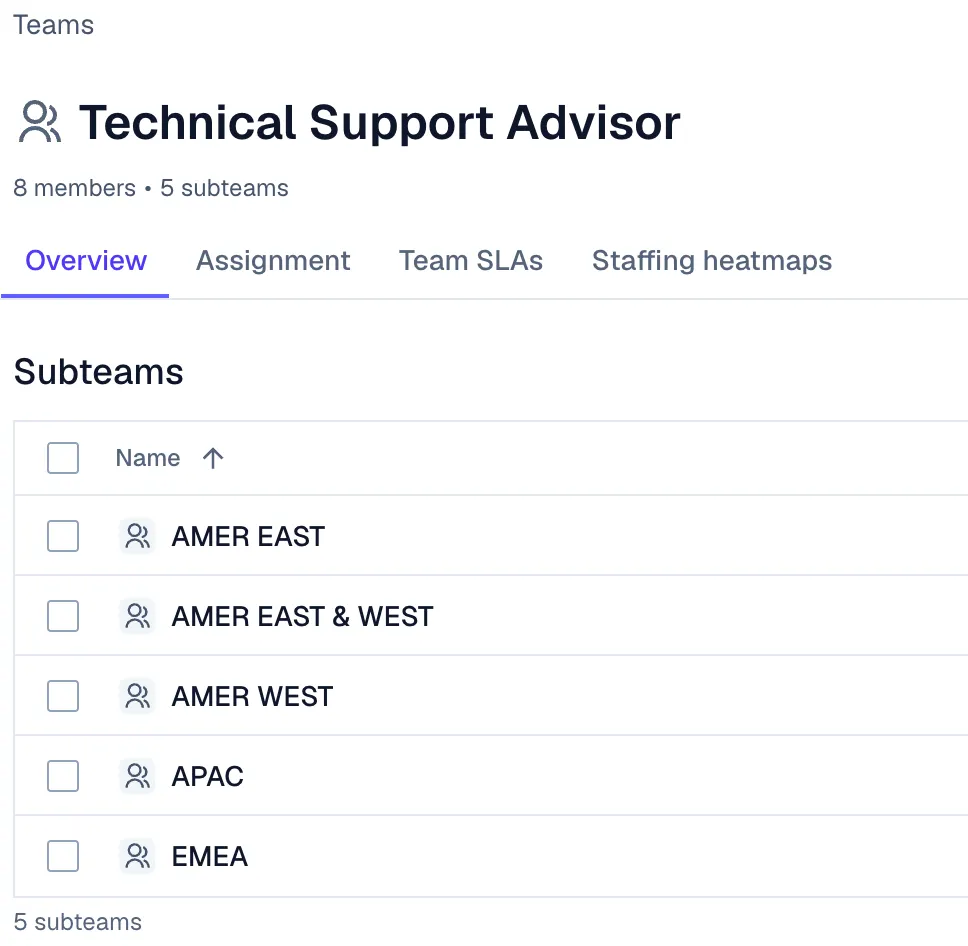
For overlapping coverage, you can also create additional sub-teams:
Individual region teams (APAC only, EMEA only, US only)
Overlap teams for shared hours (APAC + EMEA, EMEA + US, etc.)
Select Recurring Assignment daily or weekly schedules in Team Assignment settings to automatically route issues to the correct team based on time of day. You would set up the Assignment Hours here at the Team level. The Assignment hours are able to overlap.
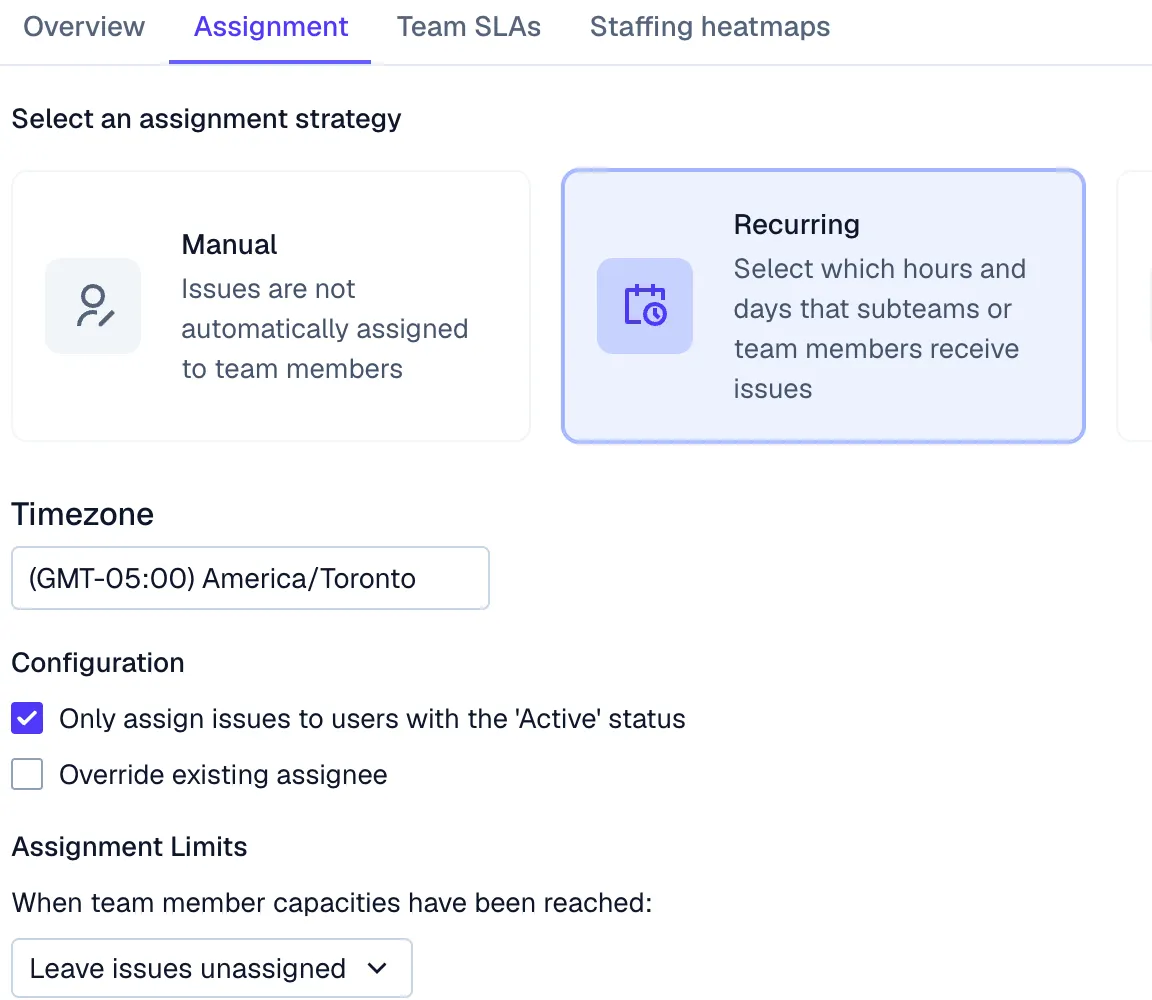
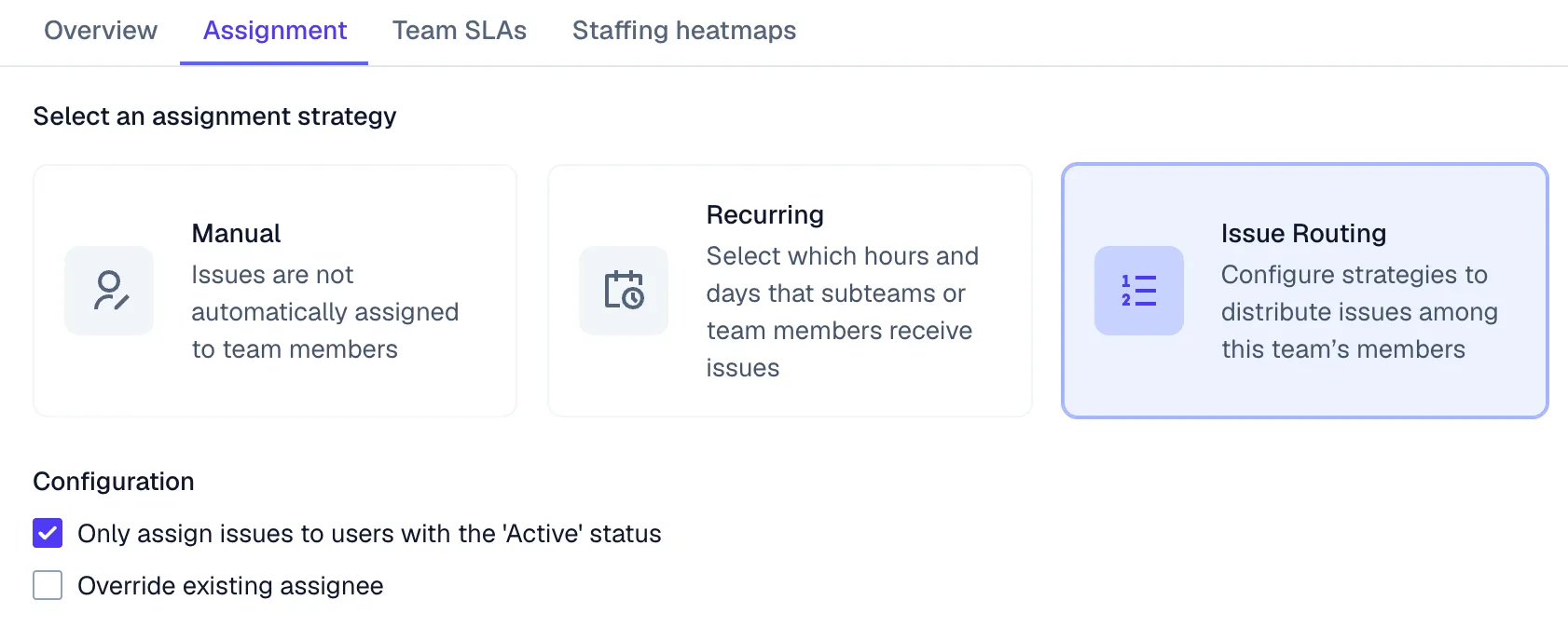
Tip: Make sure to check “Only assign issues to users with the ‘Active’ status” as this will impact how we set the OOO status later using the Active vs. Inactive status. Enabling the “Only assign issues to users with the ‘Active’ status” in team assignment rules also ensures OOO team members don’t receive new assignments. See "Trigger-Based Automation" below to handle issue replies when a team member is OOO.
3. Round-Robin within the Subteam
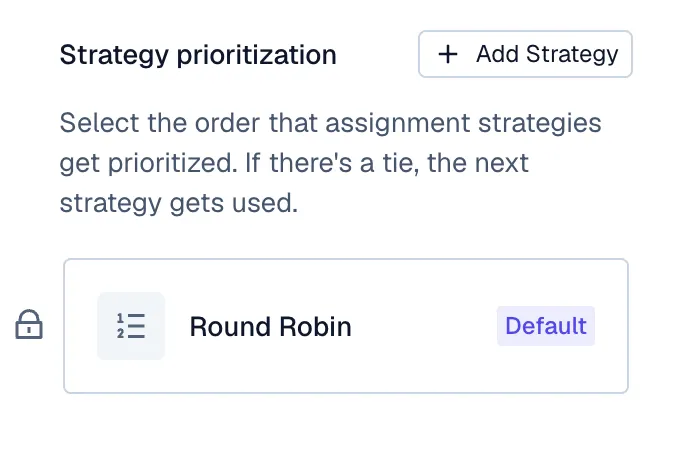
Navigate to the specific Subteam to set the type of assignment strategy within that team. In this case, we’re selecting Round-Robin. Click Issue Routing for the Round-robin selection.
4. Setting up the actual Out of Office (OOO)
Manual Status Updates
Navigate to your own profile and Change Status to OOO. Team members should manually set your status to Out of Office in Pylon when you're away. Setting your status to Out of Office automatically excludes you from round-robin team assignment, preventing new issues from being assigned to you. This prevents them from being assigned new issues via round-robin assignment.
Bulk reassignment before going OOO: To reassign all your currently open issues before going Out of Office, filter the issues list view by assignee (yourself) and use the bulk-reassign feature from the issues list. Note that there is no automated option to schedule bulk reassignment for a future date.
Trigger-Based Automation
Set up Triggers to handle OOO scenarios:
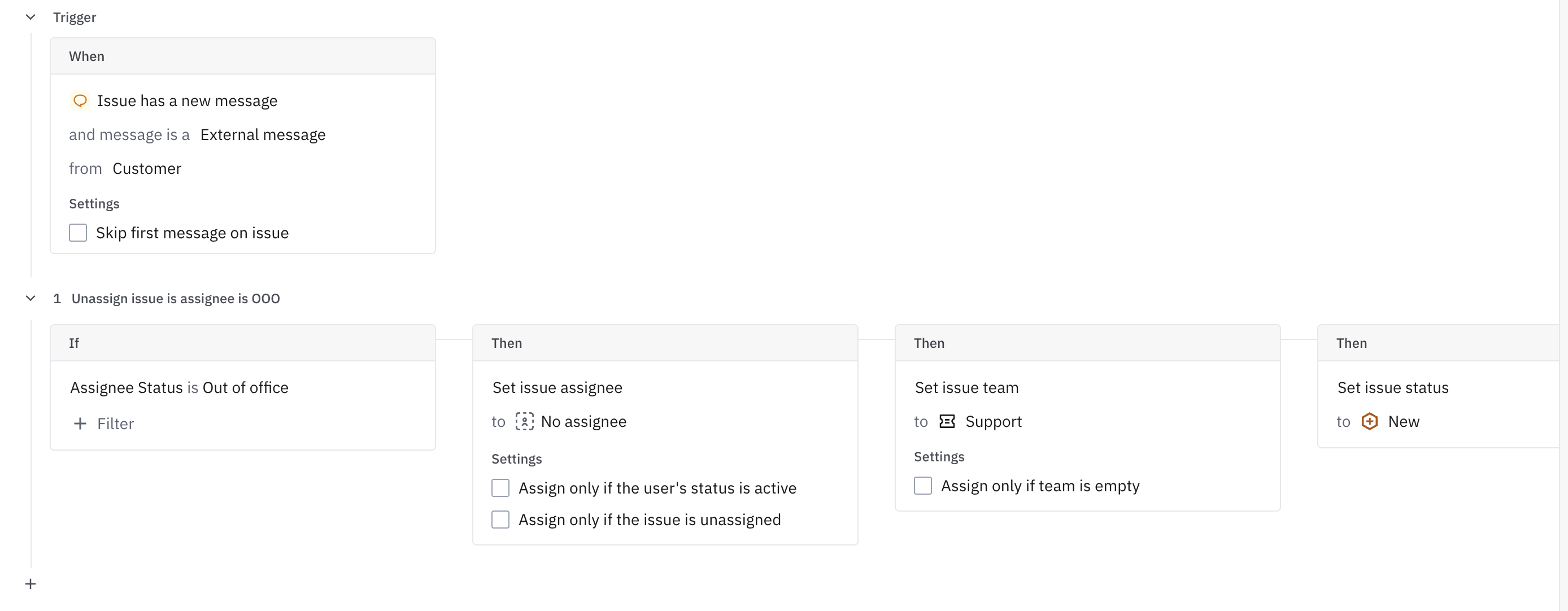
Automatically reassign issues when a customer replies to a ticket assigned to someone who is OOO. Configure the trigger as follows:
When: An issue has a new message that is a Reply from Customer
If: The assignee's status is Out of Office
Then: Set the assignee to No assignee (or reassign to the team)
Enable “Assign only if the user's status is active” on the action so the issue is picked up by an available teammate from the team’s assignment pool.
You can also configure assignment rules to skip non-active users to ensure the OOO assignee doesn’t receive new issues. See the example below.
Bonus: Holiday Management
Configure holidays in your Support hours settings so SLA timers pause when teams are off. Regional teams can each have their own holiday schedules.
Holidays affect trigger conditions that use "support hours" filters. Triggers set to run only during support hours will not execute on configured holidays, and triggers can be configured to send different auto-responses when tickets are created outside support hours (including holidays).
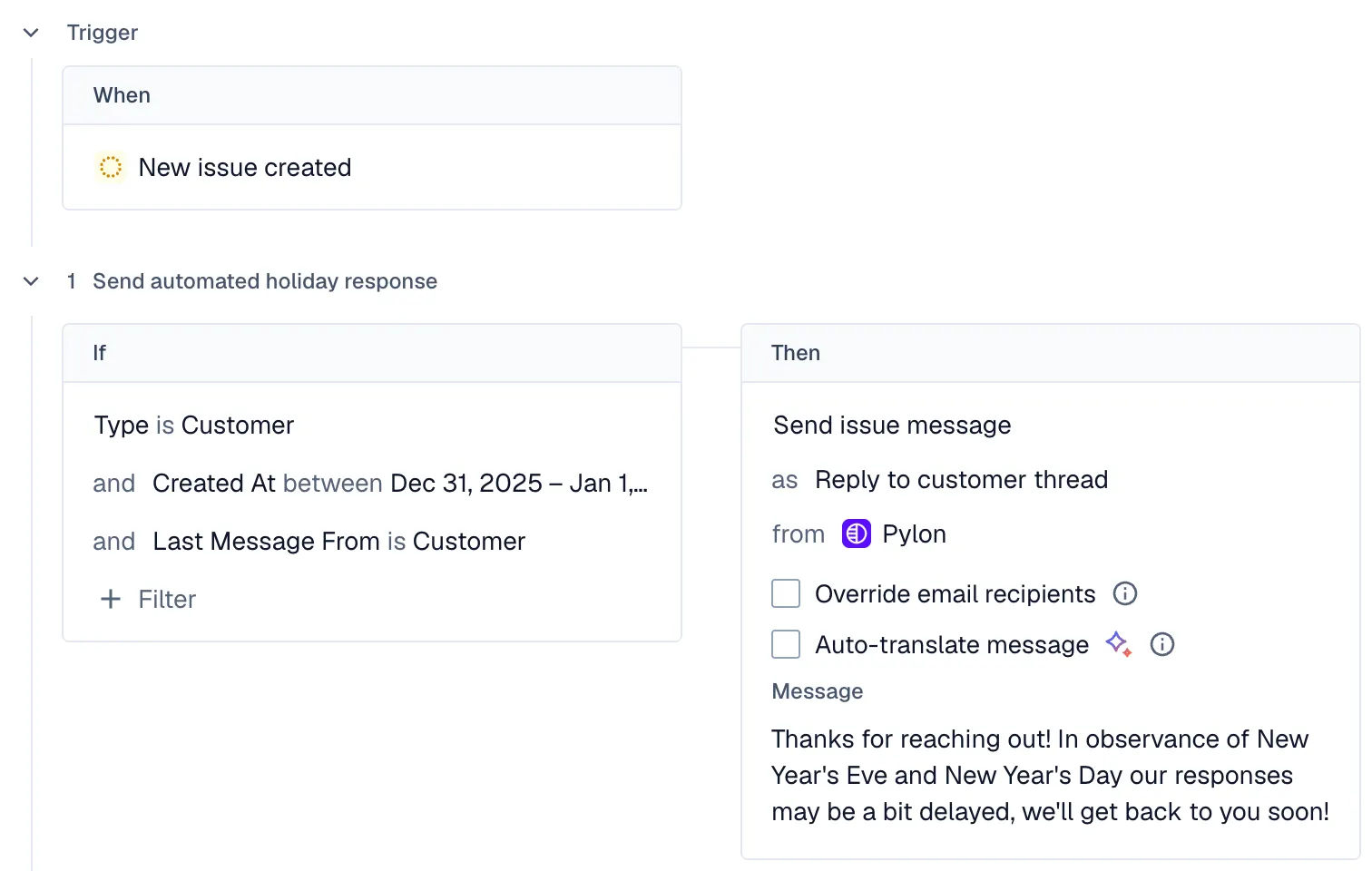
We recommend setting up a Trigger to send an automated holiday response. See the example below. Happy Vacationing!